Add Two-factor Authentication in Laravel With Google Authenticator Fallback

December 09, 2025
Written by
Lucky Opuama
Contributor
Opinions expressed by Twilio contributors are their own
Reviewed by

Add Two-factor Authentication in Laravel With Google Authenticator Fallback

Adding Two-Factor Authentication (2FA) to your Laravel app is one of the best ways to keep user accounts secure. Most of us are familiar with getting a one-time code via SMS when logging in. Thanks to services like Twilio, it’s incredibly easy to set up, and works great for its users.

However, what happens when the SMS doesn’t arrive, maybe due to poor network coverage, international travel, or a temporarily inaccessible phone number? Alternatively, what if the user doesn't have their authenticator app available at that moment?

That’s where having a fallback option becomes really important.

In this article, we'll implement a dynamic 2FA setup using Laravel Fortify that supports both Twilio Verifyand Google Authenticator or any TOTP-compatible app, such as 1Password, Authy, or Microsoft Authenticator.. The system is designed so that either method can act as the primary or fallback option, depending on availability, ensuring users can always login securely, even if one method fails.

Prerequisites

Create a new Laravel Project

To create a new Laravel project and change into its directory, open your terminal, navigate to the folder where you want to install the Laravel project and run the commands below.

laravel new Auth_fallback  && cd Auth_fallback

During the installation process, configure the setup by responding to the following prompts:

  • Would you like to install a starter kit? — No starter kit
  • Which testing framework do you prefer? — Pest
  • Which database will your application use? — SQLite
  • Would you like to run the default database migrations? — Yes

Install and configure Laravel Fortify

Laravel Fortify is a frontend agnostic authentication backend implementation for Laravel. Fortify registers the routes and controllers needed to implement all of Laravel's authentication features, including login, registration, password reset, email verification, and more.

To install Laravel Fortify, run the following command:

composer require laravel/fortify

Now, let's make its resources available for use by publishing it, running the command below:

php artisan fortify:install

This command sets up your application, making it half-prepared for the task ahead.

Install Twilio's PHP Helper Library

Now, you need to install Twilio's PHP Helper Library, which simplifies interactions with Twilio services. To do so, run the command below:

composer require twilio/sdk

Retrieve your Twilio credentials

These credentials act as secure keys that authorize your app to access your Twilio account and perform the required actions by sending an authentication SMS code. The three key credentials needed are:

  • Account SID: Your unique Twilio account identifier
  • Auth Token: Your secret token used to authenticate API requests
  • Verify Service SID: A unique verification service identifier used to manage two-factor authentication (2FA) requests

Now, copy and paste the code below at the end of .env, located in the project's top-level directory.

TWILIO_SID=<<your_twilio_sid>>
TWILIO_TOKEN=<<your_twilio_token>>
TWILIO_VERIFY_SID=<<your_twilio_sid>>

To get these credentials, log in to your Twilio Console dashboard. You will find them under the Account Infosection, as shown in the screenshot below.
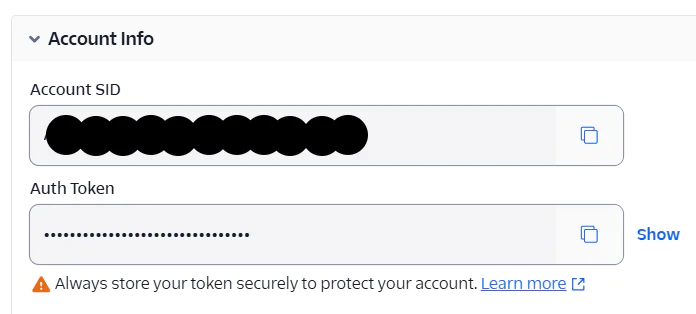
Screenshot showing Twilio account SID and hidden auth token fields.

Next, replace the placeholders with your actual Twilio Account SID and Auth Token.

The next credential needed is the “TWILIO_VERIFY_SID”. On your Twilio Console dashboard, navigate to Explore Products > User Authentication & Identity > Verify. Next, click the Create new button, then fill out the prompt by providing a Friendly Name. Check the box labeled Authorize the use of Friendly Name, enable SMS as the Verification channel for your service, and click the Continue button as shown in the screenshot below.
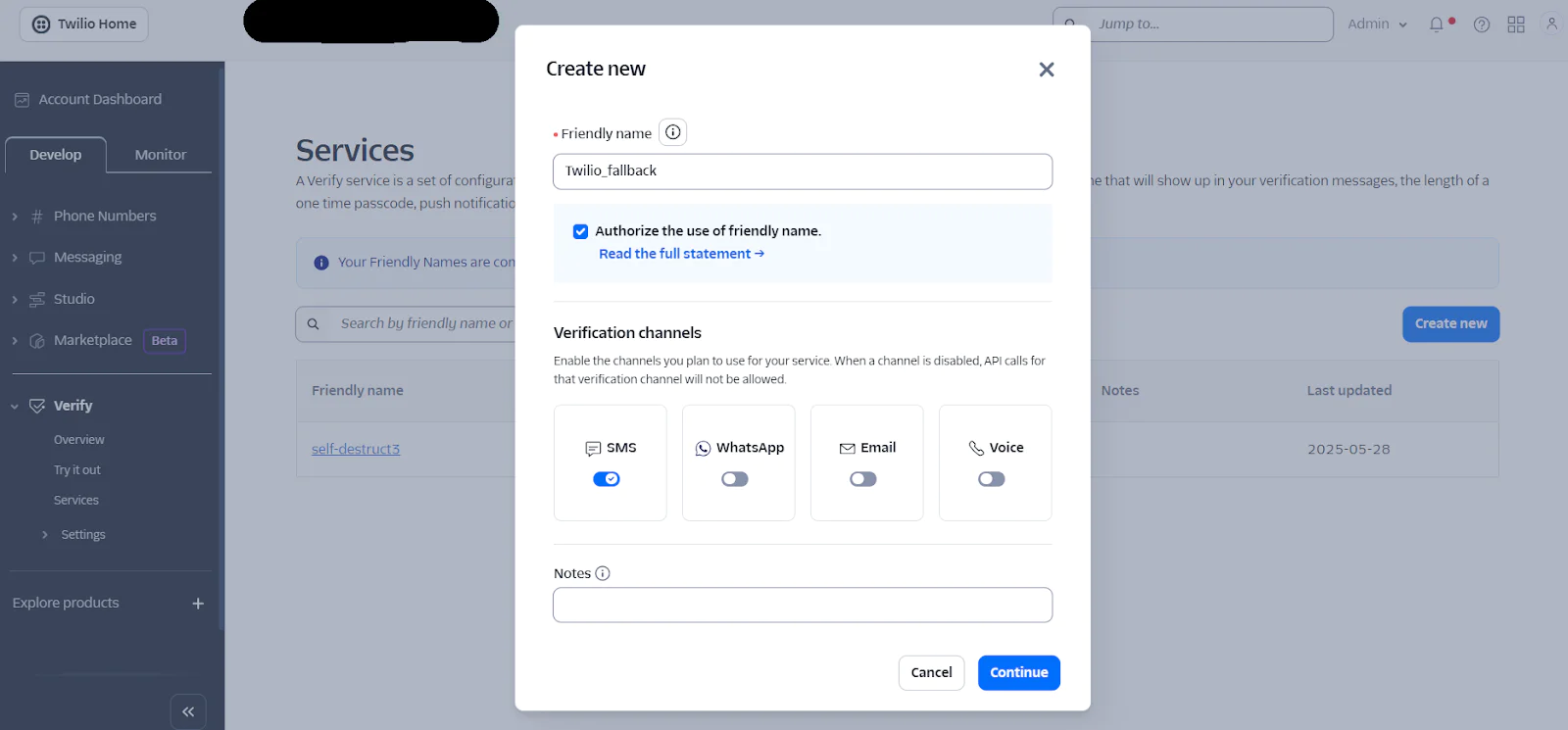
Twilio dashboard screen showing the setup for creating a new service with verification channel options.

Next, click the Continue button to proceed to the next step. Once you're on the Service Settings page, you'll see your Service SID. Click the Save button to confirm the settings, like the screenshot below.
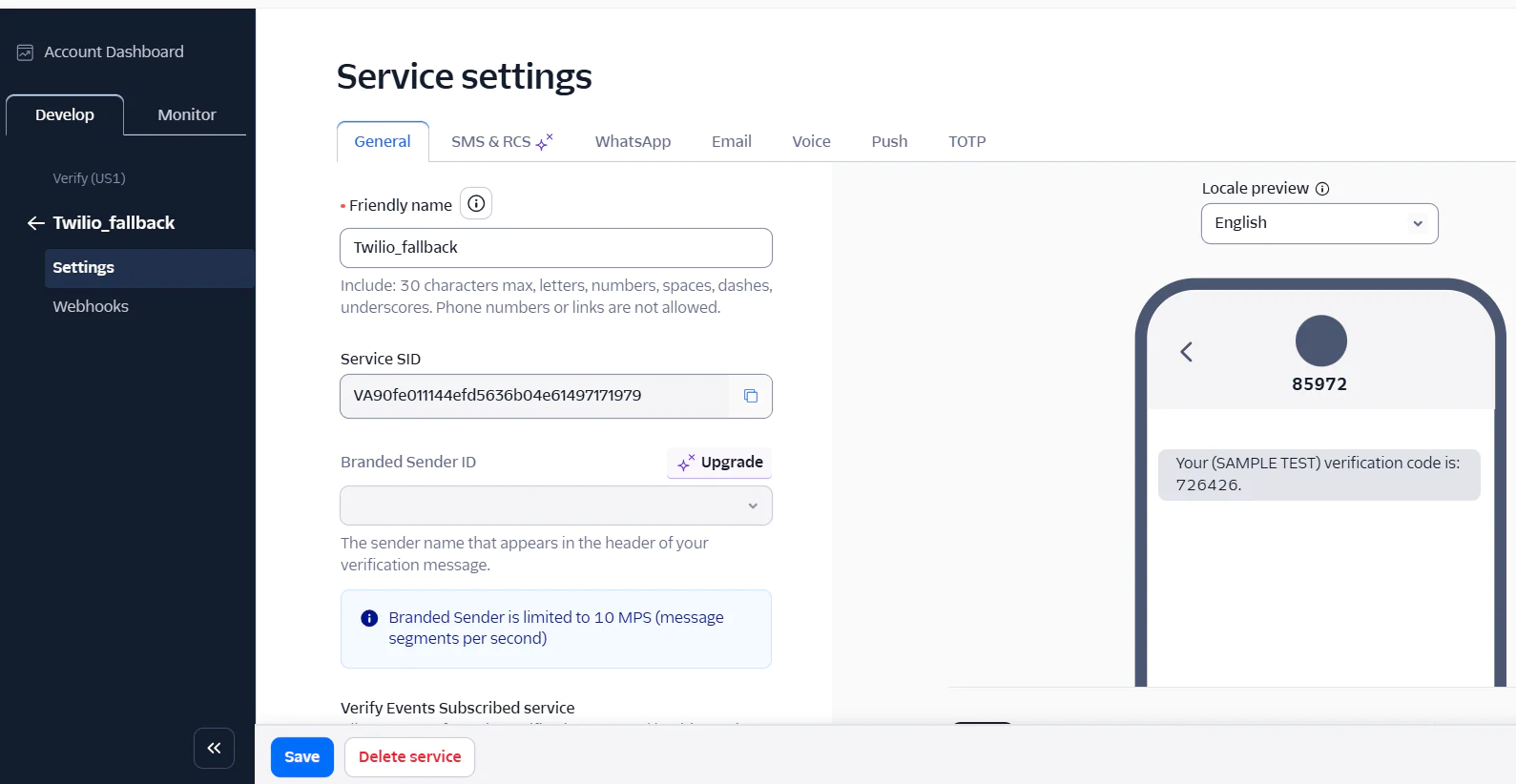
The Twilio dashboard displaying service settings for SMS and other communication channels.

Now, copy the Service SID and replace the placeholder “<<your_twilio_sid>>” in your .env file and save.

To properly use these credentials, navigate to the config directory, open the services.php file, and add the following configuration code:

'twilio' => [
    'sid' => env('TWILIO_SID'),
    'token' => env('TWILIO_TOKEN'),
    'verify_sid' => env('TWILIO_VERIFY_SID'),
],

Create a Verify service

To centralize Twilio logic in one place, navigate to your app directory and create a new folder named Services. Inside the Services folder, create a new file named TwilioVerifyService.php, and add the following code to the file:

<?php
namespace App\Services;
use Twilio\Rest\Client;
class TwilioVerifyService
{
    protected $twilio;
    public function __construct()
    {
        $this->twilio = new Client(
            config('services.twilio.sid'),
            config('services.twilio.token')
        );
    }
    public function sendCode($phoneNumber)
    {
        return $this->twilio->verify->v2->services(config('services.twilio.verify_sid'))
            ->verifications
            ->create($phoneNumber, 'sms');
    }
    public function checkCode($phoneNumber, $code)
    {
        return $this->twilio->verify->v2->services(config('services.twilio.verify_sid'))
            ->verificationChecks
            ->create([
                'to' => $phoneNumber,
                'code' => $code,
            ]);
    }
}

This service provides two core functions:

  • Sends SMS verification codes for two-factor authentication (2FA) using Twilio.
  • Check if the user-provided code is valid.

Install pragmarx package

Now, let's integrate TOTP-based two-factor authentication, which allows users to authenticate using applications like Google Authenticator. To do so, run the following command:

composer require pragmarx/google2fa-laravel

Update the users table

The "users" table is a core component of your application, which serves as the foundation for managing user data. By default, Laravel Fortify uses the table to store essential user details such as the user's name, email, and password.

To support Two-Factor Authentication (2FA), we need to extend this table by adding other fields. To do this, navigate to the database/migrations directory and open the most recent migration file that ends with _ add_two_factor_columns_to_users_table.php. Then, update the file with the following fields.

<?php
use Illuminate\Database\Migrations\Migration;
use Illuminate\Database\Schema\Blueprint;
use Illuminate\Support\Facades\Schema;
return new class extends Migration
{
    public function up(): void
    {
        Schema::table('users', function (Blueprint $table) {
            $table->string('phone')->nullable()->after('email');
            $table->unique('phone');
            $table->string('twilio_verify_sid')->nullable();
            $table->text('google2fa_secret')->nullable();
            $table->enum('preferred_2fa_method', ['twilio', 'totp'])->default('twilio');
        });
    }
    public function down(): void
    {
        Schema::table('users', function (Blueprint $table) {
            $table->dropUnique(['phone']);
            $table->dropColumn([
                'phone',
                'twilio_verify_sid',
                'google2fa_secret',
                'preferred_2fa_method',
            ]);
        });
    }
};

Next, run the following command to migrate your database:

php artisan migrate

Update the User model

To update the user model, navigate to the app/Models directory, open the User.php file, and update it with the code below:

<?php
namespace App\Models;
use Illuminate\Foundation\Auth\User as Authenticatable;
use Illuminate\Notifications\Notifiable;
class User extends Authenticatable
{
    use Notifiable;
    protected $fillable = [
        'name',
        'email',
        'phone',
        'password',
        'twilio_verify_sid',
        'google2fa_secret',
        'preferred_2fa_method',
    ];
    protected $hidden = [
        'password',
        'remember_token',
        'google2fa_secret',
    ];
}

In the code above, the fillable array specifies which attributes can be mass-assigned, helping to prevent mass assignment vulnerabilities. While the hidden array ensures that sensitive information such as passwords or Two-factor secrets are never exposed in API responses or view outputs. This adds an extra layer of security to your application.

Now, navigate to app/Actions/Fortify directory, open the CreateNewUser.php file, and update the file with the following code.

<?php
namespace App\Actions\Fortify;
use App\Models\User;
use Illuminate\Support\Facades\Hash;
use Illuminate\Support\Facades\Validator;
use Illuminate\Validation\Rule;
use Laravel\Fortify\Contracts\CreatesNewUsers;
class CreateNewUser implements CreatesNewUsers
{
    use PasswordValidationRules;
    public function create(array $input): User
    {
        Validator::make($input, [
            'name' => ['required', 'string', 'max:255'],
            'email' => [
                'required',
                'string',
                'email',
                'max:255',
                Rule::unique(User::class),
            ],
            'password' => $this->passwordRules(),
            'phone' => 'required|string|unique:users',
        ])->validate();
        return User::create([
            'name' => $input['name'],
            'email' => $input['email'],
            'phone' => $input['phone'],
            'password' => Hash::make($input['password']),
        ]);
    }
}

This code validates incoming registration data and creates a new user instance. The primary modification to the code is the phone field.

Create the controller

Now, let’s build the controller logic responsible for enforcing the two-factor authentication (2FA). This controller will handle SMS verification with Twilio, manage TOTP authentication using Google Authenticator, allow users to switch between 2FA methods, and enable secure TOTP enrollment.

To implement this functionality, run the command below to generate a new controller:

php artisan make:controller TwoFactorController

Next, navigate to app/Http/Controllers directory, open the TwoFactorController.php and add the following code:

<?php
namespace App\Http\Controllers;
use App\Services\TwilioVerifyService;
use Illuminate\Http\Request;
use Illuminate\Support\Facades\Session;
use Illuminate\Support\Facades\Auth;
class TwoFactorController extends Controller
{
    public function challenge(Request $request)
    {
        $user = Auth::user();
        if ($user->preferred_2fa_method === 'twilio') {
            try {
                if (!$user->phone) {
                    return redirect()->route('2fa.totp.challenge')->with('error', 'Phone number not found.');
                }
                $phone = preg_replace('/^0/', '+234', $user->phone);
                app(TwilioVerifyService::class)->sendCode($phone);
                return view('auth.verify-sms');
            } catch (\Exception $e) {
                return redirect()->route('2fa.totp.challenge')->with('error', 'Could not send SMS.');
            }
        }
        return redirect()->route('2fa.totp.challenge');
    }
    public function verifySMS(Request $request)
    {
        $request->validate(['code' => 'required']);
        $user = Auth::user();
        $result = app(TwilioVerifyService::class)->checkCode($user->phone, $request->code);
        if ($result->status === 'approved') {
            session()->put('2fa_passed', true);
            return redirect()->intended('/dashboard');
        }
        return back()->withErrors(['code' => 'Invalid code.']);
    }
    public function totpChallenge()
    {
        return view('auth.verify-totp');
    }
    public function switchMethod($method)
    {
        $user = Auth::user();
        if (!in_array($method, ['twilio', 'totp'])) {
            abort(400, 'Invalid method');
        }
        $user->preferred_2fa_method = $method;
        $user->save();
        return redirect()->route('2fa.challenge');
    }
    public function verifyTOTP(Request $request)
    {
        $user = Auth::user();
        $request->validate(['code' => 'required']);
        $google2fa = app('pragmarx.google2fa');
        $valid = $google2fa->verifyKey($user->google2fa_secret, $request->code);
        if ($valid) {
            session()->put('2fa_passed', true);
            return redirect()->intended('/dashboard');
        }
        return back()->withErrors(['code' => 'Invalid TOTP code.']);
    }
    public function showEnrollmentForm(Request $request)
    {
        $user = Auth::user();
        $google2fa = app('pragmarx.google2fa');
        $secret = $google2fa->generateSecretKey();
        Session::put('google2fa_secret', $secret);
        $qrCodeSvg = $google2fa->getQRCodeInline(
            config('app.name'),
            $user->email,
            $secret
        );
        return view('auth.2fa-enroll', [
            'qrCodeSvg' => $qrCodeSvg,
            'secret' => $secret
        ]);
    }
    public function verifyEnrollment(Request $request)
    {
        $request->validate(['code' => 'required']);
        $user = Auth::user();
        $secret = Session::get('google2fa_secret');
        $google2fa = app('pragmarx.google2fa');
        $valid = $google2fa->verifyKey($secret, $request->code);
        if ($valid) {
            $user->google2fa_secret = $secret;
            $user->preferred_2fa_method = 'totp';
            $user->save();
            Session::forget('google2fa_secret');
            session()->put('2fa_passed', true);
            return redirect('/dashboard')->with('success', 'Google Authenticator enrolled successfully!');
        }
        return back()->withErrors(['code' => 'Invalid code. Try again.']);
    }
}

Now, let's walk through each method in the controller to understand how they are implemented:

  • The challenge() method checks the logged-in user’s preferred two-factor authentication (2FA) method. If the method is Twilio, it sends a verification code via SMS using the user’s phone number. If sending the SMS fails due to missing phone number or any error, it gracefully falls back to TOTP verification. But if the preferred method is TOTP, it redirects directly to the TOTP authentication view.
  • The verifySMS() validates the verification code entered by the user and uses the TwilioVerifyService class to validate the code. If the code is approved, it stores a flag in the session to indicate 2FA success and redirects to the dashboard.
  • The totpChallenge() function simply displays the TOTP verification view, allowing users to enter an active code from their authenticator app.
  • The switchMethod() function allows authenticated users to switch between Twilio (SMS) and TOTP as their preferred 2FA method.
  • The verifyTOTP() function validates the TOTP code entered by the user using the stored secret. If valid, it sets the session flag and redirects to the dashboard.
  • The showEnrollmentForm() function generates a new secret key and creates a QR code using the app name and user email. This QR code is then shown to the user to scan using the Google Authenticator app.
  • The verifyEnrollment() function validates the TOTP code entered by the user during enrollment. If the code is correct, it stores the TOTP secret in the database, updates the user’s preferred method to TOTP, and grants access to the dashboard.

Create the frontend templates

To keep our templates well-structured and maintainable, we’ll organize the frontend views into a clean, modular directory layout as shown below:

resources/views/
├── layouts/
│ └── app.blade.php 
├── auth/
│ ├── register.blade.php 
│ ├── login.blade.php 
│ ├── verify-sms.blade.php
│ ├── verify-totp.blade.php 
│ └── 2fa-enroll.blade.php 
└── dashboard.blade.php

Run the following commands in your terminal to create the files above:

php artisan make:view auth/register
php artisan make:view auth/login
php artisan make:view auth/verify-sms
php artisan make:view auth/verify-totp
php artisan make:view auth/2fa-enroll

Next, navigate to resources/views/auth directory, open register.blade.php file, and add the following code:

@extends('layouts.app')
@section('content')
<div class="row justify-content-center mt-4">
    <div class="col-md-6">
        <div class="card shadow-sm">
            <div class="card-header">Register</div>
            <div class="card-body">
                <form method="POST" action="{{ route('register') }}">
                    @csrf
                    <div class="mb-3">
                        <label for="name" class="form-label">Full Name</label>
                        <input type="text" name="name" id="name" class="form-control" required autofocus>
                    </div>
                    <div class="mb-3">
                        <label for="email" class="form-label">Email Address</label>
                        <input type="email" name="email" id="email" class="form-control" required>
                    </div>
                    <div class="mb-3">
                        <label for="phone" class="form-label">Phone Number (E.164 format)</label>
                        <input type="text" name="phone" id="phone" class="form-control" required>
                    </div>
                    <div class="mb-3">
                        <label for="password" class="form-label">Password</label>
                        <input type="password" name="password" id="password" class="form-control" required>
                    </div>
                    <div class="mb-3">
                        <label for="password_confirmation" class="form-label">Confirm Password</label>
                        <input type="password" name="password_confirmation" id="password_confirmation" class="form-control" required>
                    </div>
                    <button type="submit" class="btn btn-success w-100">Register</button>
                </form>
                <div class="text-center mt-3">
                    <a href="{{ route('login') }}">Already have an account? Login</a>
                </div>
            </div>
        </div>
    </div>
</div>
@endsection

Next, open login.blade.php file, and add the following code:

@extends('layouts.app')
@section('content')
<div class="row justify-content-center mt-4">
    <div class="col-md-5">
        <div class="card shadow-sm">
            <div class="card-header">Login</div>
            <div class="card-body">
                <form method="POST" action="{{ route('login') }}">
                    @csrf
                    <div class="mb-3">
                        <label for="email" class="form-label">Email Address</label>
                        <input type="email" name="email" id="email" class="form-control" required autofocus>
                    </div>
                    <div class="mb-3">
                        <label for="password" class="form-label">Password</label>
                        <input type="password" name="password" id="password" class="form-control" required>
                    </div>
                    <div class="mb-3 form-check">
                        <input type="checkbox" name="remember" id="remember" class="form-check-input">
                        <label for="remember" class="form-check-label">Remember Me</label>
                    </div>
                    <button type="submit" class="btn btn-primary w-100">Login</button>
                </form>
                <div class="text-center mt-3">
                    <a href="{{ route('register') }}">Don’t have an account? Register</a>
                </div>
            </div>
        </div>
    </div>
</div>
@endsection

Next, open verify-sms.blade.php file, and add the following code:

@extends('layouts.app')
@section('content')
<div class="row justify-content-center">
    <div class="col-md-6">
        <div class="card shadow-sm">
            <div class="card-header">Two-Factor Authentication (SMS)</div>
            <div class="card-body">
                @if (session('error'))
                    <div class="alert alert-danger">{{ session('error') }}</div>
                @endif
                <form method="POST" action="{{ route('2fa.verify.sms') }}">
                    @csrf
                    <div class="mb-3">
                        <label for="code" class="form-label">Enter SMS Code</label>
                        <input name="code" type="text" class="form-control" id="code" required autofocus>
                    </div>
                    <button type="submit" class="btn btn-primary w-100">Verify</button>
                </form>
                <div class="text-center mt-3">
                    <a href="{{ route('2fa.switch', ['method' => 'totp']) }}">Use Authenticator App instead</a>
                </div>
            </div>
        </div>
    </div>
</div>
@endsection

Next, open verify-totp.blade.php file, and add the following code:

@extends('layouts.app')
@section('content')
<div class="row justify-content-center">
    <div class="col-md-6">
        <div class="card shadow-sm">
            <div class="card-header">Two-Factor Authentication (App)</div>
            <div class="card-body">
                @if (session('error'))
                    <div class="alert alert-danger">{{ session('error') }}</div>
                @endif
                <form method="POST" action="{{ route('2fa.verify.totp') }}">
                    @csrf
                    <div class="mb-3">
                        <label for="code" class="form-label">Enter Authenticator Code</label>
                        <input name="code" type="text" class="form-control" id="code" required autofocus>
                    </div>
                    <button type="submit" class="btn btn-primary w-100">Verify</button>
                </form>
                <div class="text-center mt-3">
                    <a href="{{ route('2fa.switch', ['method' => 'twilio']) }}">Use SMS instead</a>
                </div>
            </div>
        </div>
    </div>
</div>
@endsection

Next, open 2fa-enroll.blade.php file, and add the following code:

@extends('layouts.app')
@section('content')
<div class="row justify-content-center">
    <div class="col-md-6">
        <div class="card shadow-sm">
            <div class="card-header">Enroll Google Authenticator</div>
            <div class="card-body">
                <p>Scan the QR code below with your Google Authenticator app:</p>
                <div class="text-center my-3">
                    {!! $qrCodeSvg !!}
                </div>
                <form method="POST" action="{{ route('2fa.enroll.verify') }}">
                    @csrf
                    <div class="mb-3">
                        <label for="code" class="form-label">Enter the 6-digit code from your app</label>
                        <input name="code" type="text" class="form-control" id="code" required autofocus>
                    </div>
                    <button type="submit" class="btn btn-success w-100">Verify & Enroll</button>
                </form>
            </div>
        </div>
    </div>
</div>
@endsection

Now, let’s create the dashboard. In the resources/views directory, create a file named dashboard.blade.php. Open this fileand add the following code to it:

@extends('layouts.app')
@section('content')
<div class="row justify-content-center">
    <div class="col-md-8">
        <div class="card shadow-sm">
            <div class="card-header d-flex justify-content-between align-items-center">
                <span>Dashboard</span>
                <form method="POST" action="{{ route('logout') }}">
                    @csrf
                    <button class="btn btn-sm btn-outline-danger">Logout</button>
                </form>
            </div>
            <div class="card-body">
                <h4>Welcome, {{ Auth::user()->name }} 👋</h4>
                <p class="text-muted">You're logged in with 2FA protection.</p>
                <hr>
                <h6>2FA Info:</h6>
                <ul>
                    <li><strong>Preferred 2FA Method:</strong> {{ strtoupper(Auth::user()->preferred_2fa_method) }}</li>
                    <li><strong>Phone:</strong> {{ Auth::user()->phone ?? 'Not Set' }}</li>
                    <li><strong>2FA Passed:</strong> {{ session('2fa_passed') ? 'Yes ✅' : 'No ❌' }}</li>
                </ul>
                <a href="{{ route('2fa.switch', Auth::user()->preferred_2fa_method === 'twilio' ? 'totp' : 'twilio') }}"
                   class="btn btn-secondary mt-3">
                    Switch to {{ Auth::user()->preferred_2fa_method === 'twilio' ? 'TOTP (App)' : 'Twilio (SMS)' }}
                </a>
                {{-- Show enroll button if Google Authenticator is not setup --}}
                @if (!Auth::user()->google2fa_secret)
                    <div class="mt-4">
                        <a href="{{ route('2fa.enroll') }}" class="btn btn-success">
                            Setup Google Authenticator (2FA)
                        </a>
                    </div>
                @endif
            </div>
        </div>
    </div>
</div>
@endsection

Lastly, let’s set up the layout view for the frontend. Inside the resources/views directory, create a new folder named layouts, then create a file called app.blade.php where we’ll define the main layout structure using the following code:

<!DOCTYPE html>
<html lang="en">
<head>
    <meta charset="UTF-8">
    <title>2FA Verification</title>
    <link href="https://cdn.jsdelivr.net/npm/bootstrap@5.3.0/dist/css/bootstrap.min.css" rel="stylesheet">
</head>
<body class="bg-light">
    <main class="container py-5">
        @yield('content')
    </main>
</body>
</html>

Next, navigate to your app/Providers directory, open the FortifyServiceProvider.php file, and add this code inside the boot() method:

Fortify::loginView(fn () => view('auth.login'));
Fortify::registerView(fn () => view('auth.register'));

This code authenticates the "login" and "registration" views with Laravel Fortify.

Create the required middleware

The middleware acts as a filter for HTTP requests entering your application. It allows you to perform actions before or after a request hits your route or controller. To create the middleware run the command below:

php artisan make:middleware EnsureTwoFactorVerified

Next, navigate to app/Http/Middleware directory, open the EnsureTwoFactorVerified.php file and add the following code:

<?php
namespace App\Http\Middleware;
use Closure;
use Illuminate\Http\Request;
use Symfony\Component\HttpFoundation\Response;
class EnsureTwoFactorVerified
{
    public function handle(Request $request, Closure $next): Response
    {
        if (!session('2fa_passed')) {
            return redirect()->route('2fa.challenge');
        }
        return $next($request);
    }
}

The code above enforces the authentication by making sure users complete 2FA before accessing sensitive parts of the application. It acts as a safeguard, reinforcing your application security posture by validating the presence of a 2fa_passed session flag.

Next, you need to register the middleware to recognize 2faas a valid middleware key. To do so, navigate to app/bootstrap directory, open the app.php file, and update the file with the following code:

<?php
use Illuminate\Foundation\Application;
use Illuminate\Foundation\Configuration\Exceptions;
use Illuminate\Foundation\Configuration\Middleware;
use App\Http\Middleware\EnsureTwoFactorVerified;
return Application::configure(basePath: dirname(__DIR__))
    ->withRouting(
        web: __DIR__ . '/../routes/web.php',
        commands: __DIR__ . '/../routes/console.php',
        health: '/up',
    )
    ->withMiddleware(function (Middleware $middleware): void {
        $middleware->alias([
            '2fa' => EnsureTwoFactorVerified::class,
        ]);
    })
    ->withExceptions(function (Exceptions $exceptions): void {
    })
    ->create();

Create the required routes

The routes act as an entry point into the 2FA flow and connect the frontend views with backend controller logic. To create the required routes, navigate to routes directory, open web.php file, and update it with the following code:

<?php
use Illuminate\Support\Facades\Route;
use App\Http\Controllers\TwoFactorController;
Route::get('/', function () {
    return view('welcome');
});
Route::middleware(['auth'])->group(function () {
    Route::get('/2fa/challenge', [TwoFactorController::class, 'challenge'])->name('2fa.challenge');
    Route::get('/2fa/sms', fn() => view('auth.verify-sms'))->name('2fa.sms.form');
    Route::post('/2fa/verify/sms', [TwoFactorController::class, 'verifySMS'])->name('2fa.verify.sms');
    Route::get('/2fa/totp', [TwoFactorController::class, 'totpChallenge'])->name('2fa.totp.challenge');
    Route::post('/2fa/verify/totp', [TwoFactorController::class, 'verifyTOTP'])->name('2fa.verify.totp');
    Route::get('/2fa/setup/totp', [TwoFactorController::class, 'showTOTPSetup'])->name('2fa.setup.totp');
    Route::get('/2fa/switch/{method}', [TwoFactorController::class, 'switchMethod'])->name('2fa.switch');
    Route::middleware(['auth'])->group(function () {
        Route::get('/2fa/enroll', [TwoFactorController::class, 'showEnrollmentForm'])->name('2fa.enroll');
        Route::post('/2fa/enroll', [TwoFactorController::class, 'verifyEnrollment'])->name('2fa.enroll.verify');
    });
    Route::get('/dashboard', function () {
        return view('dashboard');
    })->middleware(['2fa'])->name('dashboard');
});

Next, navigate to the config directory , open fortify.php file, and update the home path from Home to dashboard like the code below:

'home' => '/dashboard',

Test the application

Now, let’s test the fallback two-factor authentication (2FA) setup to ensure everything works as expected. Start by launching the Laravel app with the following command:

php artisan serve

Once it starts, copy the local development URL http://127.0.0.1:8000 displayed in your terminal and open it in your browser. You should see the homepage as shown in the screenshot below.
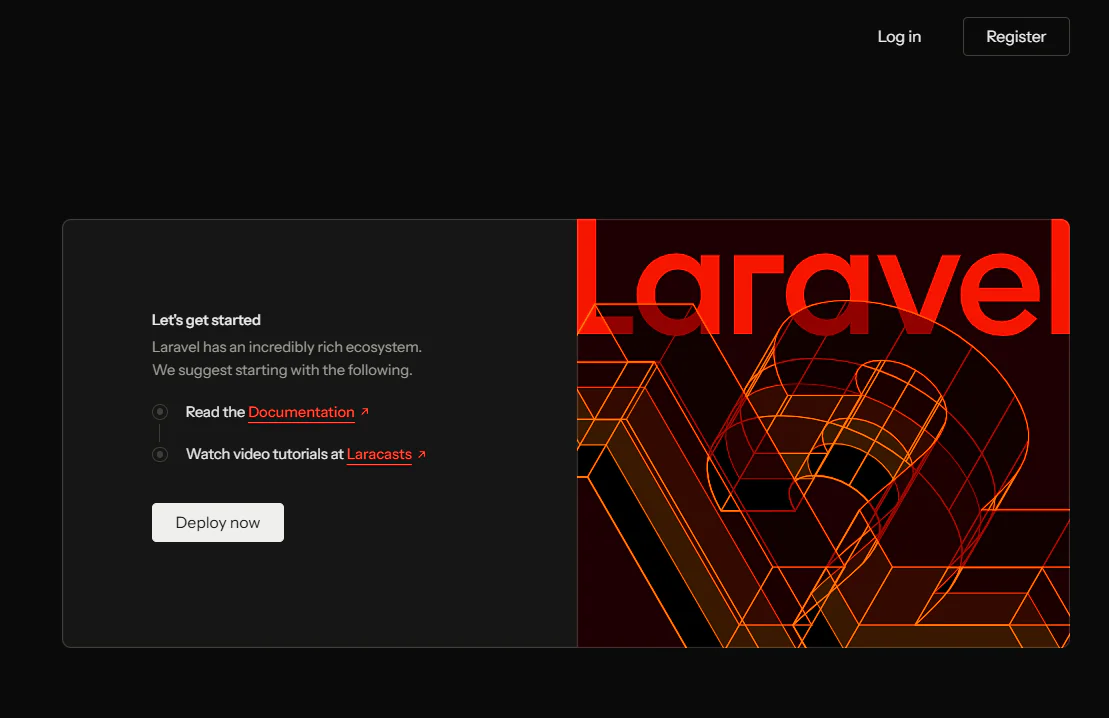
Laravel website start page with links to documentation, Laracasts tutorials, and a deploy button.

Click the Register button and complete the registration form.
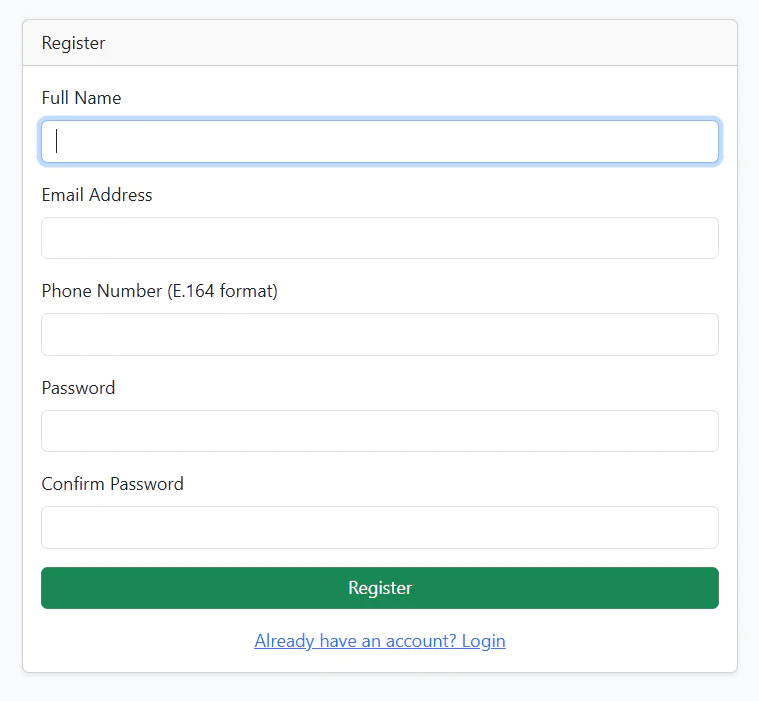
A registration form with fields for full name, email address, phone number, password, and confirm password.

After submitting the form, you will be redirected to the Two-Factor Authentication (SMS) page, and simultaneously receive a verification code via Twilio SMS.
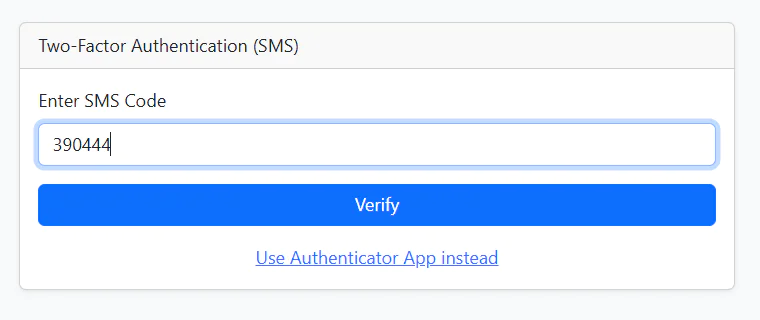
SMS code entry for two-factor authentication with Verify button.

Enter the code to verify your identity. Upon successful verification, you’ll be redirected to the dashboard.
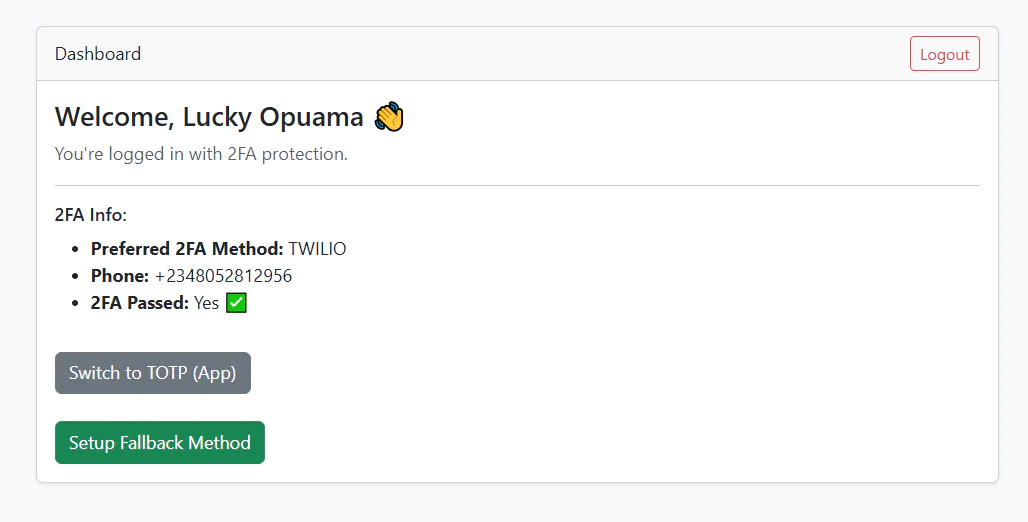
Dashboard showing 2FA details for user Lucky Opuama with the option to switch to TOTP or setup fallback method.

When you click Setup Fallback Method, you will be redirected to the Enroll Google Authenticator page.
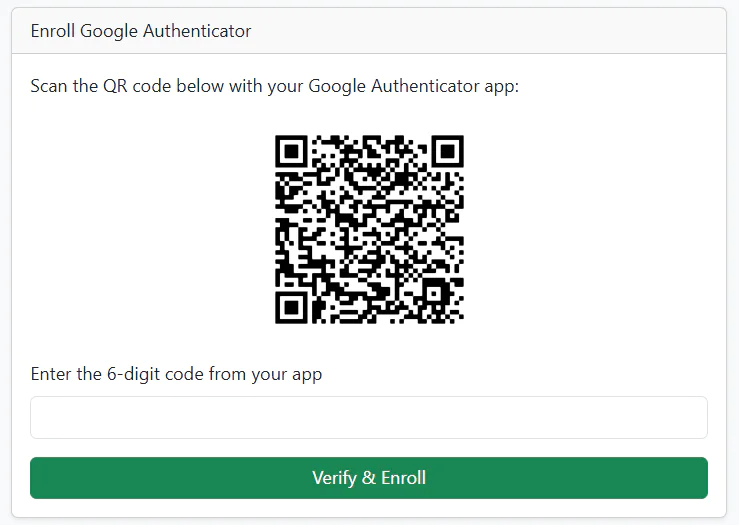
A QR code with instructions to scan using the Google Authenticator app and a field for a 6-digit verification code.

Open the Google Authenticator app on your device and scan the displayed QR code. A 6-digit time-based code tied to your email will appear in the app. Enter this code into the form to complete your TOTP enrollment.

Once that’s done, your account is fully secured. You can test the login functionality if you are already registered.

The application will use Twilio SMS for authentication by default, but will automatically fall back to Google Authenticator (TOTP) if SMS verification fails and vice versa.

That's how to add Two-factor Authentication in Laravel with Google Authenticator fallback using Laravel Fortify

Implementing two-factor authentication (2FA) with both Twilio Verify (SMS-based) and app-based TOTP (Google Authenticator) provides your application with a powerful layer of security and flexibility. By combining both methods and introducing a smart fallback method.

In this tutorial, we built a flexible and user-friendly 2FA system that balances security with accessibility ensuring users are never locked out due to SMS delivery issues or limited access to their authenticator app.

This dual-method, bidirectional fallback approach empowers users to verify their identity using whichever method is available, providing continuous access while maintaining account strong protection.

Happy coding!

Lucky Opuama is a software engineer and technical writer with a passion for exploring new tech stacks and writing about them. Connect with him on LinkedIn.