Build a Twilio + Zoho CRM SMS Integration
Time to read:
December 03, 2025
Written by
Reviewed by
AI generated summary
- Learn to build a PHP app to notify Zoho CRM users via SMS using Twilio.
- Set up involves configuring Zoho CRM webhooks and workflow rules with PHP and Twilio.
- Notifications ensure meeting participants are informed about new or updated meetings.
This summary was generated by AI.
Build a Twilio + Zoho CRM SMS Integration
Are you using Zoho CRM's webhook and workflow rules? If not, you're missing out on some powerful features. Zoho CRM helps you build lasting relationships by allowing you to respond to your customers when key events happen. For example, you can notify customers via SMS when scheduling a new meeting, creating a new campaign, or closing a deal.
Does that sound like something your customers would love?
When you're finished with this tutorial, your PHP-based applications will be able to notify meeting participants by SMS when they're involved in a new meeting, or when details of an existing meeting change.
Building the application can feel a little involved. However, once complete, I’m sure you'll be surprised at how much power you have available.
Prerequisites
Before you begin, make sure you have the following:
- A Zoho CRM Professional account, or sign up for the 15-day free trial
- A Twilio account. Sign up for free today if you don't have an account.
- PHP 8.3 or above
- Composer installed globally
- Your preferred code editor or IDE
- Some terminal experience is helpful, though not required
- A phone that can receive SMS and an active phone number
Application overview
When complete, your application should work, as laid out in this activity diagram:.
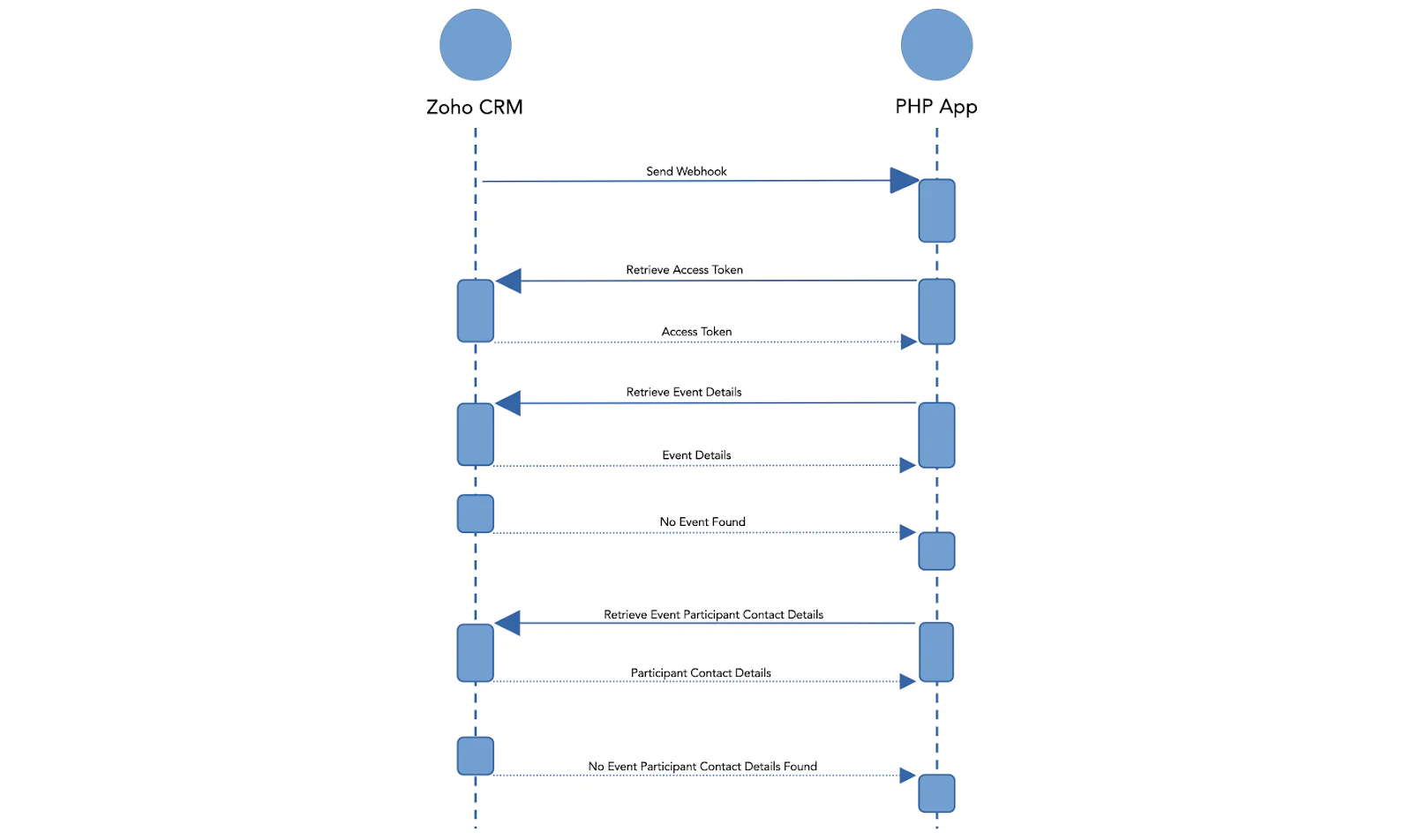
What does this diagram show? Once your application is complete, when your next a meeting is created or updated, here’s what will happen:
- Zoho CRM will send a webhook request to the PHP application containing details of the meeting, including the meeting owner and venue
- The PHP application will retrieve an OAuth2 access token using a Client Credentials grant for accessing Zoho CRM’s API
- If an access token is returned, the PHP app will make a series of requests to Zoho CRM’s API to retrieve details about the event, event organiser, and event participants
- With that information, the PHP app will use Twilio's Programmable Messaging API to notify the event's participants about the new or updated meeting that they are required to attend
Now you know how the application works, let’s build it.
Set up the project directory
The first thing that we need to do is to set up the project's directory structure by running the following commands:
I'll explain the purpose of each directory throughout the tutorial.
Install the required packages
We need a number of packages to create the application. These are:
To install the packages, run the following command:
Then, add the following to composer.json to set a default namespace for the app:
Set the required environment variables
The application will use environment variables to keep configuration settings and sensitive data out of the code, storing them in .env via PHP Dotenv.
In the project's top-level directory, create a file named .env with the following command.
Then, paste the following into it:
After that, set the value of ZOHOCRM_DC to the data center assigned to your account, and the value of ZOHOCRM_URI to the base URI most applicable to you, followed by "/crm/v8". As an example, I live in Australia, so I'd set ZOHOCRM_DC to "AU" and ZOHOCRM_URI to "https://www.zohoapis.com.au/crm/v8".
If you're not sure which data center is assigned to your account, open your account profile. Then, click the profile icon in the top right-hand corner. In the pop-out that appears, you'll see which data center your account is in.
Retrieve your Twilio credentials and phone number
You’ll need to retrieve your Twilio credentials so the app can authenticate with Twilio's Programmable Messaging API for sending SMS notifications, and also retrieve your Twilio phone number, so Twilio knows who's sending the SMS.
You can find this information in the Twilio Console:
- Log in to your Twilio Console
- From the Account Info panel, copy your Account SID, Auth Token, and phone number
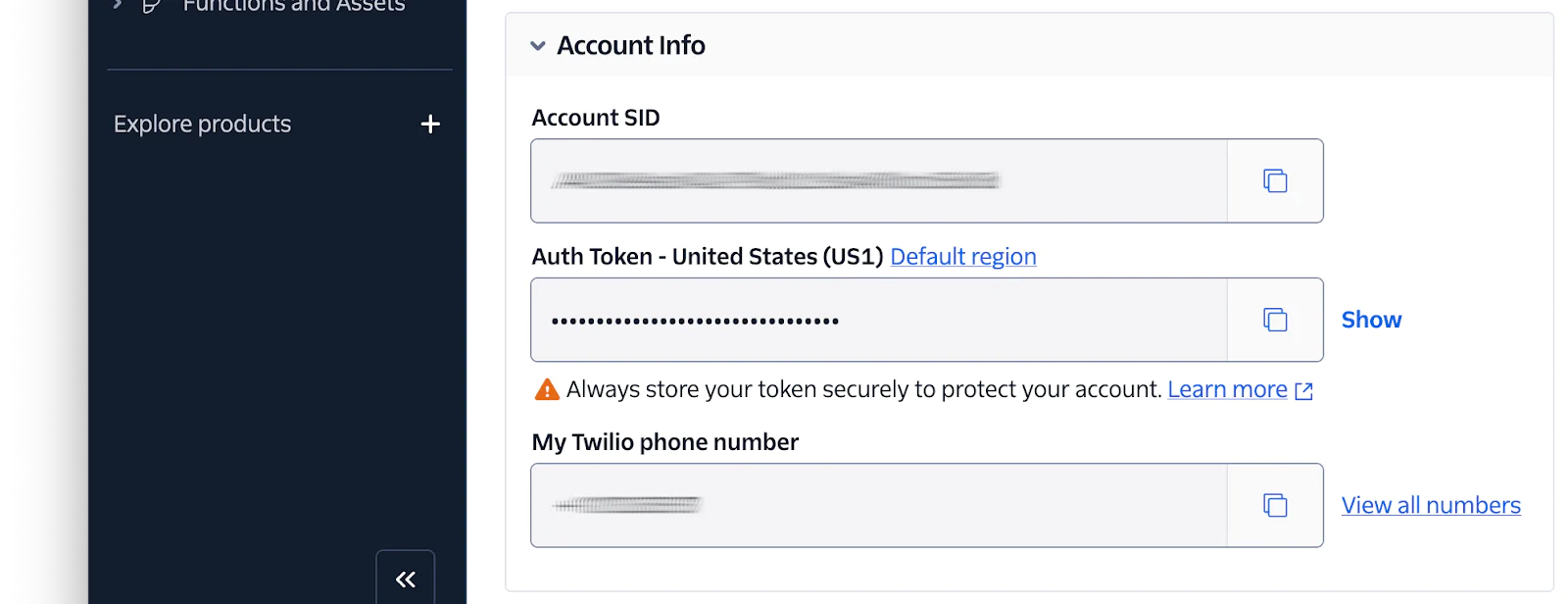
- Paste this information into your .env file as the values for
TWILIO_ACCOUNT_SID,TWILIO_AUTH_TOKEN, andTWILIO_PHONE_NUMBER, respectively Retrieve your Zoho SOID
Now you need to retrieve your Zoho SOID. This is your Zoho organisation's unique ID, required for generating an access token. To retrieve it:
- Log in to the Zoho CRM Dashboard
- Click the profile icon near the bottom left-hand side (or upper right-hand side) of the navigation bar underneath the Settings icon
- Click the down arrow next to your organisation's name, and copy the Org ID that appears
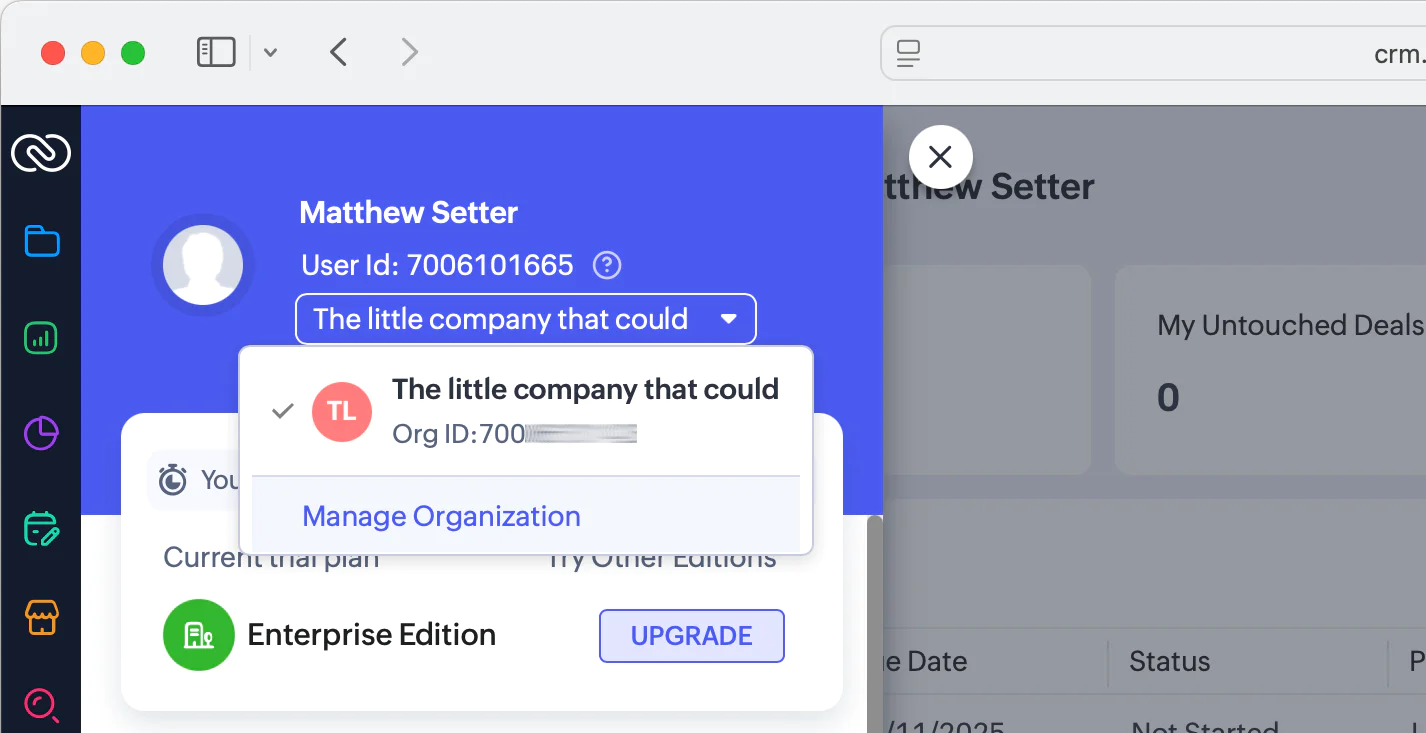
- Set your organisation's id as the value of
ZOHO_SOIDin your .env file Generate an API Key and Secret
Next, let’s generate your Zoho CRM API key and secret. These are required to retrieve an access token for accessing the Zoho CRM API. To do this:
- Make sure you’re still logged in to your Zoho CRM account
- Navigate to: Settings (Setup) > Developer Hub > APIs and SDKs > SDKs > "Server Side SDKs"
- There, click "Register New Client" to create a new client for accessing the Zoho CRM API
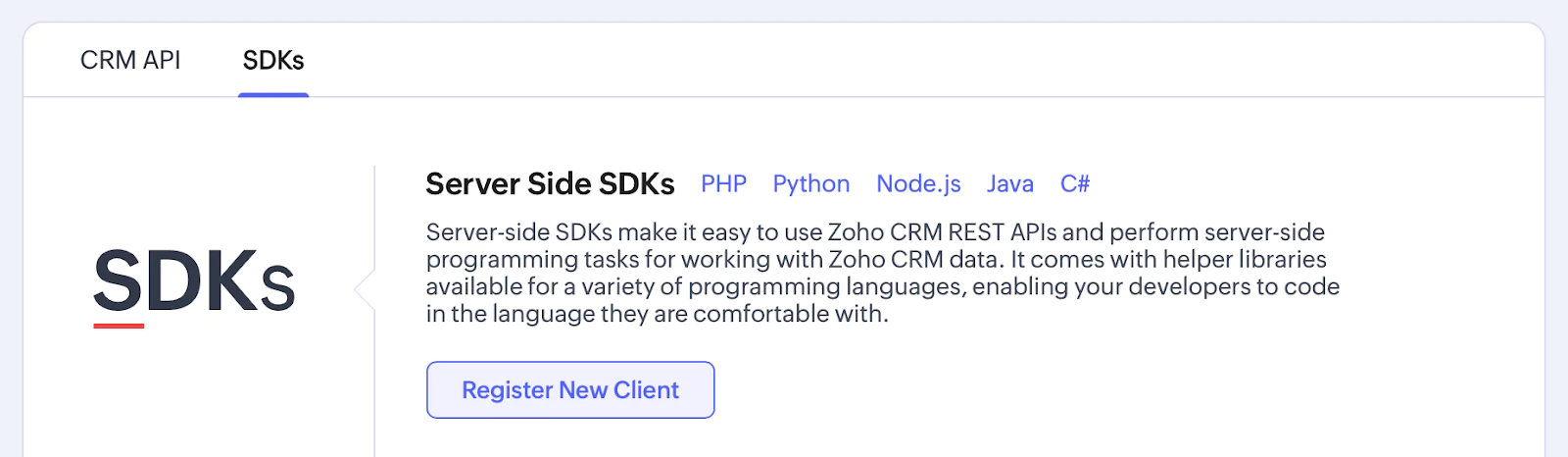
- Enter your password to verify your identity
- Click "GET STARTED"
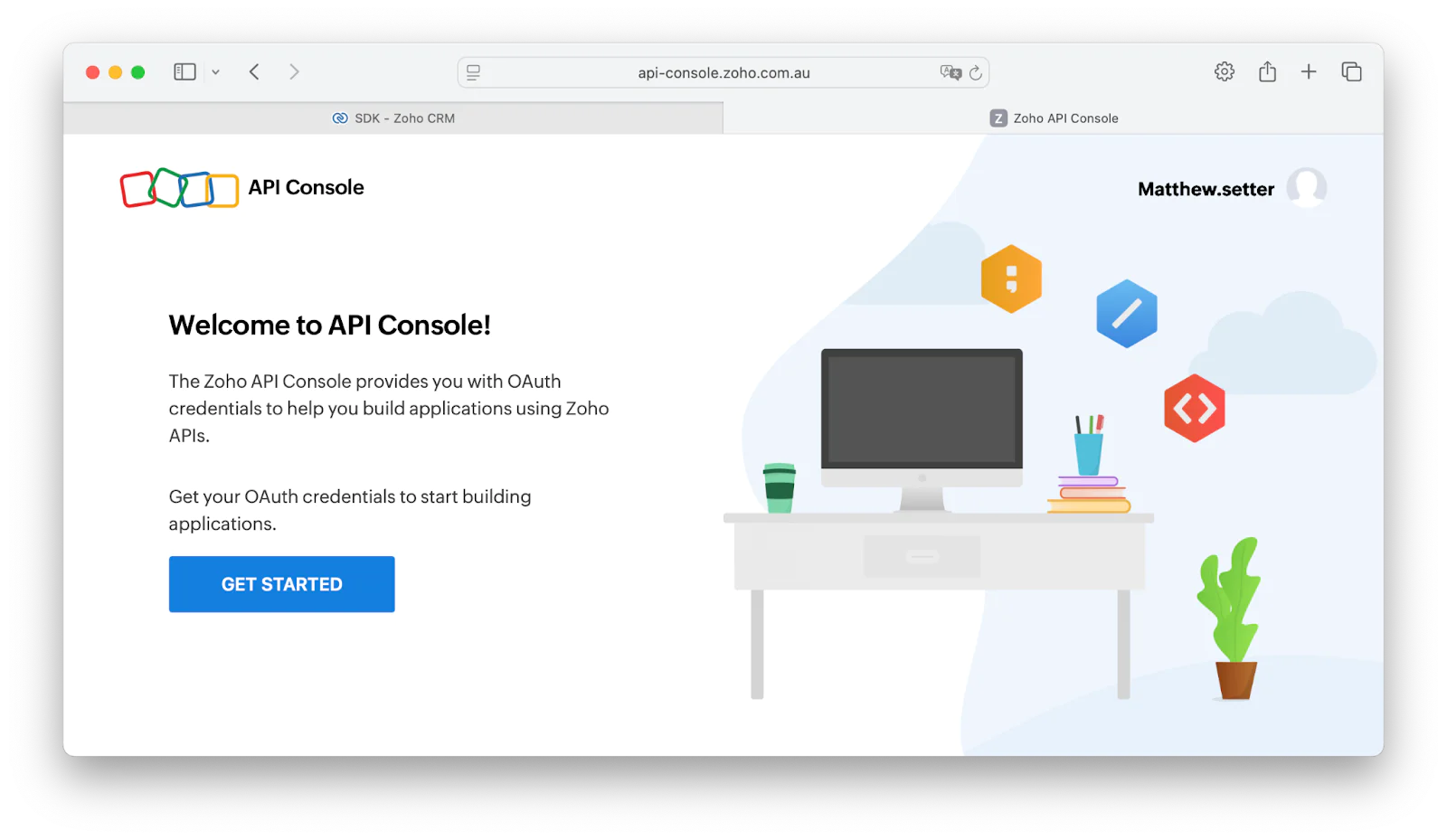
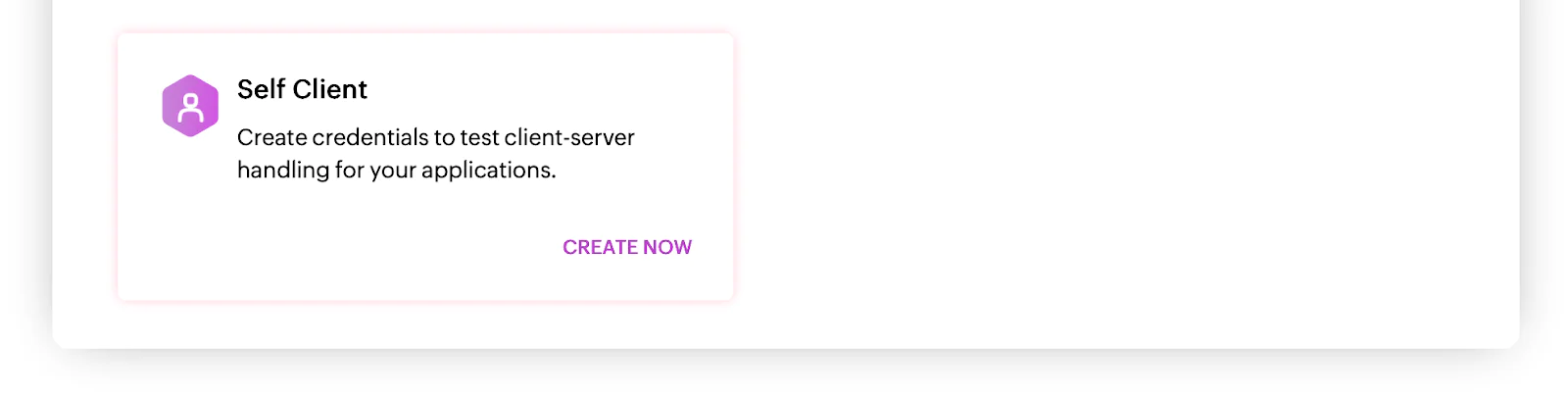
- Under "Choose a Client Type", click "CREATE NOW" under the "Self Client" option
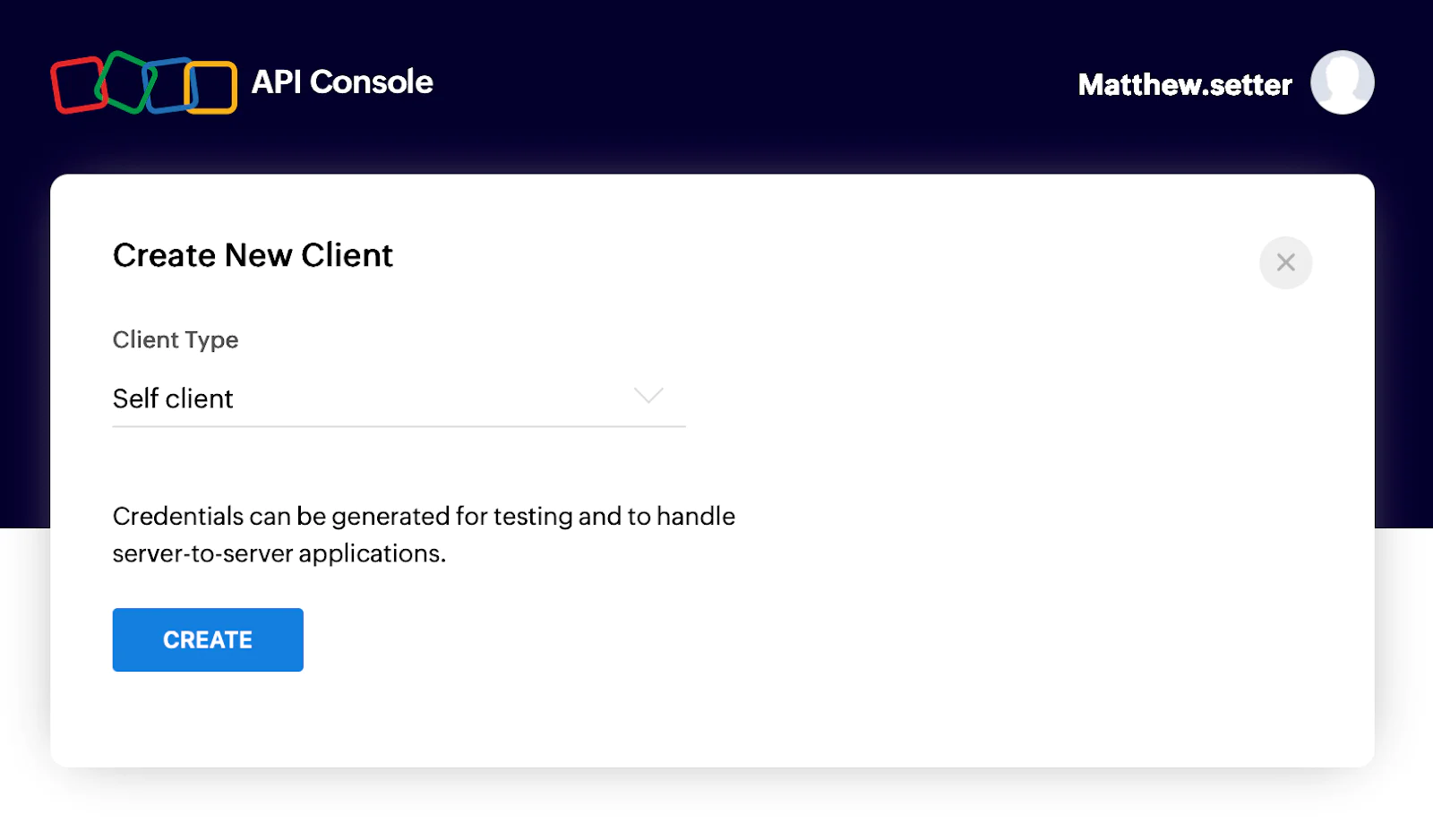
- Under "Create New Client" click "CREATE"
- Click "OK" in the "Are you sure to enable self-client?" confirmation popup
- Copy the Client ID and Client Secret
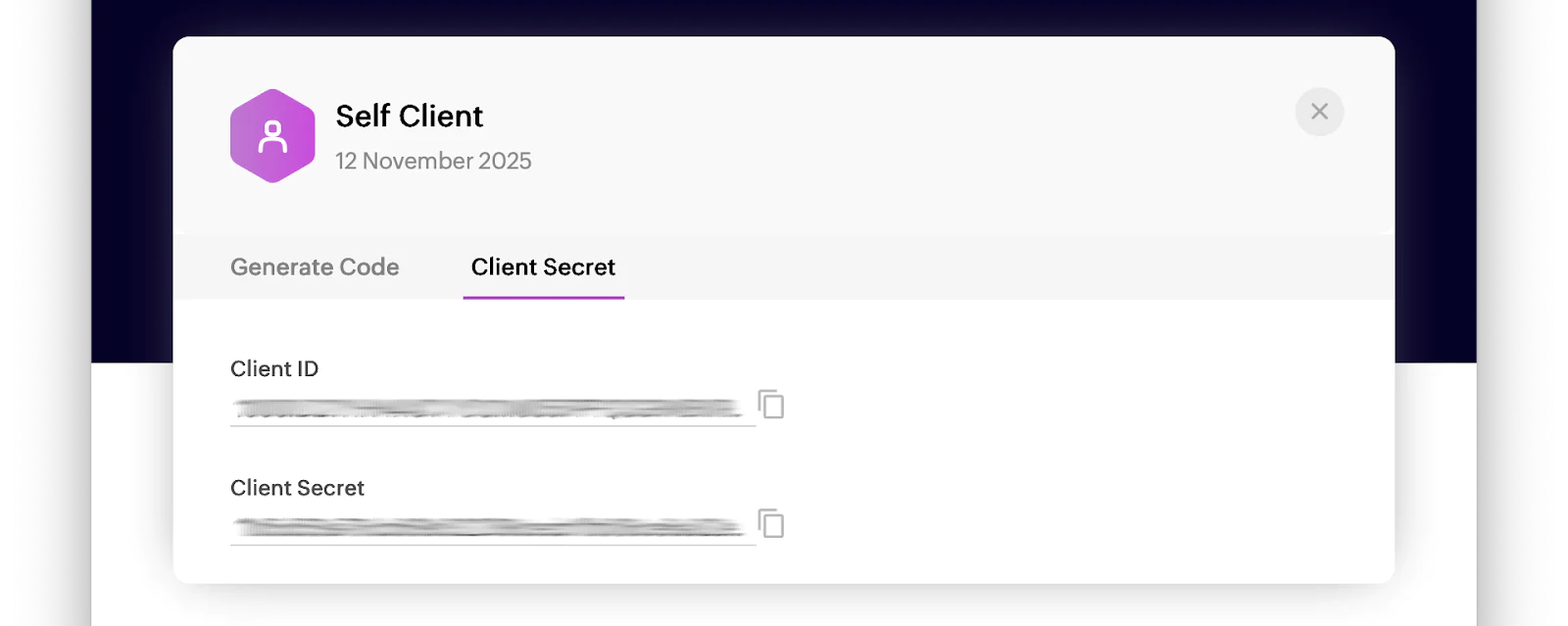
- Set them as the values of
ZOHO_CLIENT_IDandZOHO_CLIENT_SECRET, respectively, in your .env. file Create the PHP application
Now, it's time to create the PHP application. Start by creating a file named index.php in the public directory. Paste the following code into the file:
This is the bootstrap file where all requests will be sent. Here’s what this bootstrap files does:
- In the beginning, two class constants are defined:
- The first is the base URI for version 8 of Zoho CRM's API
- The second is the scope for the OAuth2 access token
According to the Zoho CRM documentation, a scope:
...limits the level of access given to a client for protected resources. It enables a user to provide delegated access to a client. Zoho CRM's APIs use selected scopes, which control the type of resource that the client application can access.
Thus, this scope will allow us to have read access to our contacts and events, nothing more. This makes the requests more discrete and secure.
- Next, using PHP Dotenv, the code loads the required environment variables from .env, which were set earlier. An exception will be thrown if one or more of them is not set or empty. The code then initialises a number of variables (most of which will be services with the application's DI container:
- The first is a Zoho OAuth 2.0 client provider, which is used to retrieve an access token
- The second is a Guzzle client, which will be used to make requests to Zoho CRM's API to retrieve the meeting information
- The third is a Twilio Rest Client, which simplifies requests made to Twilio's APIs
- Then a new PHP-DI container instance is initialised, which is the application's DI or service container, and each of the objects are registered as services in the container, along with a
ZohoCrmServiceobject. - Finally, a new
Applicationobject is initialised with the container object and an array containing your Twilio phone number. This object encapsulates the core of the app's functionality. The object'ssetupRoutes()function is called to initialise the application's routing table, followed byrun()to boot the application, where it will listen for incoming requests.
Create a class to simplify running the core web application
Let's create the Application class now that the PHP application is ready. In the src directory, create a file named Application.php.Paste the following code into the file:.
Here’s what this code does:
- The class encapsulates the core of the app's functionality, which avoids having a large or bloated public/index.php. I find this approach to be more manageable and testable.
- The class' constructor takes a
ContainerInterfaceinstance,$container, (which we initialised earlier in public/index.php) and a set of configuration options. It then initialises a SlimAppobject, setting$containeras its container. - The
setupRoutes()function defines a sole route that accepts only POST requests to/and is handled by thehandleDefaultRoute()function - The
handleDefaultRoute()function starts by retrieving theZohoCrmServiceservice from the DI container, then calls itsgetEventDetails()function to retrieve an event's details from Zoho CRM's API. The JSON in the response is marshalled as anEventobject. We'll cover this in more depth shortly. - The event to be retrieved is determined by the
Meeting_CreatorandMeeting_Locationform variables sent by Zoho CRM in the webhook request to the route
Once this code executes, the meeting participants are notified about the upcoming meeting via SMS. Here’s an example of an SMS sent to meeting participants:
Finally, notifyMeetingParticipants() function returns an array of each of the event's participants and if they were successfully notified.
Create a service class to simplify interacting with Zoho CRM
Let’s create a new file named ZohoCrmService.php under src/Service. In that file, paste the following code:
Here’s what this code does:
- The class' constructor takes a Guzzle client, a Twilio Rest client, and an array of configuration options
- The
getEventDetails()function retrieves an event's details from Zoho CRM, based on its creator and venue location, and marshals them as anEventobject. This includes the event's participants and their contact details retrieved by callinggetContactFromEventParticipant().
The reason for the information being retrieved in two different API calls is because the entire set of details is not available from a single API call.
Create entities to store the data retrieved from Zoho CRM
Now, let's step through all of the entities into which the JSON data returned from the API calls is marshalled.
First, in src/Entity/SearchResponse, create four files:
- Contact.php
- Event.php
- EventOrganiser.php
- EventParticipant.php
Next, in src/Entity/SearchResponse/Contact.php, paste the following code:
This class stores a contact's phone and mobile phone number. These are required so the meeting participants can be contacted via SMS. The JSON attribute tells JSON Unmarshal which field in the provided JSON data to marshal (or hydrate) the field with. In the case of $phone, that field will be marshalled with the Phone field.
In src/Entity/SearchResponse/Event.php, paste the following code:
This class stores the top-level details of an event, along with an EventOrganiser object. This object contains the details of the event's organiser, and an array of EventParticipant's, storing the details of each event participant (or meeting attendee).
In src/Entity/SearchResponse/EventOrganiser.php, paste the following code:
This class stores the essential details (full name and email address) of the event organiser.
In src/Entity/SearchResponse/EventParticipant.php, paste the following code:
This class stores the details of an event participant (including full name and email address) as well as their contact details in $contactDetails. This information is retrieved from a separate API call.
Now that we've finished the application, here's what the file and directory structure should look like.
The code's available on GitHub, if you'd like to compare it to yours.
Start the application
Now that the application is built, let’s expose it to the public internet. Start the PHP built-in webserver by running the following command:
Expose it to the public internet with ngrok, by running the following command:
After ngrok starts, it should print output to the terminal, similar to this:
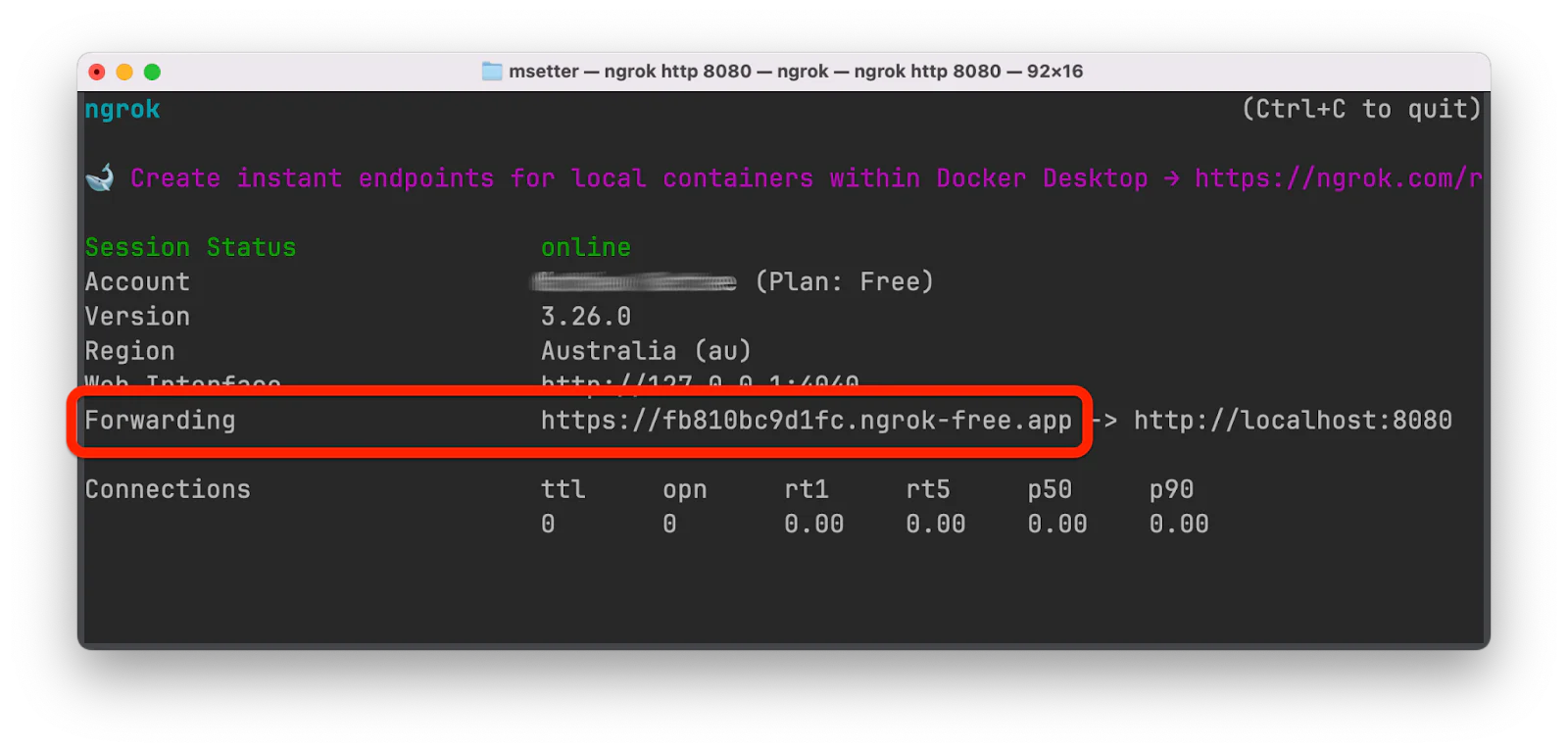
Make a copy of the Forwarding URL, as you'll need it shortly.
Create a webhook and associate it with a workflow
With the application started, let’s set up a webhook. There’s a lot of steps involved, so make sure you’re following correctly.
- From your Zoho CRM Dashboard, navigate through Setup > Automation > Actions > Webhooks
- On the Webhooks page, click Configure Webhook to start creating a webhook:
- In the New Webhook page:
- Set a value in the Name field
- Place the app's publicly accessible URL in the “URL to Notify” field. This is the Forwarding URL printed in the ngrok terminal output in Step 4, C above.
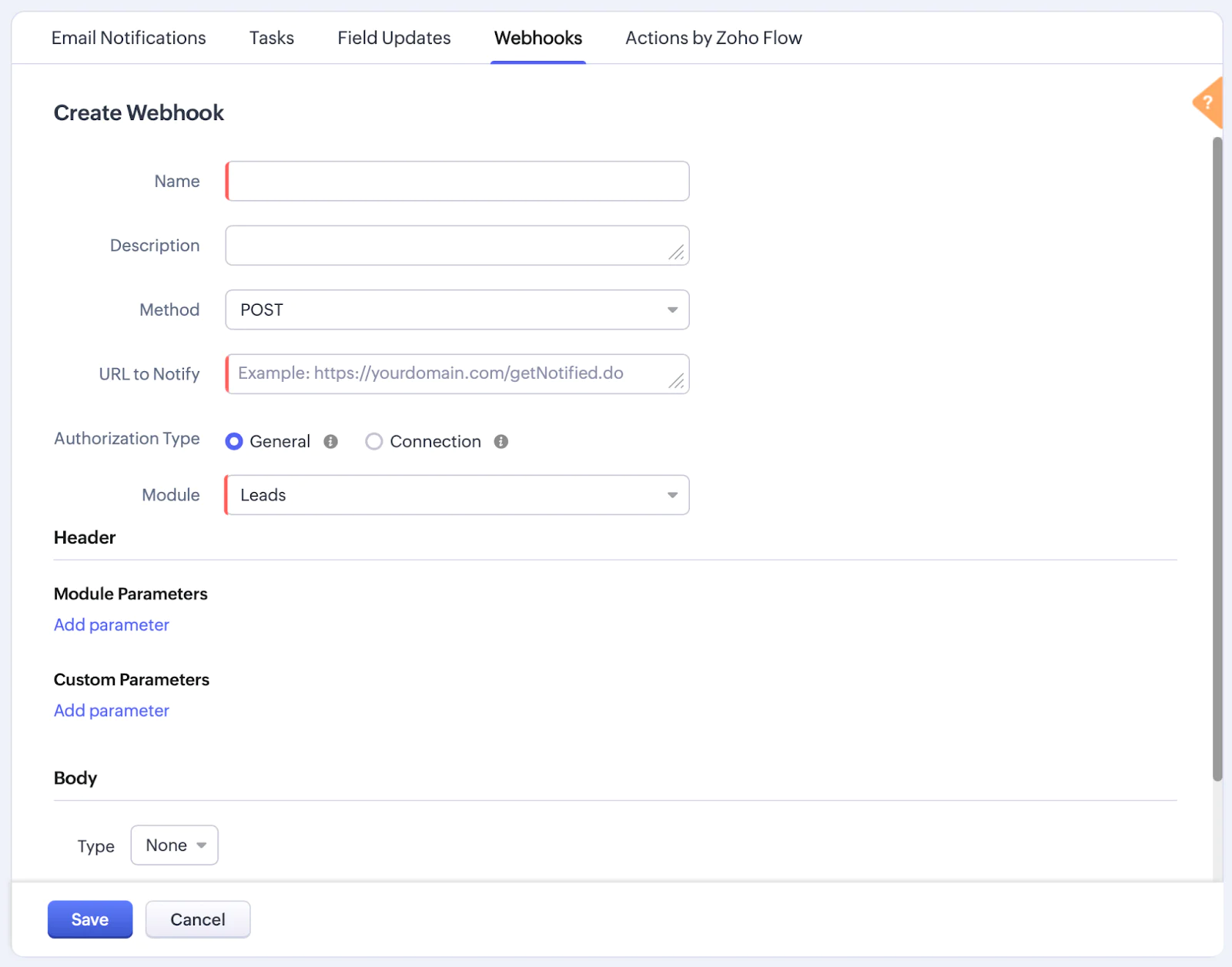
- Set Module to "Meetings"
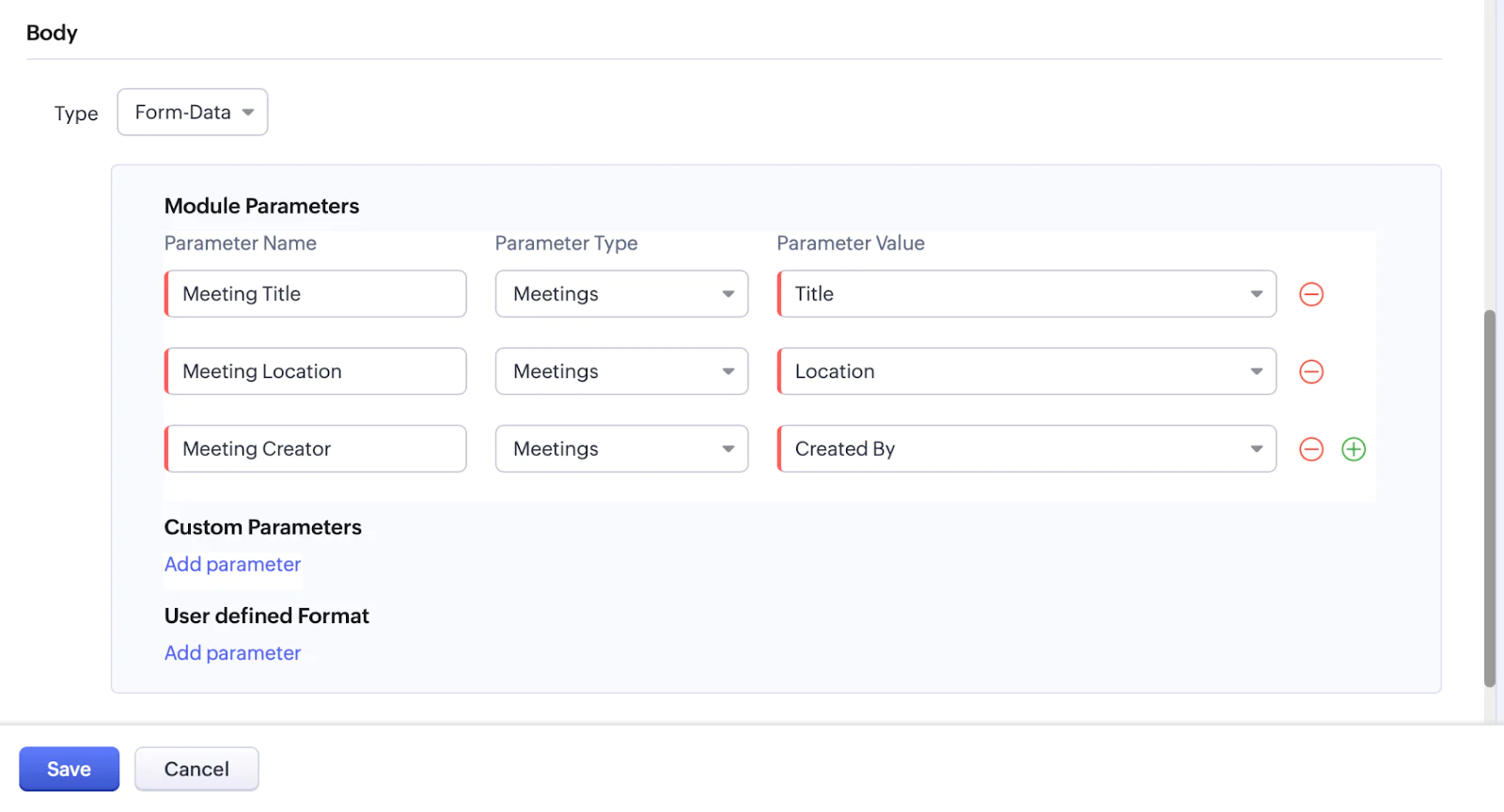
6. Under Body set Type to "Form-Data" and add three Module Parameters:
- For the first parameter, set Parameter Name to "Meeting Title" and Parameter Value to "Title"
- For the second parameter, set Parameter Name to "Meeting Location" and Parameter Value to "Location"
- For the third parameter, set Parameter Name to "Meeting Creator" and Parameter Value to "Created By"
7. Click Save
Associate a webhook with a workflow rule
Now you need to associate the webhook to a workflow rule, so that the workflow is triggered when a meeting is created or updated:
- Navigate to Setup > Automation > Workflow Rules
- In the Workflow Rules page, click Create Rule
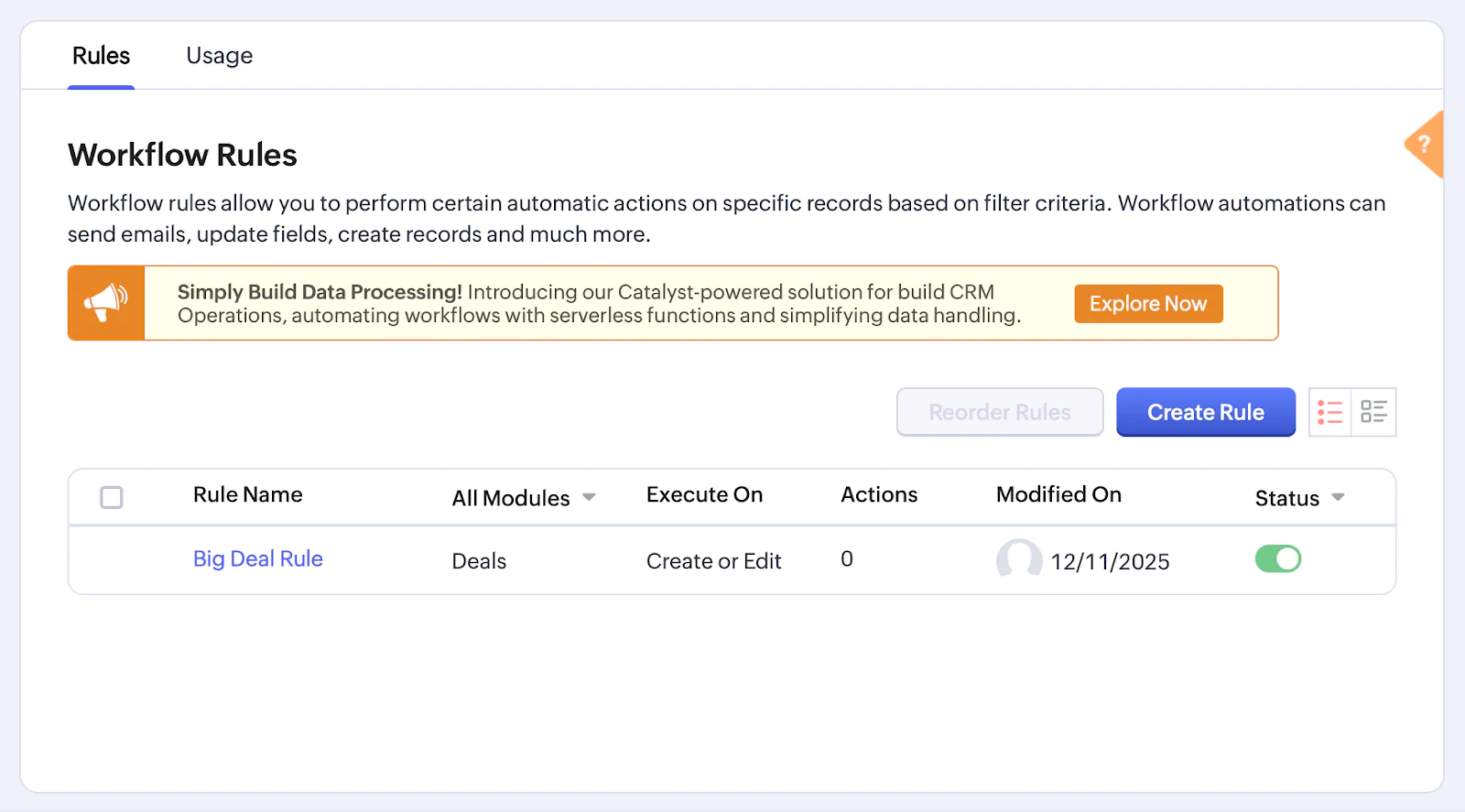
- In the Create New Rule dialog, specify workflow rule parameters:
- Set Module to "Meetings"
- Set Rule Name to "Meeting Notifications"
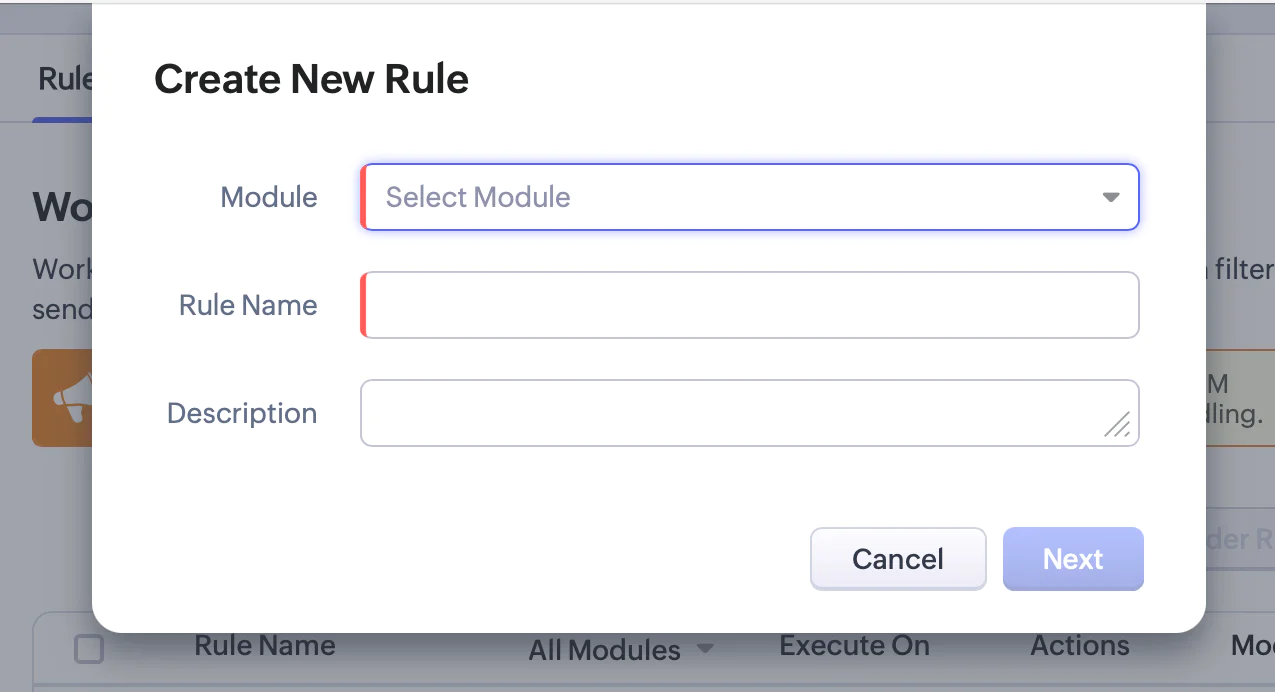
- Then, click Next to continue
- In Meeting Notifications:
- Set "Execute this workflow rule based on" to "Record action"
- Enable "Repeat this workflow whenever a meeting is edited"
- Change Create to "Create or Edit"
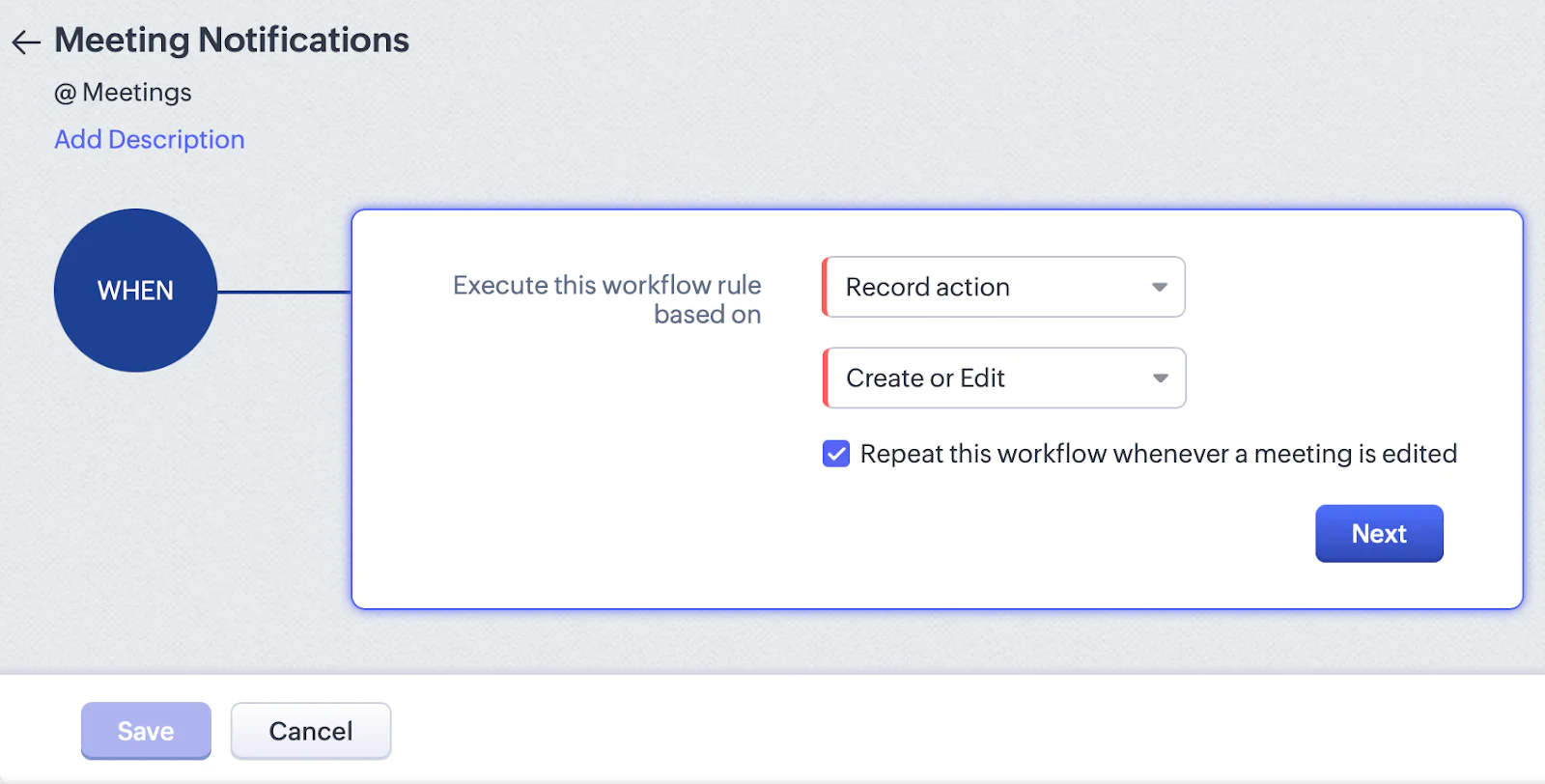
- Click Next
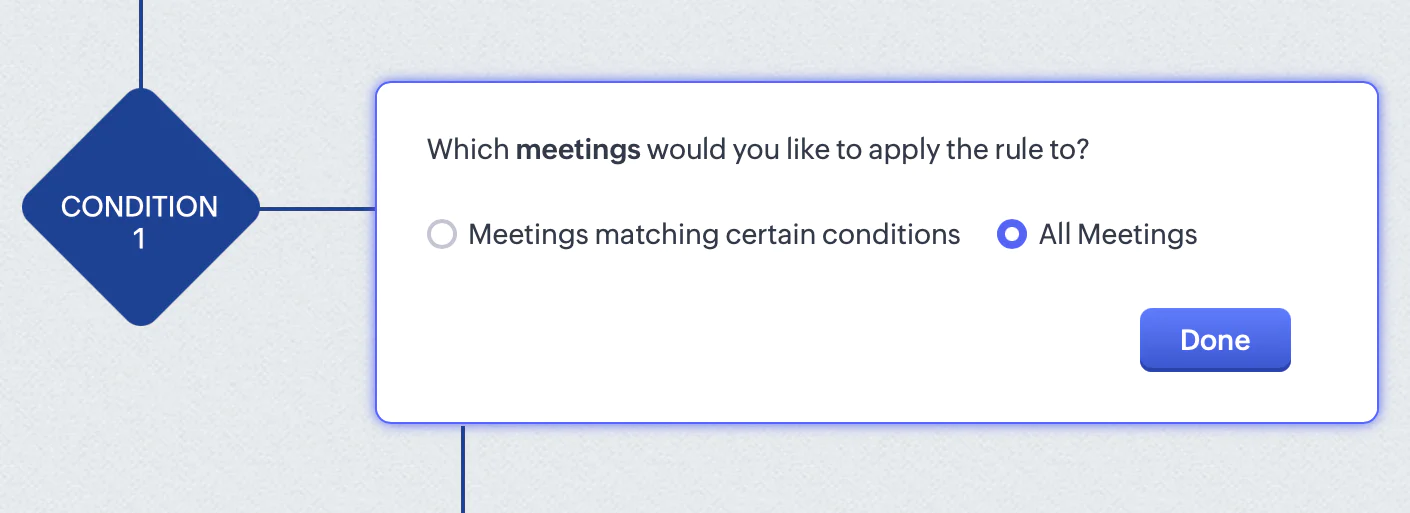
- For Condition 1 check "All Meetings" and click “Done”
- Set Instant Actions to "Webhook"
- From the list of webhooks that appear, select the webhook that you created earlier and click Associate
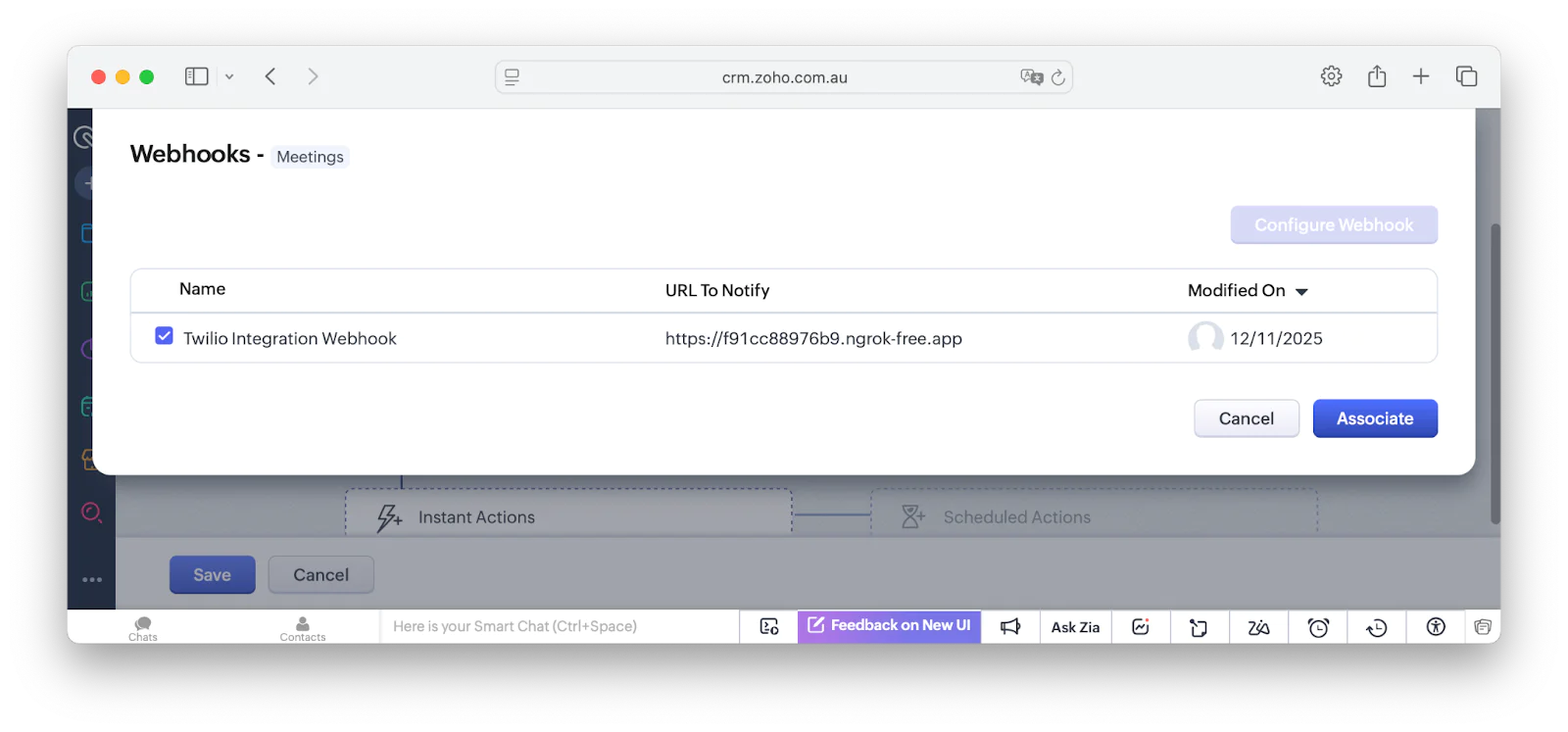
- Click Save
Test that the integration works
Now it’s time to test that your application works and sends an SMS when a meeting is created or updated:
- Create the meeting in the Zoho CRM console:
- In the left-hand side navigation bar, click Modules > Activities > Meetings.
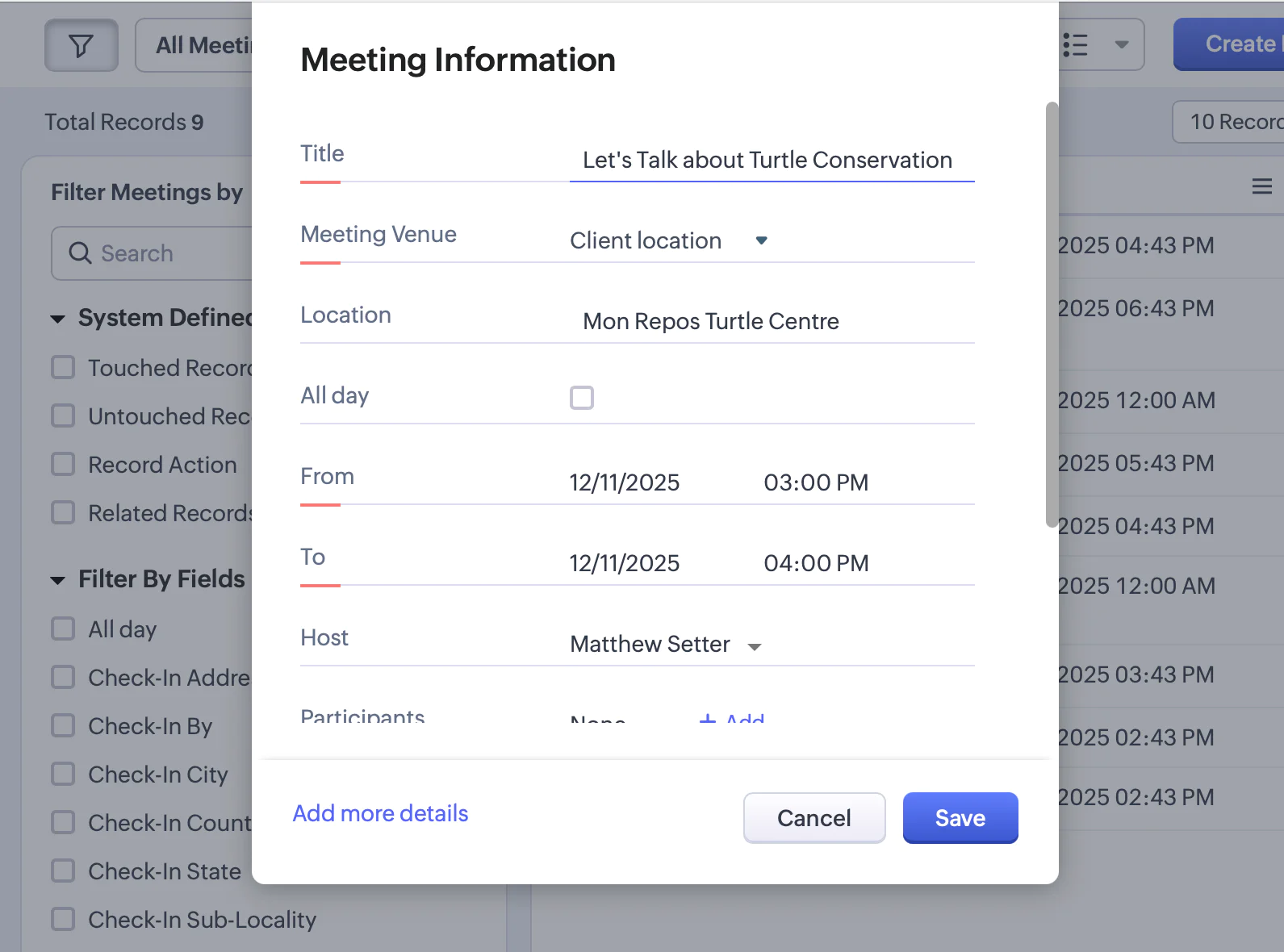
- Click Create Meeting, and fill out the meeting details form:
- Set Title to "Let's Talk about Turtle Conservation"
- Set Location to "Mon Repos Turtle Centre"
- Click Save
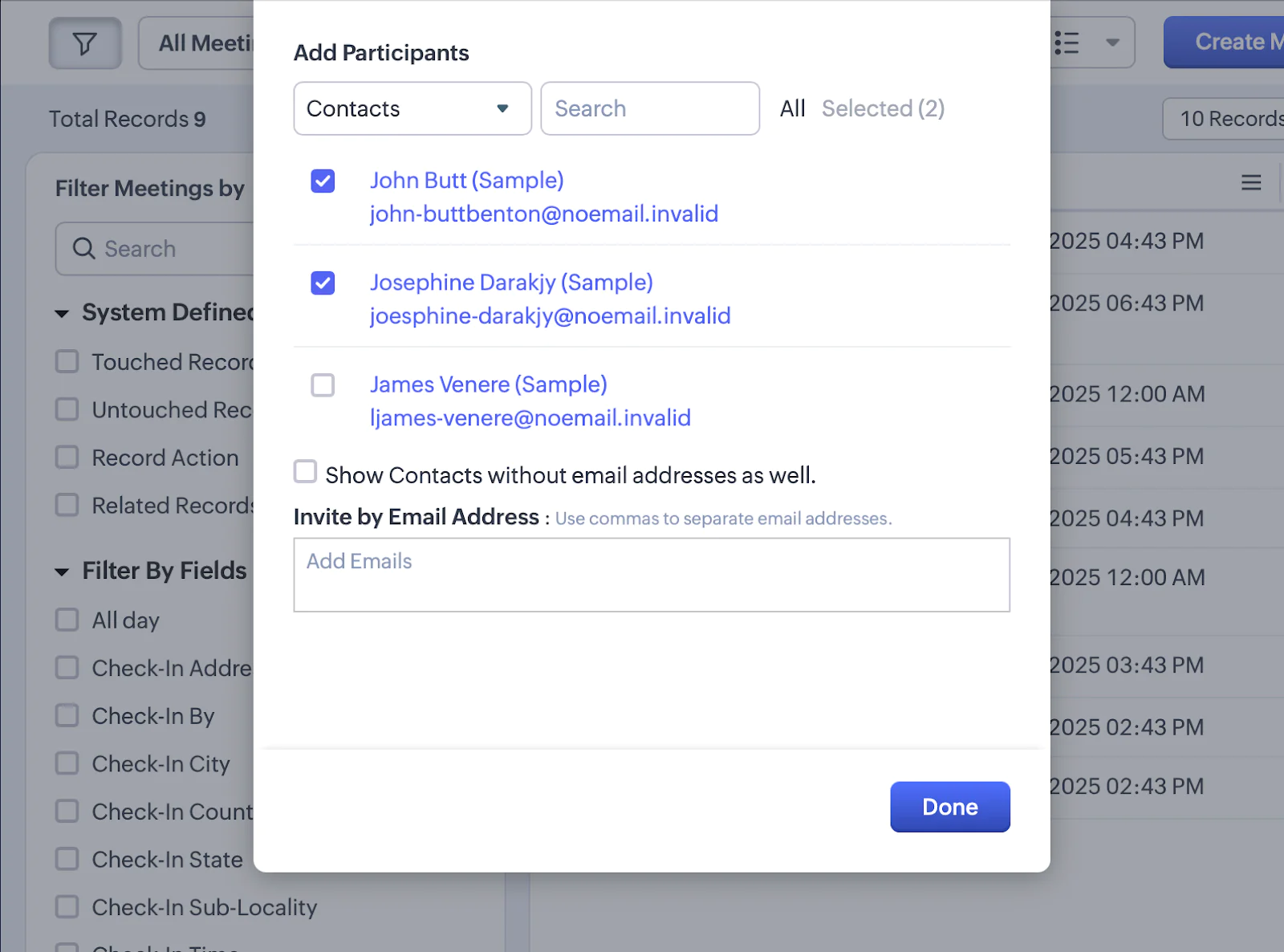
- Scroll down and next to Participants, click "+ Add"
- Add at least one of the available participants to the meeting. If your Zoho CRM account is preloaded with default data, change the phone number(s) of the participant(s) that you add to the meeting to your phone number that can receive SMS. Otherwise, add a new contact and set their phone number accordingly.
- Click Done
- Click Save
- Now that you have created the meeting, check the ngrok terminal session. You should see a POST request received.
- You should receive an SMS, letting you know that you are a participant in the meeting that you just created, along with its location and start date and time:

Trying building a Twilio + Zoho CRM SMS integration
Now that you have integrated Zoho CRM's webhook and workflow rules functionality with Twilio, you’re able to notify meeting participants by SMS when they're involved in a new meeting or when details of an existing change.
Think of all the ways you can tailor this to your business, such as sending updates to your clients in real time, and creating happy customers because they never miss an appointment. There are endless ways you can build out these experiences for your customers. Try building new ones and increase the engagement with your customers.
What's Next?
If you'd like to learn more about Zoho CRM's or Twilio's APIs, check out these links:
- Steps to generate a Zoho CRM OAuth Token
- How to search records in Zoho CRM
- How to retrieve individual records in Zoho CRM
- How to send SMS and MMS with Twilio
Matthew Setter is (primarily) the PHP, Go, and Rust editor on the Twilio Voices team. He’s also the author of Mezzio Essentials and Deploy with Docker Compose. You can find him at msetter[at]twilio.com. He's also on LinkedIn and GitHub.
Related Resources
Twilio Docs
From APIs to SDKs to sample apps
API reference documentation, SDKs, helper libraries, quickstarts, and tutorials for your language and platform.
Resource Center
The latest ebooks, industry reports, and webinars
Learn from customer engagement experts to improve your own communication.
Ahoy
Twilio's developer community hub
Best practices, code samples, and inspiration to build communications and digital engagement experiences.