How to Implement OTP Authentication in Rust with Twilio
Time to read:
December 09, 2025
Written by
Reviewed by
AI generated summary
- Integrating OTP with Twilio improves security in Rust applications.
- Configure a Rust project with necessary dependencies and set up a MySQL database.
- Build handler functions and templates for user registration, login, and OTP verification.
This summary was generated by AI.
How to Implement OTP Authentication in Rust with Twilio
When building a secure user authentication system, traditional username-password methods are often inadequate. Incorporating One-Time Passwords (OTPs) adds an extra layer of security by enhancing user verification and helping to prevent unauthorized access.
In this tutorial, you'll learn how to implement OTP-based authentication in a Rust application using Twilio Verify to send one-time codes for user login verification.
Prerequisites
To follow along with this tutorial, you should have the following:
- Rust v1.87 or higher installed
- A Twilio account (either free or paid). If you are new to Twilio, click here to create a free account
- Access to a MySQL server
- Your preferred Rust editor and web browser
Create a new Rust project
To get started, let’s create a new Rust project using Cargo. Open your terminal, navigate to the folder where you keep your Rust projects, and run the following command:
The code above initializes a Rust project. Once it's done, open the project folder in your preferred IDE or code editor.
Add the application's dependencies
Let’s add the necessary dependencies for the application. To do this, open the Cargo.toml file located in the root directory of the project and add the following code in the [dependencies] table.
In the dependencies above, we have:
- actix-web: A fast web framework for building APIs and web applications
- actix-session: Handles user sessions using cookie-based storage
- bcrypt: Provides secure password hashing
- chrono: Manages dates and times; integrates with Serde
- dotenv: Loads environment variables from a .env file
- env_logger: Enables logging, useful for debugging and monitoring
- rand: Generates random values for OTP tokens
- reqwest: An HTTP client with built-in JSON support
- serde: For serializing and deserializing data (e.g., JSON)
- sqlx: An asynchronous database library with MySQL support
- tera: A template engine for rendering HTML views
- tokio: The async runtime used by sqlx and other async libraries
Create the database schema
Next, let's create a database schema to store user information. To do this, log in to your MySQL server, create a new database named "twilio_otp_auth", and run the SQL code below in your MySQL client to create the "users" table.
Set up the environment variables
To store the application credentials as environment variables, keeping them out of the code, create a file named .env in the root directory of the project and add the following variables to it.
Then, in the code above, replace the <db_username> and <db_password> placeholders with your MySQL database's username and password, respectively.
Retrieve your Twilio credentials
To retrieve your Twilio access credentials, log in to your Twilio Console dashboard. You’ll find your Account SID and Auth Token under the Account Info section, as shown in the screenshot below.
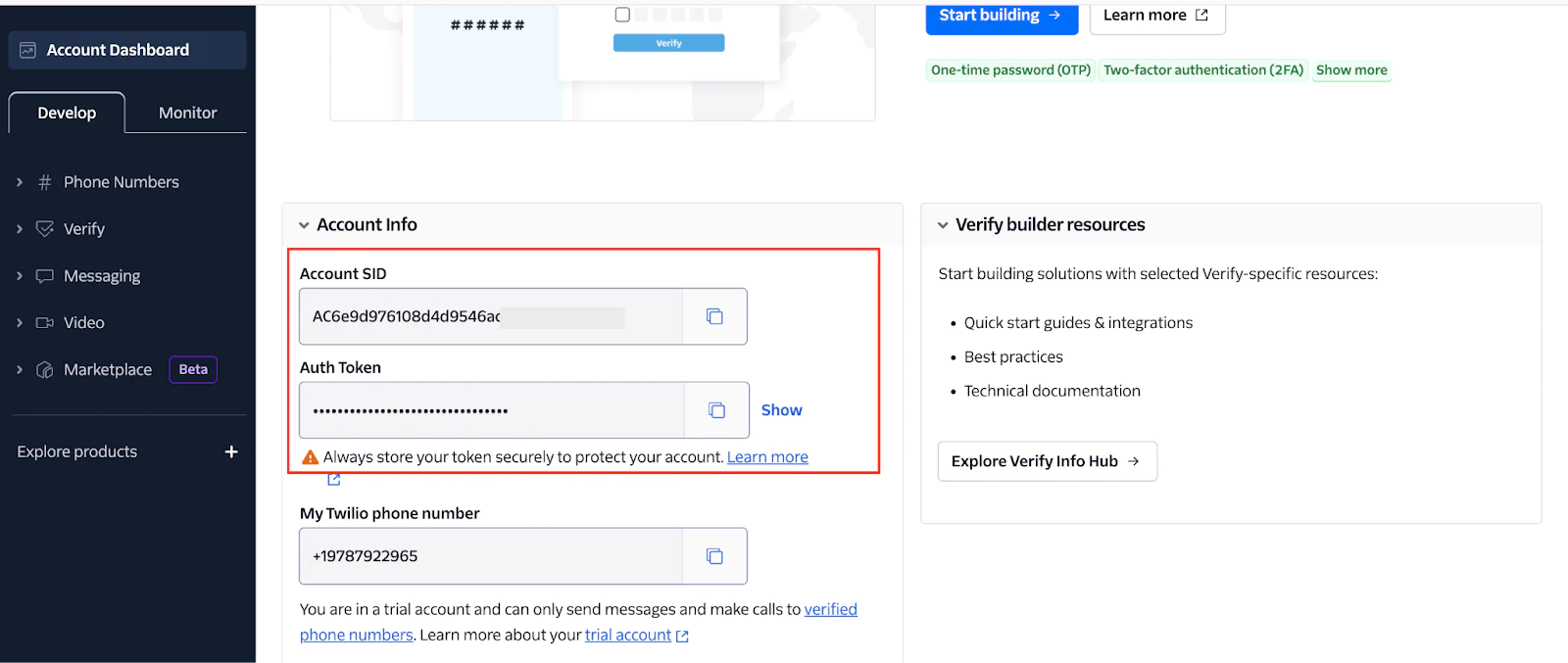
In the .env file, replace the <twilio_account_sid> and <twilio_auth_token> placeholders with your Twilio Account SID and Auth Token, respectively.
Create a verification service
Next, you need to create a Twilio Verification Service, which provides a secure and easy way to create and verify OTPs. To do that, from the Twilio Console, navigate to Explore Products > User Authentication & Identity > Verify.
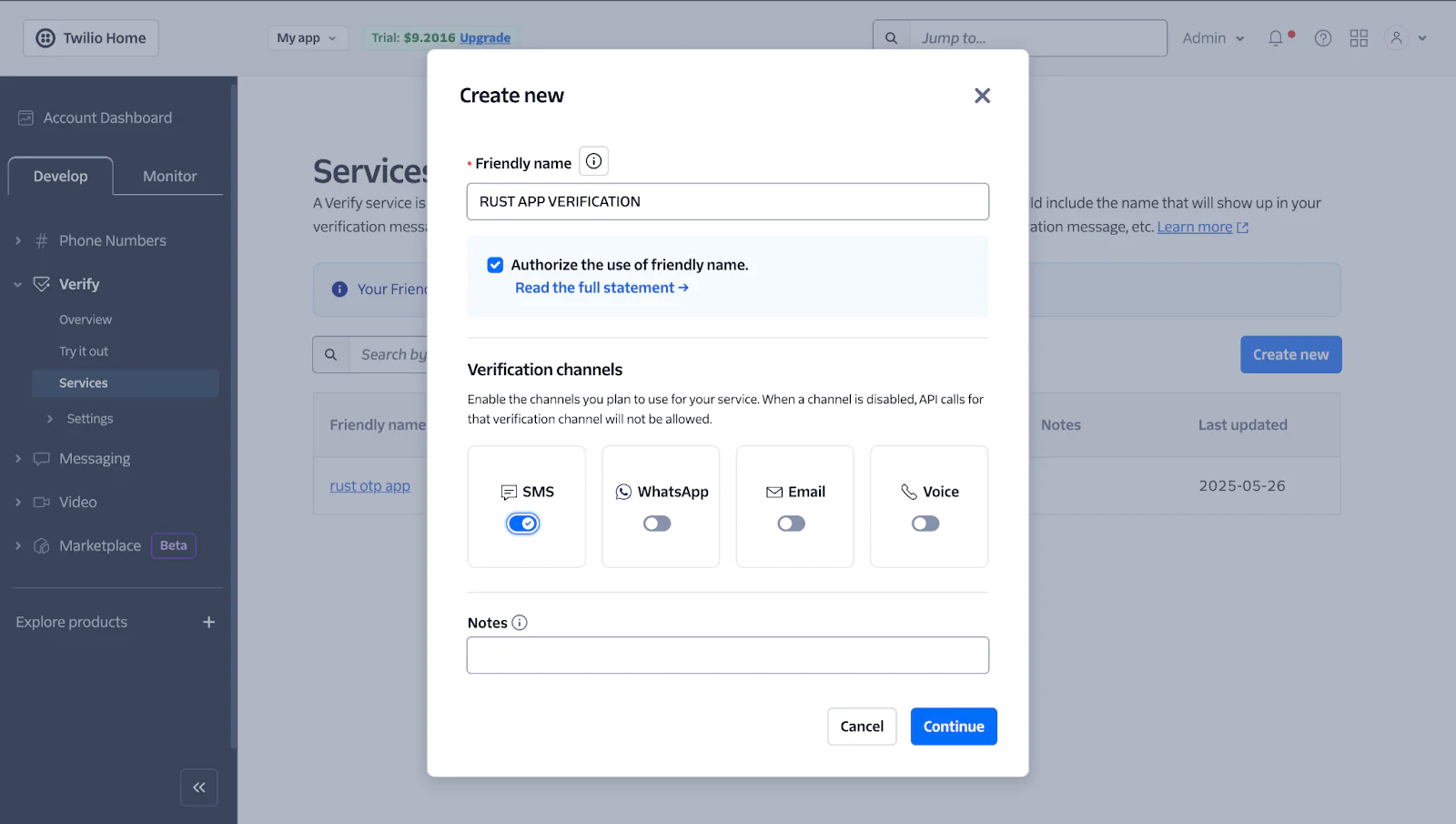
There, click Create new and fill out the form as follows:
- Friendly Name: Enter your service name
- Authorize the use of Friendly Name: Check this option
- Verification Channels: Enable "SMS"
Then, click the Continue button to create the service. You’ll be redirected to the Service settings page, as shown in the screenshot below.
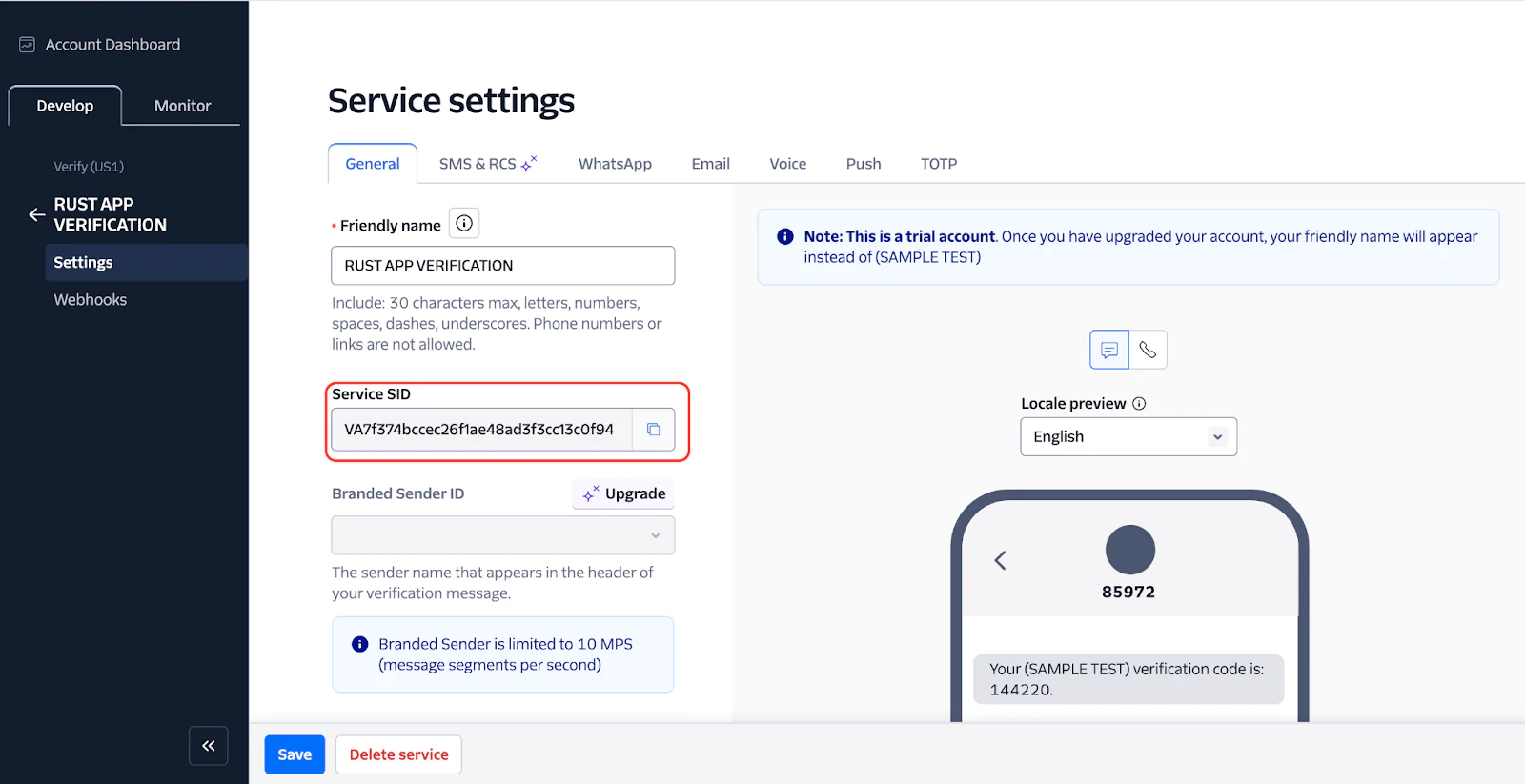
Now, copy the Service SID and replace the <twilio_service_sid> placeholder in .env with it.
Establish the database connection
Now, let’s connect the application to the MySQL server. To do this, navigate to the src folder, create a new file named db.rs, and add the following code to the file.
Create the data models
Let’s now define the application’s data models to specify how data is structured and managed in a safe and predictable way. To do this, create a new file named models.rs inside the src folder and add the following code to it:
Create the handler functions
Now, let’s create the application's handler functions, which contain the core logic — such as processing form data, storing and retrieving user information from the database, sending OTPs to users, and more. To do this, create a new file named handlers.rs inside the src folder and add the following code to it:
From the code above:
- The
register_form()function displays the registration page template, while theregister()function processes the registration form data, hashes the password, and stores the user in the database - The
login_form()function displays the login page template, while thelogin()function authenticates the user by verifying the password, and initiates OTP verification using thestart_verification()function - The
verify_form()function displays the OTP verification form, while theverify()function checks the OTP using thecheck_verification()function. On success, it logs the user in by storing session data, and redirects them to the profile page - The
profile()function displays the user's profile if they are authenticated, while thelogout()function clears the user session, and redirects to the login page
Create the application entry point
Next, let’s create the application’s entry point that brings all the components together. To do this, open the main.rs file inside the src folder, and replace its contents with the following code.
The code above initializes and runs an Actix Web server that loads environment variables, connects to the database, configures Tera templates, manages user sessions with cookie-based middleware, and registers HTTP routes.
Create the application template
Let’s create the user interface templates for the registration, login, verification, and profile pages. To do this, from the project's root directory, create a new folder named templates and create the following files inside it:
- register.html
- login.html
- verify.html
- profile.html
Inside the register.html file, add the following code.
Inside the login.html file, add the following code:
Inside the verify.html file, add the following code.
Inside the profile.html file, add the following code:
Test the application works as expected
To start the application server, run the command below.
Then, to test the application, open http://localhost:8080/register in your preferred browser and create an account, as shown in the screenshot below.
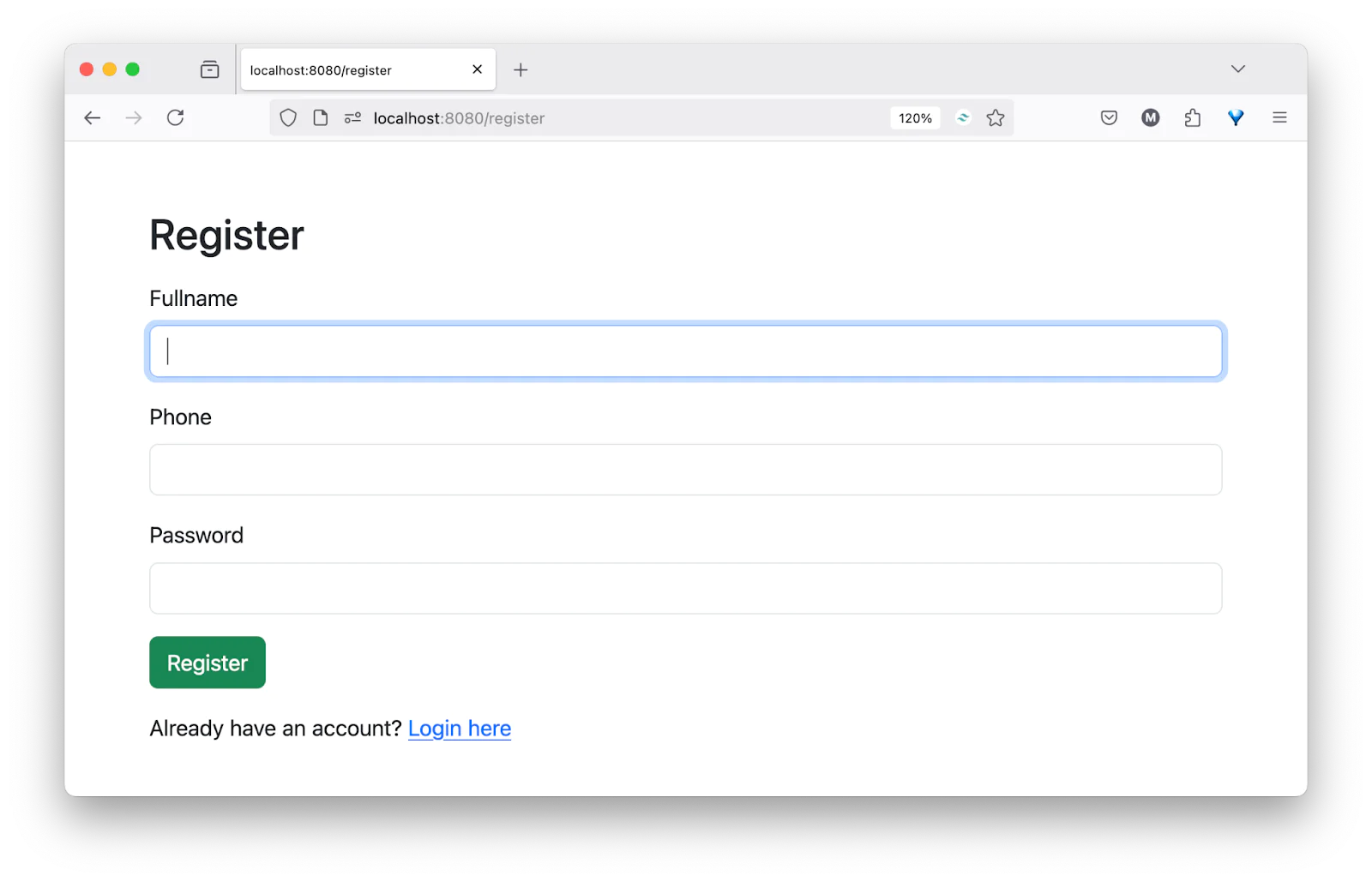
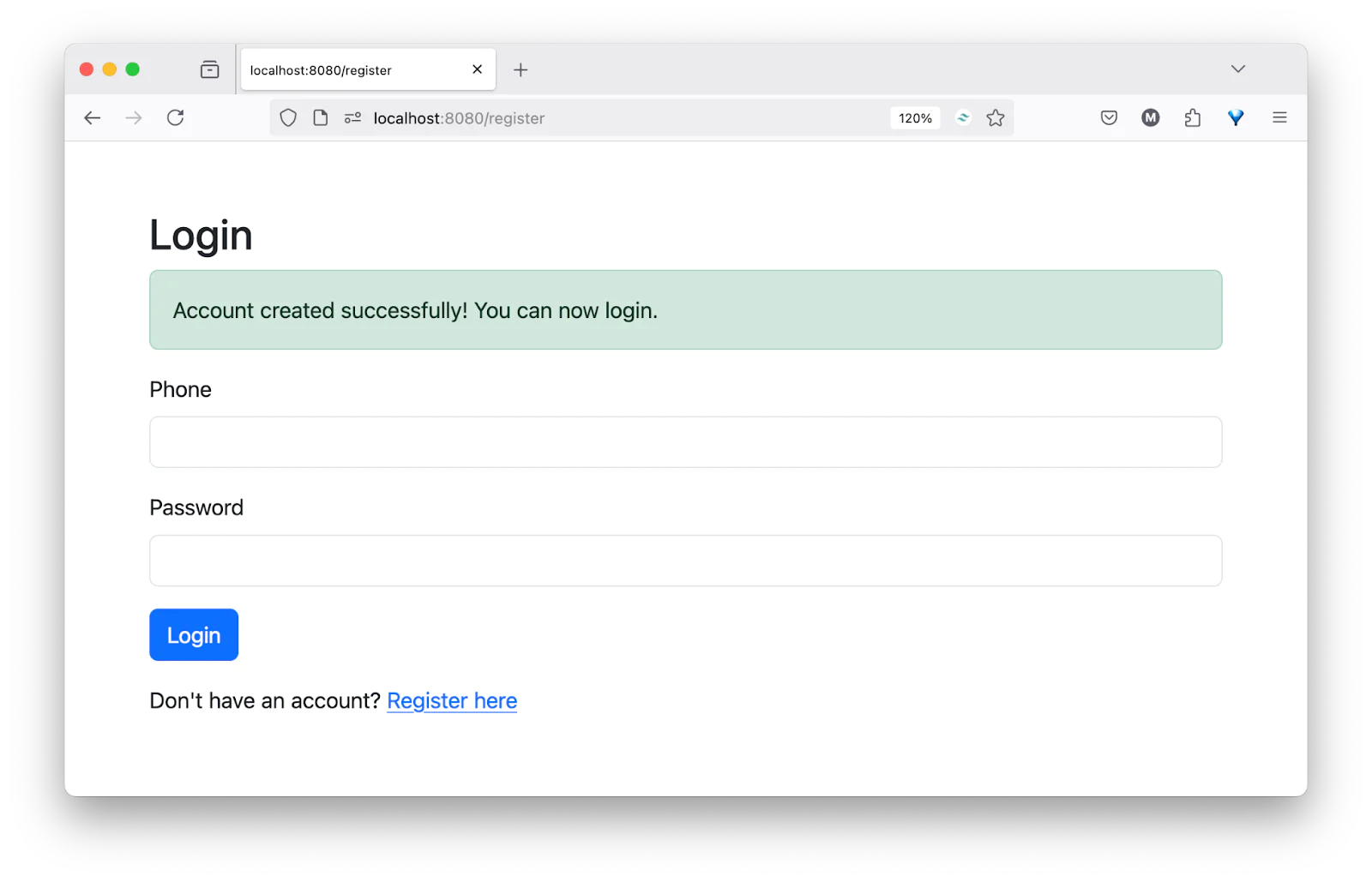
After creating an account, you will be redirected to the login page to sign in, as shown in the screenshot below.
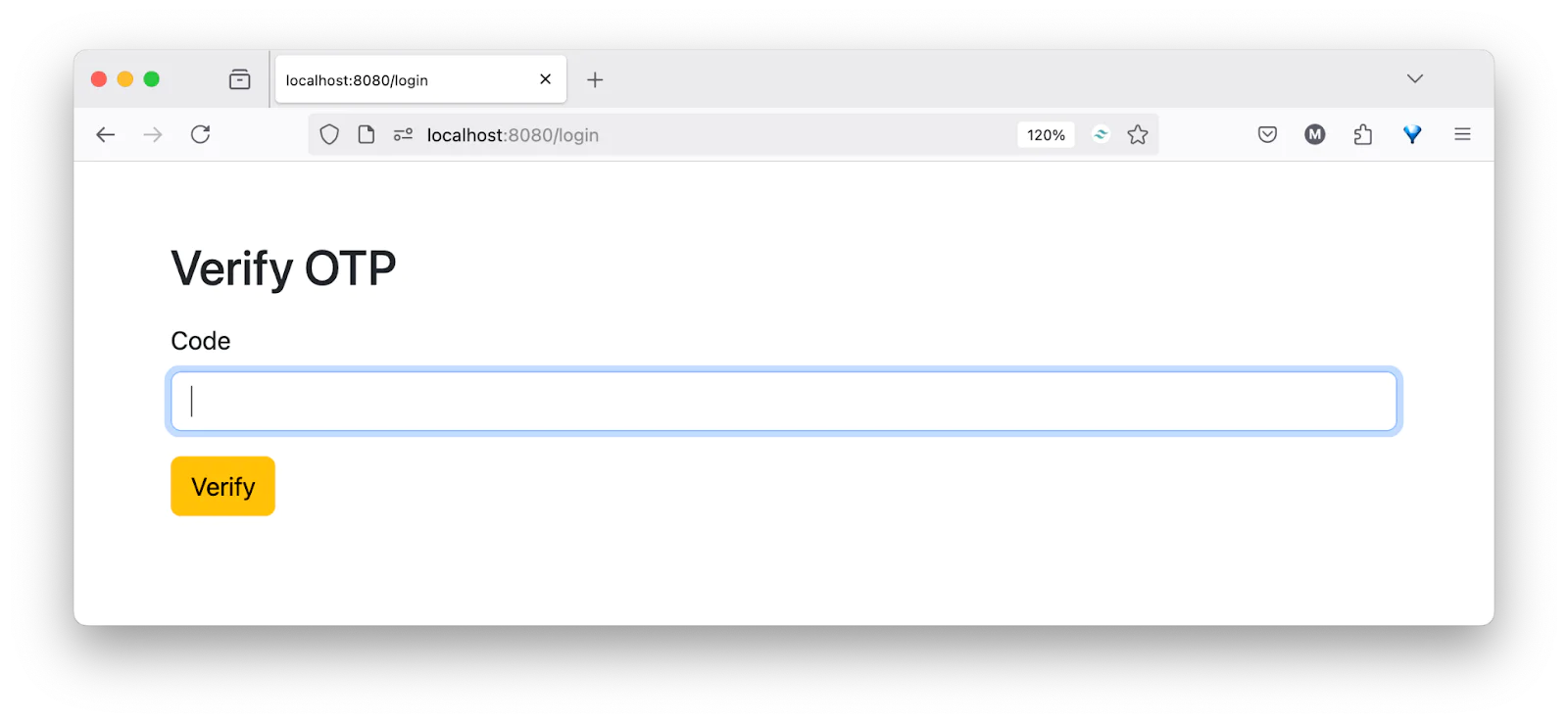
After your phone number and password are validated, you will be redirected to the login verification page, as shown in the screenshot below.
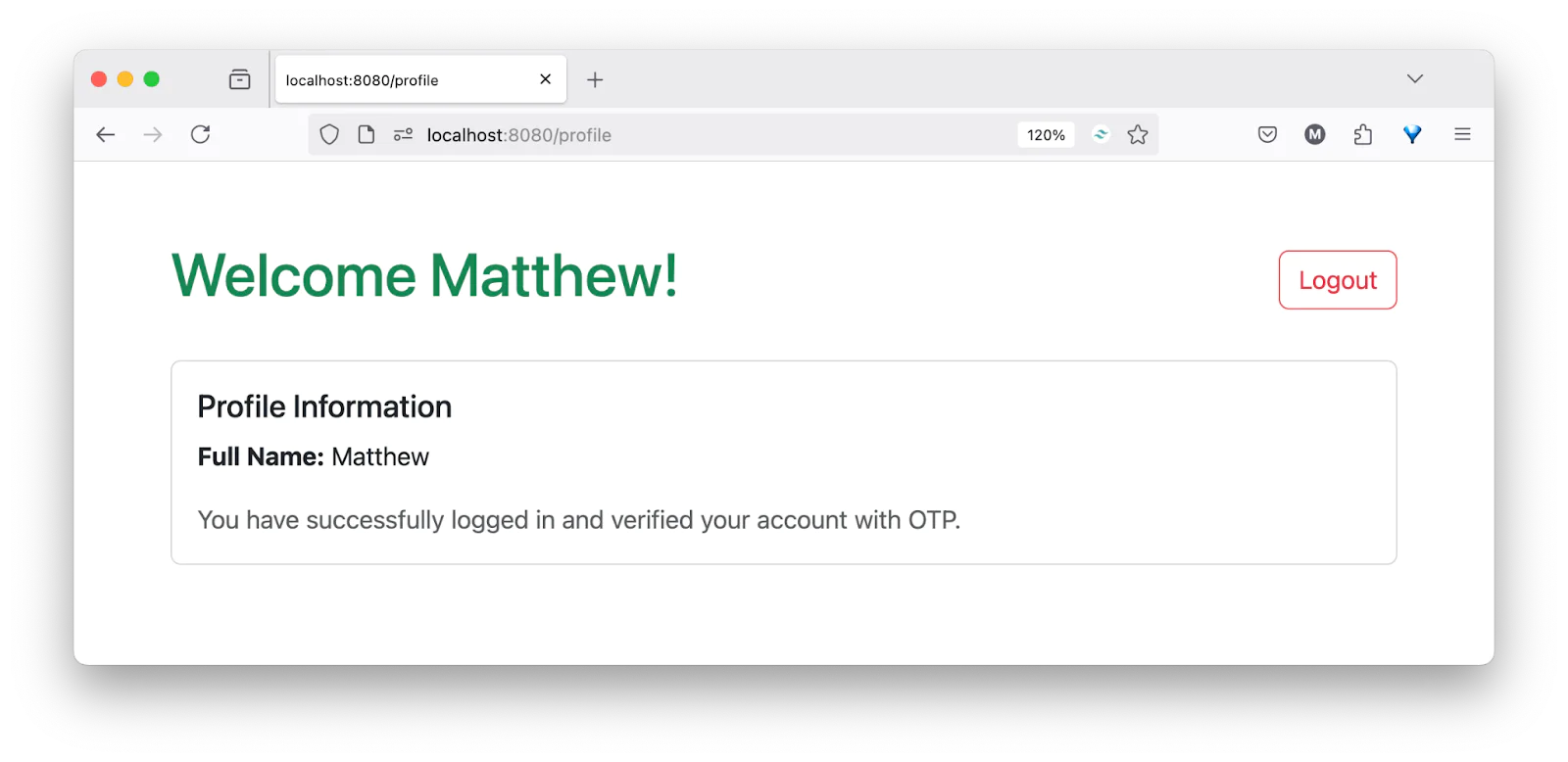
Next, enter your OTP and click the Verify button. If the OTP is correct, you will be taken to your profile page, as shown in the screenshot below.
That’s how to Implement OTP authentication in Rust with Twilio
In this tutorial, you’ve learned how to implement a secure user authentication system in a Rust application using Twilio Verify. This system acts as a form of Two-factor Authentication (2FA), enhancing security by requiring users to verify their identity with a One-time Password (OTP) delivered via SMS.
Popoola Temitope is a mobile developer and a technical writer who loves writing about frontend technologies. He can be reached on LinkedIn.
Related Posts
-
 Verifying Phone Numbers in Ruby on Rails with Twilio's Verify APIDaniel Phillips
 -
 How to Confirm Phone Number Ownership with Lookup Identity Match in PHPKelley Robinson Matthew Setter
 -
 How to Approve Real Users and Block Fake Accounts at Sign Up with Lookup and Verify in PHPKelley Robinson Matthew Setter
Related Resources
Twilio Docs
From APIs to SDKs to sample apps
API reference documentation, SDKs, helper libraries, quickstarts, and tutorials for your language and platform.
Resource Center
The latest ebooks, industry reports, and webinars
Learn from customer engagement experts to improve your own communication.
Ahoy
Twilio's developer community hub
Best practices, code samples, and inspiration to build communications and digital engagement experiences.