Build a Twilio + Zoho CRM Voice Integration
Time to read:
February 27, 2026
Written by
Reviewed by
AI generated summary
- Log incoming voice calls in Zoho CRM with Twilio's Programmable Call Recording.
- Setup involves creating a PHP project, configuring environment variables, and defining API keys.
- Integrate call handling routes in PHP, record and transcribe calls, and log details in Zoho CRM.
This summary was generated by AI.
Build a Twilio + Zoho CRM Voice Integration
Are you using Zoho CRM's API with your PHP applications? If not, you're missing out on some very powerful functionality.
You can manage and search records across all available modules (e.g., accounts, contacts, deals, and leads), manage attachments, appointments, notes, and so much more.
Does that sound like the kind of functionality your customers would love?
If so, by the end of this tutorial, you'll know how to log incoming voice calls in your Zoho CRM account, (including their duration, purpose, start time, and type) along with an audio and text copy of the call. This is all thanks to Twilio's Programmable Call Recording functionality.
Prerequisites
Before you begin, make sure you have the following:
- A Twilio account with a phone number that can receive voice calls. Sign up for free today if you don't have an account.
- A Zoho CRM Professional account, or sign up for the 15-day free trial
- Git
- PHP 8.4 or above
- Composer installed globally
- Your preferred code editor or IDE, such as Neovim, PhpStorm, or Visual Studio Code
- A phone that can make voice calls. Alternatively, you can use the Twilio Dev Phone. It's great for testing your Twilio apps when you don't have access to SMS and calling capabilities.
- Some terminal experience is helpful, though not required
Application overview
Before we begin, here's how the application will work. When a customer calls your Twilio phone number, they'll hear the following automated voice message:
Please leave a message at the beep. Press the hash or pound key when finished.
After the caller hears this, several things will happen:
- The customer can leave a voice message and press either the hash or pound key (#) to end the call.
- Twilio will then send a POST request to the application's
/call/receiveendpoint, with the details of the call stored in the request data. The data will include the call's status, the URL of the call recording, a text transcription of the call, and the caller's phone number. - A request will be made to Zoho CRM's API to create a new inbound call record. This record stores the following information from the call:
- Agenda
- Duration
- Purpose
- Start time
- Type
- Text transcription
- Voice recording that Twilio created
- The user will then hear "Thank you for recording your message. It will be logged in Zoho CRM." and the call will end.
Whilst this might sound very involved in order to get the application working, this tutorial builds on the previous one in this series. If you’ve completed that, then there's not as much work to do.
Set up the project
The first thing we need to do is to set up the base project. You can do this wherever you usually store your PHP projects, by running the following commands:
Here’s what the above commands do:
- Clone the completed code from the previous tutorial
- Change into the cloned project directory
- Create a new branch from the project's 1.0.0 tag
- Install the PHP dependencies
- Create a new .env file from the example copy, .env.example.
Set the required environment variables
The application uses a number of environment variables to keep configuration settings and sensitive data out of the code, storing them in a file named .env and making them available to the application via PHP Dotenv.
Retrieve your Zoho details
Open .env in the project's top-level directory and set the value of ZOHOCRM_DC to the data center assigned to your account, and the value of ZOHOCRM_URI to the base URI most applicable to you, followed by "/crm/v8". As an example, I live in Australia, so I'd set ZOHOCRM_DC to "AU" and ZOHOCRM_URI to "https://www.zohoapis.com.au/crm/v8".
Next, let’s retrieve your Zoho SOID. This is your Zoho organisation's unique ID, required in the next step. To retrieve it:
- Log in to the Zoho CRM Dashboard
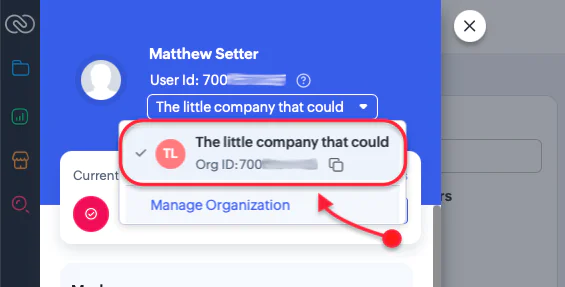
- Click the Profile icon near the bottom of the left-hand side navigation menu, underneath the Setup icon (the cog)
- Click the down arrow next to your organisation's name and copy the Org ID that appears, by clicking the copy icon
- Set your Organisation's ID as the value of
ZOHO_SOIDin your .env file Generate a Zoho CRM API Key and Secret
Next, let’s generate your Zoho CRM API key and secret. These are required to retrieve an access token, which the application needs to make authenticated requests to Zoho CRM's API.
To do this:
- Make sure you’re still logged in to your Zoho CRM account
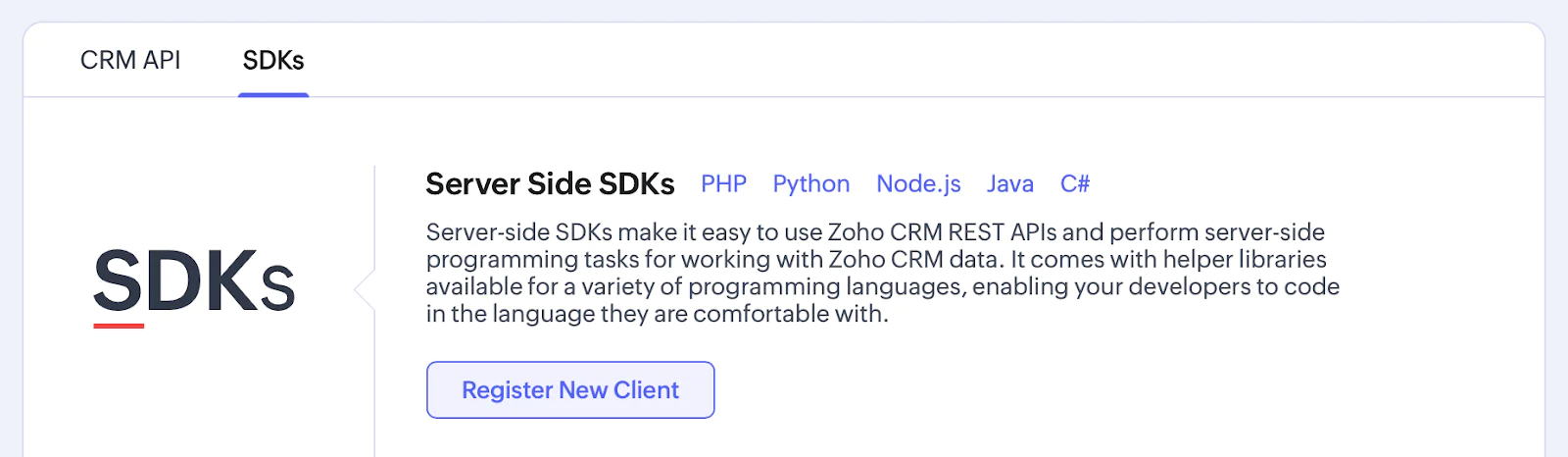
- In the left-hand side navigation menu, navigate to Setup > Developer Hub > APIs and SDKs > SDKs
- In the "Server Side SDKs" section, click "Register New Client" to create a new client for accessing the Zoho CRM API
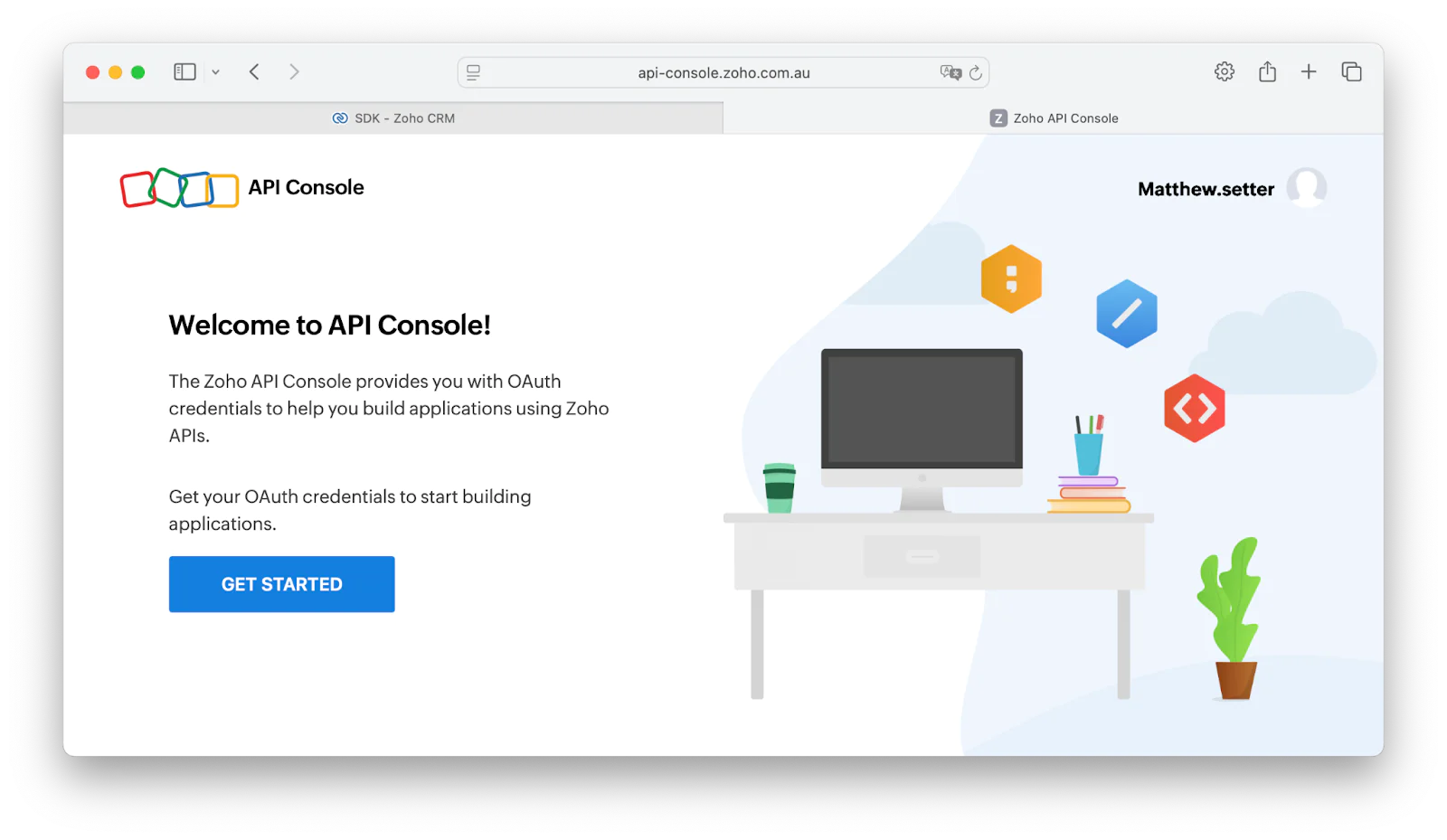
- Enter your password to verify your identity
- Click "GET STARTED"
- Click "CREATE NOW" in the "Self Client" option
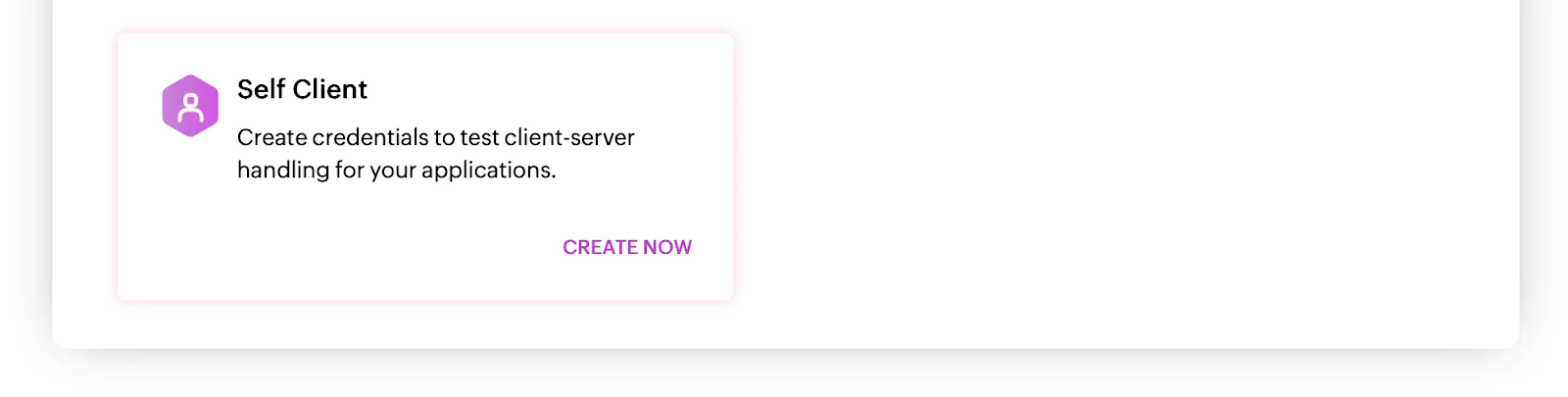
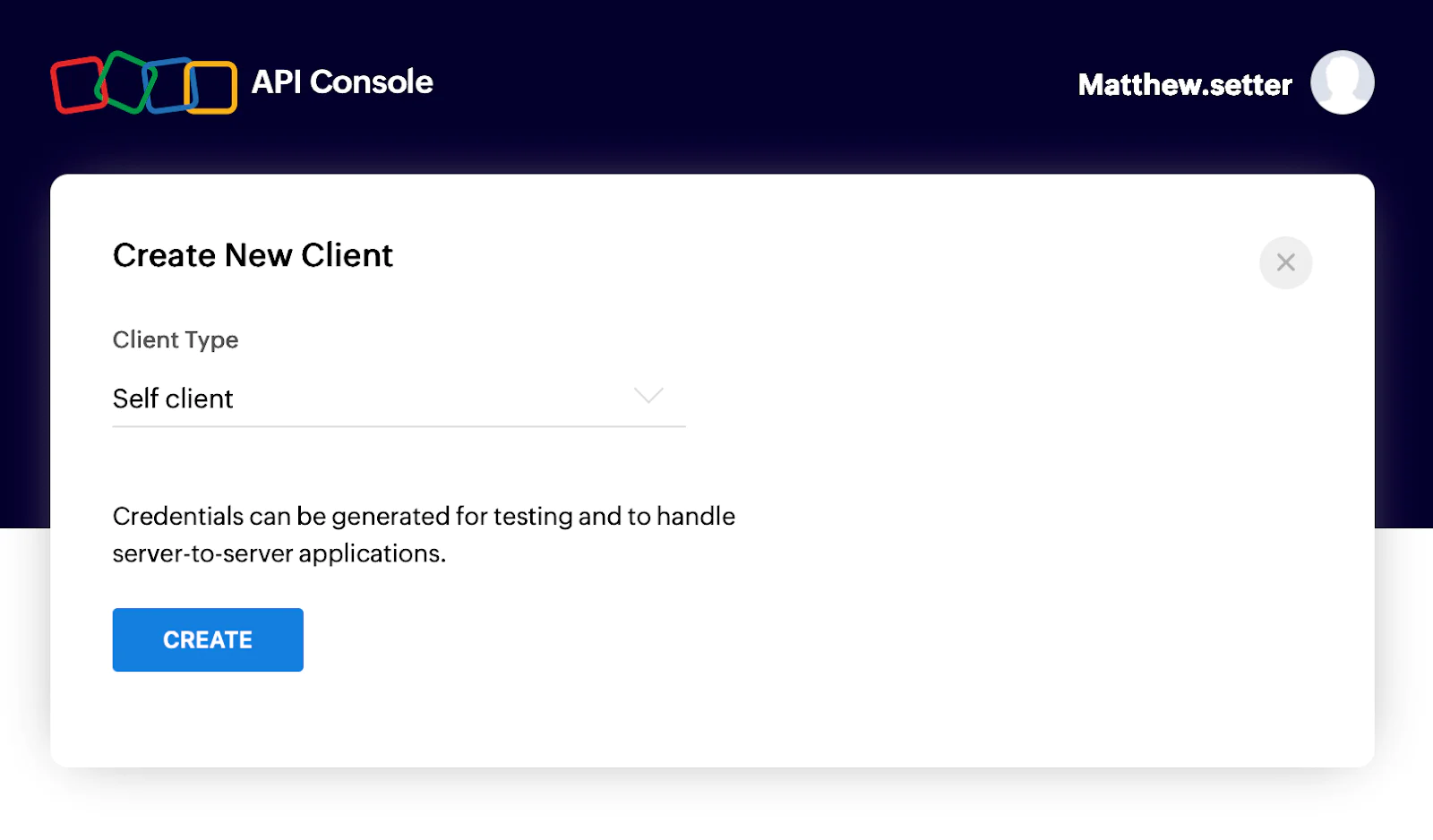
- In the "Create New Client" dialog, leave the options as they are and click "CREATE"
- In the "Are you sure to enable self-client?" confirmation popup, click "OK"
- Copy the Client ID and Client Secret
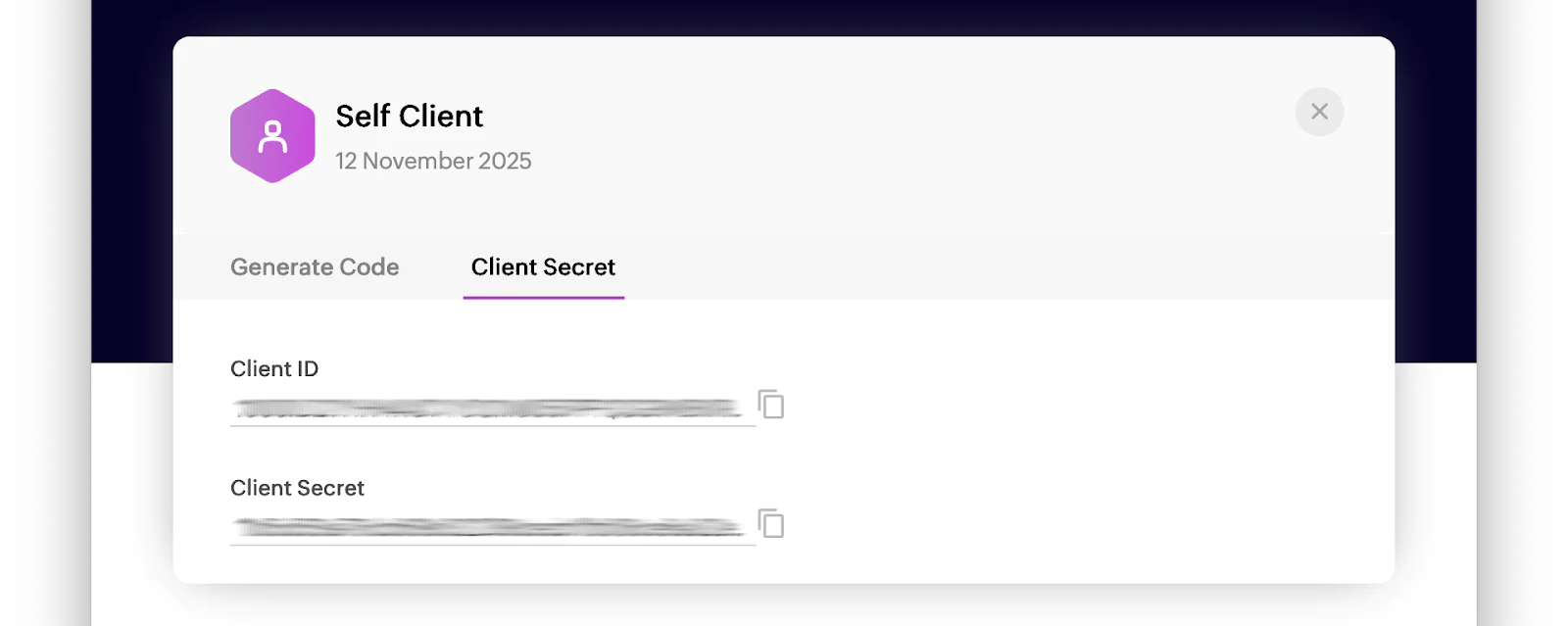
- Set them as the values of
ZOHO_CLIENT_IDandZOHO_CLIENT_SECRET, respectively, in your .env. file Retrieve your Twilio credentials and phone number
Finally, retrieve your Twilio credentials. This is to ensure the app can authenticate with Twilio's Programmable Messaging API for sending SMS notifications, and your Twilio phone number, so Twilio knows who's sending the SMS.
To retrieve the information:
- Log in to your Twilio Console
- From the Account Info panel, copy your Account SID, Auth Token, and phone number
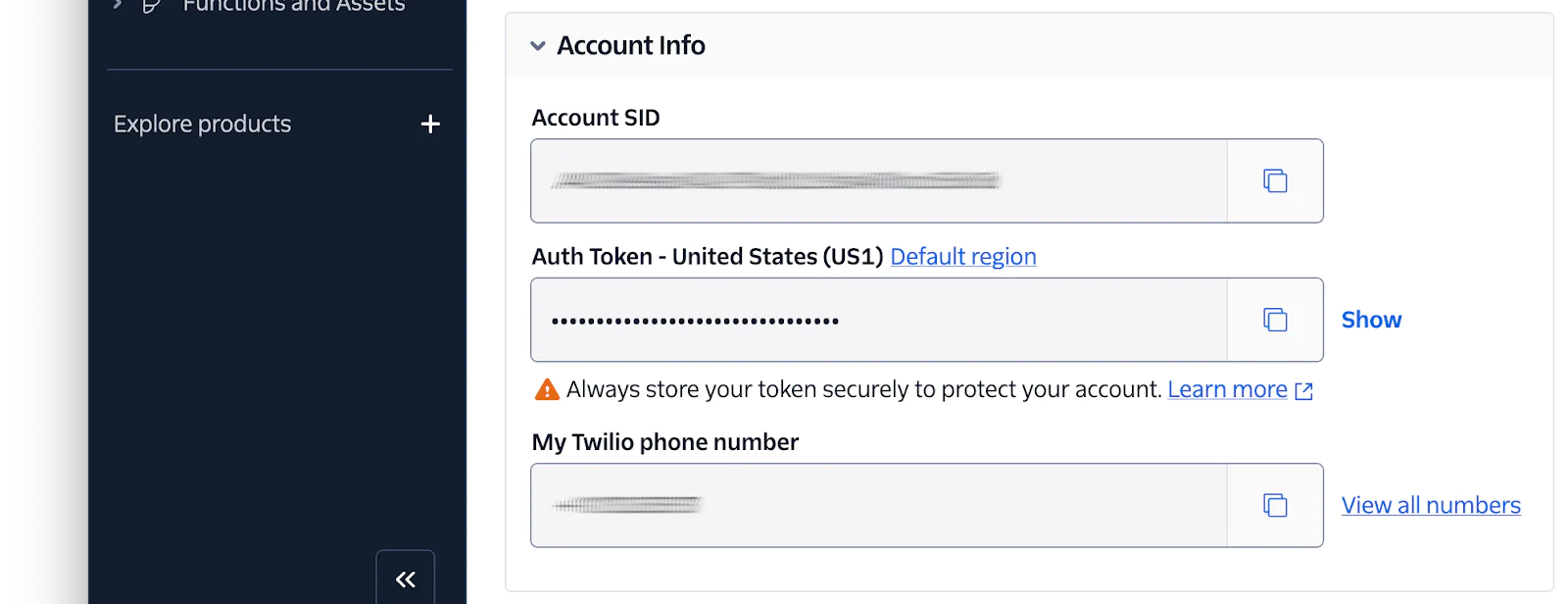
- Paste this information into your .env file as the values for
TWILIO_ACCOUNT_SID,TWILIO_AUTH_TOKEN, andTWILIO_PHONE_NUMBER, respectively Add the ability to record voice calls
Now, let's extend the existing PHP application to implement the new functionality. Start by updating
setupRoutes()in src/Application.php to match the following code:
The three new lines in the code above create three new routes for the application:
- The first route handles the initial incoming call, and presents an IVR to the caller
- The second route creates a voice call record with Zoho CRM
- The third route ends the call
Add the following functions at the end of src/Application.php.
Then, import the following namespaces.
The code above defines three functions which handle the application's three new routes:
- "/call/receive" — (receiveCall)
- "/call/record" — (recordCall)
- "/call/end" — (endCall)
Let’s look at each in detail.
receiveCall: Responds to incoming phone calls using the TwiML Say and Record verbs, creating a simplistic IVR (Interactive voice response):
Also known as a phone tree, [an IVR] provides an automated telephony system for callers using voice and touch-tones (DTMF).
The IVR tells the caller to leave a message at the beep and press the pound or hash key (#) to end the call. Once the call ends, Twilio:
- Records and makes a text transcription of the call
- Makes a POST request to the application's
/call/recordendpoint (handled by therecordCall()function) with the caller and recipient's phone numbers (this happens regardless of whether the transcription was successful or not), and the text of the transcription - Ends the call by making a request to the application's
/call/endroute, handled by theendCall()function
recordCall: Logs a voice call with Zoho CRM, using the information sent by Twilio. The function retrieves the call details from Twilio and uses the collective information to log a new, inbound, voice call with Zoho CRM.
As part of this process, the function:
- Links the voice recording made by Twilio to the call record
- Sets the call's description to the text transcription of the call
- Sets the call's purpose to "Prospecting"
- Sets the call's type to "Inbound"
- Sets the call's result to "Requested more info"
- Sets the call's subject to "Inbound Call from Twilio" followed by the call's start time
endCall: Uses the Say and Hangup TwiML verbs to thank the user for making the call, then ends the call.
Add classes and enums to model call details and properties
With those changes made, we now need to create a new class for modelling the logged call, and three enums for modelling the available options for the call's purpose, type, and result. This might feel a little over-engineered, but it helps keep the code cleaner.
We'll start with the call model. In src/Entity, create a new file named LoggedCall.php. Then, in that new file, past the code below:
The class provides a basic model of a logged call in Zoho CRM, storing a range of call properties, including:
- Description
- Duration
- Purpose
- Start time
- Type
- Voice recording
The fields have intentionally been set as public for the sake of simplicity. Feel free to define property hooks to make the class more robust.
Next, in src/Entity, create a new file named CallType.php, and in that new file, past the code below:
The enum models the three call types that Zoho CRM supports.
Next, in src/Entity, create a new file named CallPurpose.php. Then, in that new file, paste the code below:
Similar to CallType, CallPurpose models the seven options that a call's purpose can be set to.
Next, in src/Entity, create a new file named CallResult.php, and in that new file, past the code below:
This enum models the various results a call result can be set to in Zoho CRM.
Update ZohoCrmService
With the model and enums created, the final step is to update ZohoCrmService so that the class can record a voice call in your Zoho CRM account. To do that, add the following function to src/Service/ZohoCrmService.php:
Then, add the following use statements at the top of the class:
This function makes an API call to Zoho CRM using Guzzle to log a new call record. It does this by creating an appropriately formatted JSON body with the data provided by the LoggedCall object passed to the function.
Start the application
Now the application is built, let’s expose it to the public internet. Start the PHP built-in webserver by running the following command:
Then, expose it to the public internet with ngrok, by running the following command in a new terminal tab or session:
After ngrok starts, it should print output to the terminal, similar to this:
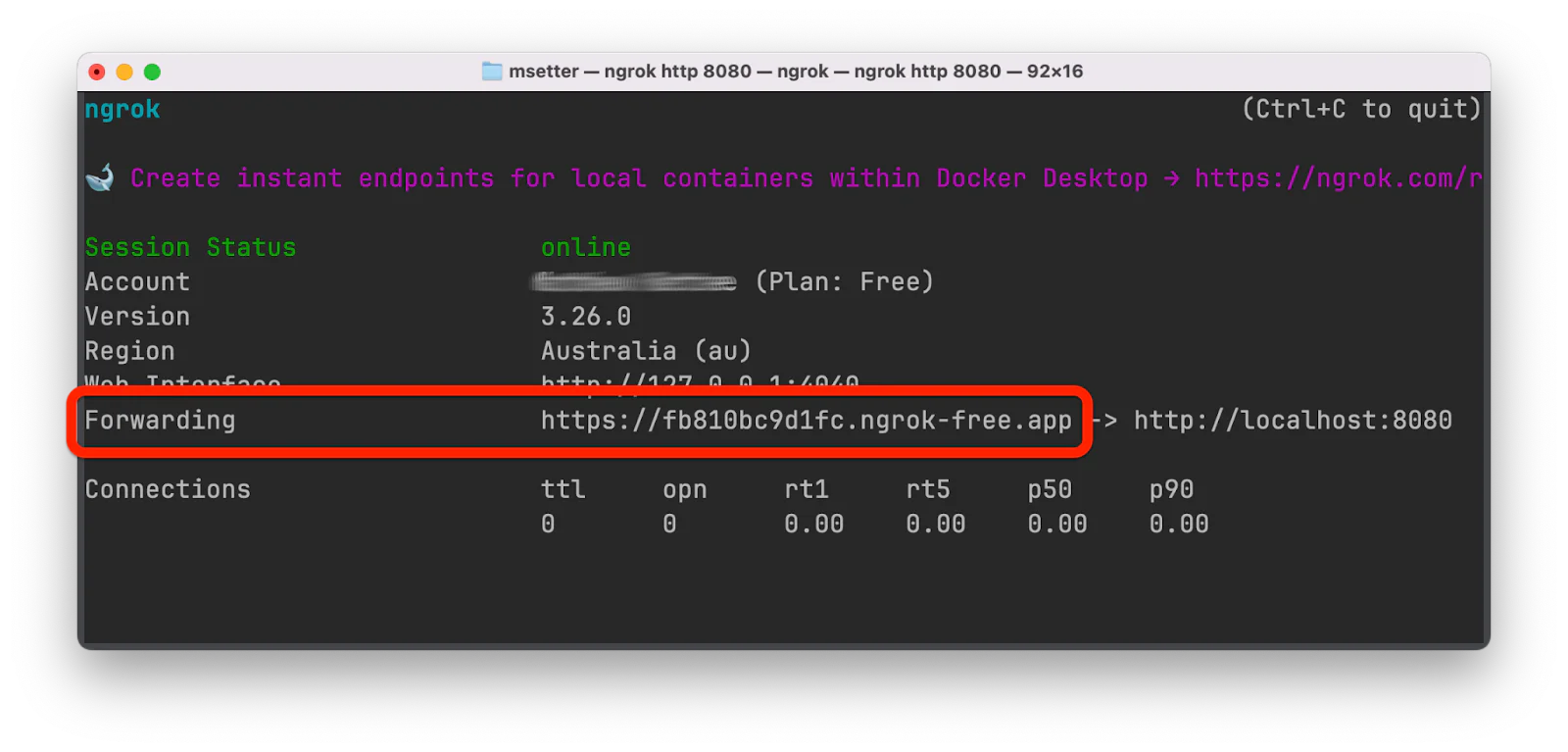
Copy the Forwarding URL and set it as the value of PUBLIC_URL in .env.
Update your phone number's configuration
The final step is to update your Twilio phone number's configuration so that when the number is called it connects to the application's /call/receive route.
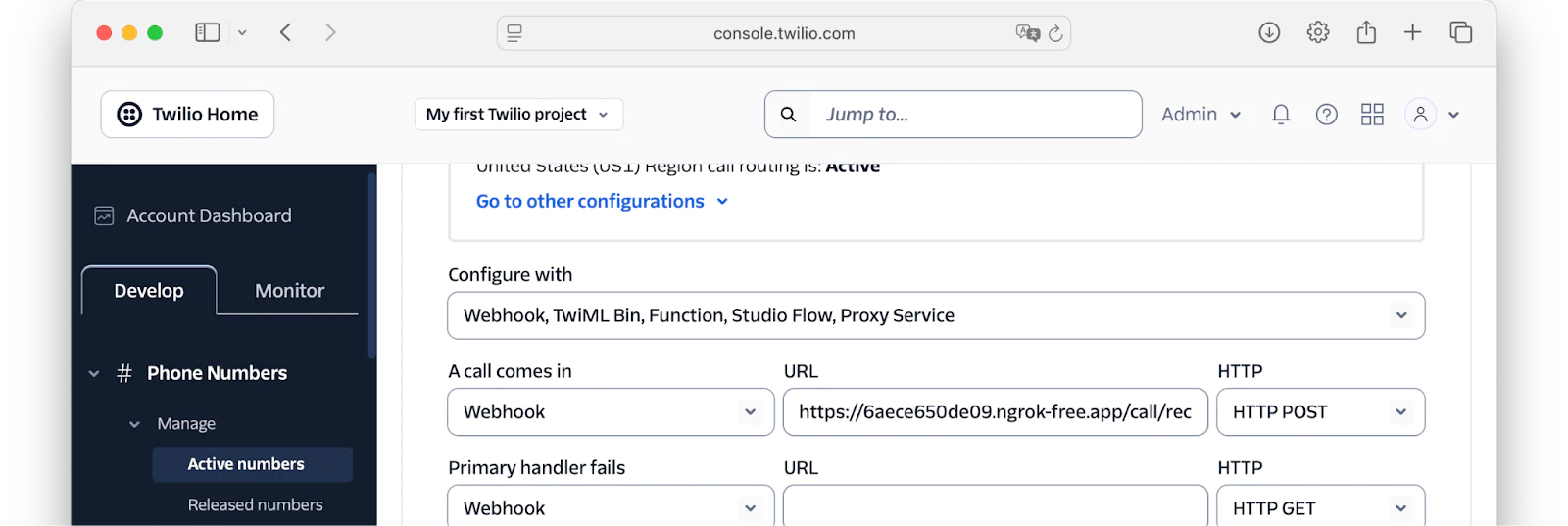
To do that, go back to your Twilio Console. There, in the left-hand side navigation menu, navigate through Phone Numbers > Manage > Active numbers. Click on your Twilio phone number, then click the Configure tab. From there, scroll down to Voice configuration, and set:
- Configure with to "Webhook, TwiML Bin, Function, Studio Flow, Proxy Service"
- A call comes in to "Webhook", URL field to the ngrok Forwarding URL you copied above, plus "/call/receive", and HTTP drop down to "HTTP POST"
Scroll all the way to the bottom, and click Save configuration.
Test that the integration works
Now it’s time to test if your application works. Make a call to your Twilio phone number. If you’ve successfully followed the steps above and configured your number, you'll be asked to leave a message and press # to end the call. Leave a message that is at least five seconds in length and press #. You'll then hear the message that the call's ended, so hangup.
Next, log in to your Zoho CRM Dashboard, and open the Calls module. There, you'll see a new call record has been created.
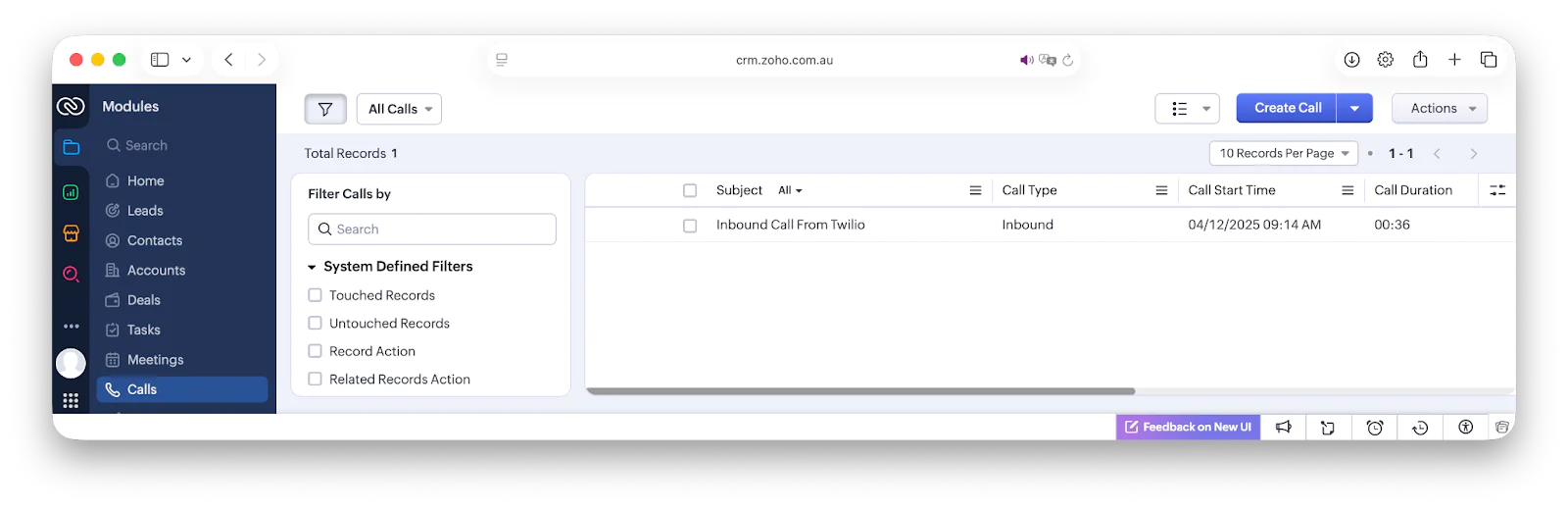
Click on the call record to see the full details. Check it has a link to the audio recording of the voice call and a text transcription of the call set in the description field.
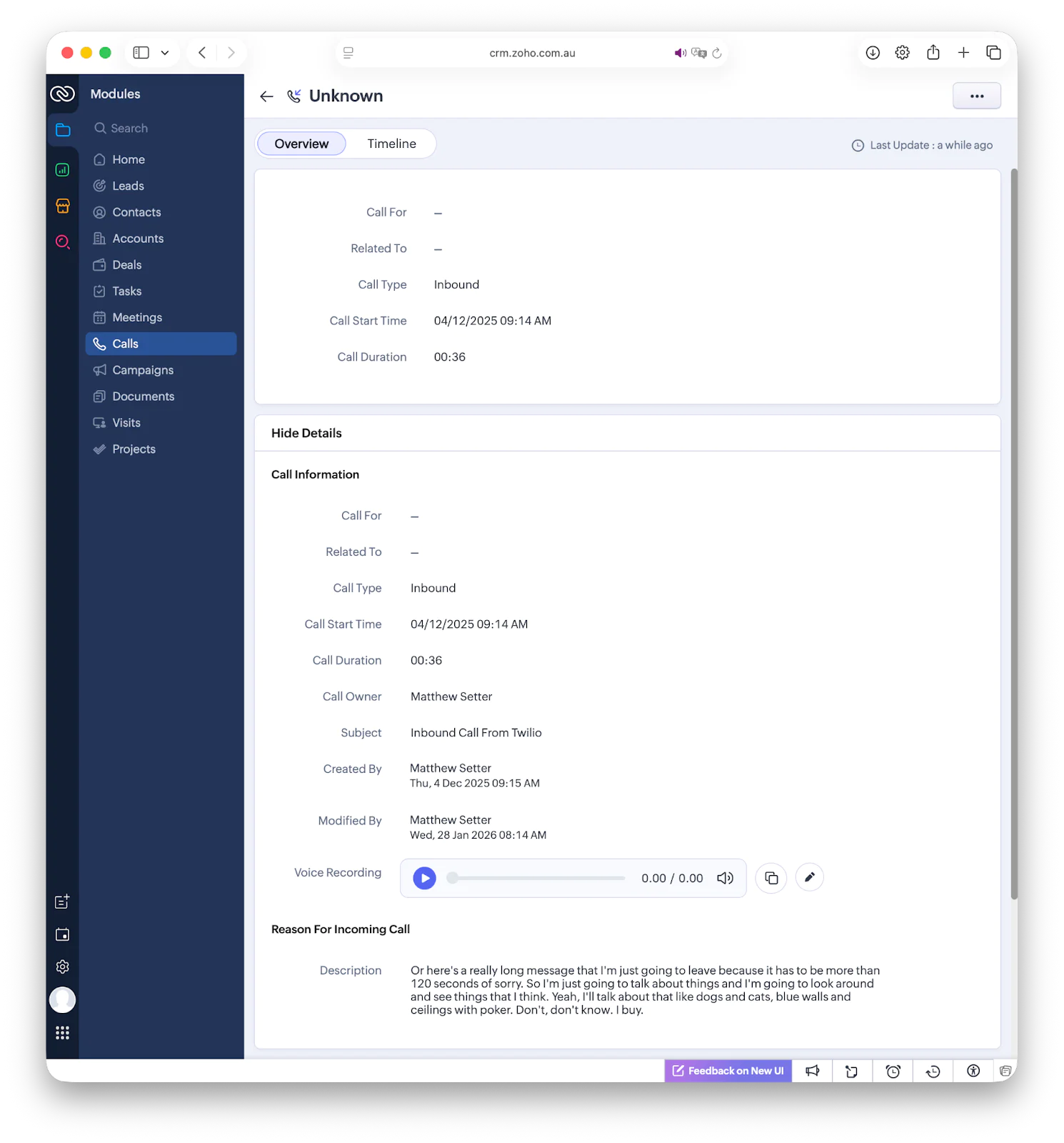
On the first page load, the Voice Recording field will seem to be empty, showing a recording time of "0.00". However, if you press play and wait half a second, Zoho CRM will load and play the recording, as you can see in the screenshot below.

Trying building a Twilio + Zoho CRM Voice integration
Now that you've integrated Zoho CRM's API functionality with Twilio, you’re able to add incoming call records to your Zoho CRM account. These records will contain an audio recording of the call, and a text transcription.
Think of all the ways you can build on this functionality to benefit your business. Some of those ways could be adding reminders to follow up inbound calls, creating sophisticated IVR (Interactive voice response), and categorising calls based on the option(s) the caller chooses.
What could you build with Zoho CRM and Twilio to benefit your customers and augment the power of your business?
What's Next?
If you'd like to learn more about Zoho CRM's or Twilio's APIs, check out these tutorials:
- Steps to generate a Zoho CRM OAuth Token
- How to search records in Zoho CRM
- How to retrieve individual records in Zoho CRM
- … If you get stuck, try out our AI Agent for the Twilio Docs
Matthew Setter is (primarily) the PHP, Go, and Rust editor on the Twilio Voices team. He’s also the author of Mezzio Essentials and Deploy with Docker Compose . You can find him at msetter[at]twilio.com. He's also on LinkedIn and GitHub.
The phone icon in the post's main image was created by Freepik on Flaticon.
Related Posts

Related Resources
Twilio Docs
From APIs to SDKs to sample apps
API reference documentation, SDKs, helper libraries, quickstarts, and tutorials for your language and platform.
Resource Center
The latest ebooks, industry reports, and webinars
Learn from customer engagement experts to improve your own communication.
Ahoy
Twilio's developer community hub
Best practices, code samples, and inspiration to build communications and digital engagement experiences.