Play an Audio File in Voice Calls With PHP
Time to read:
February 10, 2026
Written by
Reviewed by
AI generated summary
- Learn to integrate audio files in voice calls using PHP and Twilio's Programmable Voice API.
- Use three methods to serve audio files: a public hosted file, directly from your app, or with Twilio Assets.
- Configure Twilio and your PHP application to test and play your audio file during phone calls.
This summary was generated by AI.
Play an Audio File in Voice Calls With PHP
Audio can make an excellent addition to your voice calls!
For example, it lets you provide informational messages to your customers that are both professional and polished, provide more engaging and interesting on-hold music, present your brand in a consistent manner, through complete control over the tone, language, and clarity, and build powerful Interactive Voice Response (IVR) systems.
Whether you want to play a recorded message, on-hold music — or any other audio file during calls with your customers — Twilio's Programmable Voice API makes it easy!
In this post, you'll learn how to play an audio file in voice calls using PHP. What's more, you'll learn three different ways to serve the audio file to play in your calls:
- Using a public hosted file
- Serving it directly from your PHP app
- Hosting it with Twilio Assets
Prerequisites
Before you begin, make sure you have the following:
- A Twilio account with a phone number that can receive phone calls. Sign up for free today if you don't have an account.
- PHP 8.4 or above
- Composer installed globally
- ngrok for testing the application locally
- A mobile phone that can make calls
- Your preferred code editor or IDE (such as neovim or Visual Studio Code)
- Some terminal experience is helpful, though not required
Set up the project directory
The first thing that we need to do is to set up the project directory structure, by running the following commands.
Install the required packages
We need a number of packages to create the application. These are:
To install the packages, run the following command.
Then, you need to configure a PSR-4 autoload namespace named "App" for the project. To do that, open composer.json in the project's top-level directory and add the following to it:
Then, run the following command to update Composer's autoloader:
Set the required environment variables
The application will make use of a single environment variable: AUDIO_FILE. This is the full URL to the audio file to play, regardless of where it's stored. So, paste the following into a new file named .env in the project's top-level directory; we'll set this toward the end of the tutorial.
Create the PHP application
Now, let's write the app's code. Gladly, there are only two files, starting off with public/index.php. Create the file, then paste the code below into the new file.
The code creates an environment variable for the variable AUDIO_FILE set in .env, initialises a new Application object (a small utility wrapper around Slim Framework's Application object), calls the object's setupRoutes() object to initialise the application's routing table, and then calls run() to launch the application.
Next, create a new file named Application.php in the src directory and paste the code below into the file.
As I mentioned earlier, this class is a utility wrapper around Slim's core Application class, one that makes it easier to create (and test). It has four essential functions.
setupRoutes: This function creates the application's routing table, defining two routes.
The first (/), handled by the handleDefaultRoute() function, is the application's default route. This is the route that Twilio will make a GET request to when someone calls your Twilio phone number.
The second (/assets/{filename}), handled by the serveFile() function, is called if you're serving the audio file directly from the application. In this case, Twilio makes a GET request to the route to retrieve the audio file's contents. The {filename} element of the route's path is a route placeholder that can be set to almost anything, e.g., classic.mp3 or quick-recording.wav, etc. Whatever the value is, it's passed to serveFile() in the $args array's filename element.
handleDefaultRoute: This function returns TwiML that instructs Twilio to play an audio file back to the caller when they call your Twilio phone number. After receiving this TwiML, Twilio will make a second request to the value of the Play verb.
Here's an example of what would be returned:
serveFile: This function looks in the application's assets directory for a file with the same name as the filename element of the $args array. If the file was available, its contents are returned and the response's Content-Type header is set to match its mimetype.
run: This function calls the internal Application's run() function, launching the application.
Start the application
Now that the application's built, it's time to start it and expose it to the public internet. To start it with PHP's in-built webserver, run the command below.
Then, in a separate terminal tab or session, expose the application to the public internet using ngrok, by running the command below.
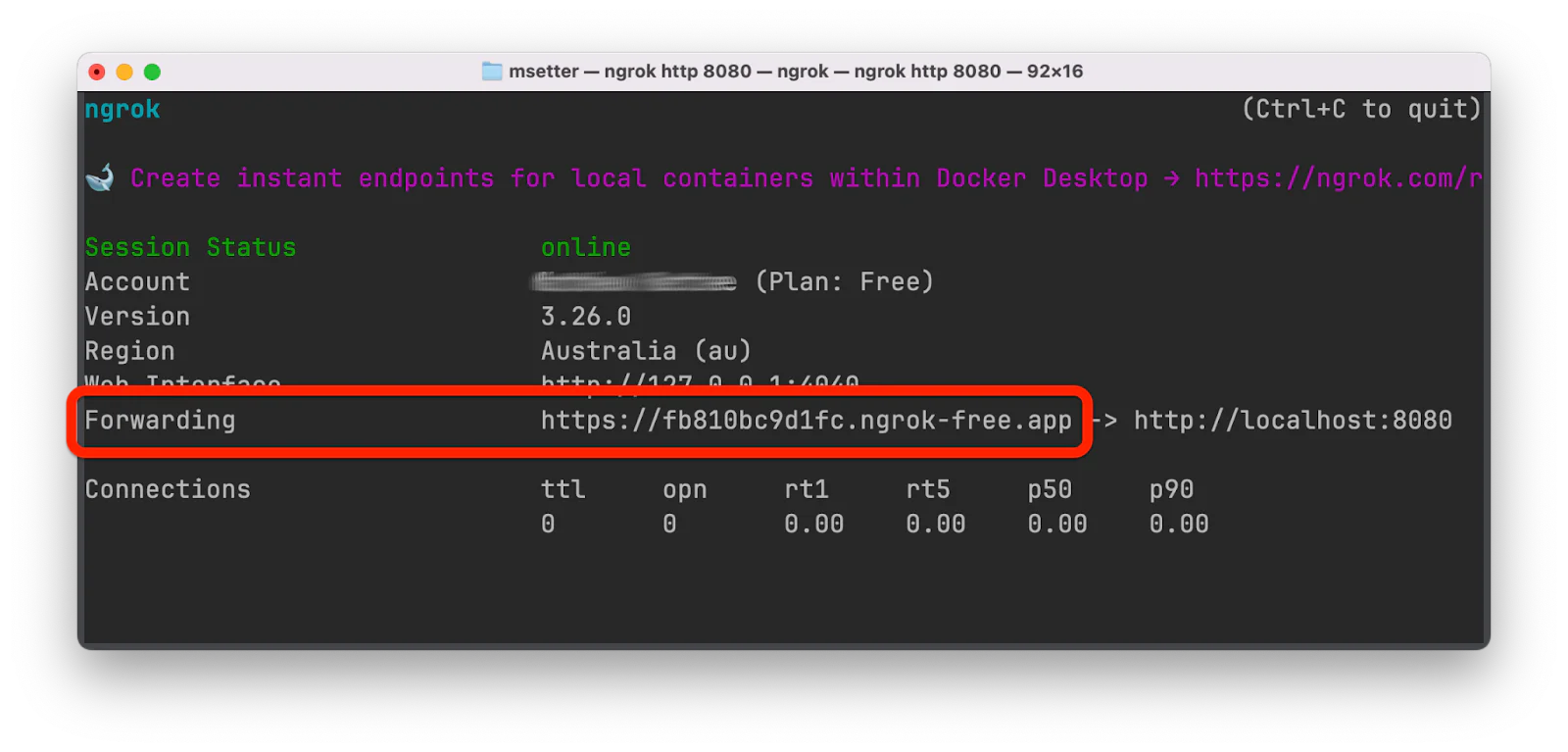
After ngrok starts, you'll see it prints output to the terminal, similar to the screenshot below. Make a copy of the Forwarding URL, as you'll need it shortly.
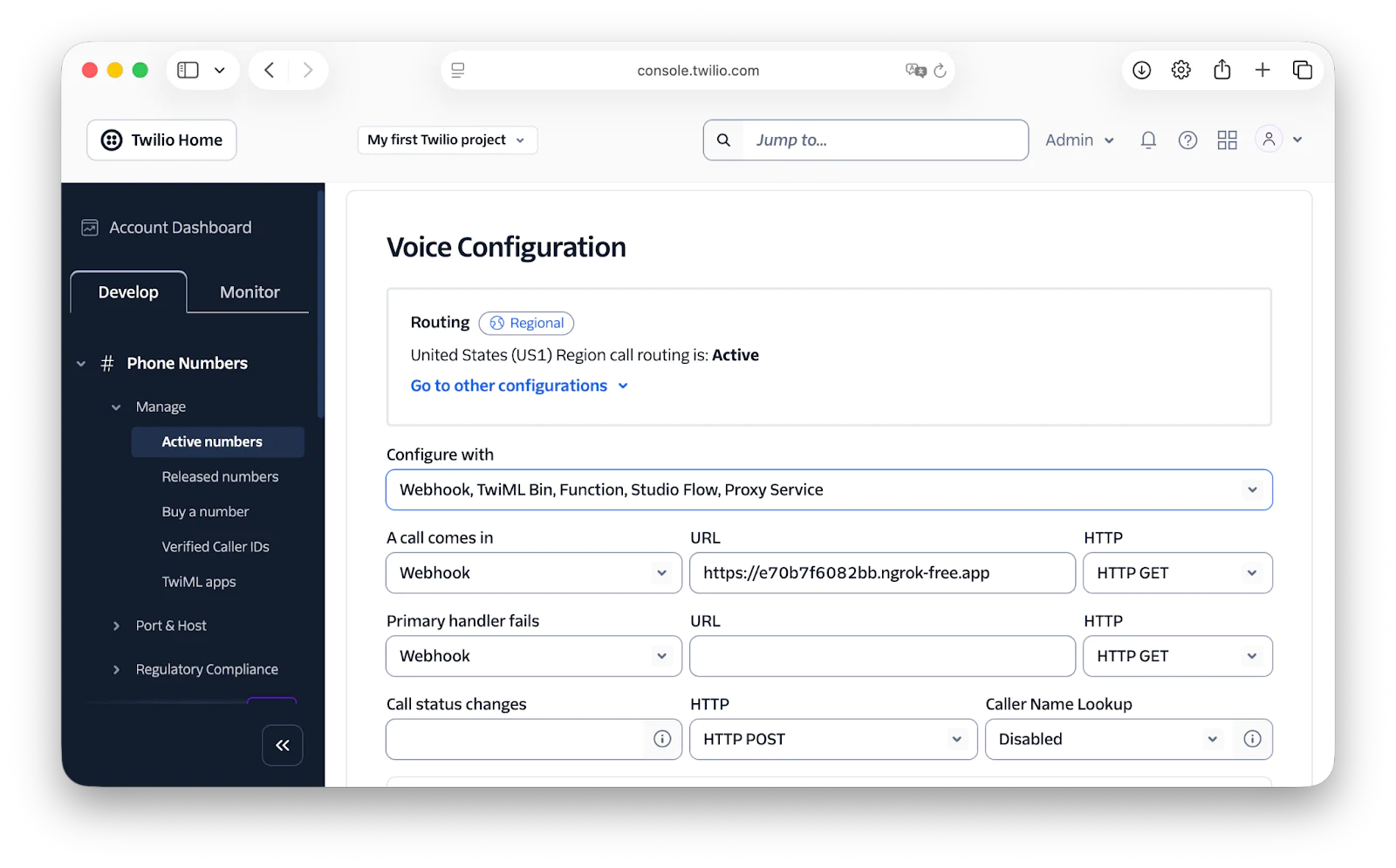
Now, log in to your Twilio Console, and in the left-hand side navigation menu, navigate through Phone Numbers > Manage > Active Numbers. There, click on your Twilio phone number, followed by the Configure tab. In Voice Configuration, set:
- Configure with to "Webhook, TwiML Bin, Function, Studio Flow, Proxy Service"
- A call comes in to "Webhook"
- Its URL field to the ngrok Forwarding URL that you copied earlier
- Its HTTP field to "GET"
Then, scroll to the bottom of the page and click Save configuration.
Set where the audio file is hosted
It's now time to decide how to host the audio file. Twilio supports five audio file formats for use with the Play verb: MPEG Layer 3 Audio, Waveform Audio File Format (WAVE or WAV), Audio Interchange File Format (AIFF), GSM audio format, and the μ-law audio format.
As MP3 is widely used, the following options will use an MP3 file. But, feel free to use one of the other file formats if you prefer it.
Option 1: Use a publicly hosted file
To save you some time and effort, you can use Twilio's self-hosted, demo MP3 file. To use it, set "https://demo.twilio.com/docs/classic.mp3" as the value of AUDIO_FILE in .env.
Option 2: Serve the file directly from the application
When using this option, copy an MP3 file to the application's assets directory. If you don't have one handy, make a short recording with apps such as Audacity, Reaper, or the audio recorder that comes with your operating system. Then, in .env, set AUDIO_FILE to the ngrok Forwarding URL which you copied earlier, plus "/assets", plus the MP3 file's name.
Assuming that you named the MP3 file quick-recording.mp3, then the URL would resemble: "https://fb810bc9d1fc.ngrok-free.app/assets/quick-recording.mp3".
Option 3: Host the audio file as a Twilio Asset
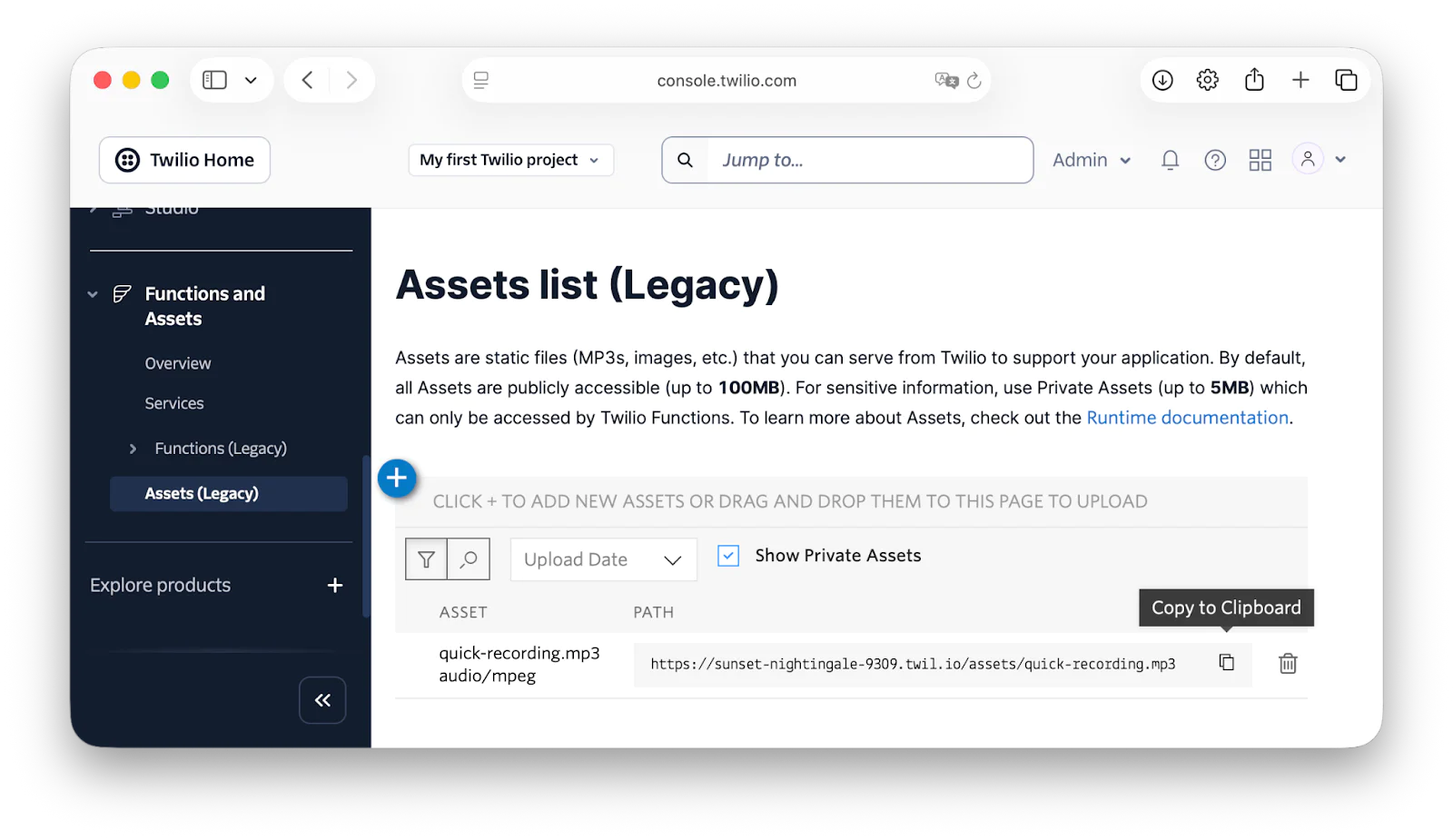
To host an MP3 file as a Twilio Asset, log in to your Twilio Console. Then, in the left-hand sidebar, click Explore Products > Developer tools > Functions and Assets. After that, again, in the left-hand sidebar, under Functions and Assets select Assets (Legacy).
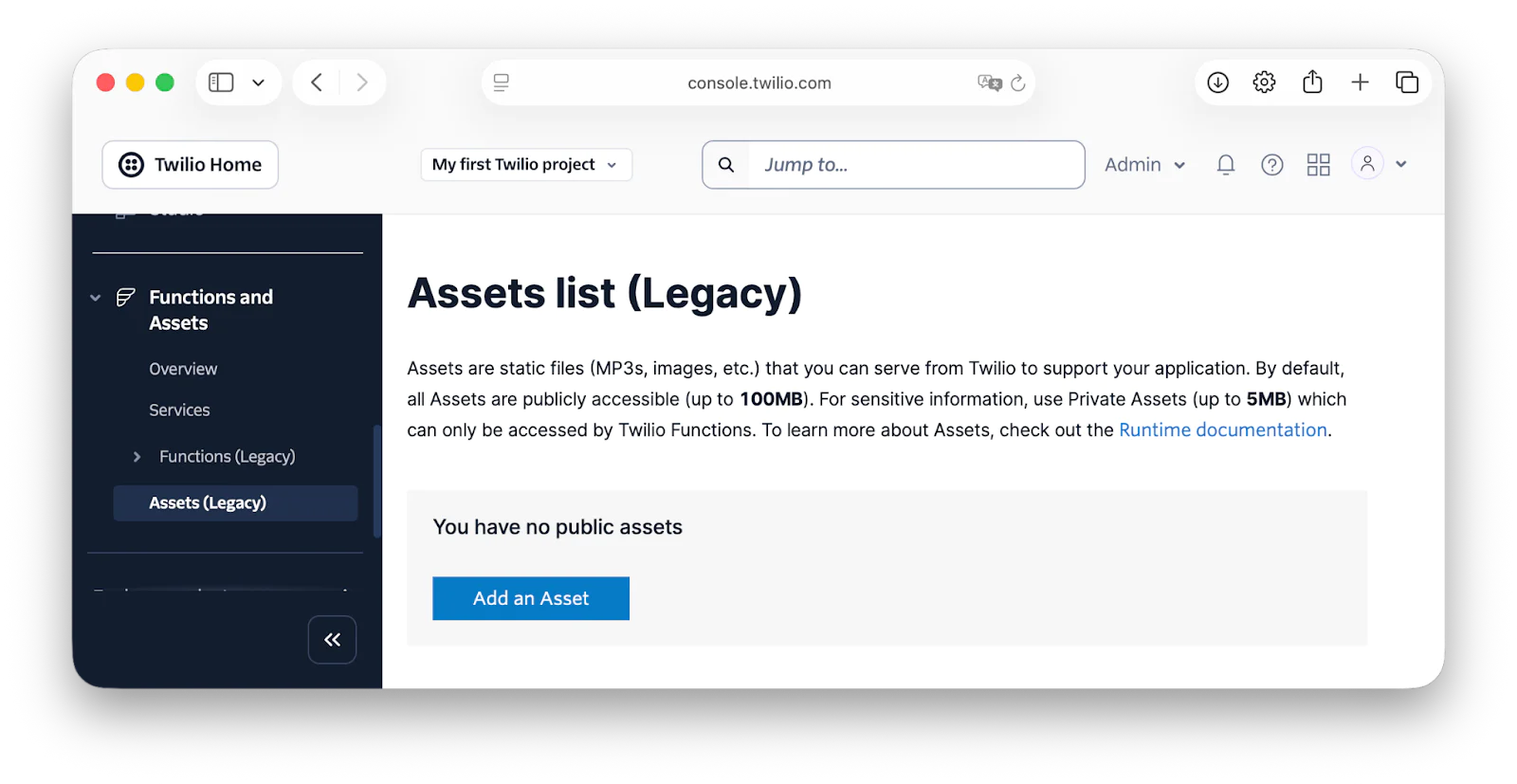
There, click Add an Asset, select your MP3 file from your computer, make sure the asset is not marked "Make Private" so that Twilio can access it, and click Upload.
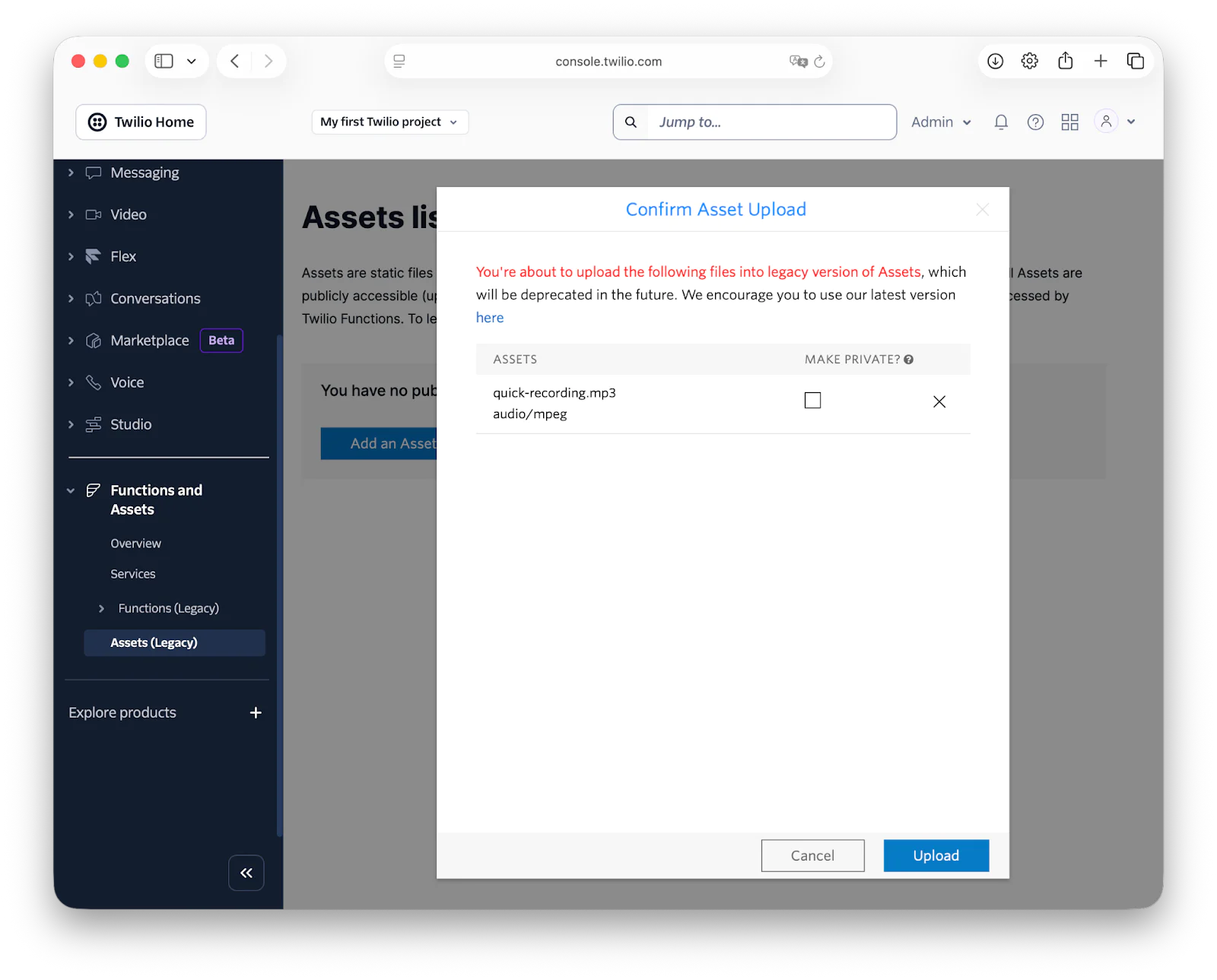
Then, after the Asset's deployed, copy the URL in the Asset's PATH column, and set it as the value of AUDIO_FILE in .env.
Lastly, in src/Application.php, update handleDefaultRoute() to match the following:
Test that the application works as expected
It's the moment of truth. Call your Twilio phone number. You should hear the MP3 file that you've chosen played back to you!
That's how to play an audio file in voice calls using PHP with Twilio's Programmable Voice API
The code in this tutorial is quite light. However, I hope that it's given you a taste for just how simple it can be to play audio files in your voice calls with PHP — and how to integrate Twilio with your PHP apps using TwiML.
That said, there's so much more that you can do with the TwiML Play verb, such as enabling looping — and TwiML more broadly — such as by building an IVR (Interactive Voice Response) system.
Matthew Setter is (primarily) the PHP and Go editor on the Twilio Voices team. He’s also the author of Mezzio Essentials and Deploy with Docker Compose. You can find him at msetter[at]twilio.com. He's also on LinkedIn and GitHub.
MP3 icon and Phone icon created by Freepik on Flaticon.
Related Posts
-
 AI-powered agents for contact center in Australia: containment quality, not deflectionAliakbar Lokhandwala
 -
AI-powered agents for contact center in India: what they can and cannot doAliakbar Lokhandwala
-
AI-powered agents for contact center in Philippines: what the term actually meansAliakbar Lokhandwala
Related Resources
Twilio Docs
From APIs to SDKs to sample apps
API reference documentation, SDKs, helper libraries, quickstarts, and tutorials for your language and platform.
Resource Center
The latest ebooks, industry reports, and webinars
Learn from customer engagement experts to improve your own communication.
Ahoy
Twilio's developer community hub
Best practices, code samples, and inspiration to build communications and digital engagement experiences.