Build a Twilio + Odoo Integration for WhatsApp
Time to read:
December 08, 2025
Written by
Reviewed by
AI generated summary
- Integrate Twilio's WhatsApp API with Odoo to automate customer notifications.
- Utilizes Twilio's WhatsApp Sandbox for immediate testing.
- Store and manage Twilio credentials securely within Odoo.
This summary was generated by AI.
Build a Twilio + Odoo Integration for WhatsApp
Odoo is an open-source ERP and CRM platform that handles everything from sales to inventory and accounting. Twilio's WhatsApp Business API allows you to send and receive messages through the widely popular messaging app. By combining Odoo with Twilio, you can automate customer communications via WhatsApp directly from your business workflows.
In this tutorial, you'll learn how to integrate Twilio's WhatsApp API with Odoo to send automated notifications. You'll use Twilio's WhatsApp Sandbox, which lets you start testing immediately before going through the WhatsApp Business API approval process. By the end, you'll be able to use Twilio to send order confirmation notifications to your customers via WhatsApp, all triggered automatically from within Odoo.
Prerequisites
Before you begin, make sure you have the following:
- A Twilio account (click here to sign up)
- A server with an instance of Odoo ( Community or Enterprise) running
- Admin access to Odoo, to install apps/modules
- Ability to install Python packages on the server
- A smartphone with WhatsApp installed for testing
High-Level Architecture/What You'll Build
Here's how the integration works:
Business action in Odoo ➜ Odoo triggers notification ➜ Twilio API ➜ WhatsApp ➜ Customer receives message
When a specific event occurs in Odoo (like confirming a sales order), your custom Python code will call Twilio's API, which then delivers the message to your customer's WhatsApp account.
Tutorial
Step 1: Set Up Twilio WhatsApp Sandbox
The WhatsApp Sandbox is Twilio's testing environment, which allows you to experiment with WhatsApp messaging without requiring approval from Meta. It's perfect for building and testing your integration.
- Log in to your Twilio Console.
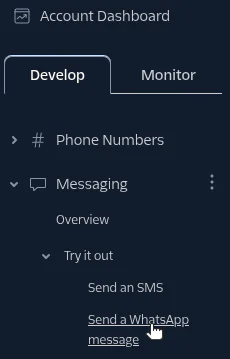
- Navigate to Messaging > Try it out > Send a WhatsApp message.
3. You'll see your Sandbox connection information, with your sandbox phone number, your unique join code, and a QR code that you can scan from your mobile device to join the sandbox.
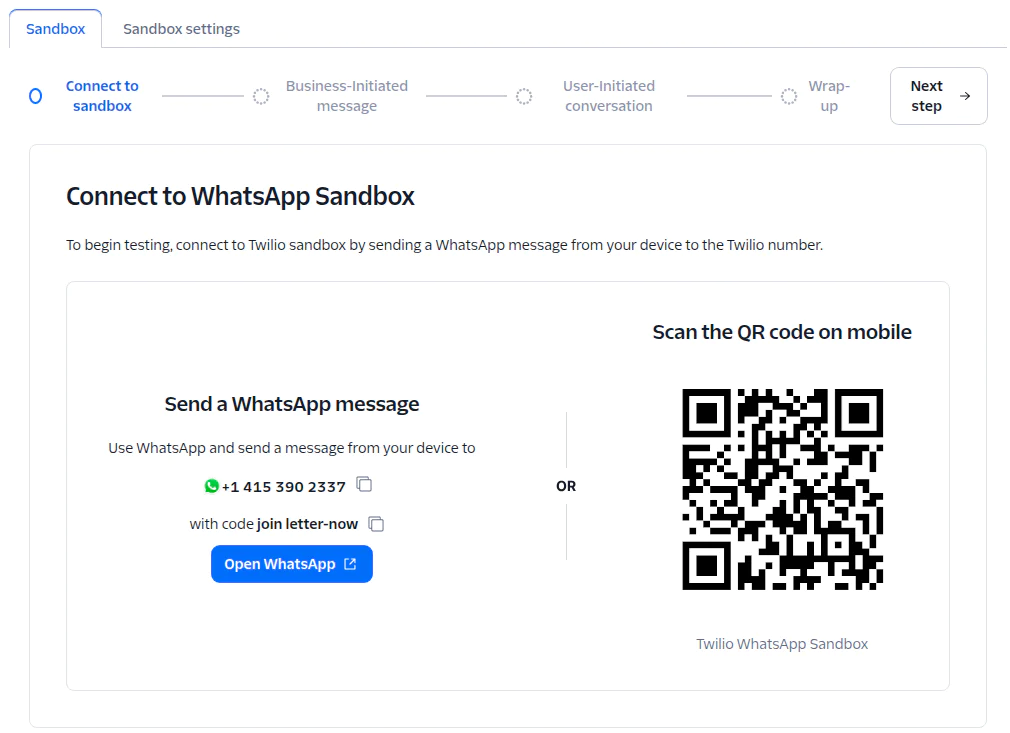
4. On your mobile device, open WhatsApp and send the join code message to the sandbox number shown, or scan the QR code.
5. You will receive a confirmation message that you've successfully joined the sandbox.
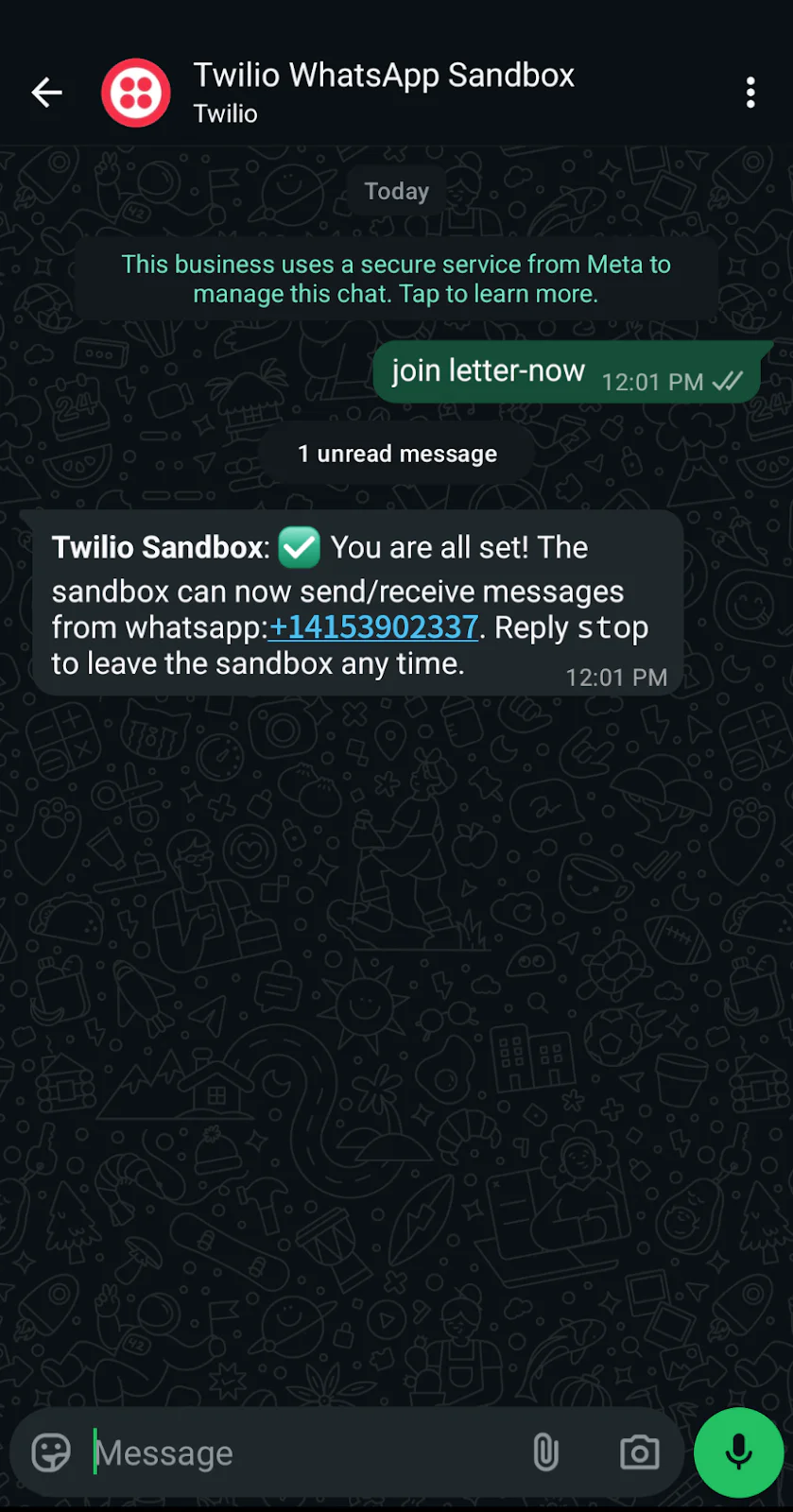
Note: Anyone who wants to receive messages from your sandbox will first need to join the sandbox by sending this code. This is a sandbox-only requirement; production WhatsApp numbers don't need this step.
Step 2: Get Your Twilio Credentials
When Odoo makes Twilio API calls, it will need your Twilio credentials for authentication. You'll need your Account SID and Auth Token.
- From the Admin menu in the Twilio Console, navigate to Account management.
- In the left sidebar menu, navigate to API keys & tokens.
- At the bottom of the page, you will see "Auth Tokens." Find the Live credentials. Copy the values for Account SID and Auth Token. Store them securely (you'll need them in Step 5).
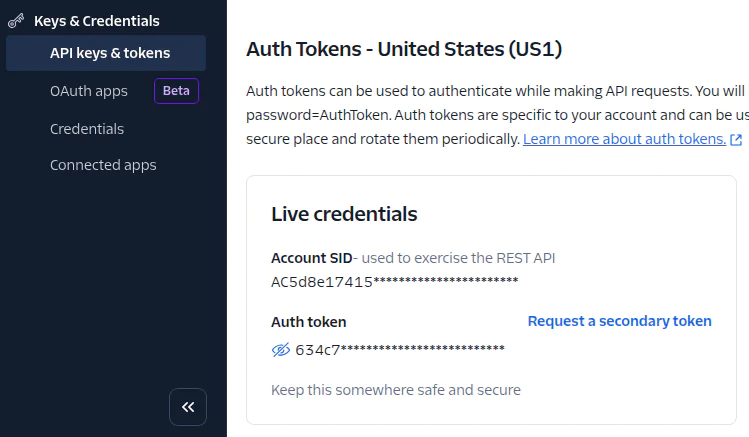
Important: Never share your Auth Token publicly or commit it to version control. Treat it like a password.
Step 3: Install Twilio SDK in Odoo
The Twilio Python SDK makes it easy to interact with Twilio's APIs from Python code. You'll need to install it in your Odoo server environment. This walkthrough assumes you installed Odoo via a package manager (such as Debian/Ubuntu). Run the following command:
After installation, restart your Odoo server to ensure the library is available:
Or
Step 4: Create a Simple Odoo Module
Odoo's functionality is organized into modules. To add WhatsApp integration, we'll create a custom module that contains our integration logic.
First, navigate to your Odoo addons folder, as specified in your oodo.conf file ( /etc/odoo/odoo.conf for Linux installations). The default addon location is /usr/lib/python3/dist-packages/odoo/addons.
Then, back in your terminal, navigate to this new addons folder and inside it, create a new folder for your module:
Create the module manifest file __manifest__.py, with the following contents:
Create an __init__.py, with the following contents, file to initialize the module:
Create a models subfolder.
In the models subfolder, create a file called __init__.py, and add the following contents:
Now you have the basic structure for your Odoo module.
Step 5: Configure Twilio Credentials in Odoo
Rather than hardcoding your Twilio credentials in your code, you'll store them securely in Odoo's system parameters. This makes it easier to update credentials without requiring code modifications.
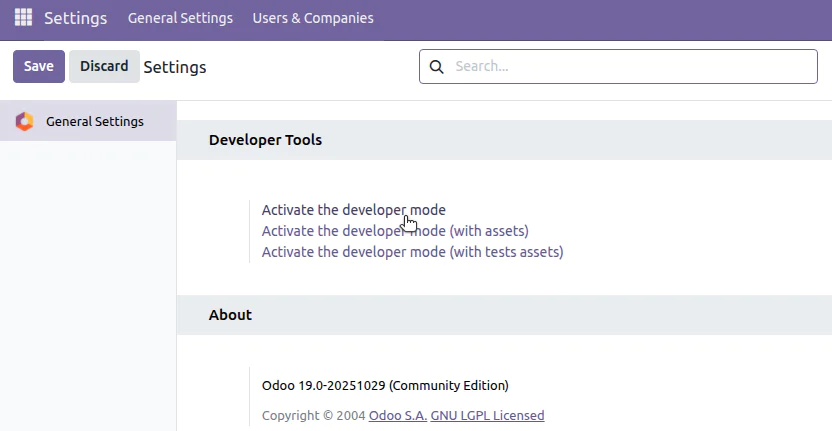
In Odoo, activate Developer Mode. Go to Settings. Scroll to the bottom and click Activate the developer mode. Click Save at the top of the page.
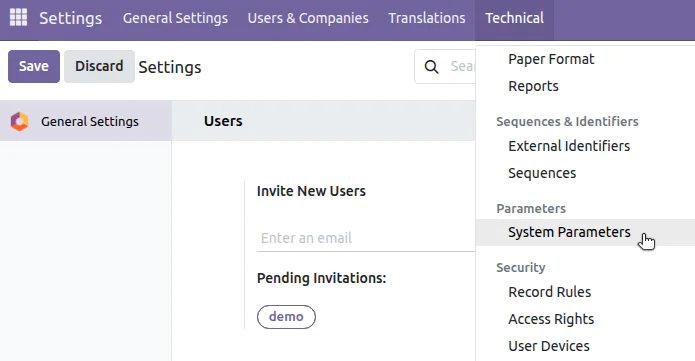
In the Settings menu at the top, navigate to Technical > System Parameters.
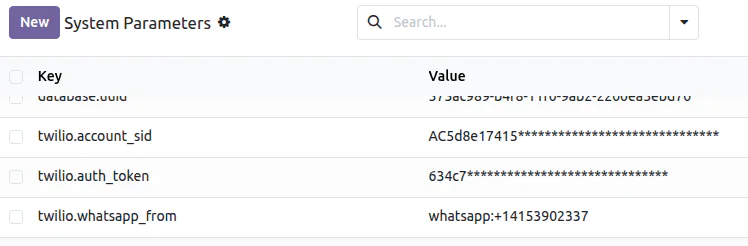
Click New to add your Twilio Account SID as a new parameter. Set the Key to twilio.account_sid. For the value, paste your Account SID from Step 2.
Add a second parameter by clicking New again. Set the key to
 and paste the Auth Token from Step 2 as the value.

Add a third parameter by clicking  New again. Set the key to
twilio.whatsapp_from and the value to whatsapp:+14151234567 (use your actual sandbox number with the whatsapp:` prefix).
Step 6: Build the Send Message Function
Next, create the Python code that actually sends WhatsApp messages through Twilio's API. In your module's models folder, create a file named whatsapp_sender.pywith the following code:
This code creates a reusable function that:
- Retrieves your Twilio credentials from system parameters
- Initializes the Twilio client
- Formats phone numbers with the required
whatsapp:prefix - Sends the message via Twilio's API
- Logs success or failure for debugging
Step 7: Trigger Notifications from Odoo Events
Lastly, you'll connect your WhatsApp sender to actual Odoo events. For this example, we'll send a notification when a sales order is confirmed.
Create a new file in your models folder called sale_order.py with the following code:
Update your models/__init__.py to include this new file:
This code:
- Extends Odoo's sales order model
- Overrides the action_confirm method, which is triggered when the Confirm button is clicked
- Sends a personalized WhatsApp message with order details
- Uses the customer's mobile number from their contact record
Step 8: Test Your Integration
You're ready to test your integration and see it in action.
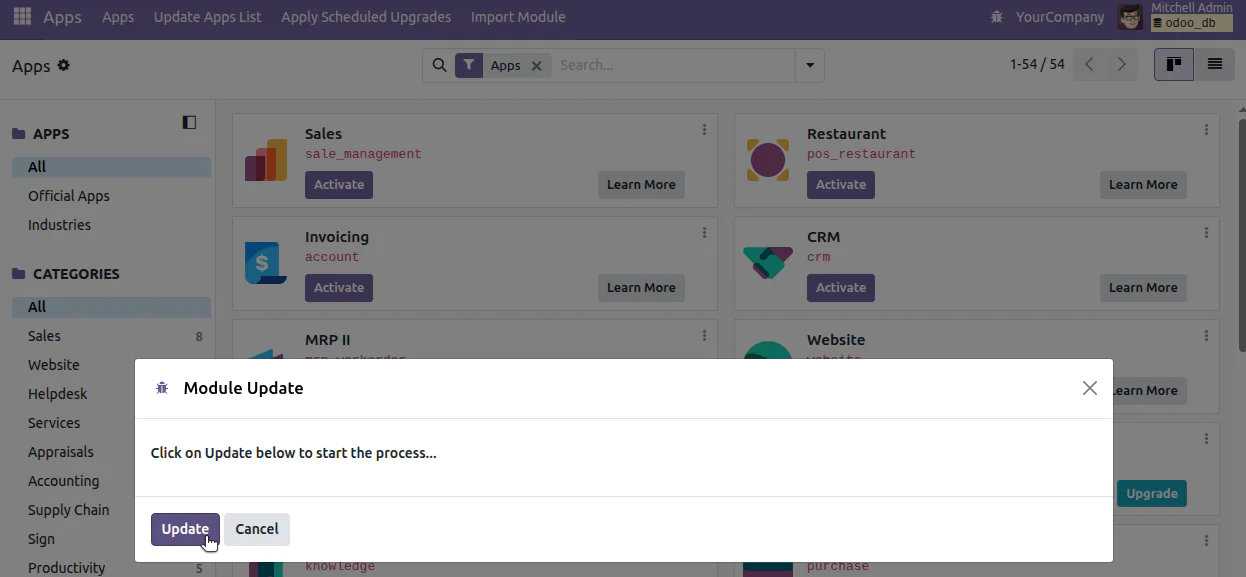
Update your module list. In Odoo, go to Apps. Click Update Apps List at the top of the page. Click Update on the modal that pops up.
After the update completes, search the modules for whatsapp.
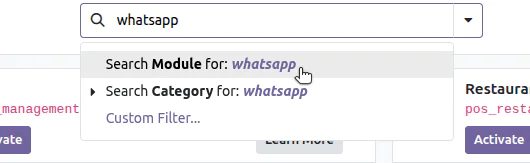
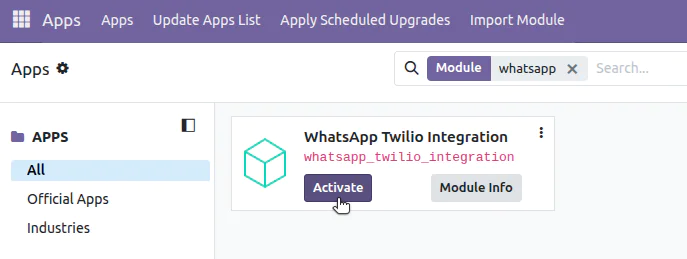
You'll see your newly added integration. Click Activate to install it.
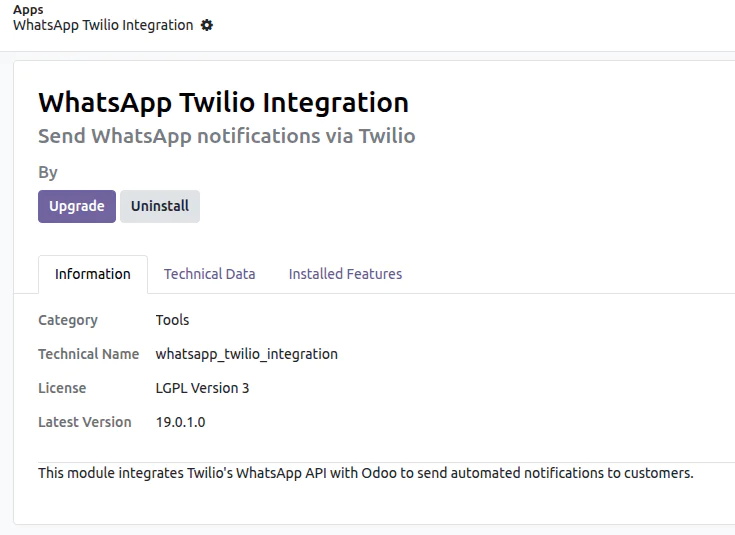
After the module has been installed, you can see its information by clicking Module Info.
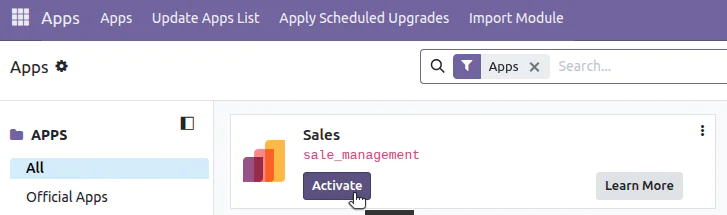
Ensure that the Sales app is also activated. If it is not yet activated, click Activate.
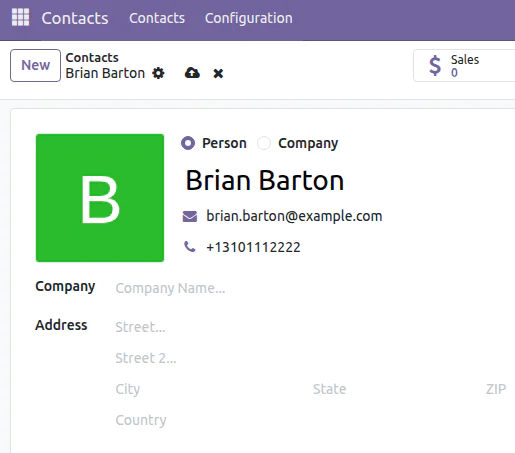
To test the integration, navigate to Contacts. Find an existing contact and update their phone number to match the one you used to join the WhatsApp sandbox. Ensure the format is +1234567890 (include country code, no spaces).
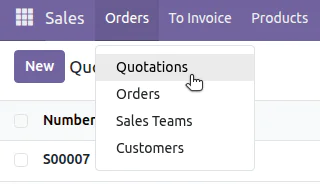
Finally, create a test sales order. Navigate to the Sales page. Then, navigate to Orders > Quotations.
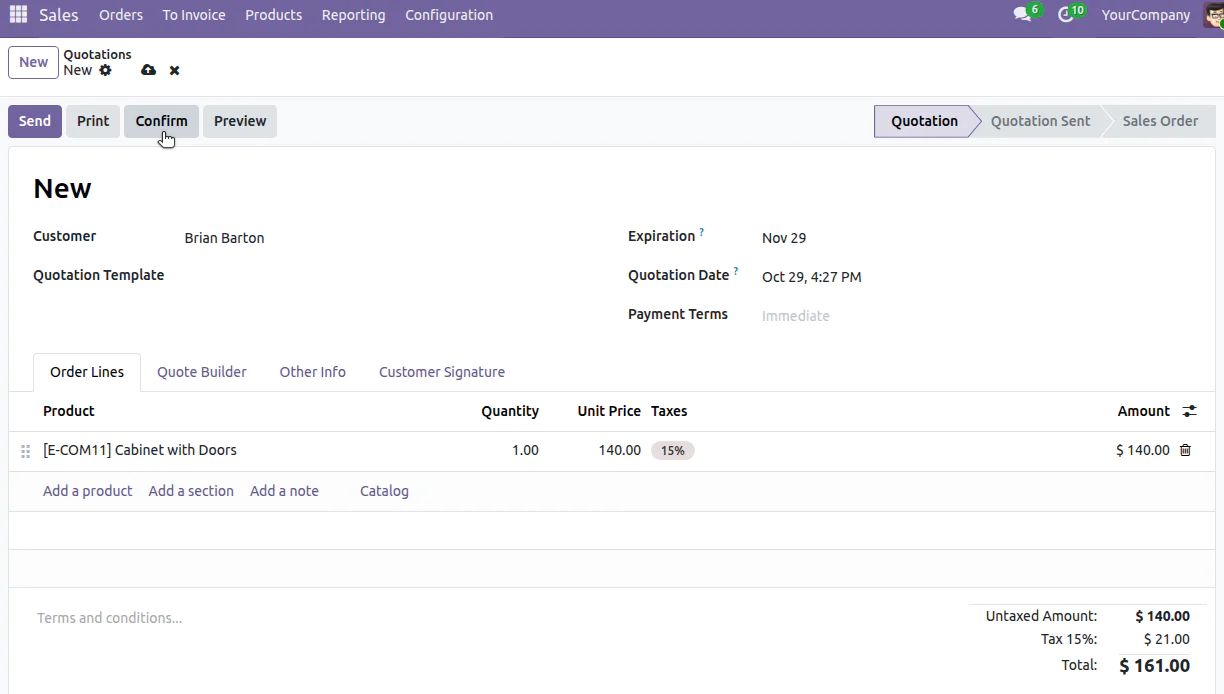
Click New to open a new sales order quote. Select your test customer. Add a product or service. Click Confirm.
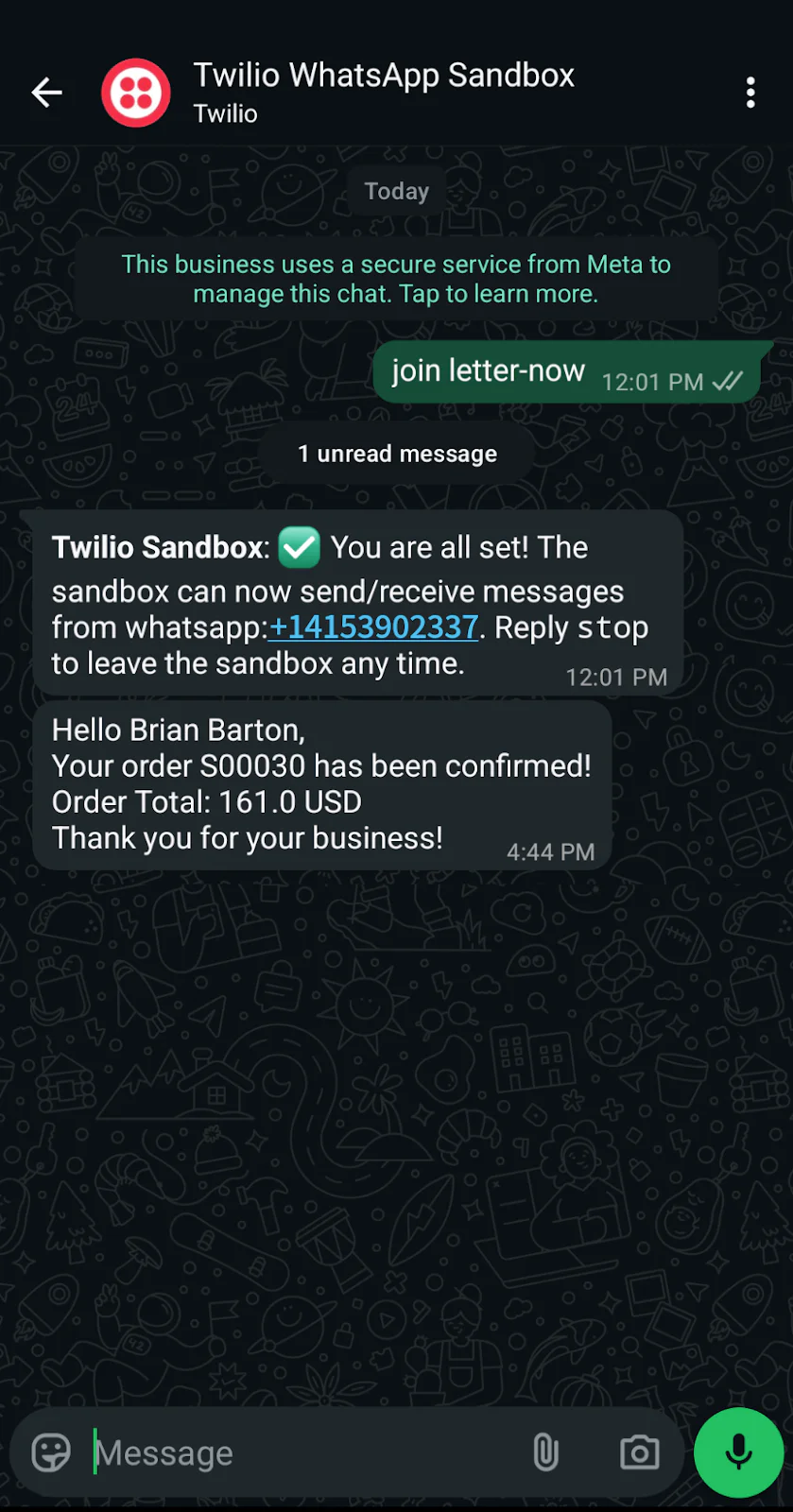
Within a few seconds, you should receive a WhatsApp message with your order confirmation.
You can also verify the WhatsApp message was sent in the Twilio Console. Navigate to Monitor > Messaging, where you will see your Programmable Messaging Logs.
Troubleshooting tips
If you don't receive the message, try the following tips to troubleshoot:
- Confirm you've joined the WhatsApp sandbox with the correct join code.
- Check Odoo's log files for error messages ( /var/log/odoo/odoo-server.log).
- Check that your Twilio credentials are correct in Odoo's system parameters.
- Confirm that the
twilio.whatsapp_fromsystem parameter is probably formatted, with thewhatsapp:prefix followed by the phone number with country code (Example:whatsapp:+14151234567). - Verify the phone number format for the customer contact is correct, including the country code (Example:
+12223334444).
Moving from sandbox to production
Once you've thoroughly tested your integration and are ready to use it in production, you will transition from using the sandbox to using a WhatsApp sender with Twilio. This will require a WhatsApp Business Account (WABA) and completing Business Verification with Meta. Learn more about how to register a WhatsApp sender with Twilio using Self Sign-Up.
The technical integration code remains the same; you'll just update the twilio.whatsapp_from system parameter with your production WhatsApp number.
What's Next?
Now that you have basic notifications working, you can expand your integration in several ways:
- Create custom notification triggers for different Odoo modules like invoicing, shipping, or support tickets.
- Explore Twilio's message templates for richer content with images, buttons, and formatted text.
- Add error handling and retry logic for failed message deliveries.
- Create a user interface in Odoo for manually sending WhatsApp messages to customers.
Summary
You've successfully built a working integration that sends WhatsApp notifications from Odoo using Twilio's API. This powerful combination enables automated customer communication through one of the world's most popular messaging platforms. You can use this for order updates, invoices, and other business notifications—all managed directly from your Odoo system and powered with Twilio.
Related Resources
Twilio Docs
From APIs to SDKs to sample apps
API reference documentation, SDKs, helper libraries, quickstarts, and tutorials for your language and platform.
Resource Center
The latest ebooks, industry reports, and webinars
Learn from customer engagement experts to improve your own communication.
Ahoy
Twilio's developer community hub
Best practices, code samples, and inspiration to build communications and digital engagement experiences.