Build a Voice and SMS AI Agent with Twilio Agent Connect and Microsoft Azure
Time to read:
May 18, 2026
Written by
Reviewed by
AI generated summary
- Deploying an AI agent on Azure with Twilio handles STT, session persistence, and voice/SMS routing.
- TAC SDK links Microsoft infrastructure, simplifying omnichannel communication management.
- Integrated tools like Azure OpenAI, Cosmos DB, and the AgentFrameworkConnector streamline deployment.
This summary was generated by AI.
The Twilio Agent Connect (TAC) SDK handles the hard parts of connecting AI agents to real communication channels – speech-to-text, channel routing, conversation tracking, and memory. Paired with Microsoft Azure, the Azure OpenAI Service, and the Microsoft Agent Framework, you can go from agent code to a production deployment without building the omnichannel plumbing yourself.
In this tutorial, you'll deploy a voice and SMS AI agent to Azure Container Apps using TAC, the Azure Developer CLI, Python, and the FastAPI framework. The agent uses Conversation Orchestrator and Conversation Memory to track interactions across channels – so when a customer texts about waffles for breakfast, the agent remembers that on the next phone call. (Because nobody likes a forgetful agent.)
Sound good? The tutorial… and the breakfast? Either way, let’s build it!
Architecture of a TAC voice and SMS agent on Microsoft Azure
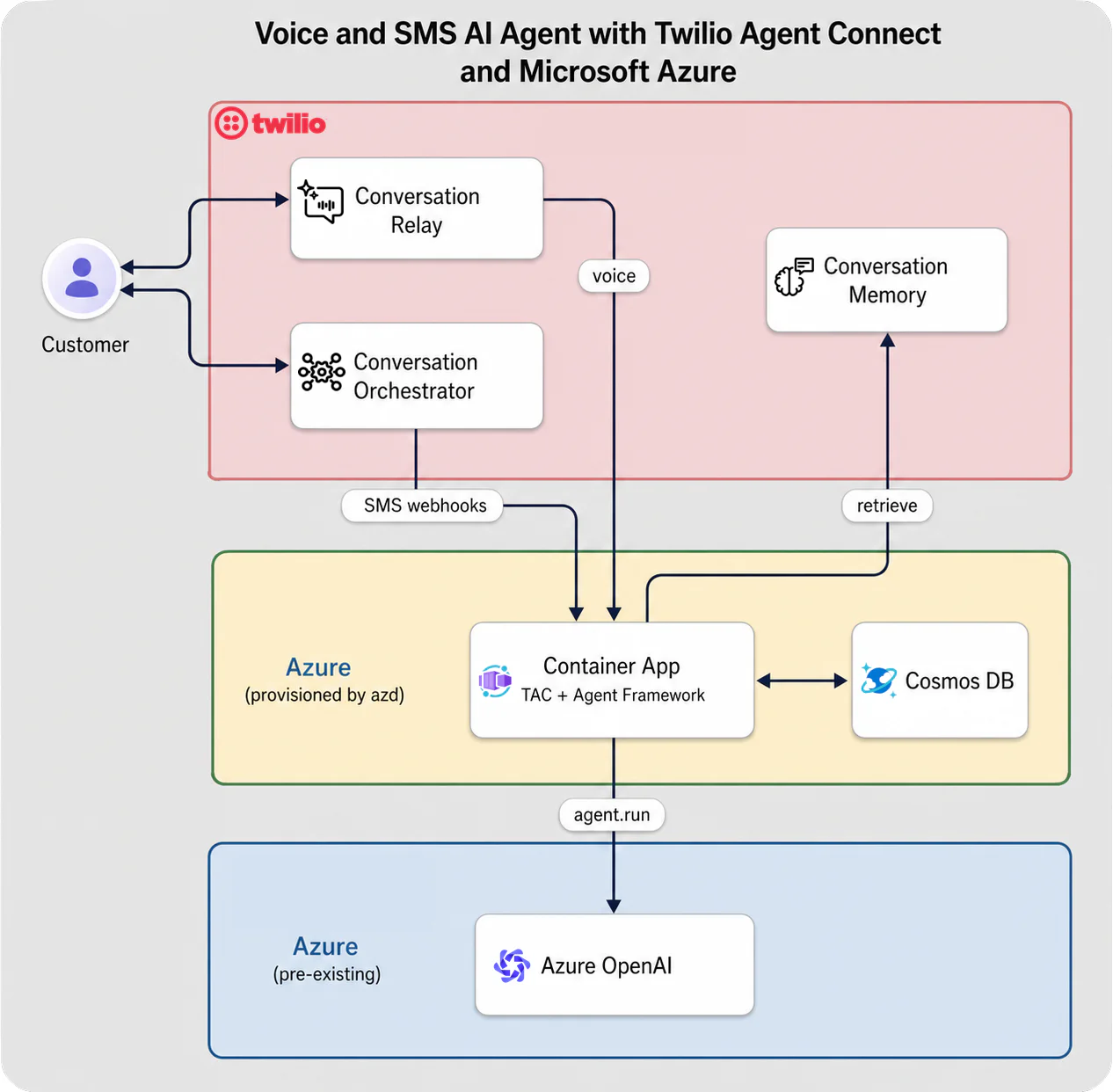
Here's what you’ll be building in this tutorial:
- Voice: A customer calls your Twilio number. Twilio hits your app's
/twimlendpoint, gets back TwiML containing a<ConversationRelay>instruction, and opens a WebSocket to/wsfor bidirectional text. STT and TTS are handled by Twilio. - SMS: A customer texts your number.. Conversation Orchestrator groups the message into a conversation and delivers it to your app's
/webhookendpoint. Outbound replies go back through the Actions API. - Every turn: TAC retrieves relevant memory from Conversation Memory (observations, summaries, conversation history) injects it as context, then runs the agent from Azure OpenAI.
- Session persistence: Agent state is stored in Azure’s Cosmos DB so SMS conversations maintain context across messages.
Tying this all together is the AgentFrameworkConnector from the TAC Azure package. It bridges the Microsoft Agent Framework with TAC's channel management – you write a standard Agent Framework agent (with create_agent), and the connector handles routing it to voice and SMS, managing sessions, and injecting memory context.
The azd up deployment supported by the Azure Developer CLI provisions the Container App, Cosmos DB, a Container Registry, and the RBAC role assignments your app needs. The container authenticates to Azure OpenAI and Cosmos DB via Managed Identity.
Prerequisites
To follow along, you'll need to set up a few accounts and provision a few resources:
- An Azure account with an active subscription
- Permission to create Container Apps, Cosmos DB, and Container Registry resources
- An Azure OpenAI deployment (
GPT-4ois what we use in the build, but you can choose – you'll create this below) - Azure CLI, logged in (
az login) - Azure Developer CLI ( azd )
- A Twilio account
- A Twilio phone number with Voice and SMS capabilities
- An API key and secret (you'll create these during setup)
- Python 3.10+
- Docker Desktop or another Docker daemon, installed and running
- GitHub CLI – run
gh auth loginthengh auth setup-gitafter installing
Create the Azure OpenAI resource
Nice, we’re ready to get started – first, you need an Azure OpenAI resource and a model deployment. You can do this from the Azure Portal or the CLI: choose your own adventure.
Option A: Azure Portal
Sign in to the Azure Portal and search for Azure OpenAI in the top search bar. Select it, then click Create.
Fill in the resource details. Pay close attention to the Region – not all regions have capacity for all OpenAI models. This tutorial uses East US 2.
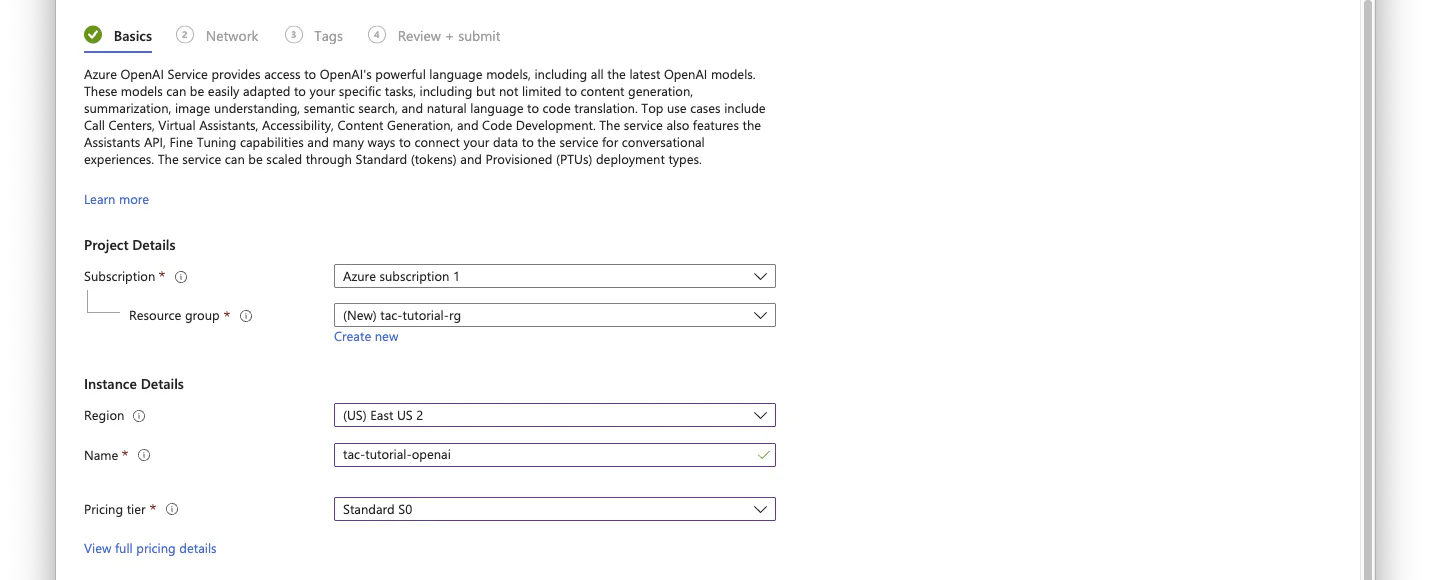
After the resource deploys, open it and copy the Endpoint from the overview page – you'll need it later. Then go to Model Deployments and deploy a gpt-4o model.
Option B: Azure CLI
More of a text fan? You can create the resource and deploy the model in just a few commands. I’ll show you the options I chose (including the names), but you should feel free to edit to your needs:
Whatever path you choose, note down the resource name (e.g., tac-tutorial-openai), the endpoint (e.g., https://tac-tutorial-openai.openai.azure.com/), and the deployment name (e.g., gpt-4o which I used to match the model I picked).
Okay, great stuff! We can now leave our Azure browser tab – or command line – for a bit and work on our Twilio setup.
Set up Twilio
Now you’re ready to work on the Twilio steps of the build. Before you continue, ensure you have a Twilio phone number with Voice and SMS capabilities you can use for the build.
Get an API Key and credentials
In the Twilio Console, navigate to Account > API Keys & Tokens. Click Create API Key, give it a name (this tutorial uses tac-tutorial), select Standard, and click Create API Key.
Copy the SID and Secret immediately. Your secret is only shown once; if you fail to copy your API Key secret you’ll need to delete the key you created and generate a new one. You'll also need your Account SID and Auth Token from your account dashboard. You will use them in the Azure section, below.
Create a Conversation Configuration
Conversation Orchestrator is how Twilio groups messages and calls into conversations, links them to customer profiles, and delivers them to your agent. You need to create a Conversation Configuration to tell it how.
Navigate to Products & Services > Conversation Orchestrator > Conversation Configurations and click Create a Conversation Configuration. If prompted, read and understand the terms of our Predictive and Generative AI/ML Features Addendum, then accept the terms if you agree.
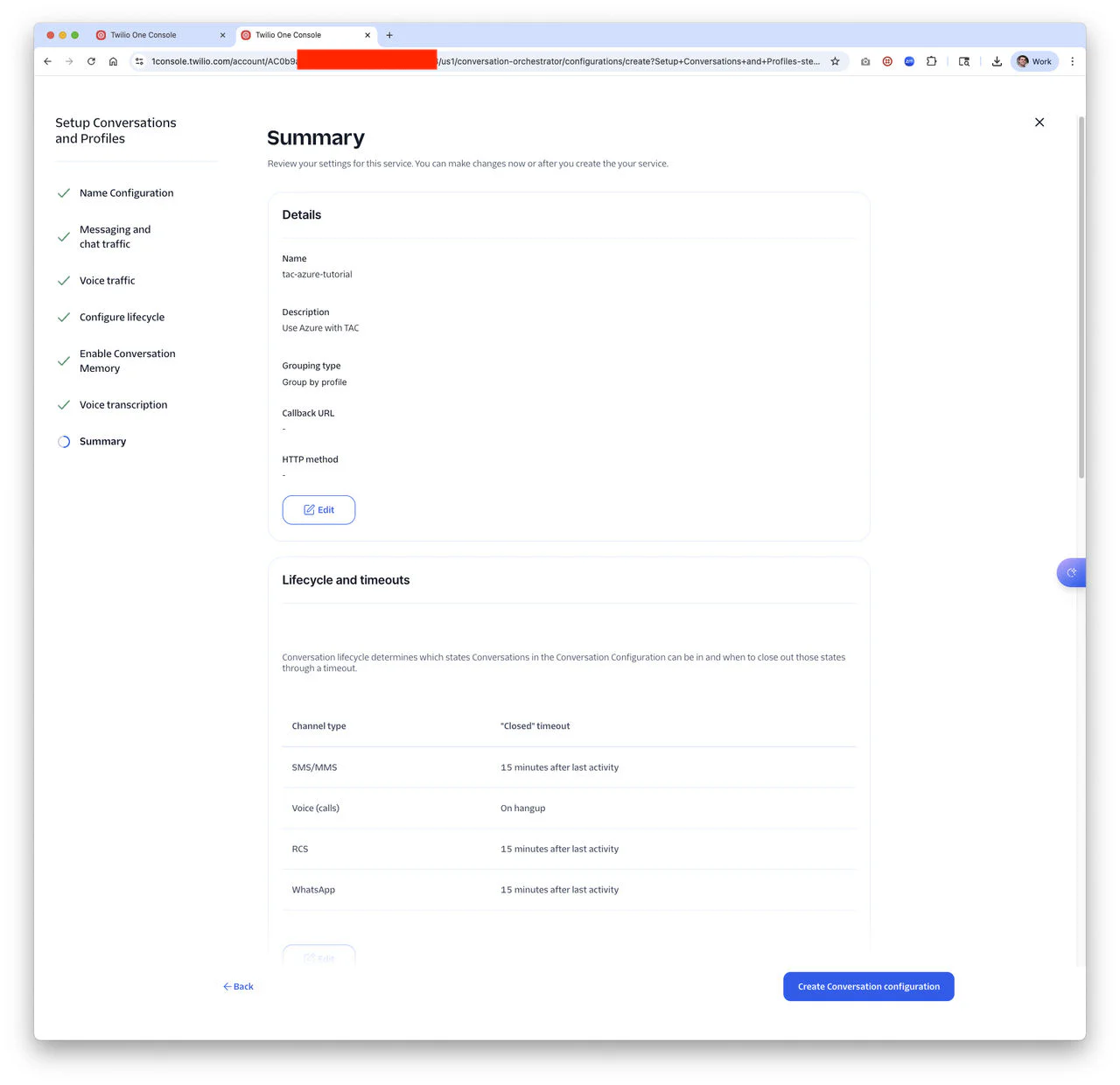
The setup wizard walks through several steps:
Name and webhook
Give your configuration a display name and description. Under Grouping Type, select Group by Profile – this groups all interactions from the same customer profile into a single conversation, regardless of whether they come in over SMS or voice.
Leave the Callback URL blank for now – you'll fill it in after the Azure deployment gives you the app's URL. Click Next.
Messaging and voice traffic
On the Messaging and Chat Traffic step, select the Twilio phone number you’d like to use under SMS/MMS Phone Numbers. This tells Conversation Orchestrator to capture messaging traffic on that number.
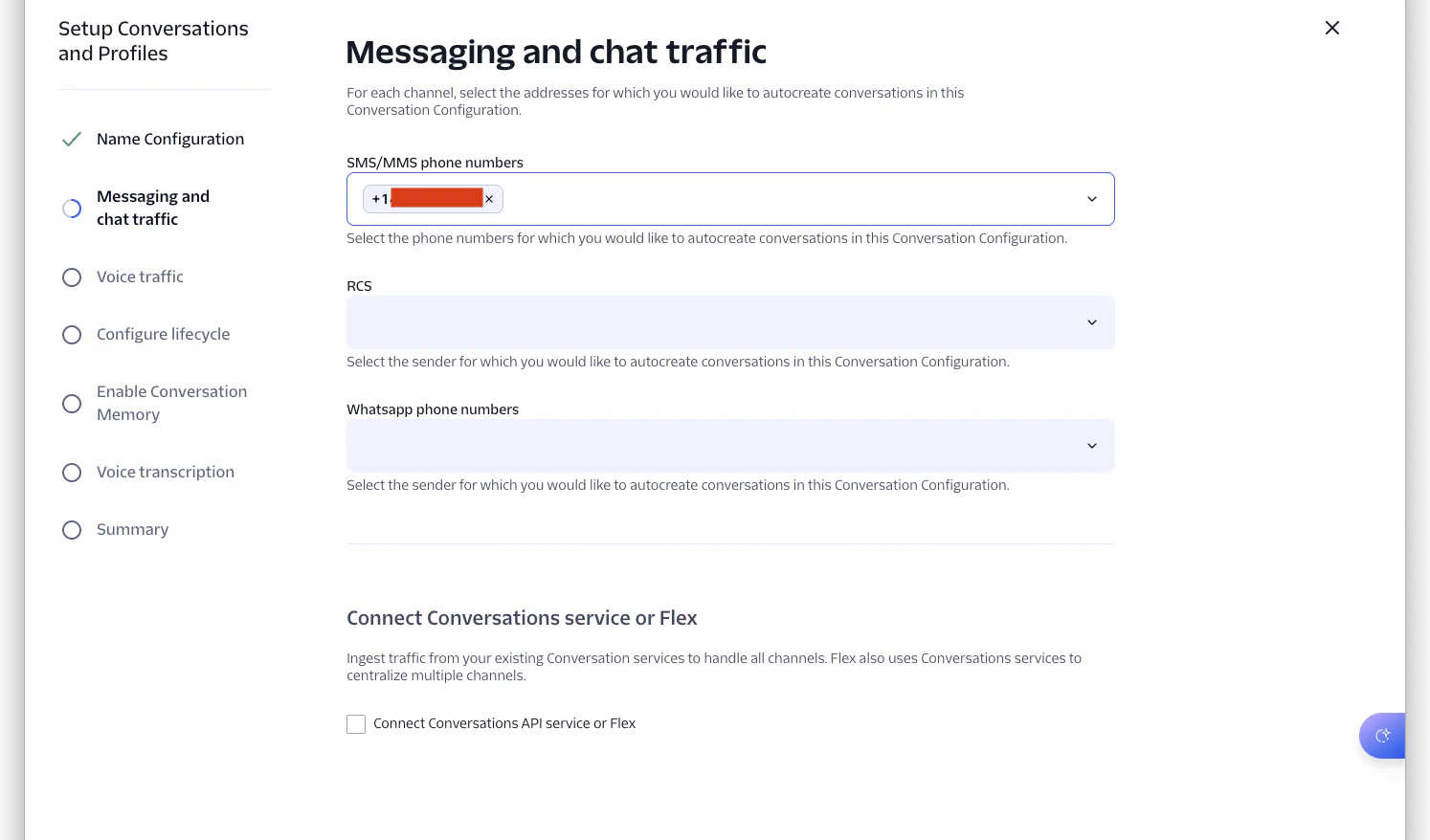
Click Next. On the Voice Traffic step, select Active Hydration and click Next again. Active hydration works well when your app uses ConversationRelay – it gives you full control over which calls become conversations by passing a configuration ID in TwiML (which TAC handles for you).
Lifecycle, memory, and transcription
Accept the default lifecycle settings (the timers control when conversations move to inactive and closed states) and click Next.
On the Enable Conversation Memory step, click + Create New Memory Store. Give it a name and description (For example, I named mine demo-memory-store), then click Save. Toggle on Turn On Observations and Summaries if it isn’t already checked – this is what enables Conversation Memory to automatically extract insights from conversations.
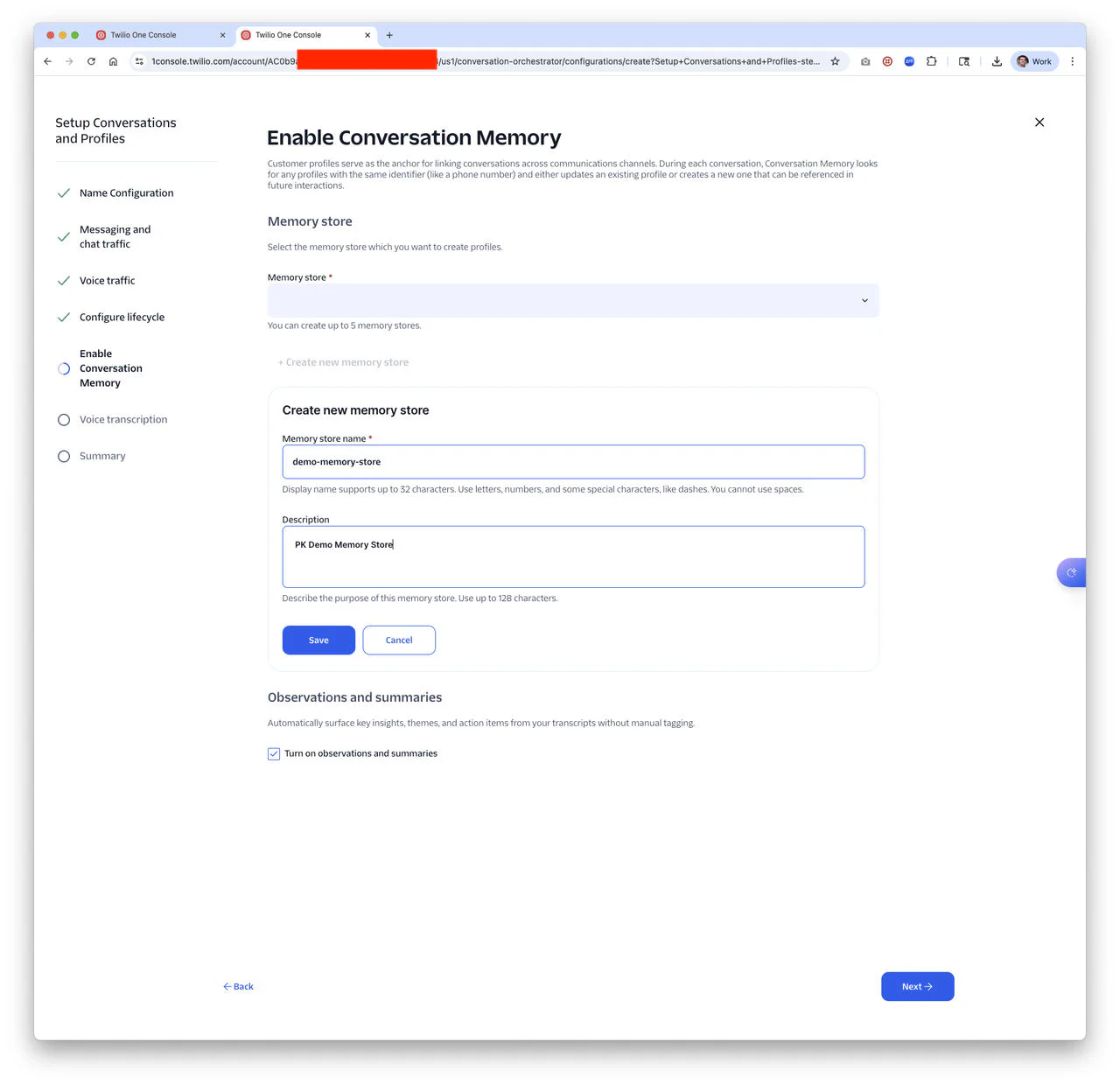
Accept the defaults on Voice Transcription (real-time transcription, auto-detection) and click through to the Summary. Review the settings and click Create Conversation Configuration.
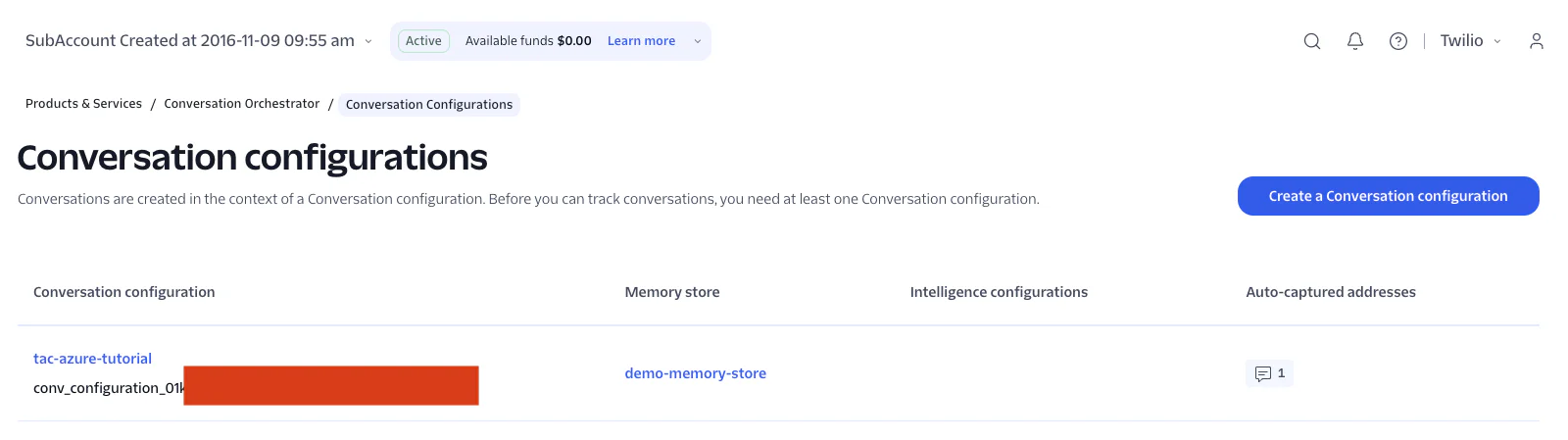
Copy the Configuration ID
After creation, you'll see your configuration listed. Copy the Conversation Configuration ID (it starts with conv_configuration_ as shown below). You'll need this in your .env file and for the Azure section, below.
Okay, great! Let’s head over to the command line and finish the setup.
Deploy to Azure Container Apps
The repository includes a complete azd deployment under deploy/agent_framework_container_apps/. It provisions a Container App, Cosmos DB (for agent session persistence), a Container Registry, and the RBAC assignments your app needs to authenticate to Azure OpenAI and Cosmos DB using Managed Identity.
Clone and configure
In the directory you’d like to clone the repo, run the following:
Open .env and fill in your credentials from the above steps:
Deploy with azd up
Before running azd up, make sure Docker Desktop is running (or the daemon you are using).
Once you are good to go, let’s run the command!
When azd up prompts for infrastructure parameters, enter the values from your .env. The preprovision hook imports your .env. The deployment takes a few minutes. When it finishes, it prints your Container App's URL and Webhook URLs for Conversation Orchestrator and the Voice Webhook for your phone number. Copy it – you need it for the webhook configuration.
Configure webhooks
Now with your app running, you need to tell Twilio where to send traffic. There are two webhooks to set, in two different places.
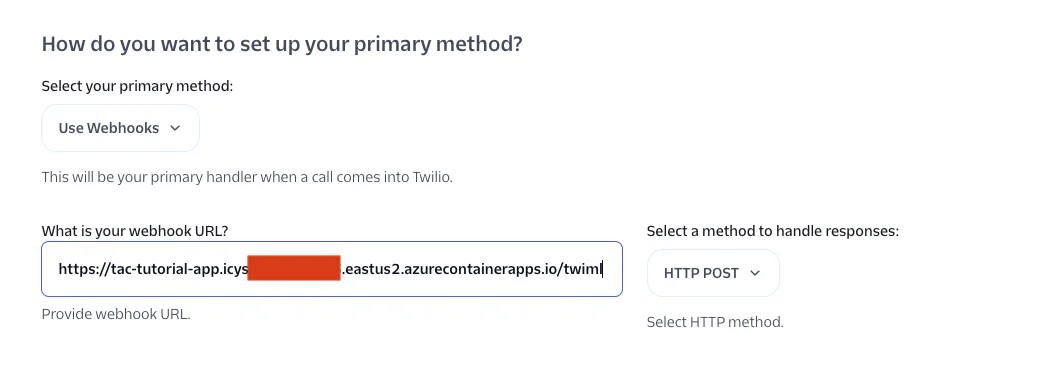
Voice: phone number webhook
In the Twilio Console, go to Phone Numbers > Manage > Active Numbers and select your number. Under Voice Configuration, set the webhook URL to your app's /twiml endpoint:
SMS: Conversation Orchestrator webhook
Navigate back to Conversation Orchestrator > Conversation Configurations, click your configuration, and click Edit. Set the Callback URL to your app's /webhook endpoint:
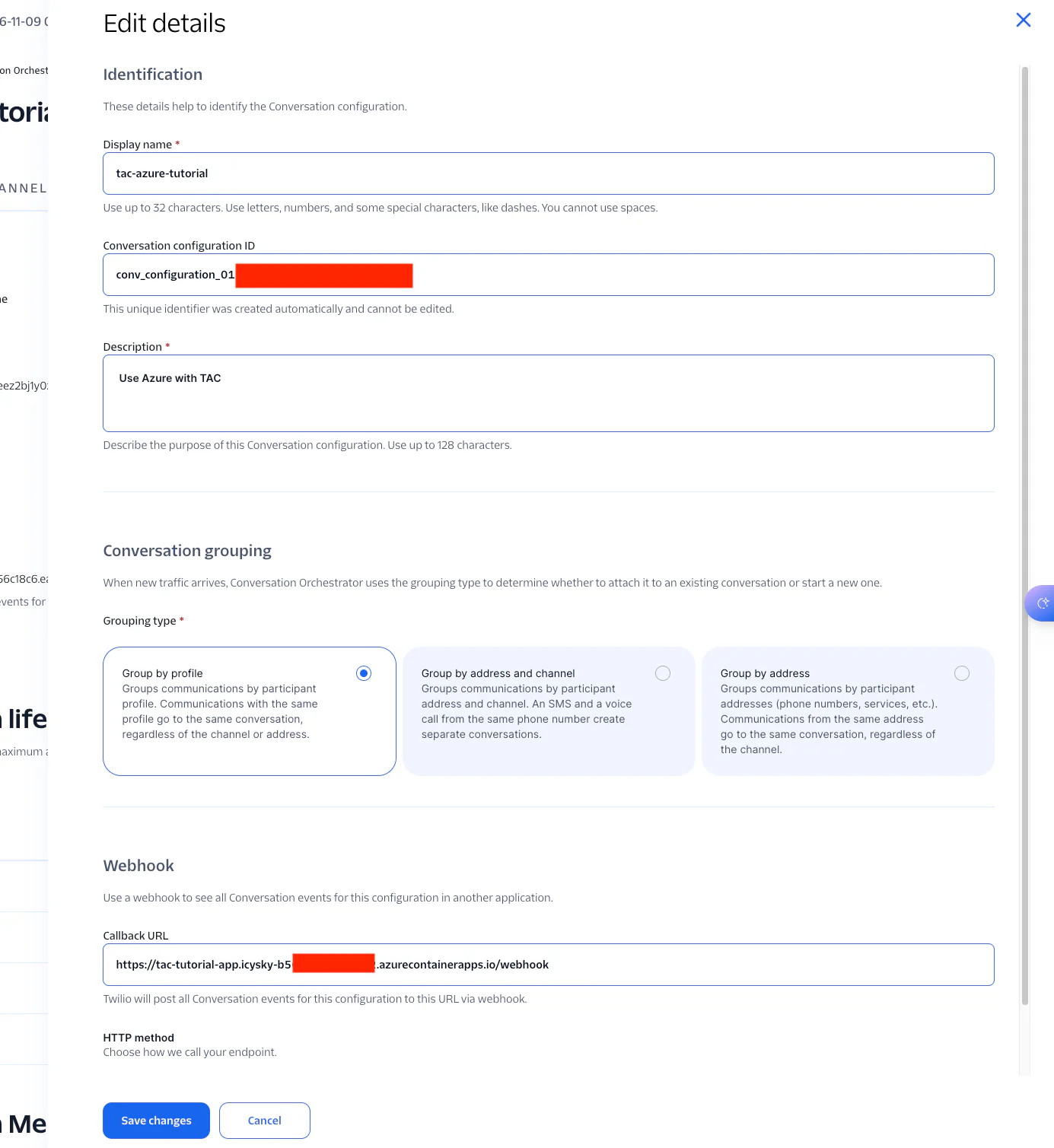
Make sure you configure both webhooks before sending your first test message. Conversations created before the webhook is configured won't inherit the callback URL.
And with that, you’re ready to talk to AI. Excited yet? Me too – let’s finish things off.
Test it
Send a text message
Text your Twilio number from your phone – try telling it what you had for breakfast. During the course of my build, I told the agent I had waffles in a few different ways – I made sure it got the message 🧇.
Whatever you send to your agent, you should see the webhook hit your app in the container logs (changing the names to the ones you chose above):
Look for lines like:
Before moving on, make sure that Conversation Orchestrator and Conversation Memory are playing well together. From the Twilio Console, go to Products & Services > Conversation Orchestrator > Conversation Configuration and find the configuration for this tutorial. In the Memory store column select the memory store. If all went well, you should see how you did.

I think my agent got the message 🧇 .
Make a phone call
Okay, great, let’s see it in action. Now, call the same number you texted a moment ago. Ask the agent what you had for breakfast... if everything is wired up correctly, the agent will know – because Conversation Memory extracted an observation from your SMS conversation and injected it into the voice call's context.
Here's what that looks like in the logs:
That's cross-channel memory at work! The customer's profile was resolved from their phone number, the observation was retrieved from Conversation Memory, and the agent used it to answer a question about a previous interaction on a completely different channel.
And with that, you’re ready to build and customize to your needs with X, Y, and Z.
Troubleshooting and debugging
There are a few steps where you might hit some configuration issues or errors. Hopefully, these tips can help you get to a working agent.
SMS webhook returns a 11200 error
Check where you set the SMS webhook. It goes in the Conversation Configuration callback URL. If the phone number's messaging webhook is set instead, Twilio sends form-encoded data directly, which your app can't parse.
Voice calls connect but the agent doesn't respond
Check the container logs for errors. Common causes: the Azure OpenAI endpoint is unreachable (wrong region or the Managed Identity role assignment hasn't propagated yet), or the container is running a stale image with an old .env file. Run azd up again to rebuild and redeploy if you make any changes.
SMS responses are generated but not delivered (30034 error)
This usually means your phone number isn't registered for A2P 10DLC (US local numbers) or toll-free verification. Check the Twilio error logs under Monitor > Errors and see if you are receiving messages but are unable to send them out. You can learn more about compliance requirements here.
TAC voice and SMS agents on Azure
Isn’t that awesome? You just deployed a voice and SMS AI agent to Azure Container Apps using Twilio Agent Connect and the Microsoft Agent Framework. The agent authenticates to Azure OpenAI using Managed Identity, persists conversation state in Cosmos DB, and uses Twilio's Conversation Memory to recall context across channels.
From here, you could customize the system prompt for your use case, add tools (like a knowledge base search or a handoff to a human agent), or swap in a different model. The advanced example in the repository shows channel-aware prompts, custom tools, and error handling.
To learn more about the services used in this tutorial:
- Twilio Agent Connect
- Twilio Agent Connect Azure Repo
- Conversation Orchestrator documentation
- Conversation Memory documentation
- Azure Container Apps documentation
- Microsoft Agent Framework
Paul Kamp is the Technical Editor-in-Chief at Twilio. Paul actually had Greek yogurt for breakfast the day he wrote the tutorial. He greatly regrets the misdirection and will rectify it by eating waffles soon… maybe even for lunch. He can be reached at pkamp [at] twilio.com .
Related Resources
Twilio Docs
From APIs to SDKs to sample apps
API reference documentation, SDKs, helper libraries, quickstarts, and tutorials for your language and platform.
Resource Center
The latest ebooks, industry reports, and webinars
Learn from customer engagement experts to improve your own communication.
Ahoy
Twilio's developer community hub
Best practices, code samples, and inspiration to build communications and digital engagement experiences.