How to Approve Real Users and Block Fake Accounts at Sign Up with Lookup and Verify in C#

August 28, 2026
Written by

Twilio promotion banner to approve real users and block fake accounts at sign-up using Lookup and Verify services

By implementing onboarding intelligence with Twilio Lookup and phone verification with Twilio Verify, you can build seamless sign ups and higher pass rates while still blocking fraud. Combining multiple fraud checks like detecting line type and proving phone number possession into one flow creates a resilient yet frictionless defense layer to block fake accounts while ensuring a smooth path for real users.

By the end of this tutorial you will have a working C# example that can collect a user's name and phone number and conduct a multi-step orchestrated identity verification flow.

Programming Language Support

This tutorial is geared towards C# developers, but you can find other languages below:

Prerequisites to building with Twilio Lookup and Verify

To code along with this post you will need:

curl -X POST "https://verify.twilio.com/v2/Services" \
  --data-urlencode "FriendlyName=My Verify Service" \
  -u $TWILIO_ACCOUNT_SID:$TWILIO_AUTH_TOKEN
If you're testing outside of the US and Brazil, you may see Error 60619: Lookup Request Cannot be Completed in Twilio Region. To bypass this, you will need carrier approval for Lookup Identity Match. Alternatively, you can use our sandbox experience with test credentials and magic numbers.

Set up your .NET project

Now start your project to build a trusted sign up flow:

dotnet new mvc -n LookupVerifyOnboarding
cd LookupVerifyOnboarding
dotnet add package Twilio
dotnet add package DotNetEnv

Create a .env file and add the following keys:

TWILIO_ACCOUNT_SID=ACxxxxxxxxxxxxxxxxxxxxxxxxxxxxxxxx
TWILIO_AUTH_TOKEN=your_auth_token
VERIFY_SERVICE_SID=VAxxxxxxxxxxxxxxxxxxxxxxxxxxxxxxxx

Building the Verification Pipeline

This project will codify 4 layers of checks on a phone number during sign up. The best part is that the user won't know 3 of them are happening and they get progressively more intense so you are filtering out bad actors faster and cheaply before taking more drastic actions.

Here's a look at what you'll build:
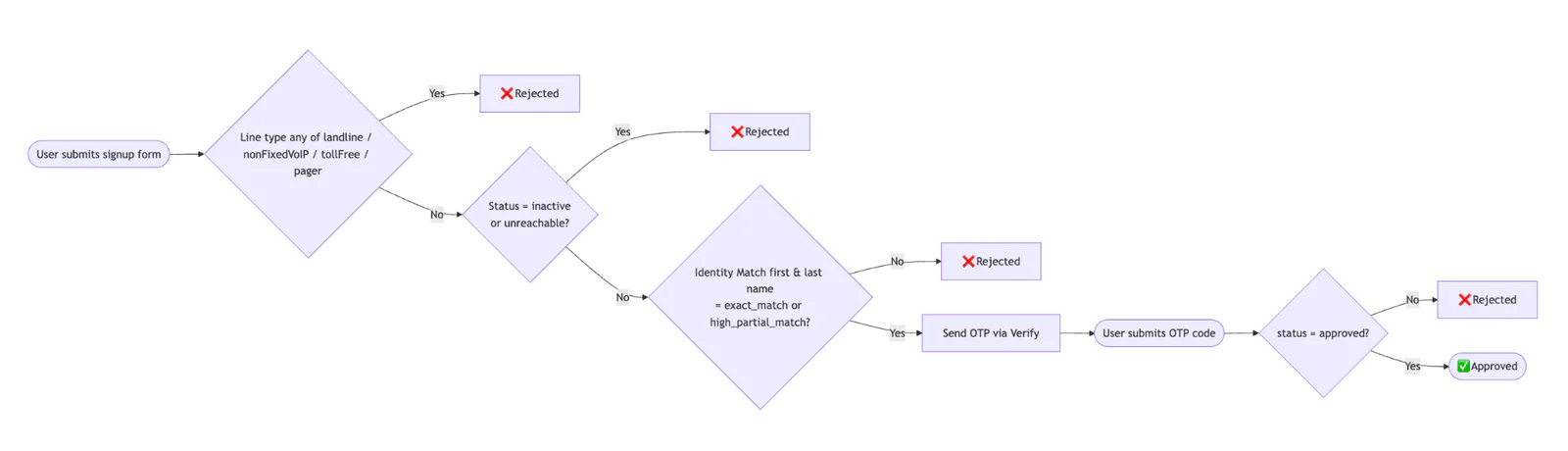
Flowchart showing steps for user signup including verification with several rejection points and a final approval.

Process flow diagram for orchestrating onboarding intelligence

Step 1 - Check the line type

First, use the Lookup API line type intelligence package to make sure you're dealing with a mobile number. The code explicitly filters out landlines, nonfixed VoIP, toll free, (and pagers for fun) but you can customize this easily. Learn more about potential line types the API can return in the documentation.

Step 2 - [Optional] Check the line status

Then make sure the line is reachable. Use the Lookup API line status package to filter out inactive and unreachable numbers. Note - this is commented out by default in the code below since it is in Private Beta and requires an extra step to get access. To request access for Lookup Line Status, submit this form.

Step 3 - Match the name to the phone number

In the last of our background checks, use the Lookup API Identity Match package to verify that the submitted name matches the phone number. Identity Match compares user-supplied data against authoritative sources for a zero-knowledge result, in other words a way to verify the data’s accuracy without revealing the underlying data. Check the individual firstNameMatch and lastNameMatch fields directly and require each to be either exact_match or high_partial_match. This allows common variations like nicknames or middle names used as a first name, while still rejecting mismatches. Any other result (a no_match, partial_match, or null) will reject the request.

You can change these requirements to fit your business logic or reduce false negatives. Learn more about Identity Match field values in the documentation.

Step 4 - Phone verification

If all of the lookup steps pass, the user will receive an OTP and complete a standard phone verification flow.

In this step, you will build the initial program. To start, replace Program.cs with the following code:

using DotNetEnv;
using LookupVerifyOnboarding;
using Twilio;
Env.TraversePath().Load();
var builder = WebApplication.CreateBuilder(args);
var sid = builder.Configuration["TWILIO_ACCOUNT_SID"];
var token = builder.Configuration["TWILIO_AUTH_TOKEN"];
var verifySid = builder.Configuration["VERIFY_SERVICE_SID"];
if (string.IsNullOrEmpty(sid) || string.IsNullOrEmpty(token) || string.IsNullOrEmpty(verifySid))
{
   throw new InvalidOperationException(
       "Missing required env vars. Check TWILIO_ACCOUNT_SID, TWILIO_AUTH_TOKEN, VERIFY_SERVICE_SID.");
}
TwilioClient.Init(sid, token);
builder.Services.AddSingleton(new VerifySettings(verifySid));
builder.Services.AddScoped<OnboardingIntelligence>();
builder.Services.AddControllersWithViews();
var app = builder.Build();
app.MapDefaultControllerRoute();
var port = builder.Configuration["PORT"] ?? "3000";
app.Urls.Add($"http://localhost:{port}");
Console.WriteLine($"Server running: http://localhost:{port}");
app.Run();
namespace LookupVerifyOnboarding
{
   public record VerifySettings(string ServiceSid);
}

Then create a new file for the models called Models/ ViewModels.cs and insert this code snippet:

namespace LookupVerifyOnboarding;
public record VerifyViewModel(string PhoneNumber, List<StepResult> Steps);
public record RejectedViewModel(string Title, string Reason, List<StepResult>? Steps);

Then create a new file, named Services/ OnboardingIntelligence.cs . Paste in the following code:

using Twilio.Rest.Lookups.V2;
namespace LookupVerifyOnboarding;
public record StepResult(string Label, string Detail, bool Passed);
public record GateResult(bool Ok, string? Reason, List<StepResult> Steps, string? Detail = null);
public class OnboardingIntelligence
{
   // https://www.twilio.com/docs/lookup/v2-api/line-type-intelligence#type-property-values
   private static readonly HashSet<string> BlockedLineTypes = new(StringComparer.OrdinalIgnoreCase)
   {
       "landline", "nonfixedvoip", "tollfree", "pager"
   };
   private static readonly HashSet<string> AcceptedMatches = new(StringComparer.OrdinalIgnoreCase)
   {
       "exact_match", "high_partial_match"
   };
   public async Task<GateResult> RunAsync(string phoneNumber, string firstName, string lastName)
   {
       var steps = new List<StepResult>();
       // ---- 1) Line Type Intelligence
       PhoneNumberResource lti;
       try
       {
           lti = await PhoneNumberResource.FetchAsync(
               pathPhoneNumber: phoneNumber,
               fields: "line_type_intelligence");
       }
       catch (Exception e)
       {
           return new GateResult(false, "LOOKUP_FAILED", steps, e.Message);
       }
       var lineType = Normalize(lti.LineTypeIntelligence?.Type);
       var ltiPassed = !BlockedLineTypes.Contains(lineType);
       LogStep(steps, "Line Type Intelligence", lineType, ltiPassed);
       if (!ltiPassed) return new GateResult(false, "LINE_TYPE_BLOCKED", steps);
       // ---- 2) Line Status
       // Uncomment once you have access to the package: https://docs.google.com/forms/d/e/1FAIpQLSfXowQ9dUGgDNc_onA0yj2_Mo3tXxFWK67SpDfOZjONothBYQ/viewform
       // PhoneNumberResource ls;
       // try
       // {
       //     ls = await PhoneNumberResource.FetchAsync(pathPhoneNumber: phoneNumber, fields: "line_status");
       // }
       // catch (Exception e)
       // {
       //     return new GateResult(false, "LOOKUP_FAILED", steps, e.Message);
       // }
       //
       // var lineStatus = Normalize(GetProp(ls.LineStatus, "status"));
       // var lsPassed = lineStatus != "inactive" && lineStatus != "unreachable";
       // LogStep(steps, "Line Status", lineStatus, lsPassed);
       // if (!lsPassed) return new GateResult(false, "LINE_STATUS_BLOCKED", steps);
       // ---- 3) Identity Match
       PhoneNumberResource im;
       try
       {
           im = await PhoneNumberResource.FetchAsync(
               pathPhoneNumber: phoneNumber,
               fields: "identity_match",
               firstName: firstName,
               lastName: lastName);
       }
       catch (Exception e)
       {
           return new GateResult(false, "LOOKUP_FAILED", steps, e.Message);
       }
       var imErrorCode = im.IdentityMatch?.ErrorCode;
       if (imErrorCode.HasValue)
       {
           LogStep(steps, "Identity Match", $"unavailable (error_code: {imErrorCode})", false);
           return new GateResult(false, "IDENTITY_MATCH_UNAVAILABLE", steps);
       }
       var firstNameMatch = im.IdentityMatch?.FirstNameMatch;
       var lastNameMatch = im.IdentityMatch?.LastNameMatch;
       var imPassed = AcceptedMatches.Contains(firstNameMatch ?? "")
                   && AcceptedMatches.Contains(lastNameMatch ?? "");
       LogStep(steps, "Identity Match", $"first: {firstNameMatch}, last: {lastNameMatch}", imPassed);
       if (!imPassed) return new GateResult(false, "IDENTITY_MATCH_FAILED", steps);
       return new GateResult(true, null, steps);
   }
   private static void LogStep(List<StepResult> steps, string label, string detail, bool passed)
   {
       steps.Add(new StepResult(label, detail, passed));
       Console.WriteLine($"{(passed ? "✅" : "❌")} {label}: {detail}");
   }
   private static string Normalize(string? s) => (s ?? "").Trim().ToLowerInvariant();
}

In your Controllers folder is a file called HomeController.cs. Replace the code in this file with the with the following code:

using Microsoft.AspNetCore.Mvc;
using Twilio.Rest.Verify.V2.Service;
namespace LookupVerifyOnboarding.Controllers;
public class HomeController : Controller
{
   private readonly OnboardingIntelligence _onboarding;
   private readonly VerifySettings _verify;
   public HomeController(OnboardingIntelligence onboarding, VerifySettings verify)
   {
       _onboarding = onboarding;
       _verify = verify;
   }
   [HttpGet("/")]
   public IActionResult Index() => View("Signup");
   [HttpPost("/start")]
   public async Task<IActionResult> Start(string? phoneNumber, string? firstName, string? lastName)
   {
       phoneNumber = (phoneNumber ?? "").Trim();
       firstName = (firstName ?? "").Trim();
       lastName = (lastName ?? "").Trim();
       if (phoneNumber.Length == 0 || firstName.Length == 0 || lastName.Length == 0)
       {
           Response.StatusCode = 400;
           return View("Rejected", new RejectedViewModel("Error", "MISSING_FIELDS", null));
       }
       var gate = await _onboarding.RunAsync(phoneNumber, firstName, lastName);
       if (!gate.Ok)
       {
           Response.StatusCode = 403;
           return View("Rejected", new RejectedViewModel("Rejected", gate.Reason ?? "UNKNOWN", gate.Steps));
       }
       // ---- 4) Verify: send OTP
       try
       {
           Console.WriteLine($"Sending OTP to: {phoneNumber}");
           await VerificationResource.CreateAsync(
               to: phoneNumber,
               channel: "sms",
               pathServiceSid: _verify.ServiceSid);
       }
       catch (Exception e)
       {
           Console.WriteLine($"{phoneNumber} {firstName} {lastName}");
           Console.Error.WriteLine($"Error sending OTP: {e}");
           Response.StatusCode = 500;
           return View("Rejected", new RejectedViewModel("Error", "OTP_SEND_FAILED", null));
       }
       return View("Verify", new VerifyViewModel(phoneNumber, gate.Steps));
   }
   [HttpPost("/check")]
   public async Task<IActionResult> Check(string? phoneNumber, string? code)
   {
       phoneNumber = (phoneNumber ?? "").Trim();
       code = (code ?? "").Trim();
       if (phoneNumber.Length == 0 || code.Length == 0)
       {
           Response.StatusCode = 400;
           return View("Rejected", new RejectedViewModel("Error", "MISSING_FIELDS", null));
       }
       try
       {
           var check = await VerificationCheckResource.CreateAsync(
               pathServiceSid: _verify.ServiceSid,
               to: phoneNumber,
               code: code);
           if (check.Status == "approved")
           {
               return View("Approved");
           }
           Response.StatusCode = 401;
           return View("Rejected", new RejectedViewModel("Rejected", "OTP_INVALID", null));
       }
       catch
       {
           Response.StatusCode = 500;
           return View("Rejected", new RejectedViewModel("Error", "OTP_CHECK_FAILED", null));
       }
   }
}

Step 5 - Build the web site views

Finally, in order for your application to show a web site, you'll need to create some views that allow the html to display on the web. These are simple web sites for demonstration purposes, which you can style however you want. In the folder Views/Home, generate the following HTML files:

Approved.cshtml:

<!doctype html>
<html>
<head>
 <meta charset="utf-8" />
 <title>Approved</title>
</head>
<body>
 <h1>Approved</h1>
 <p><a href="/">Back</a></p>
</body>
</html>

Rejected.cshtml:

@model RejectedViewModel
<!doctype html>
<html>
<head>
 <meta charset="utf-8" />
 <title>@Model.Title</title>
</head>
<body>
 <h1>@Model.Title</h1>
 <p>reason: <code>@Model.Reason</code></p>
 @if (Model.Steps != null && Model.Steps.Count > 0)
 {
  <ul>
   @foreach (var step in Model.Steps)
   {
    <li>@(step.Passed ? "✅" : "❌") <strong>@step.Label:</strong> <code>@step.Detail</code></li>
   }
  </ul>
 }
 <p><a href="/">Back</a></p>
</body>
</html>

Signup.cshtml:

<!doctype html>
<html>
<head>
 <meta charset="utf-8" />
 <title>Signup</title>
 <link rel="stylesheet" href="https://cdn.jsdelivr.net/npm/intl-tel-input@25.12.4/build/css/intlTelInput.css" />
</head>
<body>
 <h1>Signup</h1>
 <form id="signup-form" method="POST" action="/start">
  <label>Phone: <input id="phone" type="tel" /></label><br/>
  <label>First name: <input name="firstName" /></label><br/>
  <label>Last name: <input name="lastName" /></label><br/>
  <button type="submit">Submit</button>
 </form>
 <script src="https://cdn.jsdelivr.net/npm/intl-tel-input@25.12.4/build/js/intlTelInput.min.js"></script>
 <script>
   const input = document.querySelector("#phone");
   const form = document.querySelector("#signup-form");
   const iti = intlTelInput(input, {
     initialCountry: "us",
     hiddenInput: () => ({ phone: "phoneNumber" }),
     loadUtils: () => import("https://cdn.jsdelivr.net/npm/intl-tel-input@25.12.4/build/js/utils.js"),
   });
   form.addEventListener("submit", (e) => {
     if (!iti.isValidNumber()) {
       e.preventDefault();
       alert("Please enter a valid phone number.");
     }
   });
 </script>
</body>
</html>

Verify.cshtml:

@model VerifyViewModel
<!doctype html>
<html>
<head>
 <meta charset="utf-8" />
 <title>Verify</title>
</head>
<body>
 <h1>Enter OTP</h1>
 <ul>
  @foreach (var step in Model.Steps)
  {
   <li>@(step.Passed ? "✅" : "❌") <strong>@step.Label:</strong> <code>@step.Detail</code></li>
  }
 </ul>
 <p>We sent a code to <code>@Model.PhoneNumber</code>.</p>
 <form method="POST" action="/check">
  <input type="hidden" name="phoneNumber" value="@Model.PhoneNumber" />
  <label>Code: <input name="code" /></label><br/>
  <button type="submit">Verify</button>
 </form>
</body>
</html>

Run and test the code

Save your files and run the project with:

dotnet run

Open http://localhost:3000 and test it out with your personal mobile number. You should see logs like:

Server running: http://localhost:3000
✅ Line Type Intelligence: mobile
✅ Line Status: active
✅ Identity Match: first: exact_match, last: exact_match
Sending OTP to: +1**********

At this point you may get Error 60619: Lookup Request Cannot be Completed in Twilio Region. Learn more about availability by country and request access here. Alternatively, you can use our sandbox experience with test credentials and magic numbers.

You can also test with a toll free or VoIP number like +17739857836 and you'll see an error with LINE_TYPE_BLOCKED. Or, use your real phone number but with a different name and see Identity Match fail. Testing all possible outcomes of line status and identity match is a little tricker. For this, Twilio provides test credentials and magic numbers for testing.

Pricing considerations and next steps

Running 4 different API calls allows you to be considerate of price. Line Type Intelligence and Line Status are the cheapest Lookup packages, while Identity Match and Verify are more expensive. Learn more about Lookup pricing (varies by country) and rearrange the steps to fit your use case.

Bundling Lookup and Verify is a great way to filter out unwanted bots, fake accounts, and reduce sign up fraud. It also allows you to validate real users seamlessly. For more information, check out:

We can't wait to see what you build and secure.

Amanda Lange is a .NET Engineer of Technical Content. She is here to teach how to create great things using C# and .NET programming. She can be reached at amlange [ at] twilio.com.