How to Enable Branded Calling with Twilio
Time to read:
March 26, 2026
Written by
AI generated summary
- Branded Calling improves answer rates by displaying verified business info on recipients' phones.
- For Basic Branded Calling, create a bundle in Trust Hub and assign phone numbers.
- For Enhanced Branded Calling, additional steps include SHAKEN/STIR attestation and submitting a Letter of Authorization.
This summary was generated by AI and reviewed by the Twilio team.
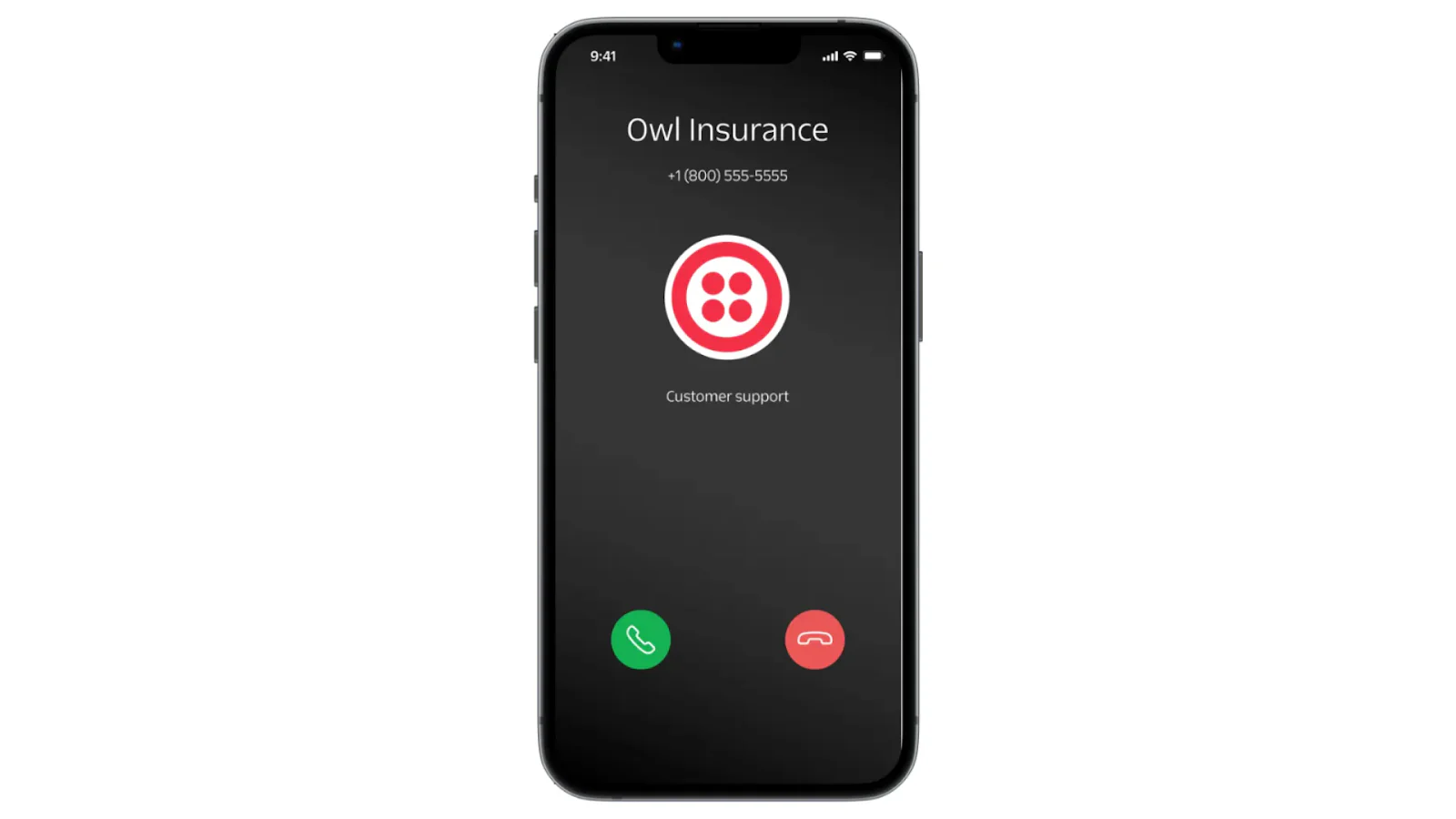
Many businesses struggle with low answer rates because customers don't recognize their phone numbers. Branded Calling solves this by displaying verified business information on recipients' mobile phones during incoming calls.
In this tutorial, you'll learn how to set up both Basic Branded Calling (business name only) and Enhanced Branded Calling (business name, logo, and call reason) through the Twilio Console.
Prerequisites
Before you begin, you'll need:
- A Twilio account
- A Twilio phone number
- An approved Business Profile
- An approved Voice Integrity instance with your phone numbers registered. Learn more about how to onboard Voice Integrity.
For Enhanced Branded Calling:
- SHAKEN/STIR attestation enabled on your phone numbers
- Signed Letter of Authorization (download template from the Enhanced Branded Calling docs)
Understanding Branded Calling
Twilio offers two types of Branded Calling for businesses in the United States:
Feature |
Basic |
Enhanced |
|---|---|---|
|
Display Name |
Up to 32 chars (T-Mobile) or 15 chars (Verizon) |
Up to 35 chars |
|
Logo |
No |
Yes (256x256 BMP file only) |
|
Call Reason |
No |
Yes (up to 64 chars) |
|
Requirements |
Business Profile, Voice Integrity Instance |
Basic requirments + SHAKEN/STIR, Letter of Authorization |
Content restrictions apply to both types:
- No personally identifiable information (PII)
- No URLs, hyperlinks, or website addresses
- No special characters, emojis, or non-ASCII characters
- Display name must relate to your Business Profile name
- Must have legal authority to use the branding
Enable Basic Branded Calling
Basic Branded Calling displays your business name on recipients' mobile phones during incoming calls. You'll create a Branded Calling bundle in Trust Hub and assign your phone numbers to it.
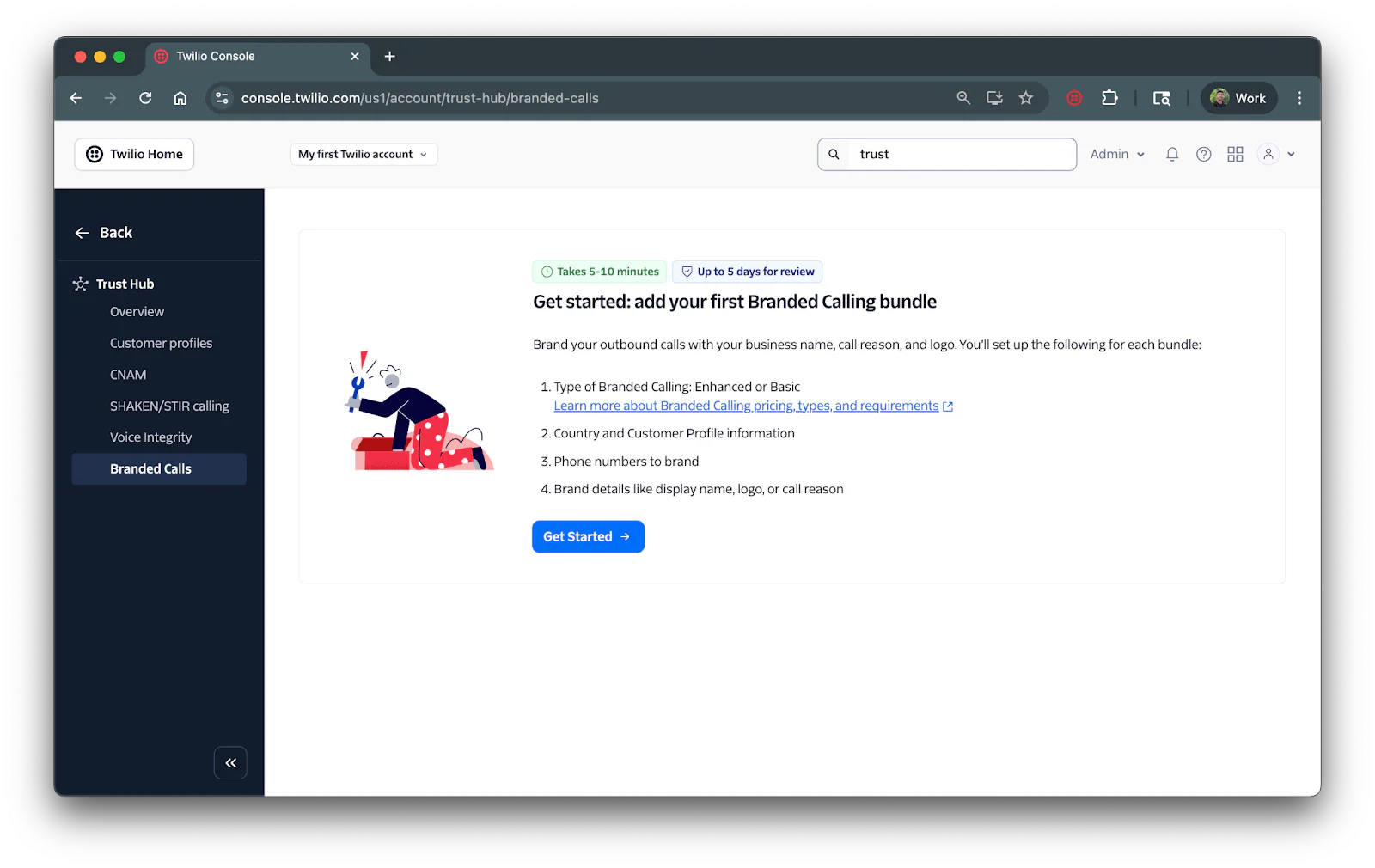
Log in to the Twilio Console and search and navigate to Trust Hub from the search bar at the top. Click on Branded Calls from the left tab or click on Go to Branded Calling on the main page.
Create a Basic Branded Calling bundle
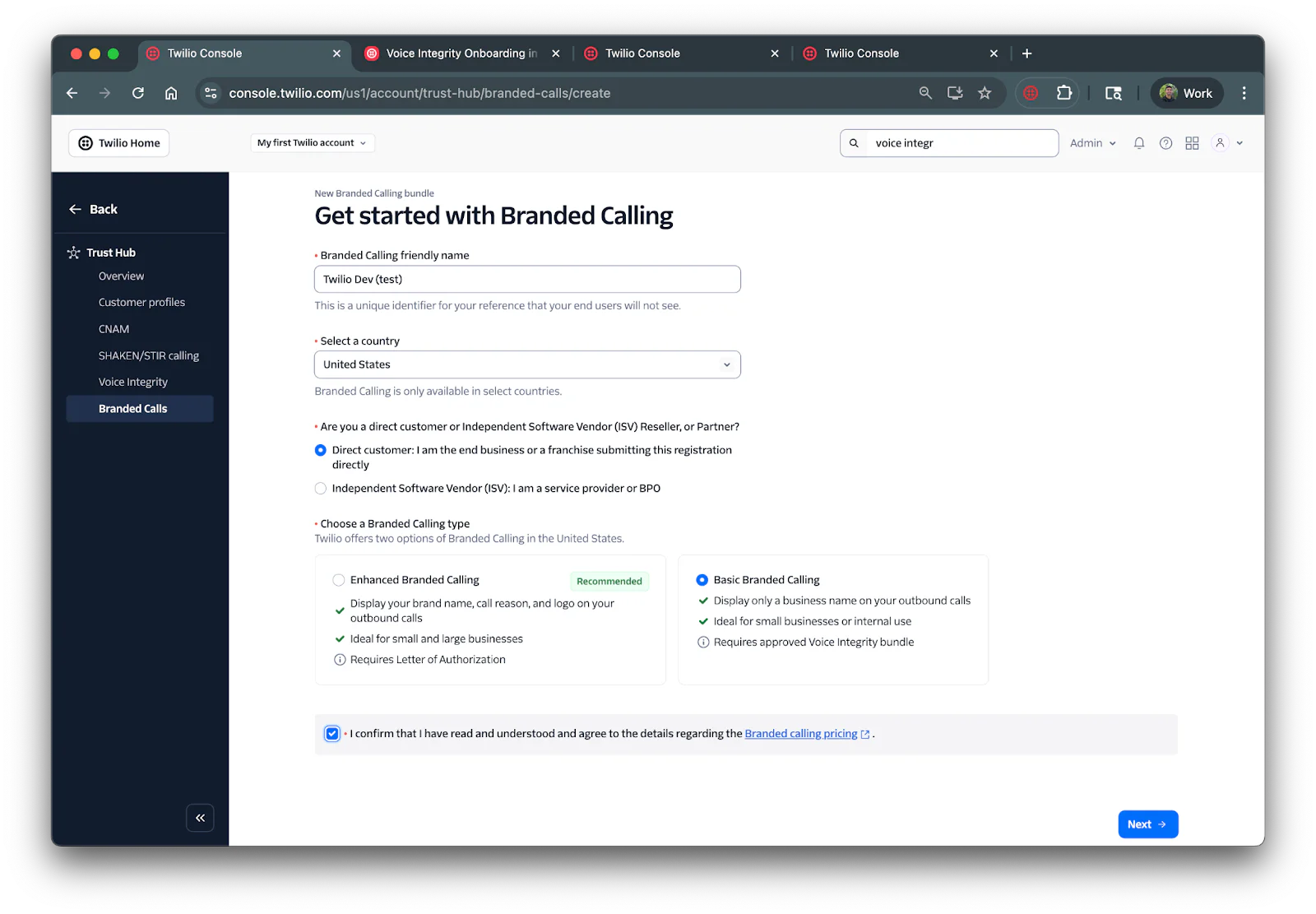
Click Get Started to start the setup process. The form requires several fields:
- Branded Calling friendly name: A unique identifier for your reference that your end users will not see.
- Country: The country of where your business operates from.
- Direct Customer or Independent Service Vendor (ISV): Whether you are an end business or a service provider
- Branded Calling Type: Basic or Enhanced (choose Basic for this portion of the tutorial)
Fill the form out and select the checkbox that states you understand the Branded calling pricing and then click Next.
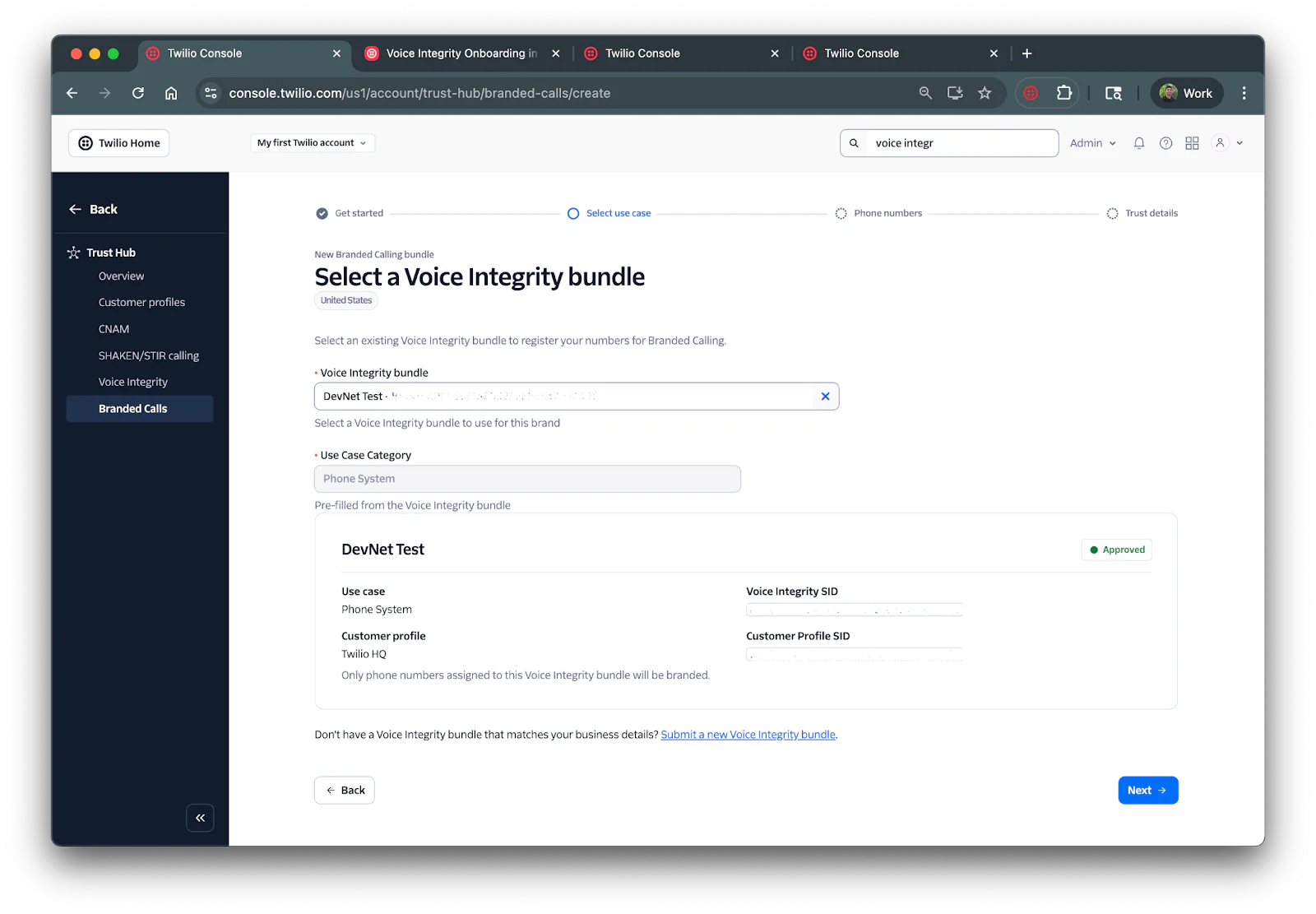
Next, you’ll be asked to select your Voice Integrity bundle (prerequisite). If you haven't created a Voice Integrity bundle, you’ll be asked to set one up.
Once you’ve selected your Voice Integrity bundle, select Next:
The next step is to assign the branded calling display to phone numbers. Click +Assign Phone Numbers button, select the phone numbers you’d like to assign branded calling to and click Save.
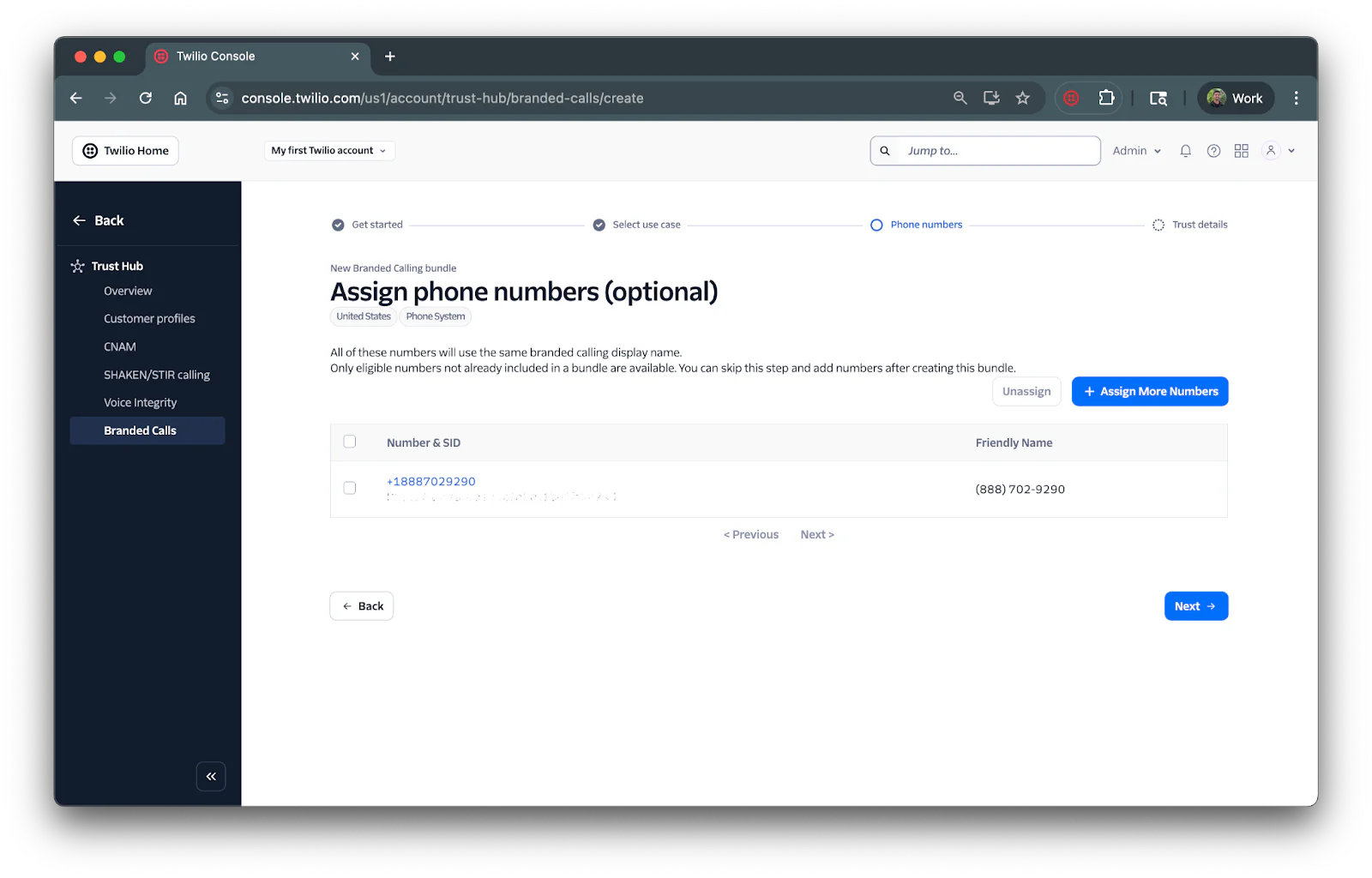
Click Next and the final step will be to add details and contact info for branded calling.
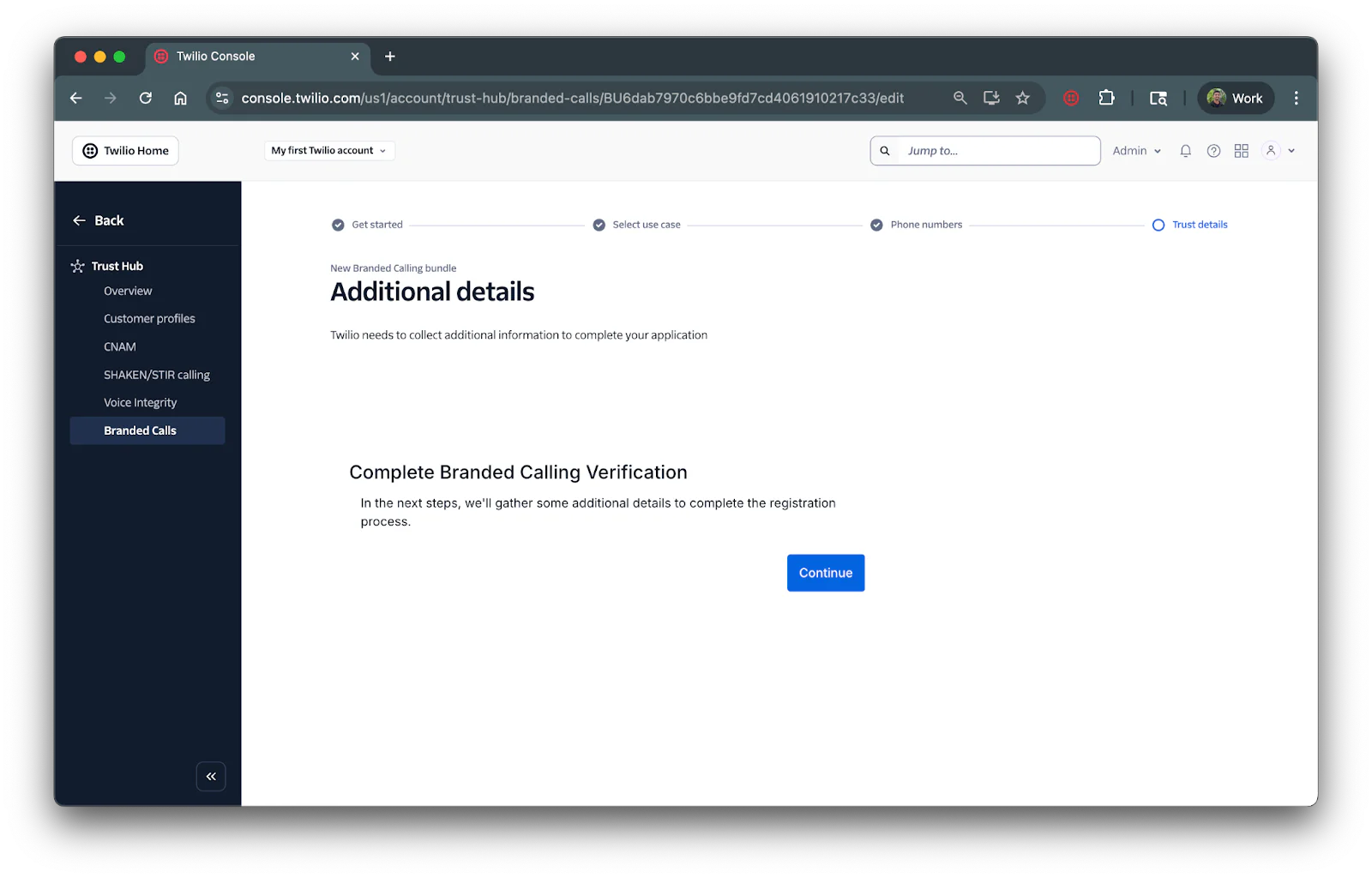
For these steps, you’ll be asked to enter in your brand contact information and to verify your email address.
After verifying your email, you’ll then be asked to enter in your brand information:
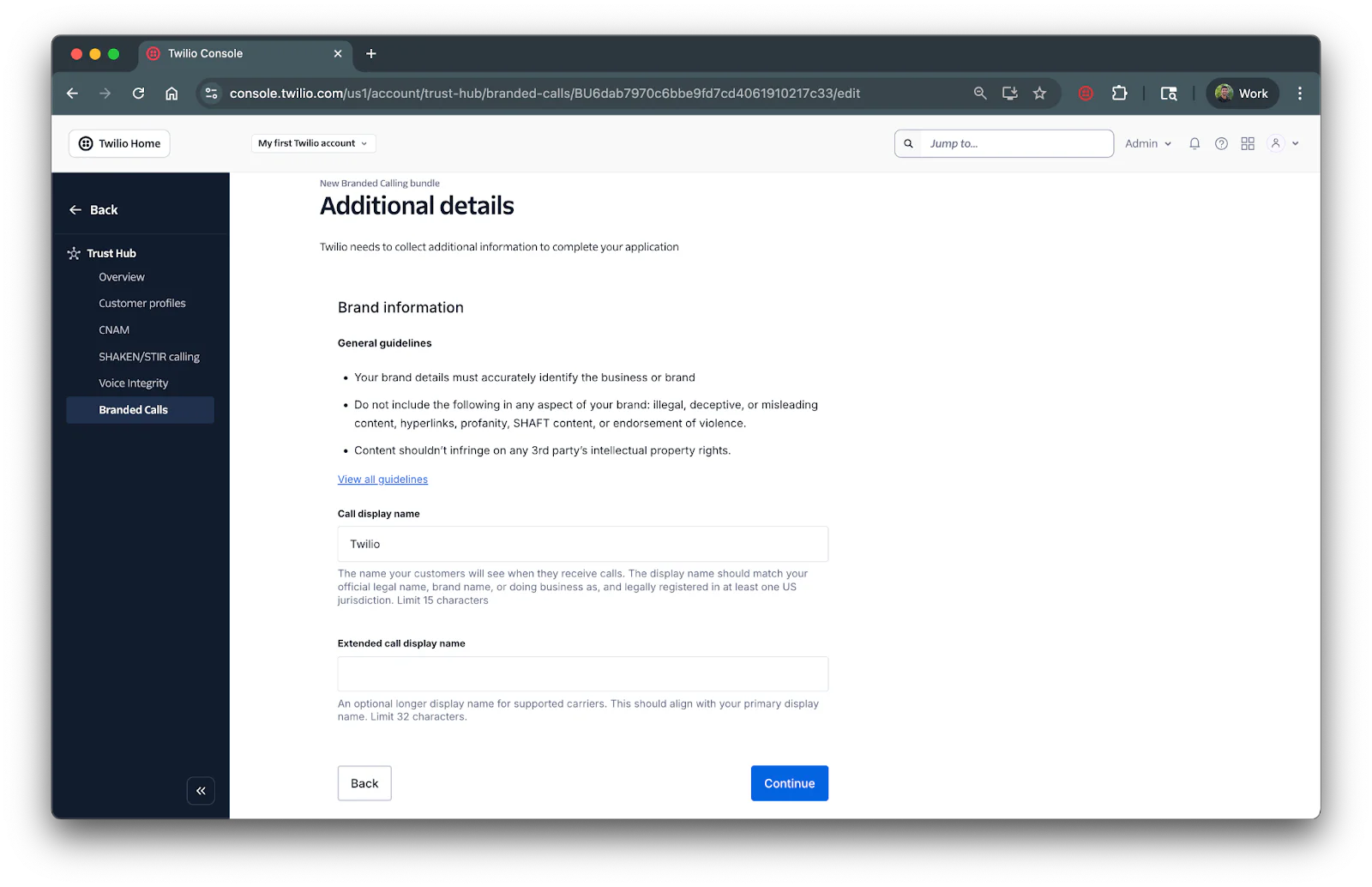
Enter in your Call display name (should match your official legal brand name) and your Extended call display name. Once added, click Continue.
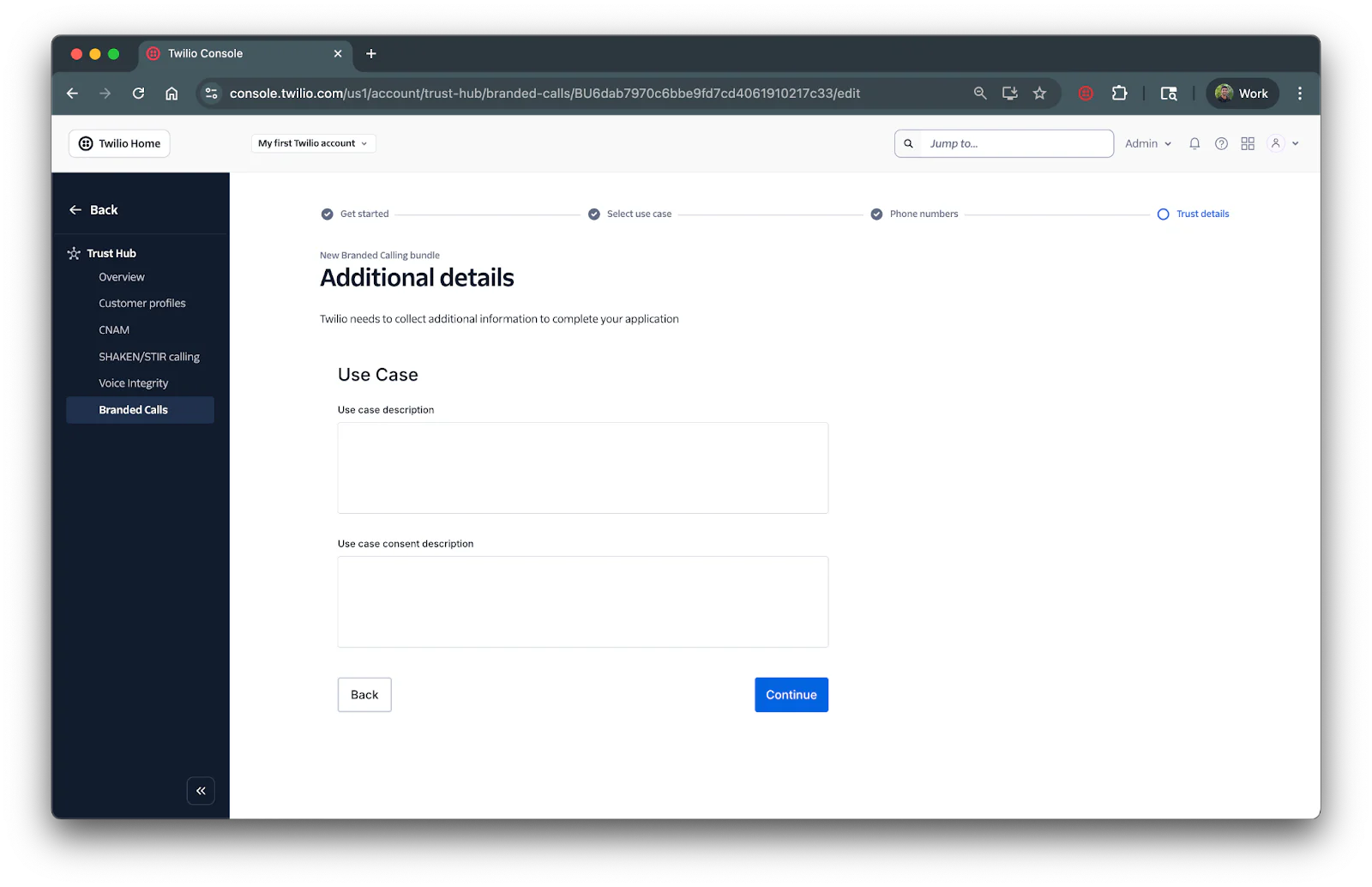
The next step will be to add Use Case details:
- Use case description: Why you are calling (e.g., "appointment reminders," "shipping updates," or "customer service calls").
- Use case consent description: How you obtain permission from recipients to receive your calls
The last step will be to enter Final details:
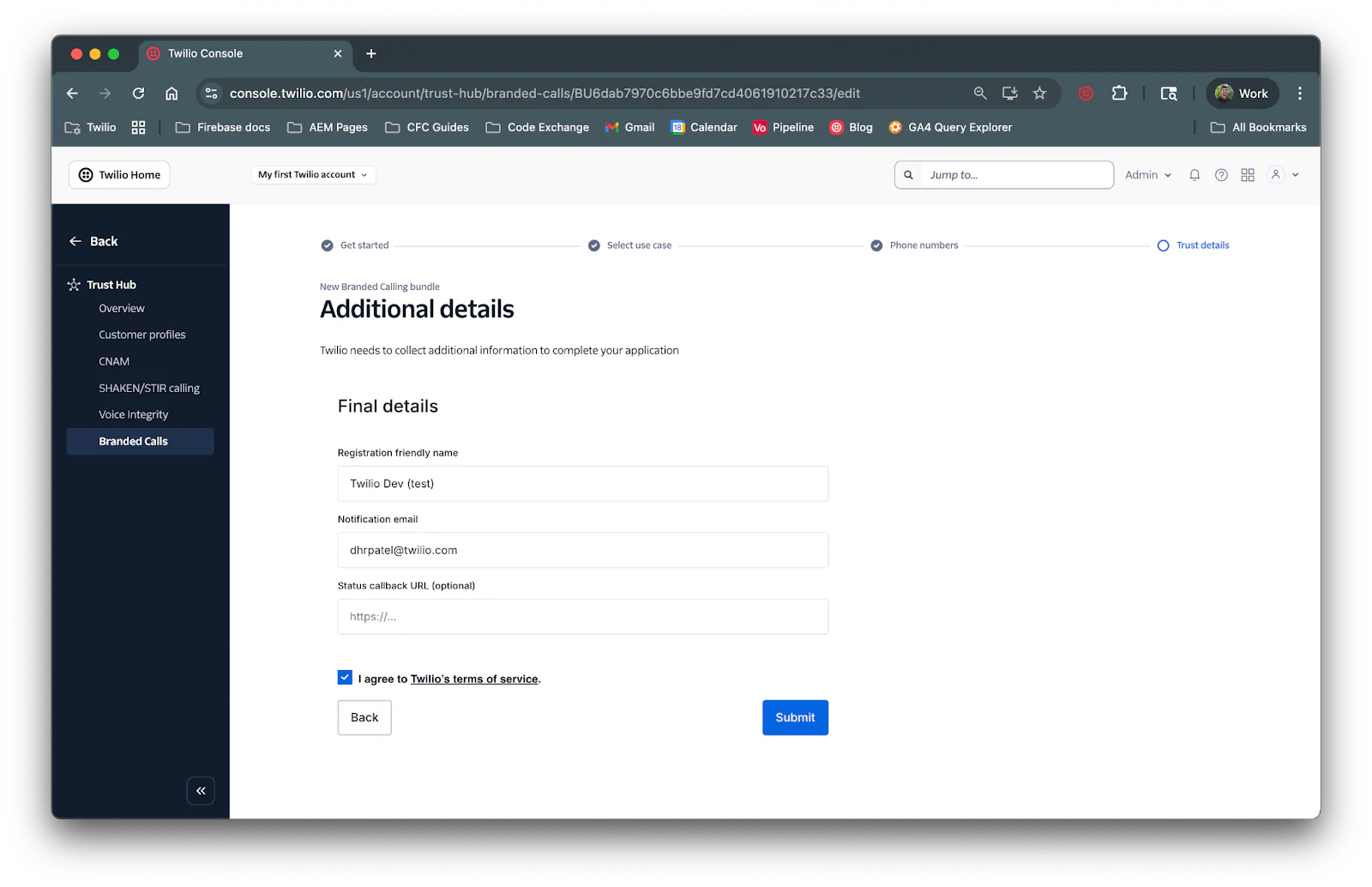
Submit for review
Once you've completed all required fields, click the Submit button. Your bundle status changes to In Review.
Twilio's Trust Hub team reviews submissions within 7 business days. You'll receive an email notification at your Twilio account email address when your bundle is approved or if additional information is needed.
After the 2-hour activation period, your Basic Branded Calling is live. Calls to T-Mobile and Verizon mobile devices display your business name.
Enable Enhanced Branded Calling
Enhanced Branded Calling adds your business logo and call reason to the display, providing a richer caller identification experience. Recipients see your business name (up to 35 characters), logo, and call reason when you call.
If you already have Basic Branded Calling set up, you will need to complete a new registration for Enhanced Branded Calling to access these enhanced features
Enhanced requires additional setup compared to Basic, including SHAKEN/STIR attestation and a signed Letter of Authorization.
Understand the Letter of Authorization requirement
A Letter of Authorization (LoA) is a signed document confirming you have legal authority to use your business name, logo, and call reason for Branded Calling. This protects against brand impersonation.
To obtain your Letter of Authorization:
- Download the LoA template from the Twilio Enhanced Branded Calling documentation
- Fill out the template with your business information
- Have an authorized business representative (owner, executive, or authorized officer) sign it
- Save the signed document as a PDF or image file
- Upload it when creating your Enhanced bundle
Prepare your logo
Your logo must meet specific requirements:
- File format: BMP (Bitmap) format only
- Dimensions: Exactly 256x256 pixels
- Content: Must represent your business and match your Business Profile branding
If your logo is in a different format (PNG, JPEG, etc.) or different dimensions, convert it using image editing tools like Adobe Photoshop, GIMP, or online converters. Resize to exactly 256x256 pixels and export as BMP.
Once exported, you’ll need to host it so it can be used as a URL.
Create an Enhanced Branded Calling bundle
With your Letter of Authorization signed, logo prepared, call reason drafted, and SHAKEN/STIR verified, you're ready to create your Enhanced bundle.
Navigate to Trust Hub from the search bar at the top. Click on Branded Calls from the left tab or click on Go to Branded Calling on the main page.
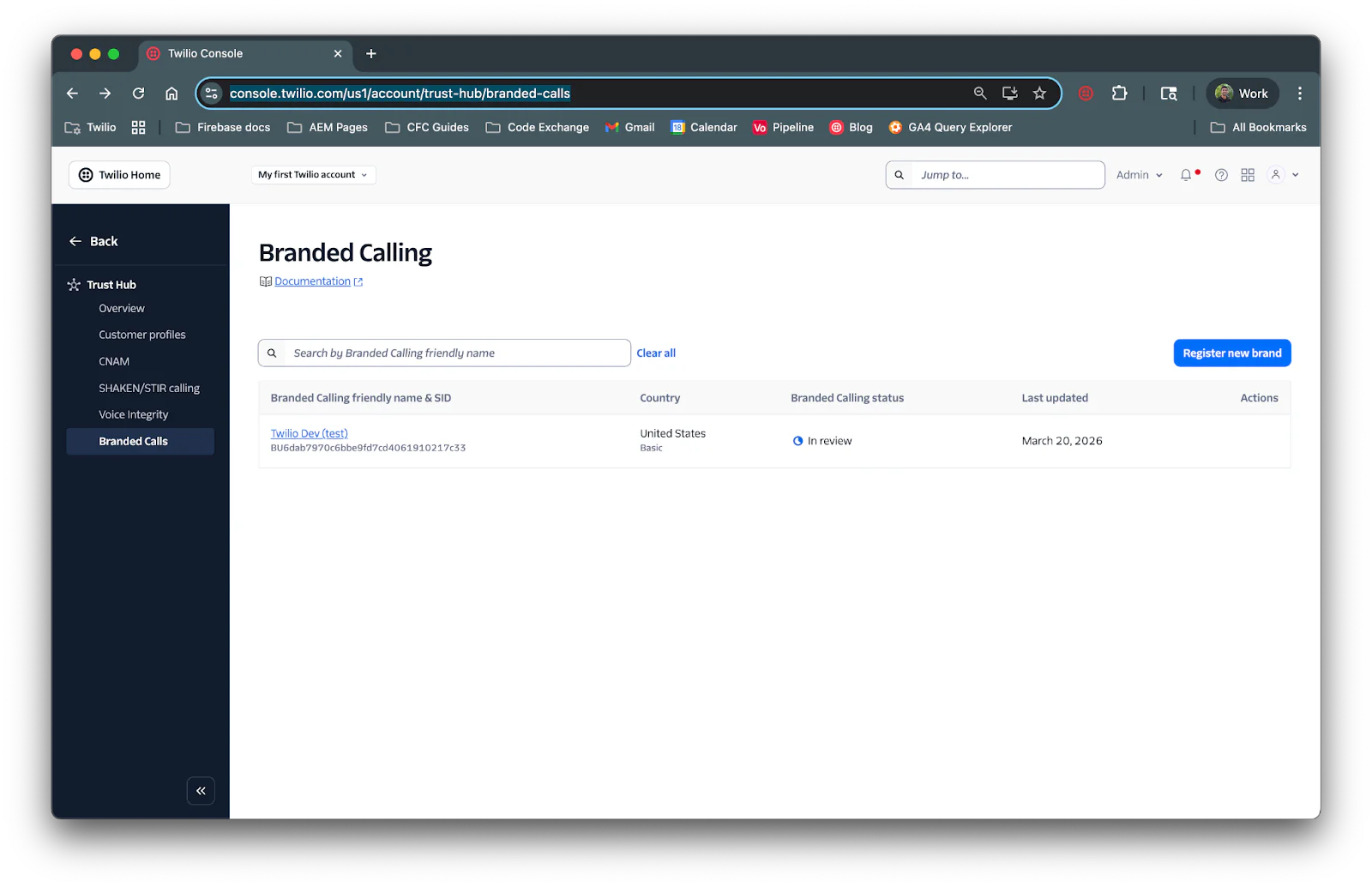
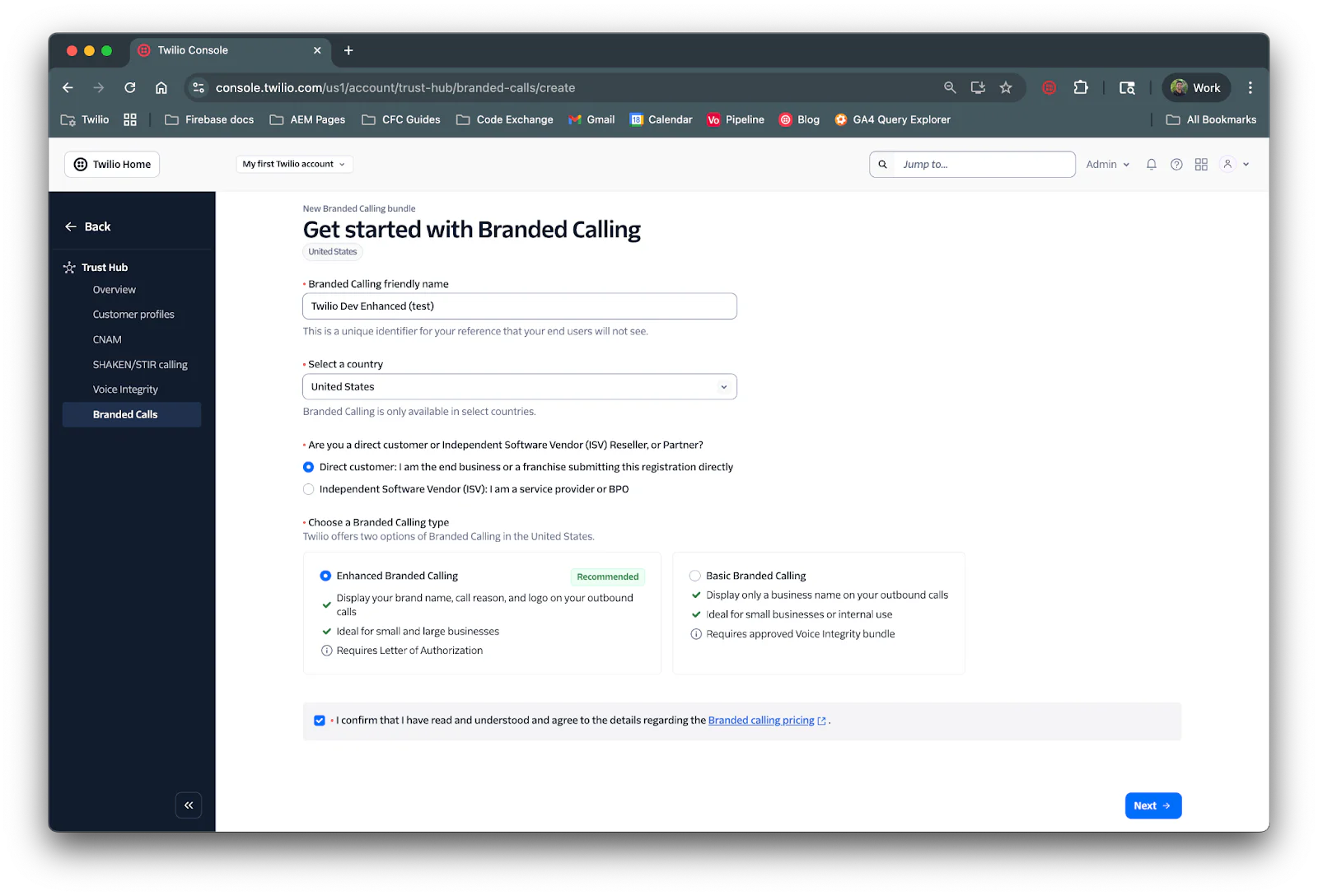
Click on Register new brand. The form requires several fields:
- Branded Calling friendly name: A unique identifier for your reference that your end users will not see.
- Country: The country of where your business operates from.
- Direct Customer or Independent Service Vendor (ISV): Whether you are an end business or a service provider
- Branded Calling Type: Basic or Enhanced (choose Enhanced for this portion of the tutorial)
Fill the form out and select the checkbox that states you understand the Branded calling pricing and then click Next.
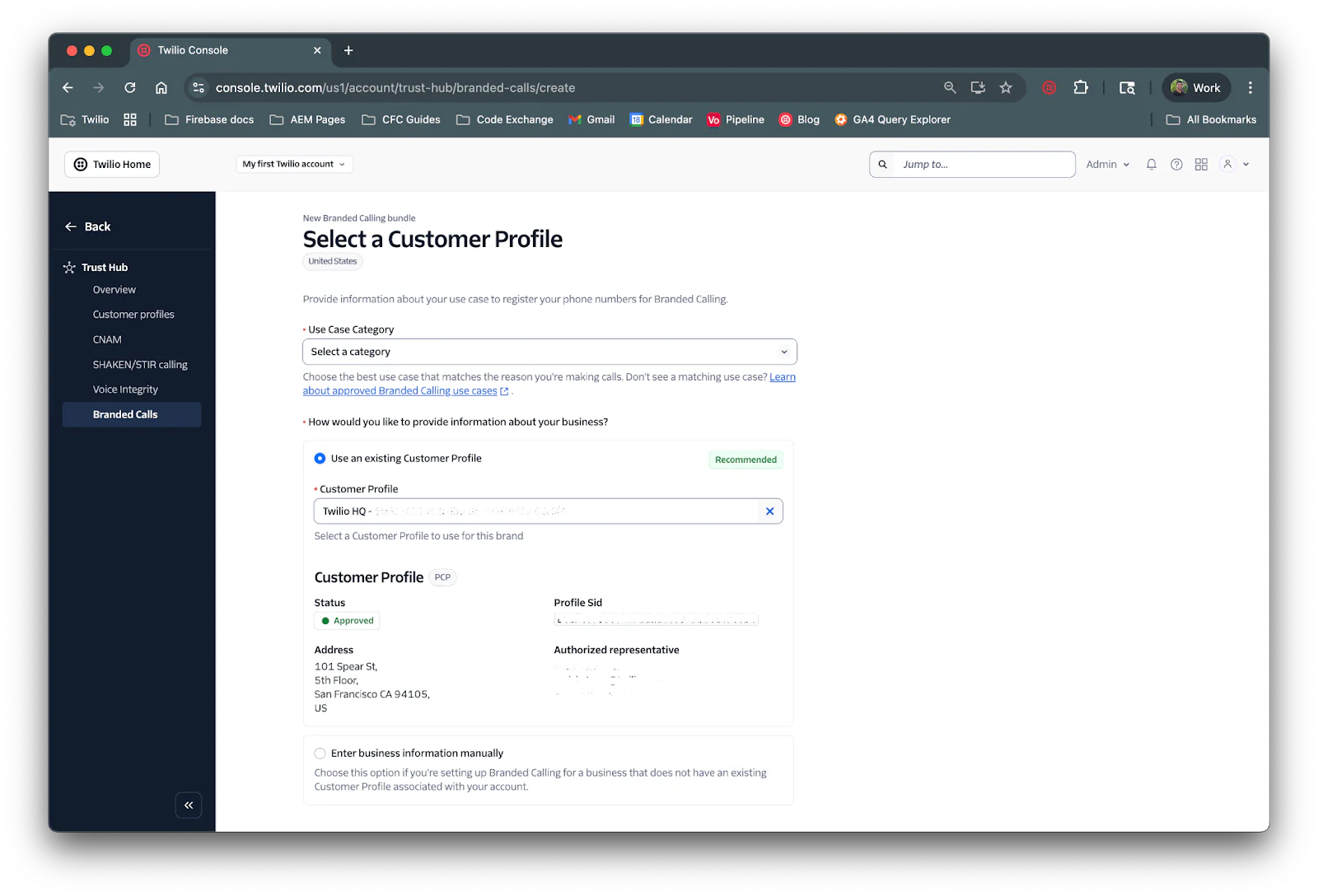
The next section will ask you to enter in your Customer Profile. For this section, you can use an existing customer profile (if you already have one). You’ll also need to enter a Use Case Category.
Click Next to proceed to the next section. The next step is to assign the branded calling display to phone numbers. Click +Assign Phone Numbers button, select the phone numbers you’d like to assign branded calling to and click Save.
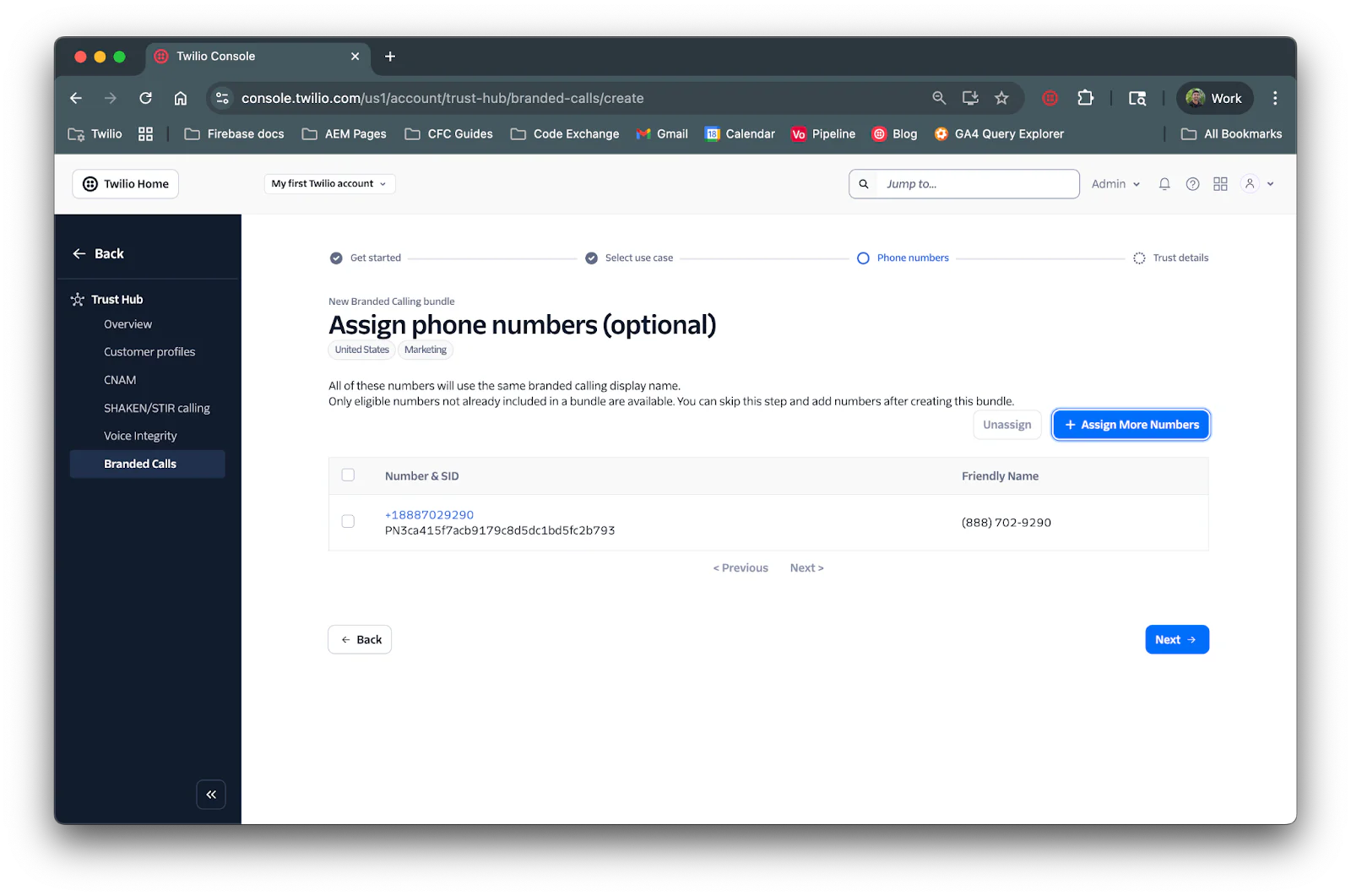
Click Next and the final step will be to add trust details which include brand contact info, brand logo and Letter of Authorization:
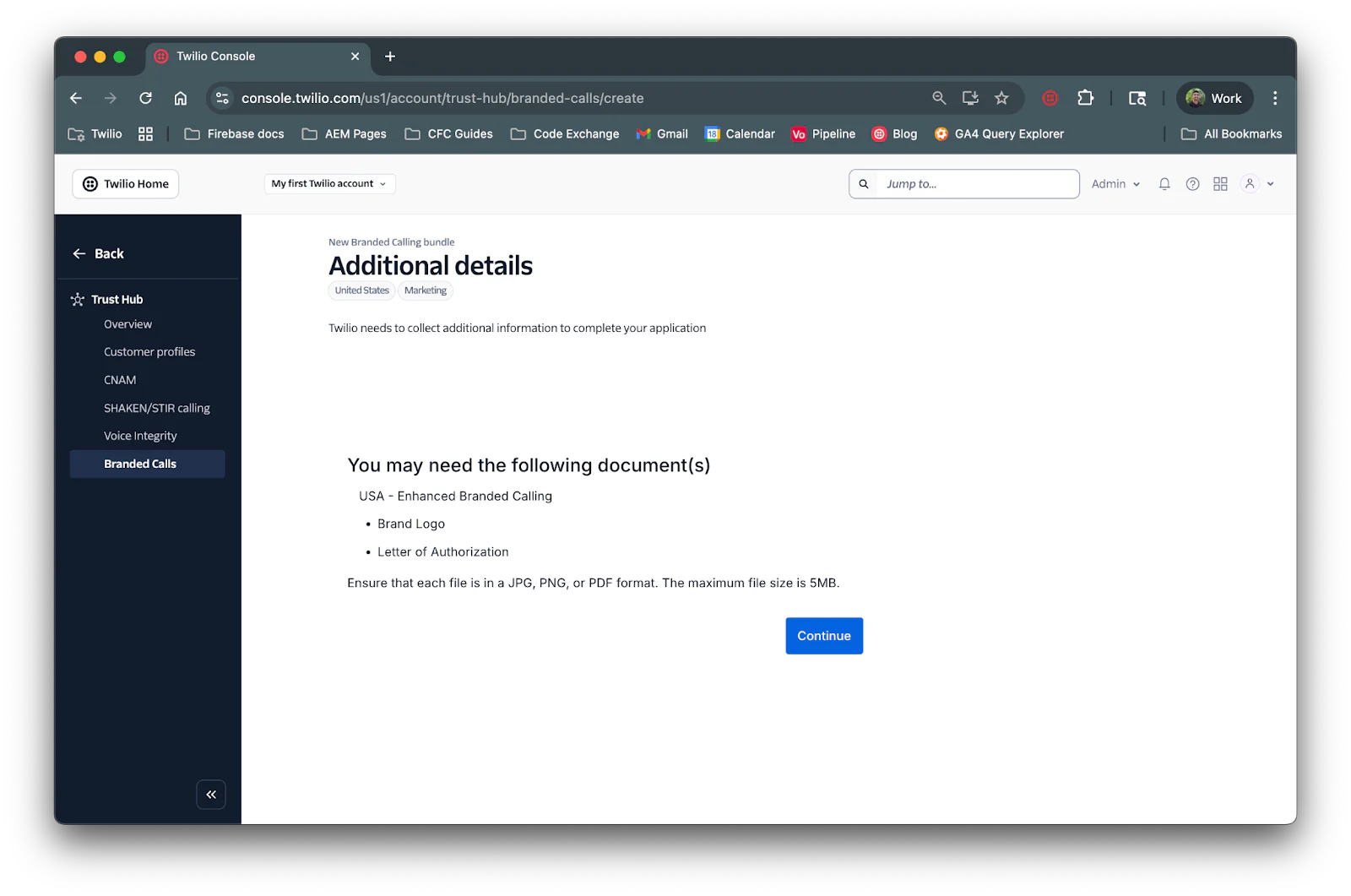
After clicking Continue, you'll be asked to brand contact info:
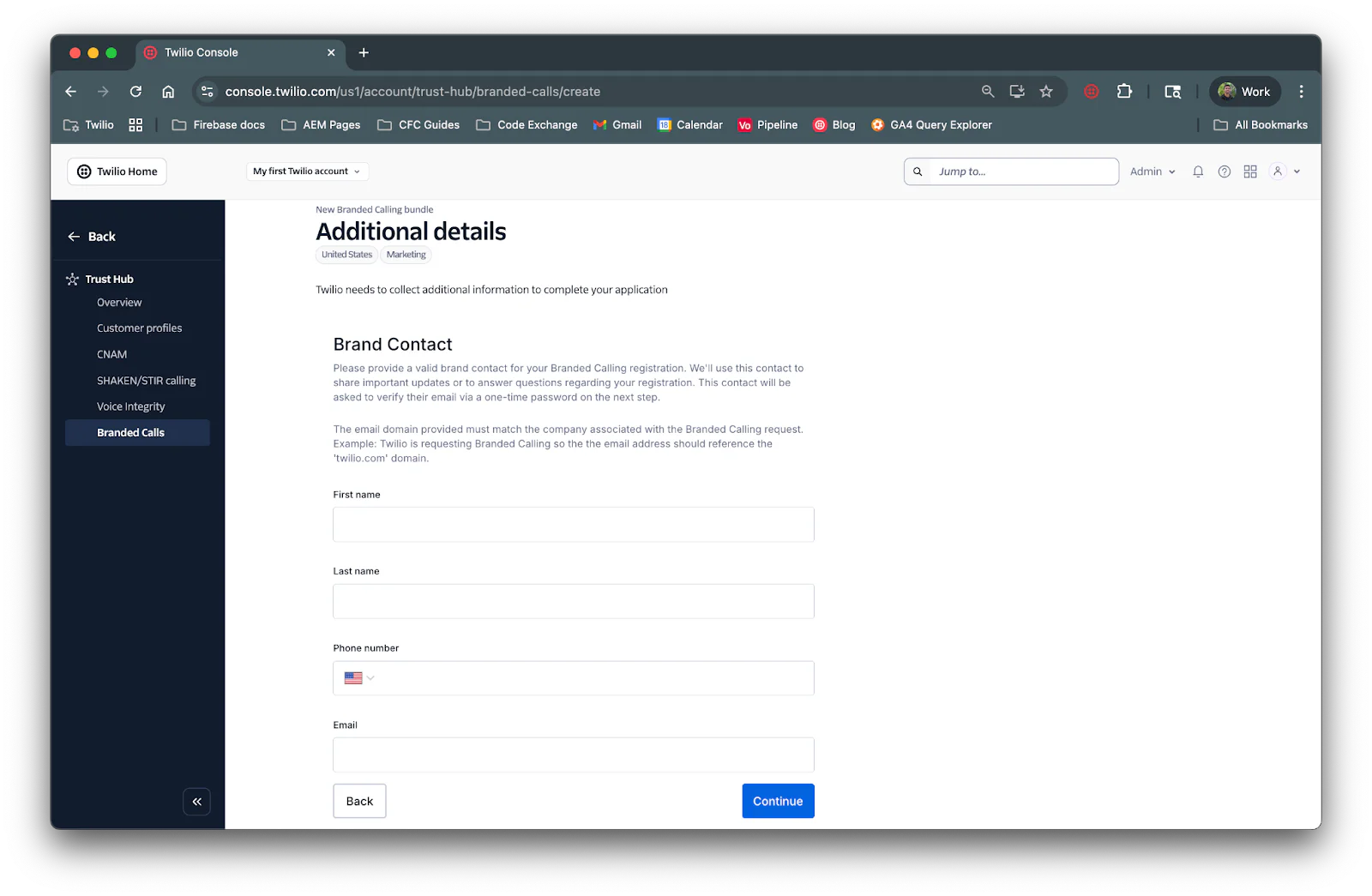
Enter in your brand contact information and then click Continue.
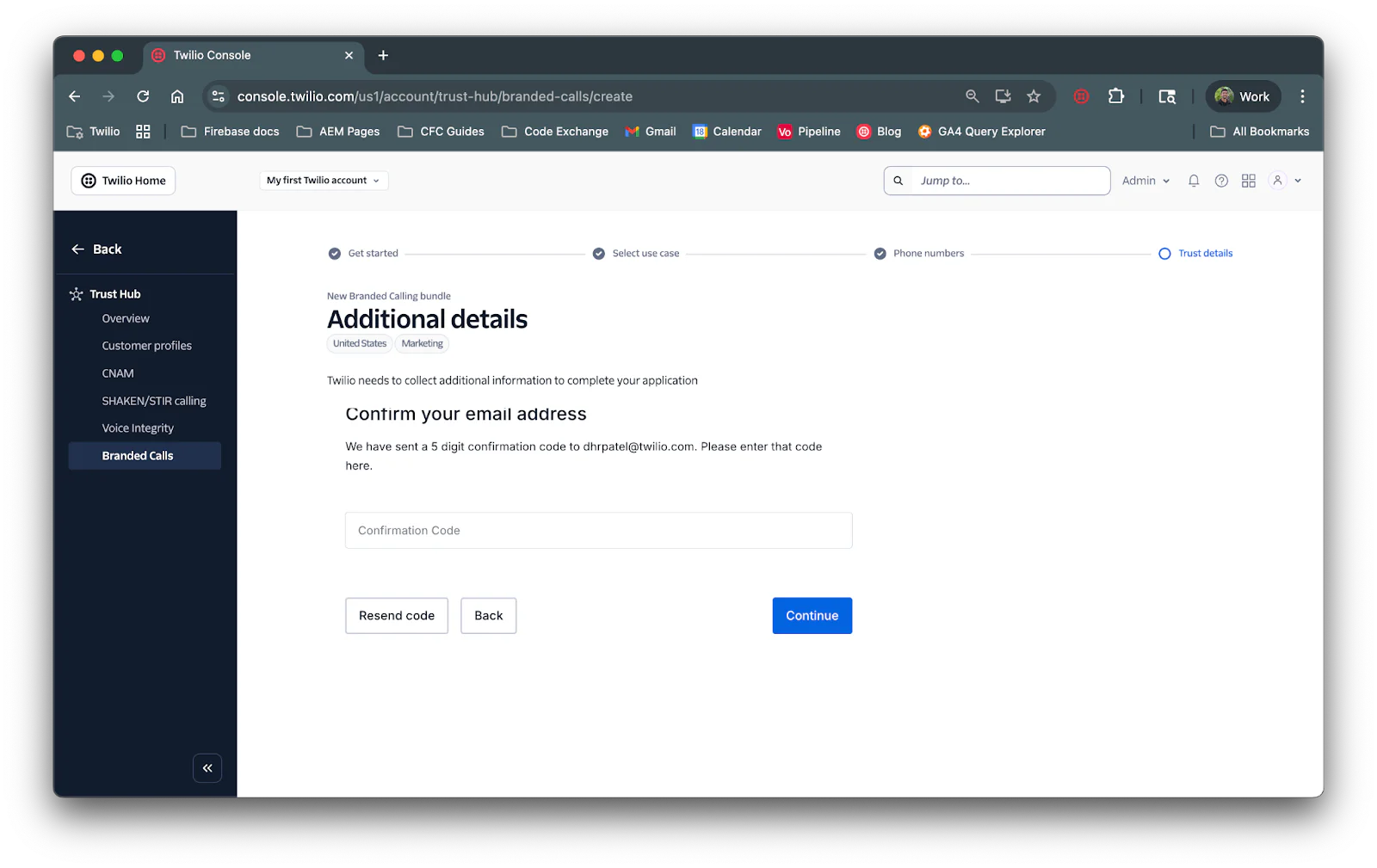
You’ll be asked to confirm your email address. Enter the confirmation code you received to your email and then click Continue.
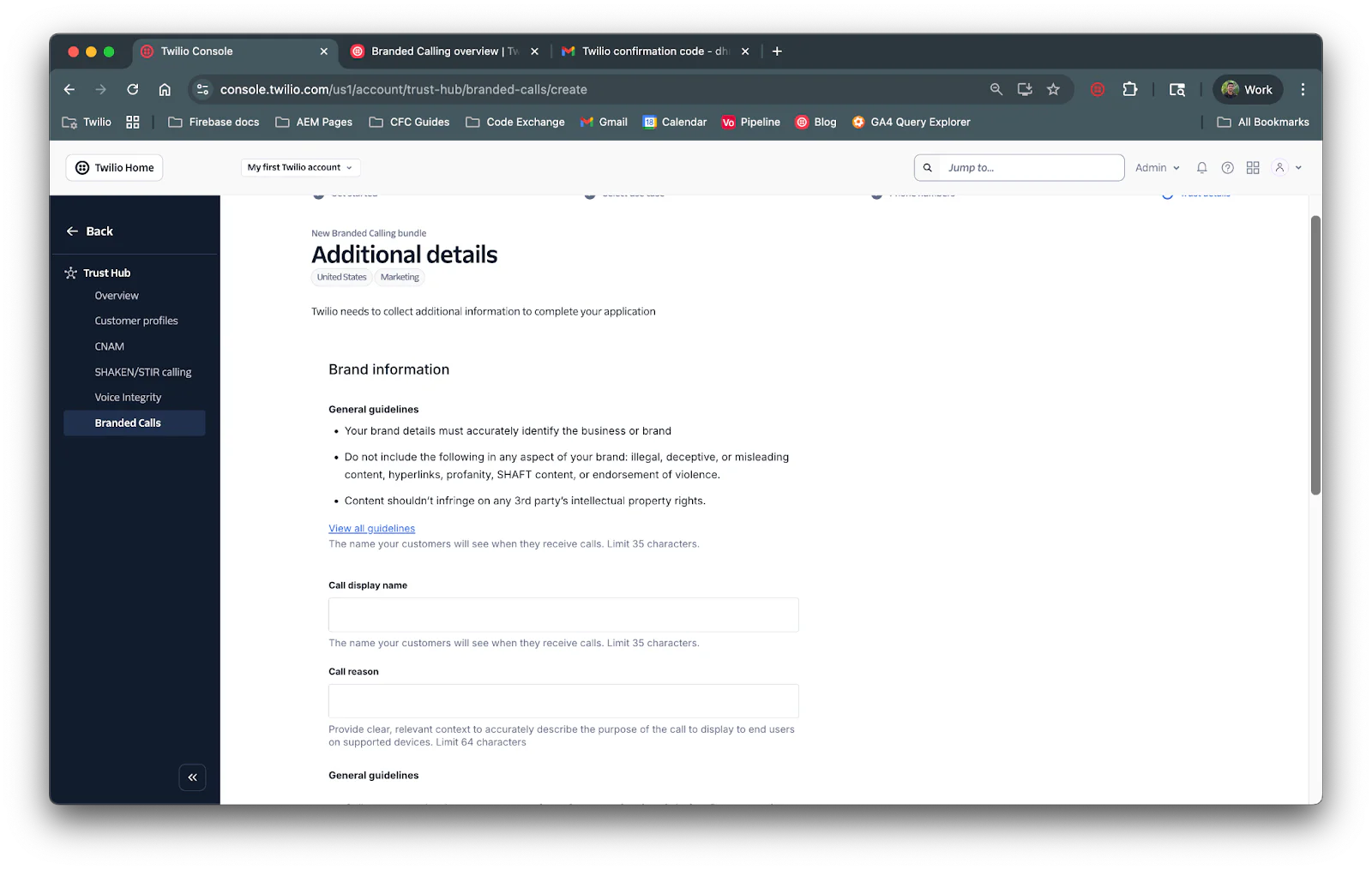
This next step has several fields:
- Call display name: The name your customers will see when they receive calls. Limit 35 characters.
- Call reason: The call reason explains why you're calling. It appears with your business name and logo on the recipient's screen. Your call reason can be up to 64 characters, but 35 characters or fewer is recommended for optimal mobile display.
- Company logo URL: The URL of the logo to be shown on the call. The image should be a 32-bit BMP, sized exactly 256x256 pixels.
Enter in these details and click Continue.
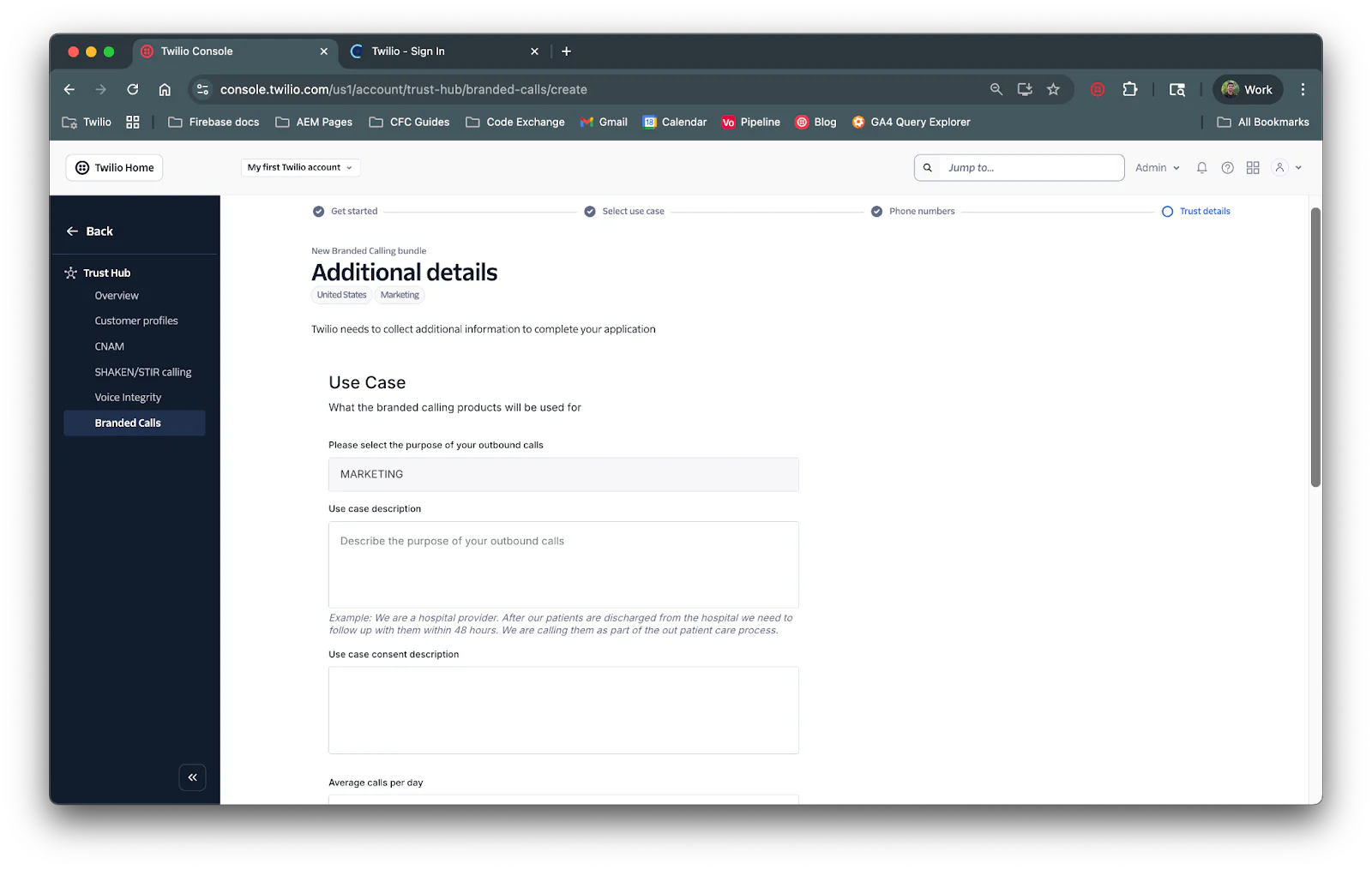
The next step will be to add Use Case details:
- Use case description: Why you are calling (e.g., "appointment reminders," "shipping updates," or "customer service calls").
- Use case consent description: How you obtain permission from recipients to receive your calls
Click Continue to move on to the next page.
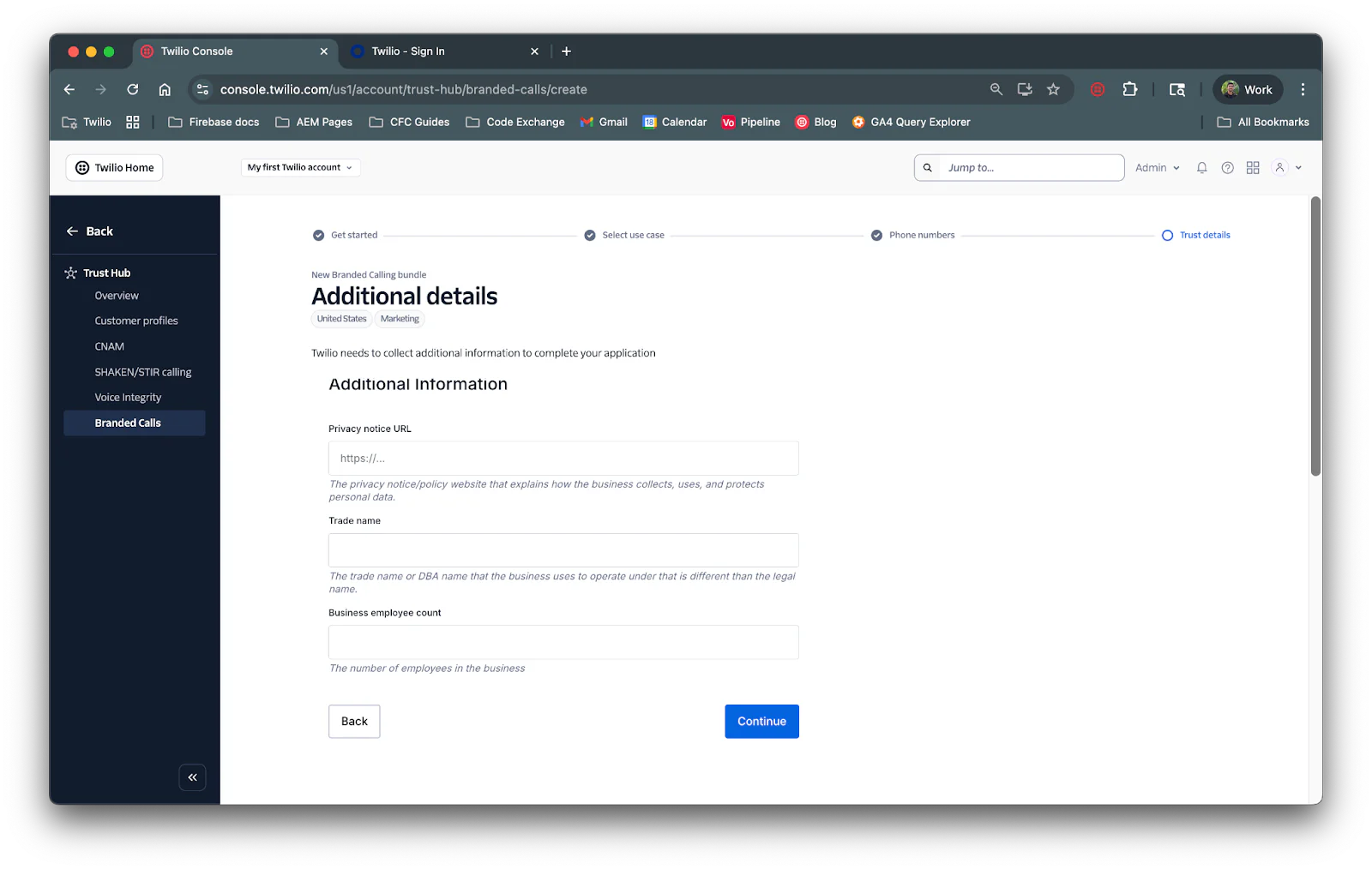
This next section has a few fields:
- Privacy notice URL: The privacy notice/policy website that explains how the business collects, uses, and protects personal data.
- Trade name: The trade name or DBA name that the business uses to operate under that is different from the legal name.
- Business employee count: The number of employees in the business
Add these details and click Continue. The next step is to upload your signed Letter of Authorization (LOA):
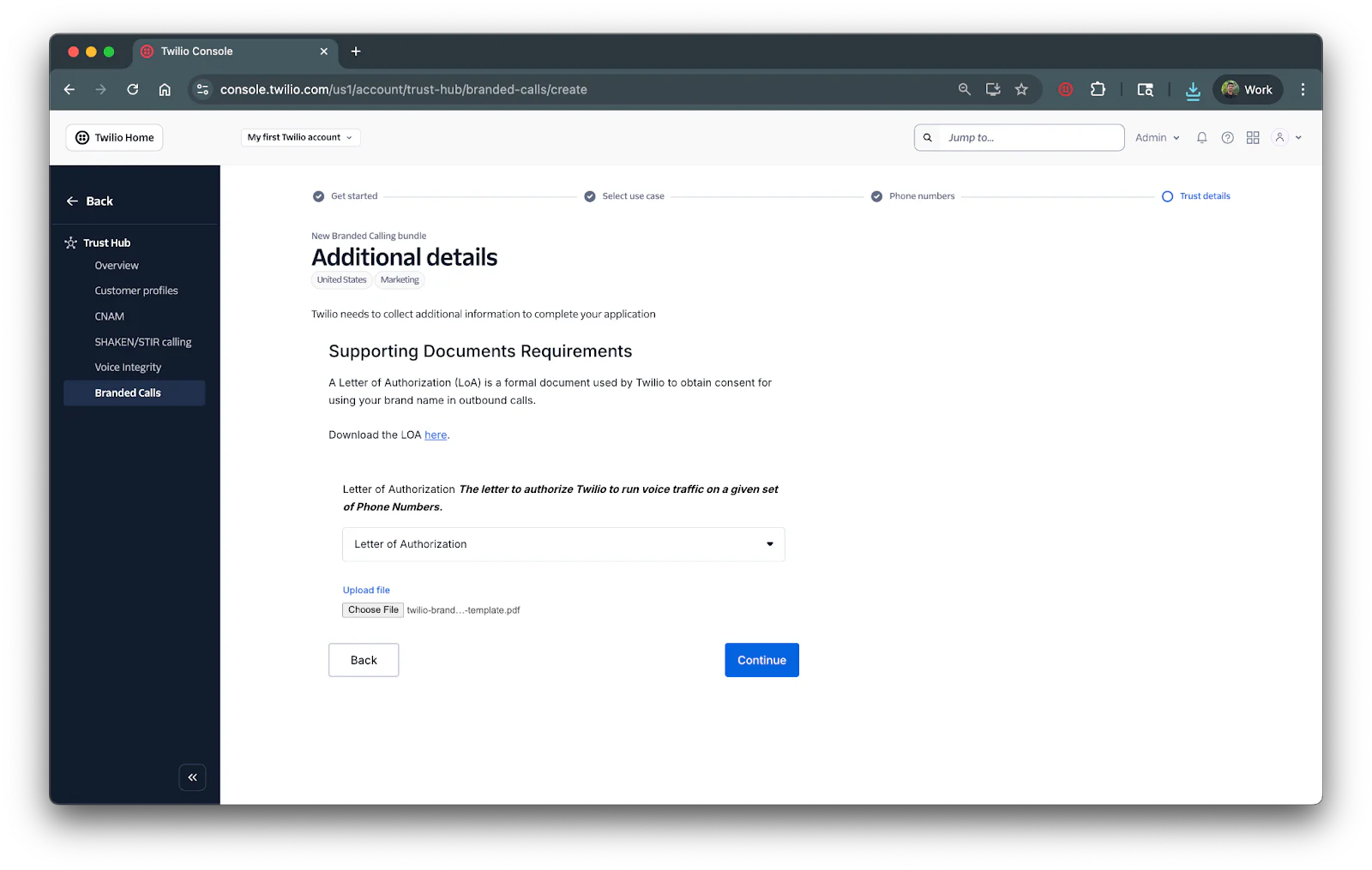
Upload the file and click Continue. The last step will be to enter Final details:
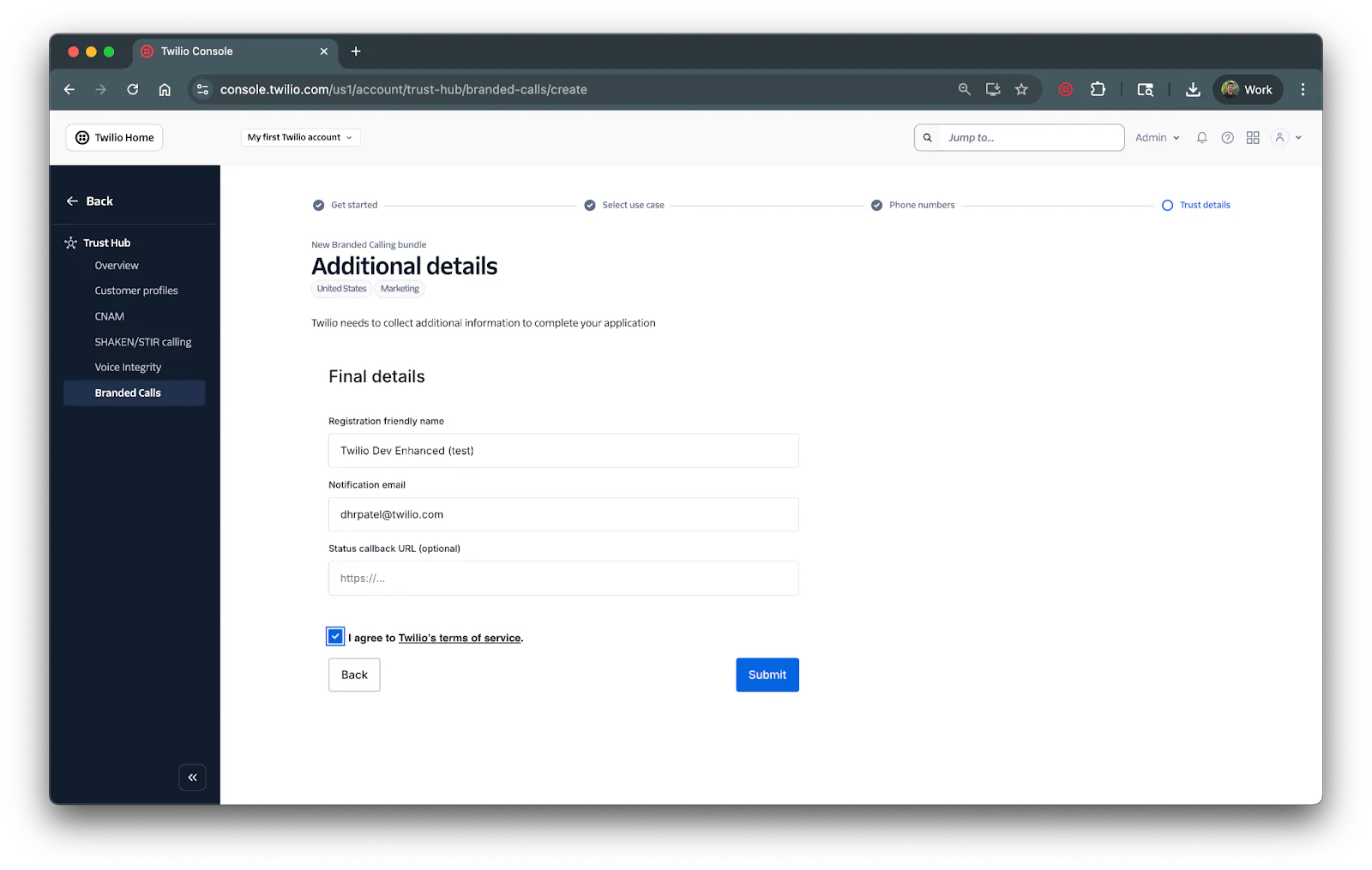
Submit for review
After completing all fields, click Submit. Your bundle enters Under Review status. Review takes up to 7 business days, and you'll receive an email when approved.
Phone number activation for Enhanced takes 24-48 hours due to additional carrier registration for your logo and call reason.
Test your Branded Calling
After the activation period (2 hours for Basic, 24-48 hours for Enhanced), test your setup by making a call from your Twilio number to a mobile phone on T-Mobile or Verizon.
You can test using any application that makes calls with your Twilio number, or use the Twilio Dev Phone.
What you should see:
- With Basic Branded Calling: Your business name displays on the recipient's mobile screen during the incoming call
- With Enhanced Branded Calling: Your business name, logo, and call reason all display on the recipient's mobile screen
To verify your configuration in the Console, navigate to Trust Hub > Branded Calls. Your bundle should show Approved status with your phone numbers listed as assigned.
Conclusion
You've successfully set up Branded Calling to display verified business information on recipients' mobile phones. With Basic Branded Calling, customers see your business name. With Enhanced, they also see your logo and call reason. This helps customers identify legitimate calls, builds trust, and improves answer rates.
As you continue using Branded Calling, maintain good calling practices by following Twilio's voice calling best practices. Even with branded information displayed, carriers may reject calls if your reputation is poor due to spam complaints or calling violations.
Dhruv Patel is a Developer on Twilio's Developer Voices team. You can find Dhruv working in a coffee shop with a glass of cold brew or he can be reached at dhrpatel [at] twilio.com.



Related Resources
Twilio Docs
From APIs to SDKs to sample apps
API reference documentation, SDKs, helper libraries, quickstarts, and tutorials for your language and platform.
Resource Center
The latest ebooks, industry reports, and webinars
Learn from customer engagement experts to improve your own communication.
Ahoy
Twilio's developer community hub
Best practices, code samples, and inspiration to build communications and digital engagement experiences.