Sending RCS Cards Using Python
Time to read:
February 11, 2026
Written by
Reviewed by
AI generated summary
- Learn to send RCS cards with Python and Twilio Content Templates for richer, interactive messaging.
- RCS cards include elements like titles, images, and action buttons, enhancing customer engagement over plain SMS.
- Create reusable templates via Twilio Console or API, simplifying message sending and ensuring consistent format.
This summary was generated by AI.
Sending RCS Cards Using Python
In this post, you'll learn how to send Rich Communication Services (RCS) cards using Python and Twilio Content Templates. RCS cards are interactive, rich media messages that can include titles, images, and action buttons which are far more engaging than traditional SMS. Whether you're building a promotional campaign, sending appointment reminders, or creating interactive customer experiences, RCS cards provide a professional, branded messaging experience.
This tutorial builds on the concepts from How to Send an RCS message with Twilio and Python, where you learned to send basic RCS messages. Now you'll create reusable card templates that can include interactive buttons for URLs, phone calls, and quick replies.
Prerequisites
To follow along with this tutorial, you'll need:
- A free Twilio account
- Python 3.8 or higher
- A Twilio RCS-enabled messaging service
- An RCS-capable phone number for testing
- Basic familiarity with RCS messaging concepts
If you're new to RCS, check out our RCS vs SMS article to understand the differences between these messaging channels.
Understanding RCS Cards
Before building your application, it's helpful to understand what makes RCS cards different from basic RCS messages. A basic RCS message, like the ones covered in the prerequisite tutorial, can include text and media attachments. RCS cards take this further by providing structured layouts with interactive elements.
An RCS card can include:
- Title and subtitle: Prominent headlines for your message
- Body text: Detailed message content
- Media: Images or other rich media
- Action buttons: Interactive elements like website links, phone numbers, or quick reply options
- Fallback content: Plain text version for recipients without RCS support
The key difference is that RCS cards use Twilio's Content Templates to create reusable templates. Once you create a template, you can send it to multiple recipients without recreating the card structure each time.
Building the application
Project setup
Open your terminal and create your project structure:
Create the following files:
- create_rcs_card_template.py: Creates the card template
- send-rcs-card.py: Sends messages using the template
- requirements.txt: Project dependencies
- .env: Environment variables
Create a virtual environment and activate it:
Add these dependencies to requirements.txt:
Install the dependencies:
Setting environment variables
Create a .env file in your project root:
You can find your Account SID and Auth Token in the Twilio Console under the Account Info section. The Messaging Service SID comes from your RCS-enabled messaging service, which you should have set up in the prerequisite tutorial.
Leave CONTENT_TEMPLATE_SID empty for now - you'll fill this in after creating your card template.
Creating an RCS card template
Twilio RCS cards are created using Content Templates. Content Templates allow you to define reusable message templates that can be sent across different messaging channels. As of publishing, the Twilio Python SDK doesn't support creating RCS card templates, specifically body attributes, directly, so you'll use the REST API with the requests library.
There are two ways to create an RCS card template: through the Twilio Console UI or programmatically via the API. We'll cover both approaches.
Option 1: Creating a card via the Twilio Console
You can create RCS card templates using the Content Template Builder in the Twilio Console:
- Log in to the Twilio Console
- Navigate to Messaging > Content Template Builder
- Click Create new template
- Select Cards as the content type
- Fill in your card details:
- Friendly name (for your reference)
- Language
- Title, subtitle, and body text
- Media URL (optional)
- Action buttons (URL, phone number, or quick reply)
- Add a fallback text message for non-RCS recipients
- Click Save
- Copy the Content SID and add it to your .env file as CONTENT_TEMPLATE_SID
Option 2: Creating a card programmatically
For more control and automation, you can create card templates programmatically. Add the following code to create_rcs_card_template.py:
This function defines your RCS card structure. The template includes two content types:
- twilio/card: The rich RCS card with interactive elements
- twilio/text: A fallback plain text message for recipients without RCS support
The card includes three types of action buttons. The URL button opens a website, the phone number button initiates a call, and the quick reply button sends a predefined response back to your application.
Now add the code to create the template via the Twilio Content API:
This code posts your template definition to the Content API using HTTP Basic Authentication. The API returns a Content SID that you'll use to send messages.
Run the script to create your template:
You should see output like:
Copy the Content SID and add it to your .env file:
Sending messages with your RCS card
Now that you have a card template, sending messages is straightforward. Unlike the template creation, sending messages uses the standard Twilio Python SDK.
Create send-rcs-card.py with the following code:
This code is notably simpler than the template creation. You reference your pre-created template using content_sid and let Twilio handle the message delivery. The messaging service routes your message through the appropriate RCS channel.
Compare this to sending a basic RCS message from the prerequisite tutorial:
The basic approach defines the message content inline with body and media_url. The card approach references a template, which provides richer formatting and interactive elements. While the basic approach works well for simple messages, cards offer a more professional and engaging experience.
Run your script to send the card:
You should see:
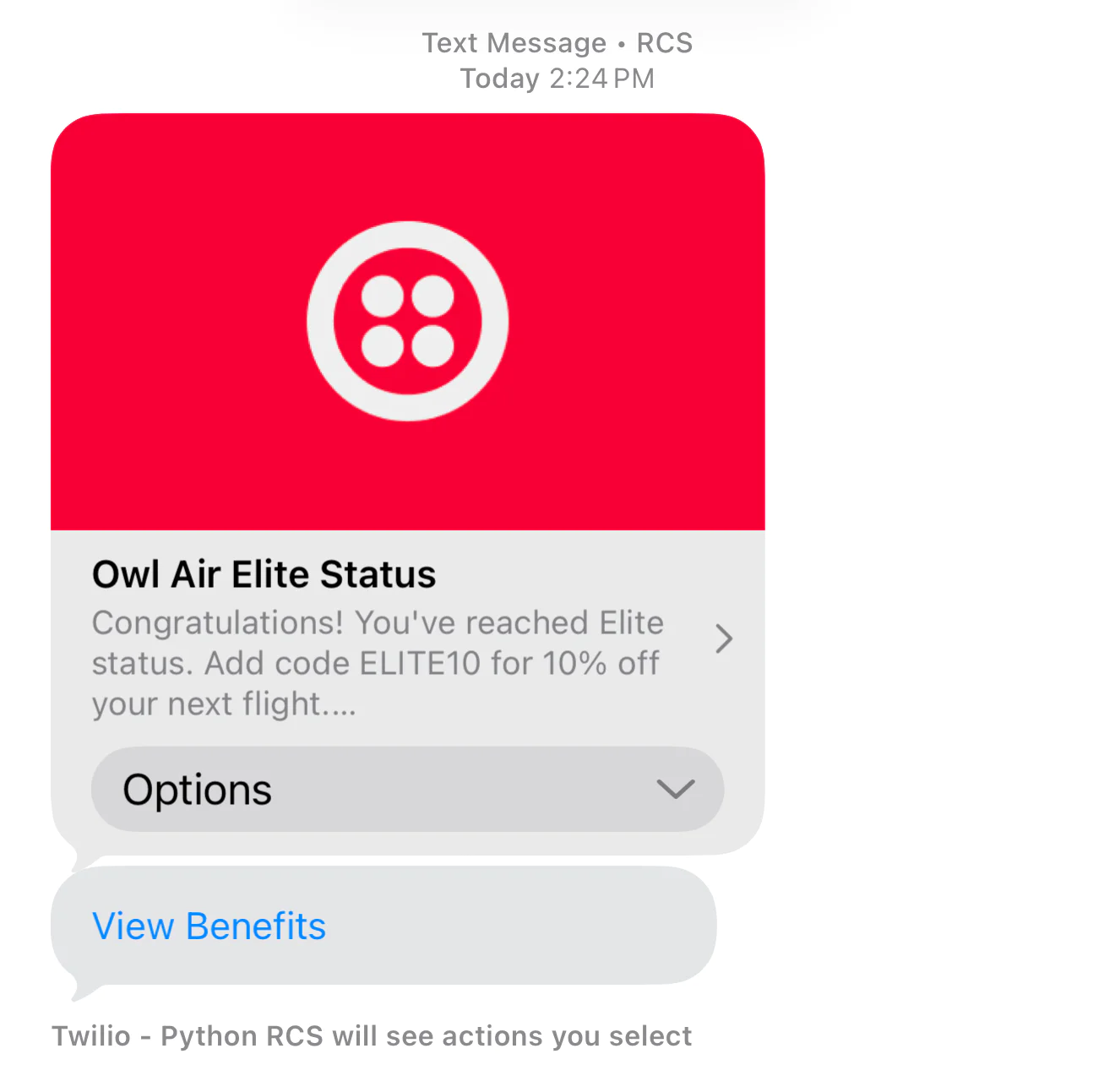
Check your test phone number - you should receive an RCS card with the title, image, body text, and three interactive buttons.
Testing your RCS card
To verify your RCS card is working correctly:
- Ensure your test phone number has RCS capabilities enabled
- Check that the card displays with proper formatting, including the title, subtitle, body text, and image
- Test each action button:
- The URL button should open the specified website
- The phone number button should initiate a call
- The quick reply button should send a response back to your application
- If possible, test on a non-RCS device to verify the fallback text message displays correctly
Troubleshooting
My card isn't displaying correctly
If your card doesn't render properly:
- Verify your media URL is publicly accessible and returns a valid image
- Check that your Content SID is correct in your .env file
- Ensure your recipient's device supports RCS messaging
- Review the TwilioCard Content Template documentation for supported card features
I'm receiving the fallback text instead of the card
This typically means:
- The recipient's device doesn't support RCS
- The recipient's carrier doesn't support RCS
- There's an issue with your messaging service configuration
Check your messaging service settings in the Twilio Console to ensure RCS is properly configured.
My template creation script returns an error
Common issues include:
- Invalid authentication credentials - verify your Account SID and Auth Token
- Malformed JSON in the template definition - check for syntax errors
- Invalid media URLs - ensure all media is publicly accessible
Next steps
Now that you can send RCS cards, consider these enhancements:
- Create multiple card templates for different campaigns or use cases
- Use template variables to personalize cards for each recipient
- Implement webhook handlers to process quick reply responses
- Explore carousel cards to display multiple items in a single message
- Review the Content API documentation for advanced template features
For more on RCS messaging capabilities, check out the Twilio RCS documentation.
Conclusion
In this tutorial, you learned how to create and send RCS cards using Python and Twilio Content Templates. You saw how to define reusable card templates with interactive buttons and rich media, both through the Twilio Console and programmatically via the API. RCS cards provide a significant upgrade over basic SMS, offering branded, interactive experiences that can improve customer engagement and conversion rates. Show us your use case! We're looking forward to seeing what you come up with!
Dylan Frankcom is a Software Engineer on Twilio's Developer Content team. He's passionate about building tools that help developers learn, create, and ship faster. You can reach him at dfrankcom [at] twilio.com, find him on LinkedIn , or follow him on Github .
Related Resources
Twilio Docs
From APIs to SDKs to sample apps
API reference documentation, SDKs, helper libraries, quickstarts, and tutorials for your language and platform.
Resource Center
The latest ebooks, industry reports, and webinars
Learn from customer engagement experts to improve your own communication.
Ahoy
Twilio's developer community hub
Best practices, code samples, and inspiration to build communications and digital engagement experiences.