Sending RCS Carousels Using Python
Time to read:
February 12, 2026
Written by
Reviewed by
AI generated summary
- Send RCS carousels with Twilio to create interactive, swipeable messages showcasing multiple items.
- Use the Twilio Content API or Console for creating and customizing carousel templates efficiently.
- Ensure top-notch images, concise text, and engaging action buttons to boost user engagement.
This summary was generated by AI.
Sending RCS Carousels Using Python
In this post, you'll learn how to send Rich Communication Services (RCS) carousels using Python and Twilio Content Templates. RCS carousels let you display multiple products, options, or items in a single swipeable message. Think of them as a miniature storefront in your customer's messaging app. Whether you're showcasing new products, presenting menu options, or displaying service packages, carousels create compelling, interactive experiences that drive engagement and conversions.
This tutorial continues from How to Send an RCS message with Twilio and Python, where you learned the basics of RCS messaging. This is also a companion to our tutorial on sending RCS cards. While a single card works well for focused messages like appointment reminders, carousels shine when you need to present multiple options at once.
Prerequisites
To follow along with this tutorial, you'll need:
- A free Twilio account
- Python 3.8 or higher
- A Twilio RCS-enabled messaging service
- An RCS-capable phone number for testing
- Basic familiarity with RCS messaging concepts
If you're new to RCS, check out RCS vs SMS to understand how RCS compares to traditional text messaging. For more details on RCS capabilities, review the Twilio RCS documentation.
Why use RCS carousels?
Imagine you're running a promotional campaign for your online store. Instead of sending separate messages for each product or cramming everything into one cluttered text, you can send a carousel where customers swipe through your featured items. Each card in the carousel can include its own image, description, and call-to-action button.
An RCS carousel consists of multiple cards displayed horizontally. Recipients can swipe left or right to browse through the options. Each card can include:
- Title: Product name or headline
- Body text: Description or details
- Media: Product images or photos
- Action buttons: "Buy Now", "Learn More", or custom quick replies
- Independent actions: Each card can have its own unique buttons
The advantage over sending multiple individual messages is that carousels feel intentional and curated. They take up less screen space and provide a better user experience.
Building the application
Project setup
Create your project directory and navigate into it:
Set up your Python environment:
Create a requirements.txt file:
Install the dependencies:
Configuring environment variables
Create a .env file in your project root:
Find your Account SID and Auth Token in the Twilio Console. The Messaging Service SID comes from your RCS-enabled messaging service, which you should have set up in the prerequisite tutorial. Leave CONTENT_TEMPLATE_SID empty for now. You'll populate it after creating your carousel template.
Creating an RCS carousel template
RCS carousels can be built using the Twilio Content API. This API lets you create structured message templates that work across different messaging channels. The Content API supports various content types, including the carousel type you'll use in this tutorial.
Currently, the Twilio Python SDK doesn't fully support creating carousel templates, so you'll interact with the Content API using HTTP requests. This gives you full control over the carousel structure and allows you to automate template creation in your applications.
There are two ways to create carousel templates: through the Twilio Console's visual interface or programmatically via the API. This tutorial covers both approaches, though we'll focus primarily on the programmatic method for better automation and repeatability.
Option 1: Creating a carousel via the Twilio Console
If you prefer a visual approach, you can create carousel templates using the Twilio Console:
- Log in to the Twilio Console
- Navigate to Messaging > Content Template Builder
- Click Create new template
- Select Carousel as the content type
- Enter a friendly name and select your language
- Add the carousel body message
- For each card:
- Enter the title and body text
- Add a media URL
- Configure action buttons (URL, phone number, or quick reply)
- Click Add Card to include additional cards (you can add up to 10 cards)
- Save your template and copy the Content SID
Option 2: Creating a carousel template programmatically
Create a file called create_rcs_carousel_template.py. Start by importing the necessary modules and loading your environment variables:
Now define a function that returns your carousel template structure. For this example, you'll create a product showcase for a fictional Twilio merchandise store:
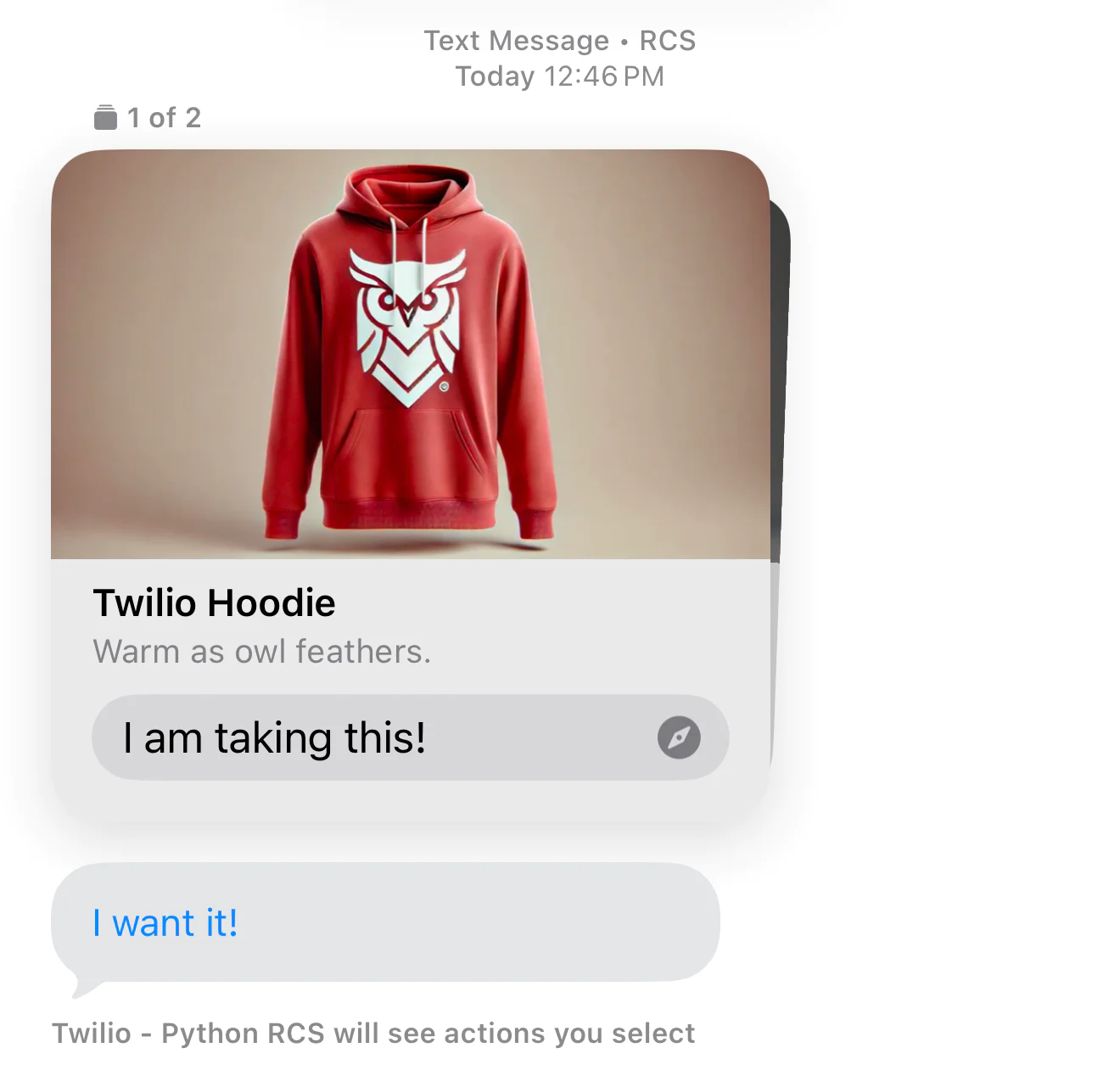
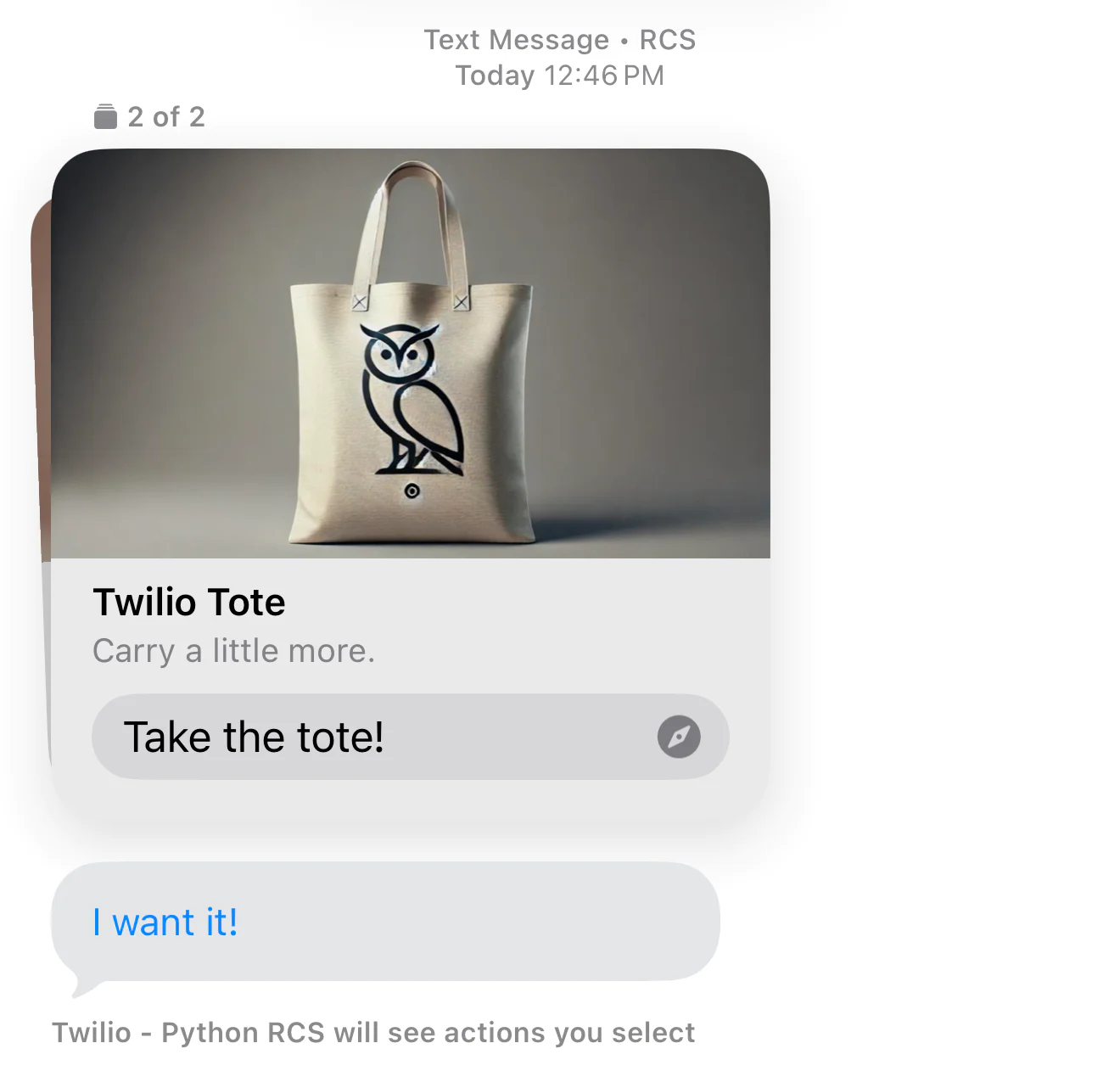
This template structure defines a carousel with two cards. The body field at the carousel level provides an introductory message that appears before the cards. The {{1}} placeholder is a template variable that gets replaced with the value defined in the variables object. Template variables let you reuse the same carousel structure with different dynamic content.
Each card in the cards array includes:
- A
titlefor the product name - A
bodywith product description - A
mediaarray containing image URLs (must be publicly accessible HTTPS URLs) - An
actionsarray with interactive buttons
The action buttons come in different types. The QUICK_REPLY type sends a response back to your application with the specified id, which is useful for tracking customer interest or triggering automated workflows. The URL type opens a web link when tapped. You can also use PHONE_NUMBER actions to initiate phone calls.
Each card can have its own unique set of actions, allowing different calls-to-action for different products. In this example, both cards share the same action types but with different IDs to distinguish between product interests.
Now add the code to send this template to the Content API:
This code posts your carousel definition to the Twilio Content API. The requests.post() call uses HTTP Basic Authentication with your Account SID and Auth Token. When successful, the API returns a response containing a Content SID that uniquely identifies your template.
Run the script:
You should see output like:
Copy the returned SID and add it to your .env file:
Both methods produce the same result being a reusable carousel template. The programmatic approach offers better version control and automation, while the Console provides immediate visual feedback.
Sending the carousel message
With your template created, sending carousel messages is straightforward. Create a file called send-rcs-carousel.py:
This code uses the standard Twilio Python SDK to send messages. Unlike the template creation, sending messages doesn't require direct HTTP requests as the SDK handles everything. The content_sid parameter references your pre-created carousel template, and the messaging service routes it through the appropriate RCS channel.
This sending code looks nearly identical to sending a basic RCS message from the getting started tutorial. The main difference is that you're referencing a template with content_sid instead of providing inline content with body and media_url. The template approach allows for richer formatting and interaction patterns.
Run the script:
You should see:
Now check your test phone. You should receive an RCS message with a swipeable carousel displaying both products, each with its own image and action buttons.
Testing your carousel
To verify your carousel works correctly:
- Confirm your test device has RCS enabled and is connected to a supported carrier
- Check that the carousel displays with the introductory message
- Swipe through the cards to ensure smooth navigation
- Verify that images load properly on each card
- Test the action buttons:
- Quick reply buttons should trigger responses (you'll see these in your Twilio logs)
- URL buttons should open the specified links
- Each card's actions should work independently
Carousel best practices
Card quantity and content length
While you can include up to 10 cards in a carousel, fewer cards often perform better. Three to five cards typically provide enough variety without overwhelming recipients. Keep titles under 25 characters and body text under 100 characters for optimal readability.
Image guidelines
Use high-quality images with consistent dimensions across all cards. Images should be at least 800x600 pixels and maintain the same aspect ratio throughout the carousel. Supported formats include JPEG and PNG. All image URLs must use HTTPS and be publicly accessible. Twilio Assets can be a quick and frictionless way to host your images.
Action buttons
Each card should have one to three buttons. Use clear, action-oriented button text like "Shop Now", "Learn More", or "Add to Cart". The quick reply option works well for gathering initial interest before directing customers to your website.
Template variables for personalization
The carousel template includes a variables object that supports dynamic content. You can use numbered placeholders like {{1}}, {{2}}, etc., in your body text, titles, or card content. When sending the message, pass the actual values to personalize each carousel for individual recipients.
Troubleshooting
Carousel not displaying
If your carousel doesn't appear:
- Verify all image URLs are publicly accessible and use HTTPS
- Check that your Content SID is correct in the .env file
- Confirm the recipient's device supports RCS
- Review the Twilio logs in the Console for delivery errors
Images not loading
Image loading issues usually stem from:
- URLs that aren't publicly accessible
- Incorrect URL formatting
- Unsupported image formats
- Images that exceed size limits
Test your image URLs in a browser to ensure they load properly before adding them to your template.
Template creation fails
Common template creation errors include:
- Invalid authentication credentials
- Malformed JSON in the template structure
- Missing required fields (title, body, or media on cards)
- Invalid action types or missing action parameters
Review the error response from the API. It typically indicates which field is causing the issue.
Next steps
Now that you can send RCS carousels, consider these enhancements:
- Add more cards to showcase larger product catalogs
- Implement webhook handlers to process quick reply responses and track engagement
- Use template variables to personalize carousels for individual customers
- Create multiple carousel templates for different campaigns or product categories
- Combine carousels with other Twilio messaging features for complete customer journeys
For more advanced carousel features and options, review the Twilio Carousel documentation and the Content API documentation.
Conclusion
In this tutorial, you learned how to create and send RCS carousels using Python and the Twilio Content API. You built a reusable carousel template with multiple cards, each featuring images and interactive buttons. Carousels provide an engaging way to showcase products, services, or options without overwhelming your customers with multiple separate messages. The swipeable format creates an app-like experience directly in the messaging interface, helping you drive engagement and conversions. Let us know where this is working for you! We can't wait to see your creation!
Dylan Frankcom is a Python Software Engineer on Twilio's Developer Voices team. He's passionate about building tools that help developers learn, create, and ship faster. You can reach him at dfrankcom [at] twilio.com, find him on LinkedIn , or follow him on Github .

Related Resources
Twilio Docs
From APIs to SDKs to sample apps
API reference documentation, SDKs, helper libraries, quickstarts, and tutorials for your language and platform.
Resource Center
The latest ebooks, industry reports, and webinars
Learn from customer engagement experts to improve your own communication.
Ahoy
Twilio's developer community hub
Best practices, code samples, and inspiration to build communications and digital engagement experiences.