Build a Patient Reminder System with Go and Twilio
Time to read:
December 09, 2025
Written by
Reviewed by
AI generated summary
- Create a patient reminder system with Go and Twilio that schedules and sends SMS notifications for appointments.
- Use environment variables for configuration, connect to a MySQL database, and implement a cron job for automated reminders.
- Develop a web interface for managing appointments, leveraging Go’s backend capabilities and Twilio’s messaging API.
This summary was generated by AI.
Build a Patient Reminder System with Go and Twilio
In this tutorial, you'll learn how to build a simple yet powerful patient reminder system using Go and Twilio. The application will let users schedule medical appointments, store them in a MySQL database, and automatically send SMS reminders to patients before their appointments. You’ll create a web-based form to capture appointment details and set up a background job that checks for upcoming appointments and triggers SMS alerts using Twilio’s Programmable Messaging API.
This project is ideal for developers who want hands-on experience combining Go’s backend capabilities with real-world integrations like messaging and scheduling.
Prerequisites
- Go version 1.22 or above
- A Twilio account (either free or paid). If you are new to Twilio, click here to create a free account
- Basic knowledge of Go
- Access to a MySQL database, and some prior database experience
- A mobile phone that can send SMS
Create a new Go application
Creating the project involves initializing a new Go module using the go mod init command. This sets up the foundational structure for your application by creating a go.mod file which defines the module’s name and tracks its dependencies. It’s how Go knows about your project and what external packages it relies on.
Installing dependencies means that any third-party packages your application imports are downloaded and properly tracked. This happens when you run go get or go build, or run your program, prompting Go to fetch the necessary packages and record them in the go.mod and go.sum files.
Run the following commands to create a project directory, navigate into it, and initialise a new Go module:
Specifically, the command above creates a folder named reminder, enters it, and initializes a Go module named "github.com/<yourusername>/reminder".
Register environment variables
To simplify storing the application's configuration information, you'll use environment variables. These will be stored in a file named .env and loaded into the application's environment using GoDotEnv.
Start by creating a file named .env in the root of your project and add the following to it:
Retrieve your Twilio access credentials
Next, log in to your Twilio Console to retrieve your Account SID, Auth Token, and Twilio phone number, as you can see in the screenshot below.
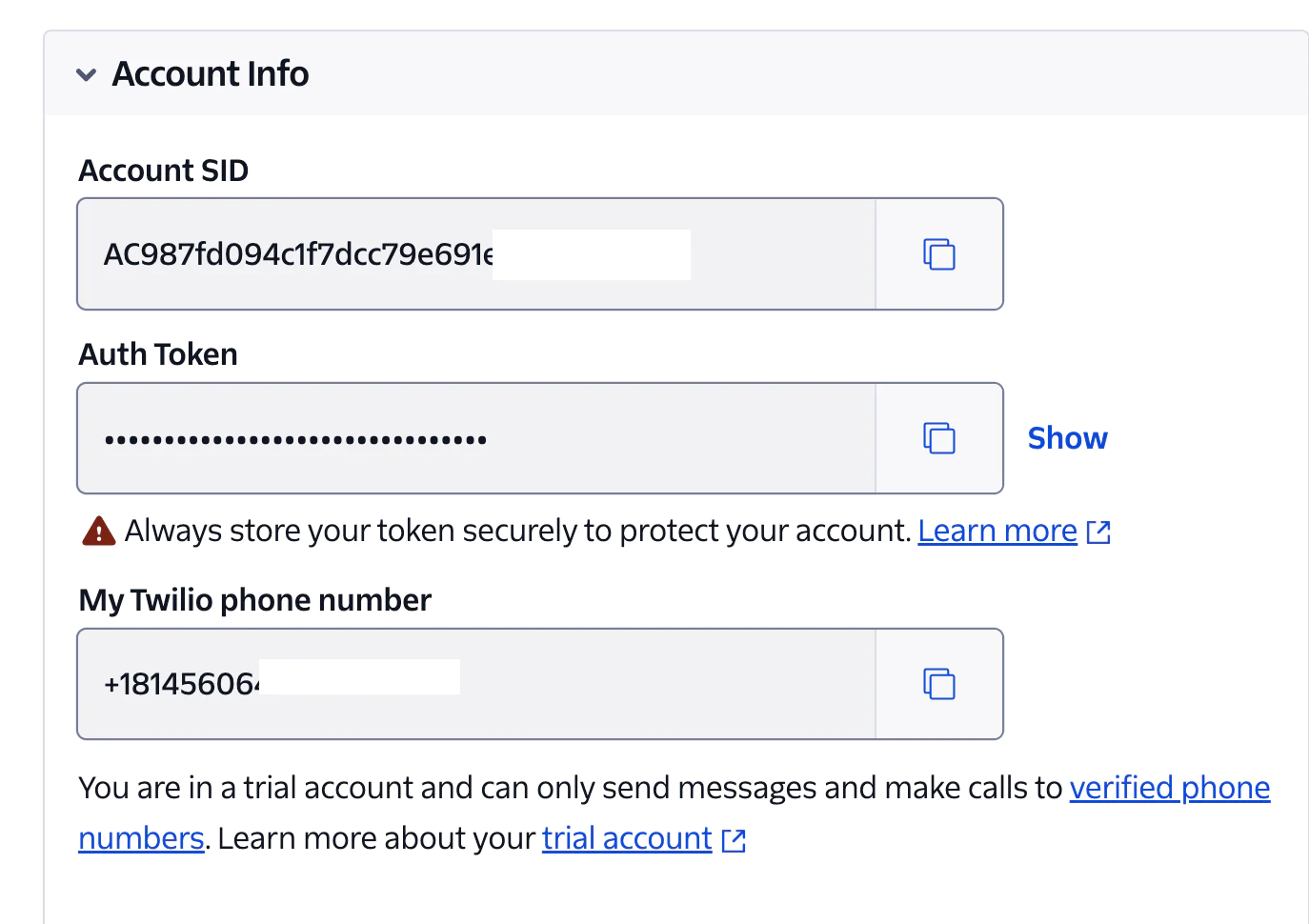
Then, use them to replace <your_twilio_account_sid>, <your_twilio_auth_token>, and <your_twilio_phone_number>, respectively, in .env.
Set up the database
Now, login to your MySQL server and create a new database named "remindersystem". After creating the database, create a table named "patient" with the following SQL command:
Connect to the database
To connect your Go application to the MySQL database, first, ensure that MySQL is running. This can be achieved in several ways depending on your development setup:
- Using XAMPP or MAMP (common on Windows and macOS): Start MySQL from the XAMPP or MAMP control panel, and open phpMyAdmin by navigating to http://localhost/phpmyadmin in your browser.
- On Linux or BSD: MySQL may be installed and managed natively using your system’s package manager (e.g., apt, yum, dnf, and pkg)
- With containers: You can run a MySQL container, and optionally phpMyAdmin, as a separate container for database management using Docker or Podman
Then in your Go project, open .env and add the following, which defines your database DSN (Data source name):
Then, replace <username> and <password> with the username and password for your MySQL database.
Retrieving the Go packages
To retrieve the Go packages that will be used in the next phase, you use the go get command, which fetches and installs the specified modules along with their dependencies, by running the command below:
Go will update your go.mod and go.sum files to track these dependencies and ensure they are available during compilation and runtime.
Now, create a file named main.go inside the root of your project directory. Once you've created it, add the provided code below to the file.
The code above integrates with Twilio to send SMS notifications. It connects to a MySQL database and sets up a table to store appointment details, including the patient's name, phonenumber, appointment time, and a flag indicating whether a reminder has been sent.
The application serves a basic web interface with two routes, one for listing all appointments and another for adding new ones. When users request a new appointment via the form, the data is saved in the database, and the user is redirected to the appointment list.
A key feature of this system is the use of a cron job through the robfig/cron package. The job runs every hour and checks for any upcoming appointments within the next hour that haven't received a reminder. If it finds any, it sends an SMS reminder using Twilio's Programmable Messaging API and marks that appointment as “reminder sent ” in the database. This automated scheduling allows the application to function without manual intervention, making sure patients receive timely reminders without user involvement or additional services.
Add HTML pages
Create a folder named templates in your root folder, and inside it create a file called New.html inside your templates folder to create a fresh reminder, once that is done, paste the code below in the New.html file:
The HTML code above creates a styled patient reminder form that allows users to submit appointment details to a Go backend via a POST request to the "/appointments/create" endpoint. The form includes fields for the patient's full name, phone number, prescribed drugs, a description of how the drugs should be taken, and the appointment time using a datetime-local input, which you can see an example of in the image below.
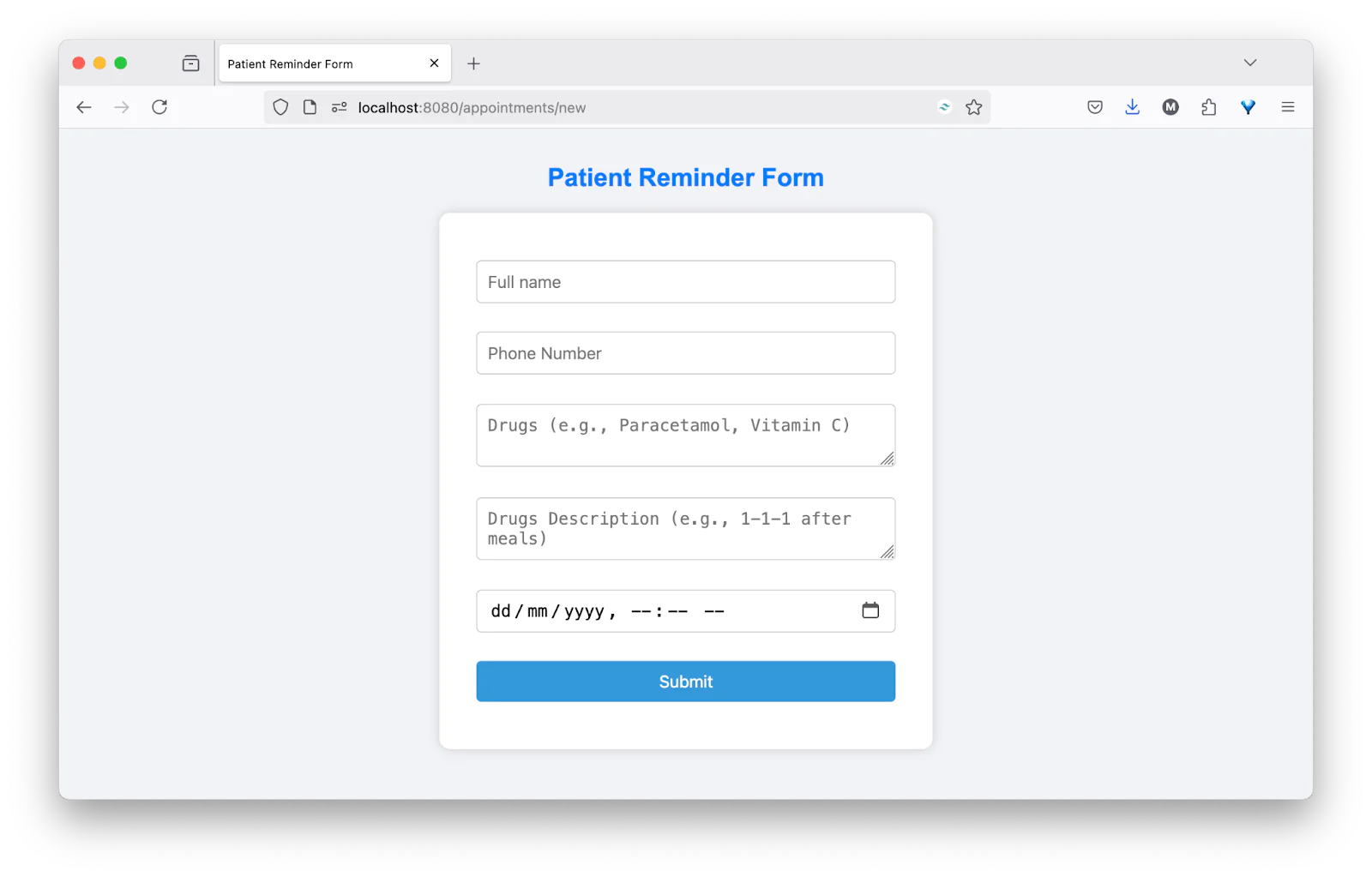
The next step is for you to create a new file called appointments.html in the templates directory, then copy and paste the code below into the new file:
This HTML template displays a table of patient appointments, dynamically rendered using Go’s html/template package, with data passed from the backend. It includes a heading, a link to add a new appointment, and a styled table listing each patient’s name, phone number, appointment time formatted, prescribed drugs, drug description, and whether an SMS reminder has been sent.
The range loop iterates through all appointments provided by the server, inserting them as table rows, and conditionally shows a checkmark or cross based on the "ReminderSent" status.
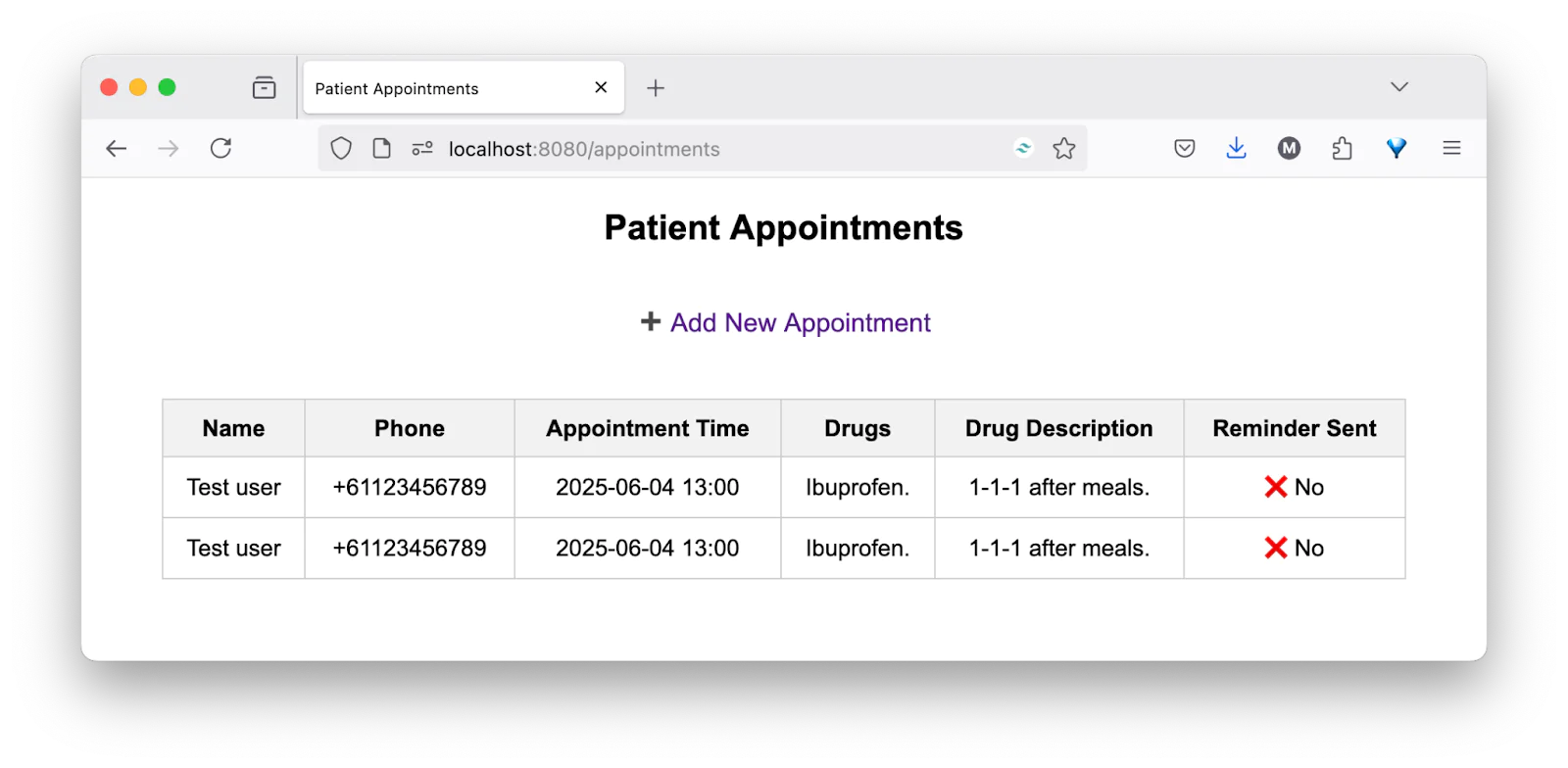
You now have a complete and working SMS reminder system that uses Twilio to send notifications. The backend, built with Go and connected to a MySQL database, supports creating and viewing patient appointments through a clean, styled HTML interface. A cron job runs automatically every minute (ideal for development and testing) to check for upcoming appointments and send reminders when necessary.
Test the application
With everything set up, you can begin testing SMS delivery by scheduling appointments within the next hour to trigger reminder messages.
To do so, you first need to start the application development server. To do that, open another terminal tab or window and run the command below:
Finally, open http://localhost:8080/appointments/new in your browser of choice, to create a reminder. Once that is done, you will be directed to a status page where you will see if the reminder has been sent to your registered phone number or not.
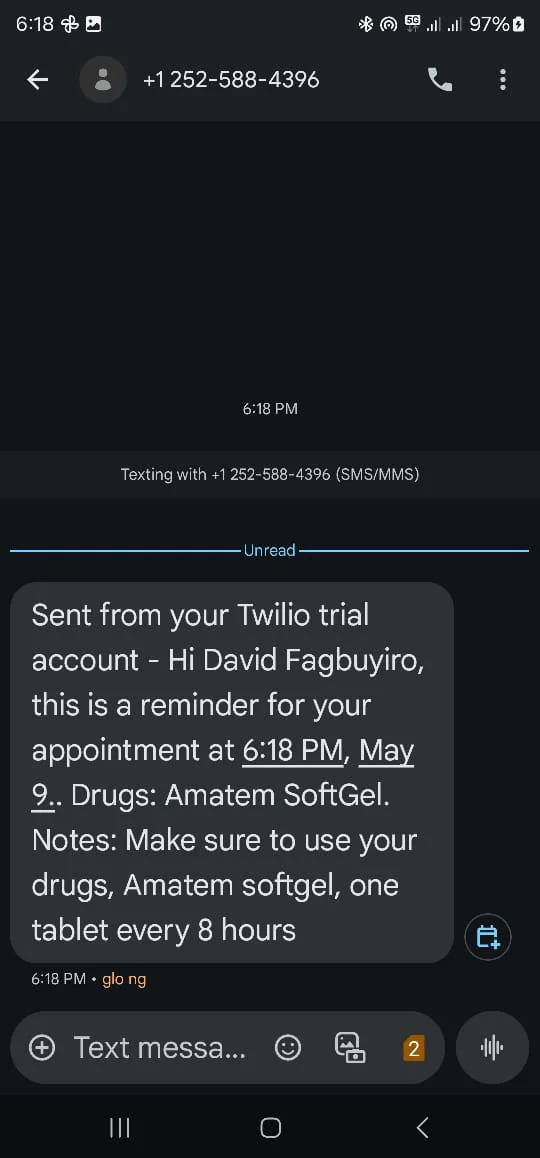
Check your Twilio registered phone number and you'll see the reminder details and description right in your SMS, similar to the screenshot below.
That's how to build a patient reminder system with Go and Twilio
You’ve set up a backend with Go, connected it to a MySQL database managed through phpMyAdmin, created a web interface for scheduling appointments, and integrated Twilio to send automated SMS reminders. With the addition of a cron job, your system can now run checks in the background and notify patients without manual input.
This setup is lightweight, efficient, and easy to expand whether you want to add email notifications, authentication, or a full admin dashboard in the future.
David Fagbuyiro is a software engineer and technical writer who is passionate about extending his knowledge to developers through technical writing. You can find him on LinkedIn.
Related Resources
Twilio Docs
From APIs to SDKs to sample apps
API reference documentation, SDKs, helper libraries, quickstarts, and tutorials for your language and platform.
Resource Center
The latest ebooks, industry reports, and webinars
Learn from customer engagement experts to improve your own communication.
Ahoy
Twilio's developer community hub
Best practices, code samples, and inspiration to build communications and digital engagement experiences.