Implementing an SMS Auto-Responder with Twilio and Go
Time to read:
December 08, 2025
Written by
Reviewed by
AI generated summary
- Create a Go application with the Twilio Go Helper Library, GoDotEnv, and GoCSV for SMS auto-response.
- Set up environment variables in a .env file for Twilio integration to handle SMS events.
- Use ngrok to expose the local server to the internet and configure Twilio to connect for real SMS testing.
This summary was generated by AI.
Implementing an SMS Auto-Responder with Twilio and Go
SMS auto-responders are useful for handling incoming text messages without human intervention. They can be used for customer support, appointment confirmations, marketing campaigns, and more.
In this tutorial, you will learn how to build a simple SMS auto-responder using Twilio and Go. Twilio provides a robust Programmable Messaging API for sending and receiving SMS, while Go's efficiency and ease of use make it a great choice for building web services. By the end of this tutorial, you'll have a working SMS auto-responder that automatically replies to incoming messages.
Let's get started!
Prerequisites
Before you begin, ensure you have the following:
- Go version 1.22 or above
- A Twilio account (either free or paid). If you are new to Twilio, click here to create a free account
- Basic knowledge of Go
- A mobile phone that can send and receive SMS
- ngrok and a free ngrok account
Create the Go application
To create a new Go project, run the following commands wherever you create your Go projects.
Now, you must set up a new Go module with the following command:
The command creates a file called go.mod, which keeps track of your project’s name and the packages it needs. When you install dependencies, Go downloads any third-party packages your project uses. This usually happens when you run commands like go get or go build, or when you run your program. Go then updates the go.mod and go.sum files to keep a record of these packages.
Now, run the following command to install the required dependencies:
The dependencies are:
- Twilio's official Go Helper Library: This simplifies using Twilio's APIs in Go
- GoDotEnv: This loads environment variables from a .env file
- GoCSV: This simplifies reading and writing CSV files in Go
Set the required environment variables
To keep your configuration data out of your Go code, we'll store the relevant information in environment variables, loaded by GoDotEnv from an ini file named .env in the project's top-level directory.
Start by creating a .env file in your project's main folder and adding the configuration below.
Retrieve your Twilio details
Next, log in to your Twilio Console and retrieve your Account SID, Auth Token, and Twilio phone number, as you can see in the screenshot below.
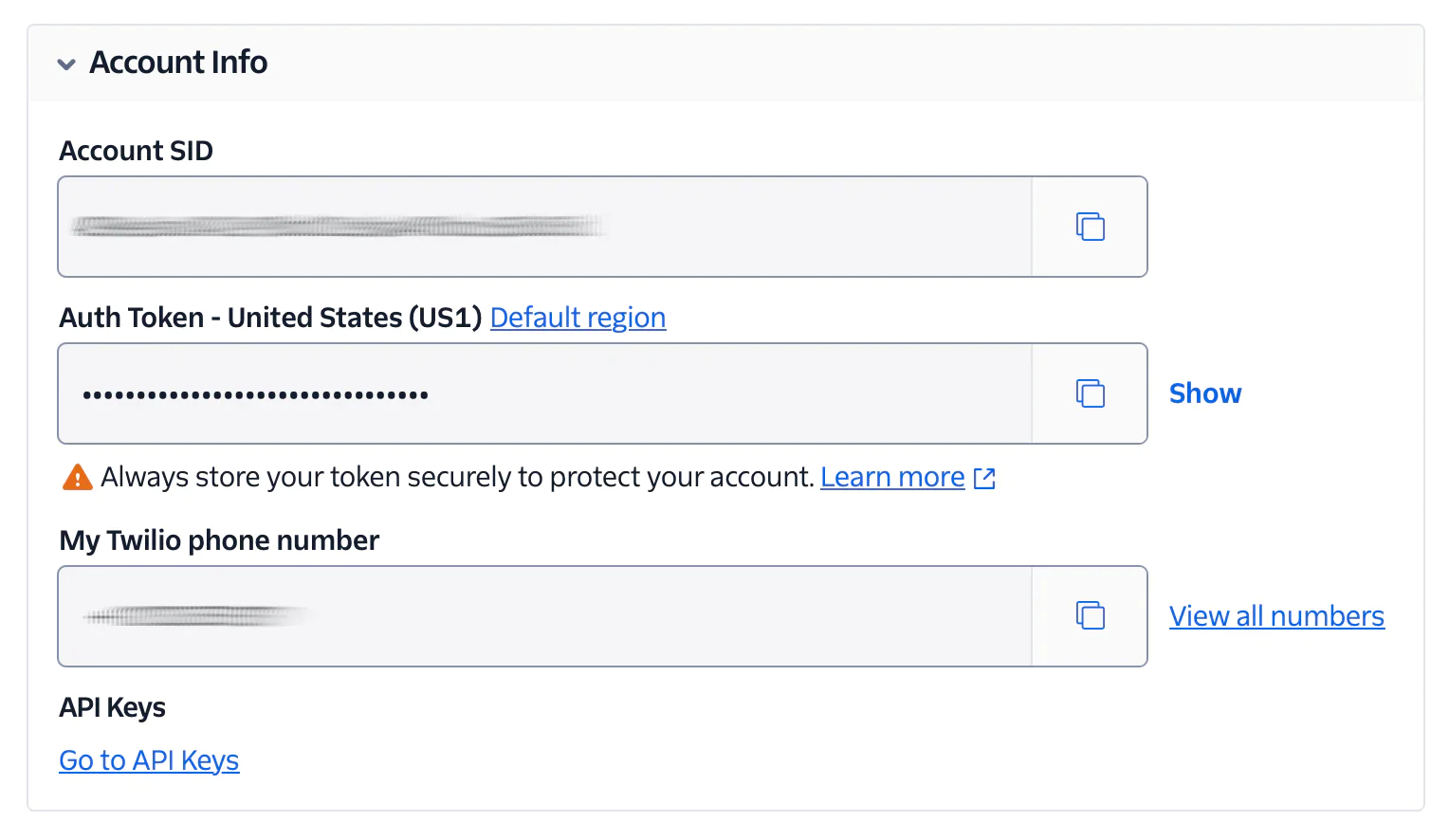
Then, use them to replace <your_twilio_account_sid>, <your_twilio_auth_token>, and <your_twilio_phone_number>, respectively, in .env.
Your Twilio Account SID and Auth Token are necessary because they authenticate your application with Twilio's APIs, allowing it to send and receive SMS messages securely. The Twilio phone number acts as your application's sender ID, making it able to interact with real mobile numbers and receive message status updates through webhooks. Without these, your Go application won’t be able to connect to Twilio’s services or handle SMS events properly.
Writing the webhook handler
A webhook handler is a function that responds to HTTP requests sent from another service; in the case of this application, when someone sends a text to your Twilio number, Twilio makes a POST request to a URL you provide. That’s your webhook. The handler will receive that request and send back a reply. You need to write this handler so your app can respond automatically to incoming messages without needing manual input.
Handle incoming messages
Twilio sends an HTTP request to the application each time a message is received. Your handler function captures this request and decides what to do with it. The request payload includes data like the sender’s number and the message content. You can read this data from the form values in the request. This allows you to tailor your response if needed. To reply, your handler returns a small TwiML response. This is XML that tells Twilio what message to send back to the user.
In the project's top-level directory, create a new file named main.go. Once that is done, copy the code below and paste it in main.go.
The above Go code sets up a simple web server that listens for incoming SMS messages sent to your Twilio registered number. The server runs on port 8080 and uses the smsHandler() function to handle requests sent to the " /sms" path.
When a POST request comes in, the handler reads the From and Body parameters from the request payload, logs them to the console, and constructs an XML response using Twilio's markup language (TwiML). The response will include a message that they’ll be contacted soon. If the request method is anything other than POST, the server responds with a method not allowed error.
Run and test the auto-responder
Once you've copied the code for the SMS auto-responder as shown earlier, the next steps are to:
- Run it
- Make it accessible over the internet
- Connect it to Twilio so it can receive and respond to real messages
So, start the application by running the command below:
You should see something as displayed below:

The application is now listening on port 8080 and ready to receive POST requests on the "/sms" endpoint.
Make the application accessible using ngrok
The application is running locally, but Twilio needs to reach your "/sms" endpoint from the public internet. So, we'll use ngrok to expose the application to the public internet. Open a new terminal tab or window, and run the following command:
Ngrok will create a forwarding URL (like https://1234-abc.ngrok.io) that you can see in the screenshot below, which connects requests to your local application. You will use this URL to set up the webhook in your Twilio dashboard, allowing Twilio to send SMS status updates directly to your " /sms" endpoint.

Copy the displayed Forwarding URL, and keep it handy for the next step.
Configure Twilio to use the ngrok URL
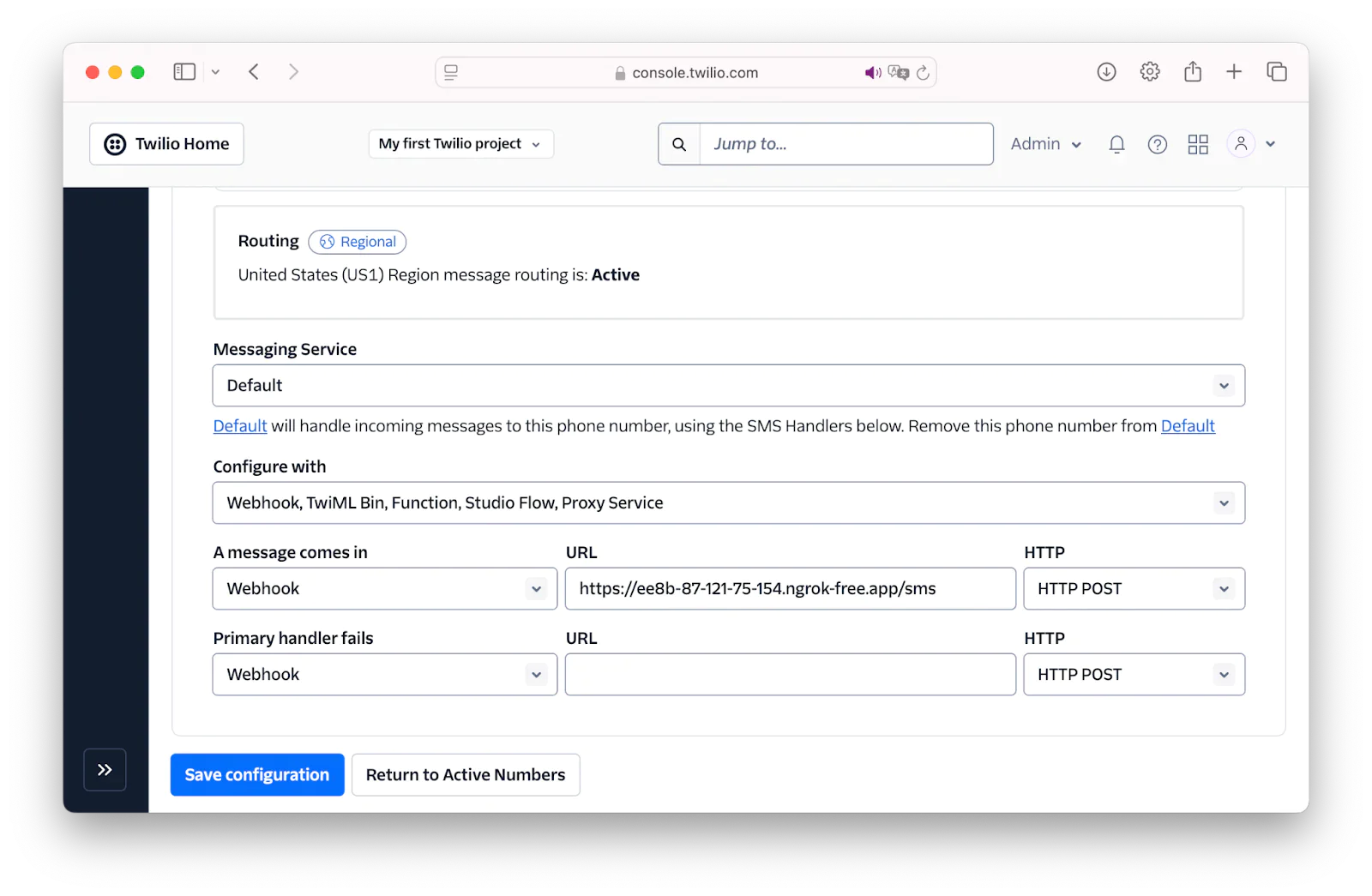
Now, follow the steps below to configure Twilio to send requests to your application when an SMS is received.
- Log into your Twilio Console.
- Go to Phone Numbers > Manage > Active Numbers
- Click your Twilio number
- In the Messaging Configuration section:
- Set A message comes in to "Webhook"
- Paste your ngrok Forwarding URL followed by "/sms" (e.g., https://abcd1234.ngrok.io/sms) into the accompanying URL field
- Click Save configuration
Test with a real SMS
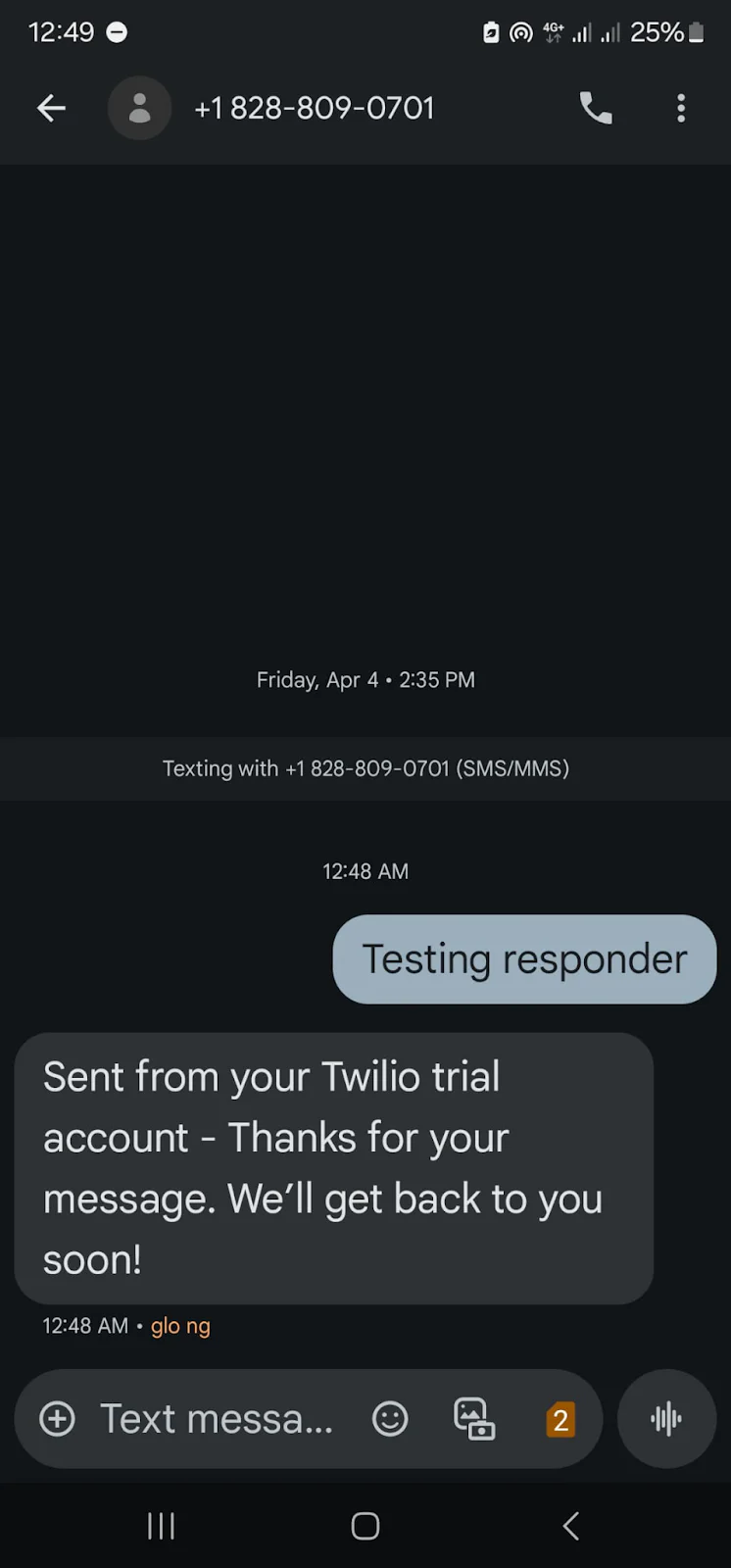
To test the auto-responder with real SMS messages, send a text from your personal phone to your Twilio phone number. As soon as the message is sent, check the terminal where your Go server is running; you should see the incoming message logged there. If everything is configured correctly, you’ll receive an automatic response from your app.
This confirms that the application is working as expected:
- Twilio delivers the message to your server.
- Your Go application processes it.
- Twilio sends your automated reply back to the sender, just as shown in the image below
That's how to build an SMS auto-responder with Twilio and Go
You’ve now built a working SMS auto-responder using Twilio and Go. You set up a Go application, created a webhook handler to receive incoming messages, parsed the data sent by Twilio, and replied with an automatic response using TwiML.
You also learned how to expose your local server using ngrok, configured Twilio to use your public URL, and tested the flow with real SMS messages. From receiving a text to sending a reply, your Go app handles it all automatically, making it a solid foundation for more advanced messaging features.
David Fagbuyiro is a software engineer and technical writer who is passionate about extending his knowledge to developers through technical writing. You can find him on LinkedIn .

Related Resources
Twilio Docs
From APIs to SDKs to sample apps
API reference documentation, SDKs, helper libraries, quickstarts, and tutorials for your language and platform.
Resource Center
The latest ebooks, industry reports, and webinars
Learn from customer engagement experts to improve your own communication.
Ahoy
Twilio's developer community hub
Best practices, code samples, and inspiration to build communications and digital engagement experiences.