Build Permission-Aware SMS Notifications with Go, Twilio, and Permit.io
Time to read:
December 09, 2025
Written by
Reviewed by
AI generated summary
- Build a Go service that sends SMS notifications through Twilio based on user roles using Permit.io.
- Set up roles and permissions in Permit.io to manage who can send notifications to whom.
- Use the Permit.io and Twilio Go SDKs to integrate role-based permissions and SMS functionality.
This summary was generated by AI.
Build Permission-Aware SMS Notifications with Go, Twilio, and Permit.io
In most systems, sending notifications is easy. But sending them to the right people, based on permissions and roles, is where things get real. With Twilio providing the messaging functionality and Permit.io handling the authorization logic, you can build a robust notification system in Go.
In this tutorial, you'll build a backend service in Go that only sends SMS notifications via Twilio to users authorized to receive them, using Permit.io for fine-grained access control.
What you'll build
You’ll create a lightweight service that:
- Stores users with roles (like manager, chief_programmer, etc.)
- Let users submit requests, such as maintenance issues, equipment needs, or system access
- Allows approved users to send SMS notifications
- Uses Permit.io to control who can notify whom
- Sends SMS through Twilio
Prerequisites
To follow along, you’ll need:
- Go 1.20 or above
- A Twilio account, free or paid. Create an account if you don't have one already
- A Twilio phone number
- A Permit.io account
- Basic experience with Go
- Basic knowledge of SQLite
- Docker Desktop
- A mobile/cell phone that can receive SMS
Set up Permit.io
Before integrating Permit.io into the application, you need to configure the roles and permissions in your Permit.io dashboard. To do this, go to your dashboard workspace and start a new project.
Once created, you will be given access to two environments: Development and Production.
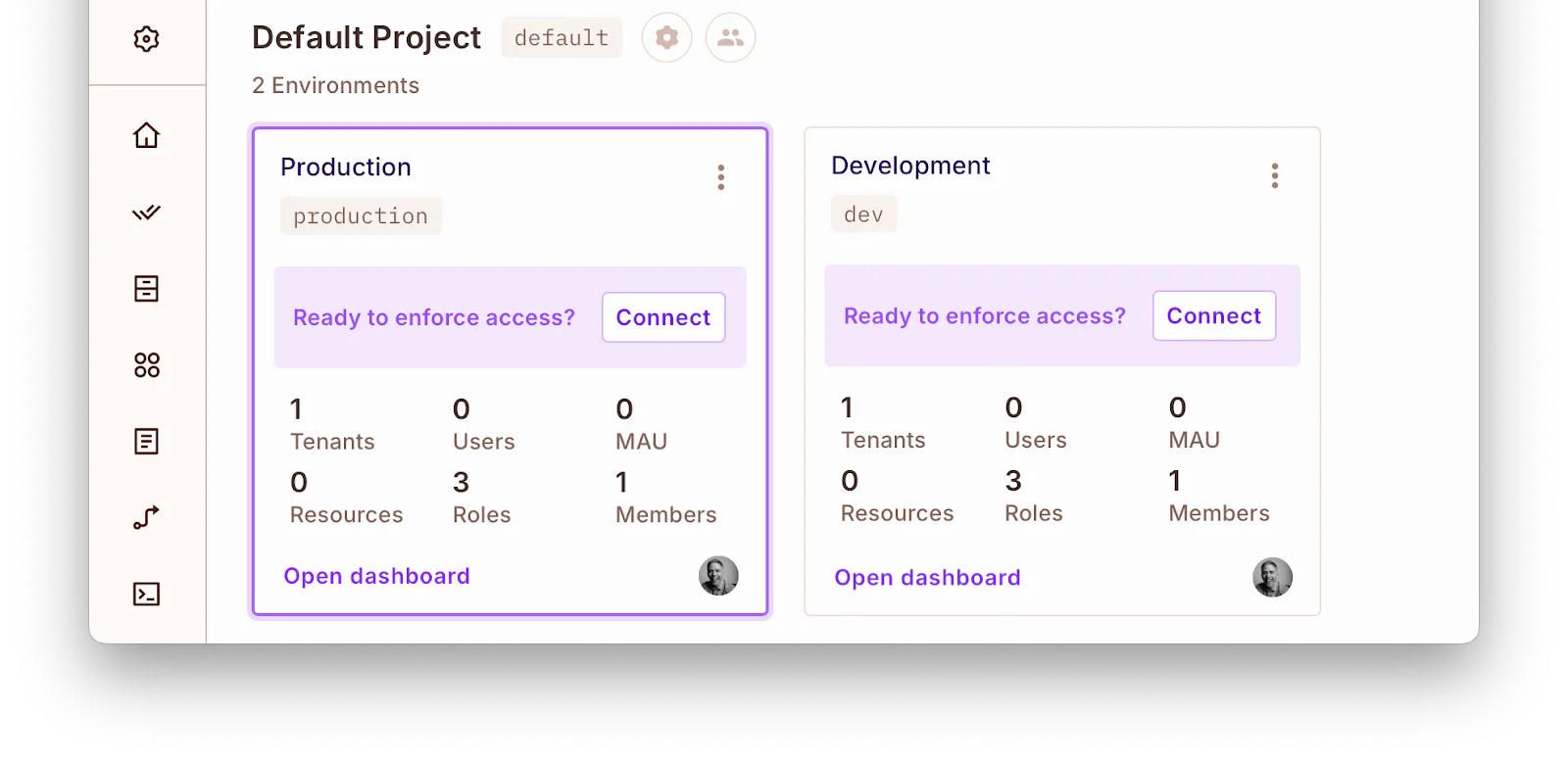
For this tutorial, we’ll use the "Development" environment. So you now proceed to create your resources. Start by clicking " Open dashboard" in the Development environment on the Policy option. Then, select the Resources tab.
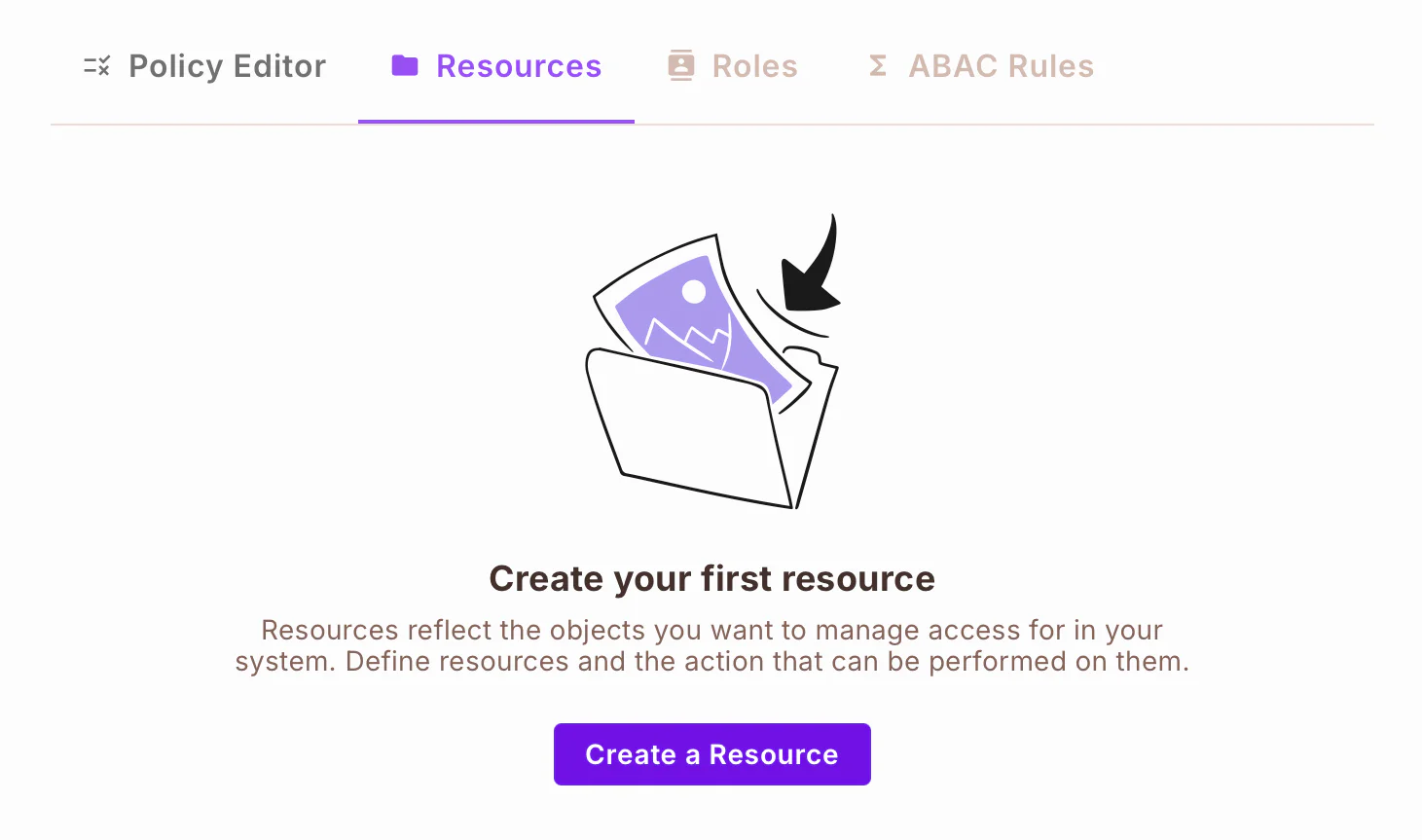
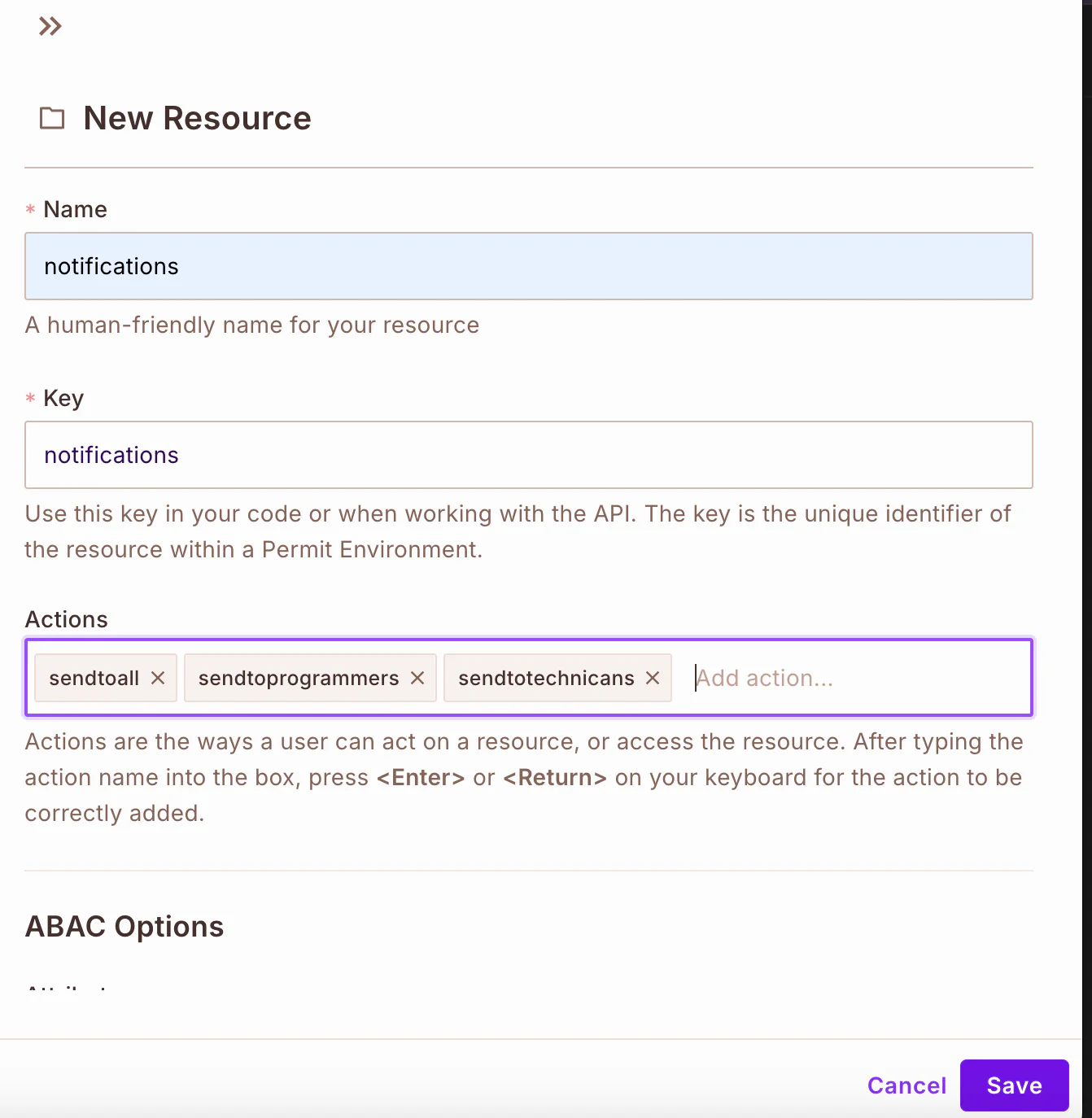
To create the notification resource, click Create a Resource in the Resources tab and fill in the necessary details in the New Resource form:
- Name:
notifications - Key:
notifications(this will be generated automatically) - Actions:
sendtoall,sendtoprogrammers,sendtotechnicians
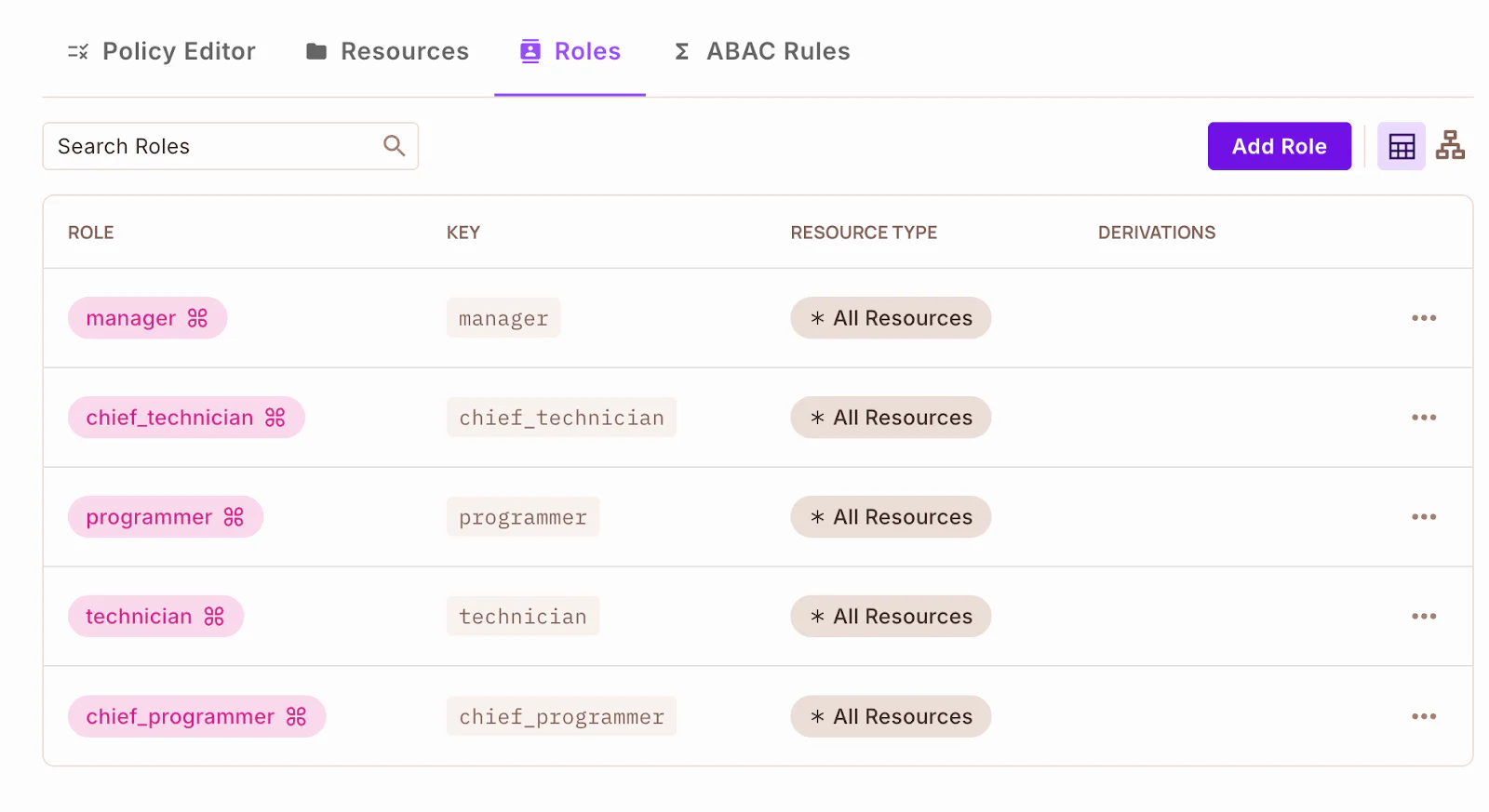
Next, you need to define roles in your Permit.io project. To do this, switch to the Roles tab, and click Add Role to create a specific role. The following roles needs to be created:
- chief_programmer: This role will be able to approve or reject a request of only those with the role of
programmer, and also send notifications to them - chief_technician: This role will be able to approve or reject a request of only those with the role of technicians, and also send notifications to them
- manager: This role will be able to approve or reject a request, send notifications to all roles
- programmer: A regular user who can submit requests
- Technician: The same as programmer, but specific to technical tasks
Next, click on the Policy Editor tab to view your resources. There:
- Give the
managerrole unrestricted access by ticking all actions for the notifications resource (sendtoall,sendtoprogrammers, andsendtotechnicians) as in the screenshot above - The
chief_programmerrole only requires permission tosendtoprogrammersfor the notifications resource - The
chief_technicianshould be given the permission ofsendtotechniciansin the notifications resource
To save the changes, click Save Changes.
Set up your PDP (Policy Decision Point) container
To set up the PDP, you’ll need to start Docker Desktop. Once you do, open up your terminal and run this command:
The PDP container serves as a local policy decision point, receiving access requests from your app and verifying them against the policies you've defined in Permit.io.
After that, you’ll need your Permit.io API key to start the Policy Decision Point (PDP) container.
To get the key: Click Projects in the left-hand side navigation menu, and in your Development environment, click the three dots (•••), then select Copy API Key.
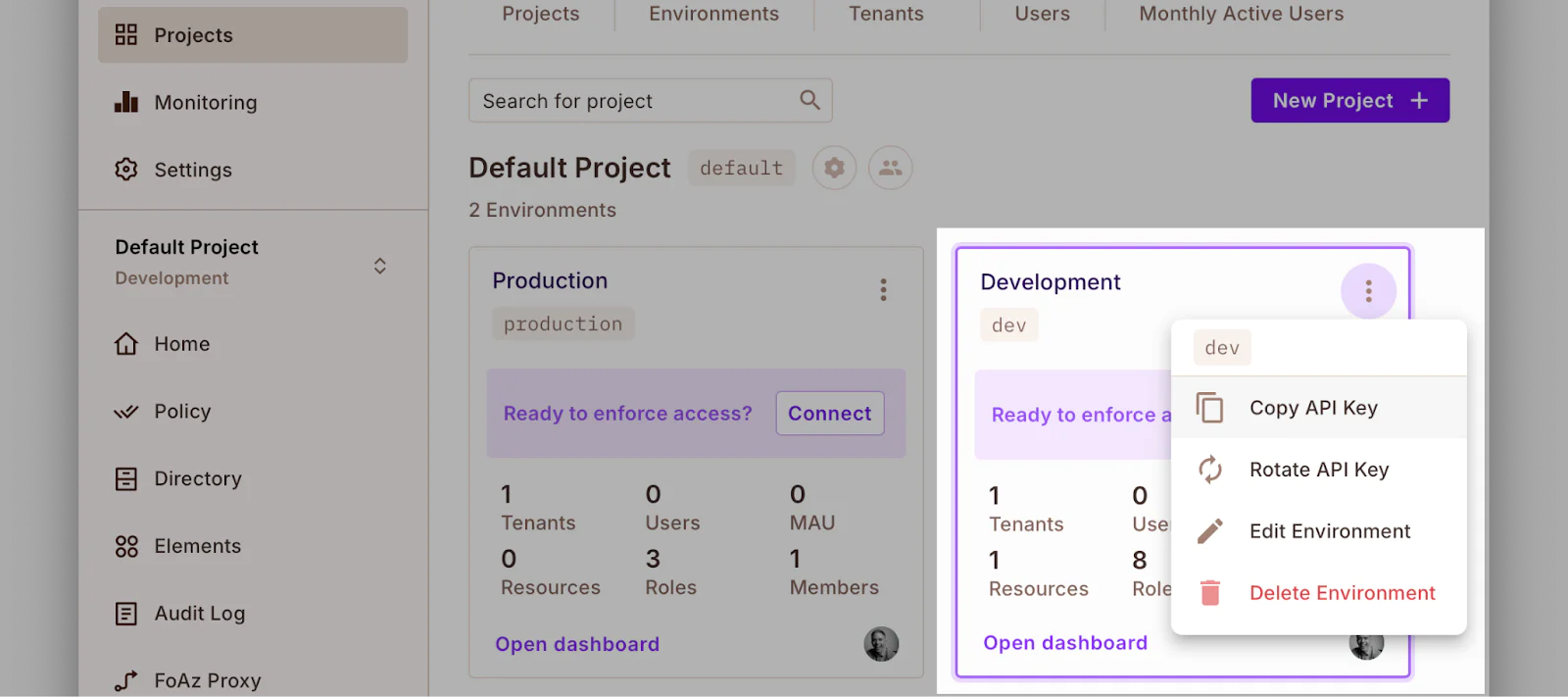
Now, in the command below, replace <YOUR_API_KEY> with your Permit.io API key, then run the command to start the container:
Now, let’s start building.
What are we building?
Before proceeding to start building, it's important to understand what we are building. The project will consist of two kinds of workers:
- technicians
- programmers
Both workers can table a request for the manager or their head of department to see and approve. They would also be receiving messages designated to them by their respective heads, i.e., chief programmer, chief technician, or even the manager.
Because of this, there would be three super-admins, namely:
- manager
- chief_programmer
- chief_technician
The manager would be able to approve any request from any of the workers, send notifications to all the workers, or choose who to send notifications to. The chief_programmers and chief_technician can only send notifications to workers having the same role or profession.
Create a new Go project
The first thing to do is to create a new directory for your project and initialize a new Go module. Do that by running these commands:
Add the required environment variables
Next, you'll need your Permit.io API key, your Twilio credentials, your Twilio phone number, and the phone number to which you want the message to be sent.
In a new terminal tab or session, create a file named .env in your project's top-level folder, then copy the configuration below into the file.
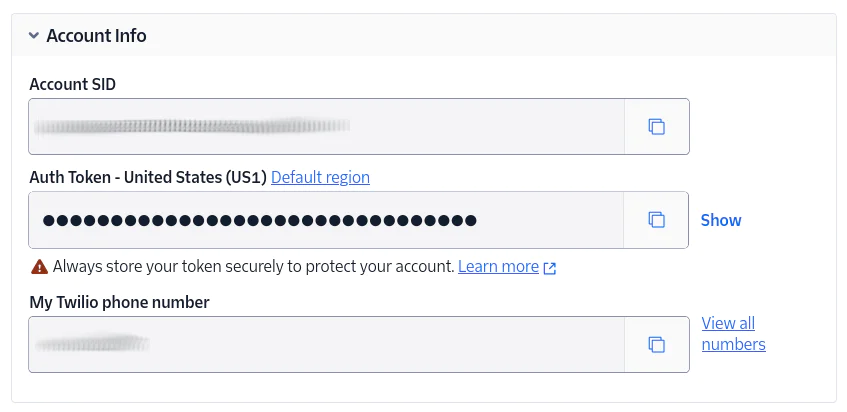
First, log in to the Twilio Console. Then, from the Account Info panel of the main dashboard, copy your Account SID, Auth Token, and phone number and set them in .env as the values for TWILIO_ACCOUNT_SID, TWILIO_AUTH_TOKEN, and TWILIO_PHONE_NUMBER, respectively.
Install the required dependencies
Next, you need to install the dependencies needed for this project, namely:
- github.com/gorilla/sessions : It provides a secure cookie-based session store, which allows you to manage user sessions, such as keeping users logged in across pages and tracking flash messages
- github.com/joho/godotenv : It reads key-value pairs from a .env file and loads them into your Go app’s environment. This simplifies setting and retrieving configuration data without hardcoding it
- github.com/mattn/go-sqlite3 : It registers the SQLite driver, which allows you to utilize SQLite as the database backend to store user accounts, roles, and submitted request data in a lightweight and portable format
- github.com/permitio/permit-golang : This is the official Permit.io SDK for Go, which lets your app interact with Permit.io’s policy engine. It’s used to sync users, assign roles, and check if a user has permission to perform a certain action before sending notifications
- github.com/twilio/twilio-go: This is the official Twilio Helper Library for Go, which simplifies interacting with Twilio services like SMS, voice, and other communication tools. For this project, it’s used to send SMS notifications to authorized users when a new request is submitted or approved.
To install the dependencies, run the following command:
Build the database
You next need to set up the SQLite database, creating tables for users and requests, and pre-populating the database with three super admin accounts ( manager, chief programmer, chief technician) to make testing easier.
Create a folder called db. Inside it, create a file called db.go . Then, add the following code to db/db.go:
The code above initializes the SQLite database, defines the schema, seeds initial admin users, and exposes functions to fetch users from the DB.
Set up session management
To keep users logged in to know who’s making requests, you’ll need some session middleware. This is also where you’ll set up a secure cookie-based session store, and define helpers to get the currently logged-in user.
Create a subdirectory called middleware inside the root directory. Inside it, create a file called session.go. Then, add the following code to the new file:
The code above:
- Sets up middleware to manage user sessions and authentication
- Reads the logged-in user from the session cookie
- Fetches the full user data from the database and attaches it to the request context
- If the user isn’t logged in or the session is broken, it redirects them to the login page
- It also includes a helper to retrieve the current user from any handler
Add user management and permissioned notification requests
This is the part that handles user registration, login, and sending notifications. We’ll ensure that only users with the correct roles, such as "manager" or "chief programmer", can send messages to the intended recipients.
First, create a subdirectory called handlers inside the root directory. Inside it, create a file called user.go. Add the following code:
The handlers package defines core HTTP handlers for user registration, login, home display, logout, and role-based SMS notifications in a web app integrated with Twilio and Permit.io. It includes form validation, session management using Gorilla sessions, secure password hashing with bcrypt, role-based access control for sending notifications, and dynamic HTML rendering using Go’s html/template.
The RegisterPage handles user sign-up and stores users in both the app database and Permit.io. LoginPage authenticates users and starts a session. NotifyPage allows authorized roles to send SMS messages to other roles using Twilio, while strictly enforcing permission checks.
HomePage renders a user-specific dashboard, and LogoutHandler clears the session. Overall, this code ties together user auth, role permissions, templating, and SMS functionality into a cohesive, permission-aware notification system.
Add the request submission and approval logic
Here, the users will be able to submit requests, and the managers and role-based heads will be able to approve or reject them. They also get notifications when their requests are approved or rejected.
Create a file called request.go inside the handlers subdirectory with the following code:
In the code above, we handle all core user features, including registration, login, logout, dashboard access, and role-based SMS notifications. Only users with valid roles, such as "programmer" or "technician", can register, and only authorized roles, like "manager" or "chief programmer", can send messages to others.
The file also syncs users with Permit.io, manages sessions, renders templates, and enforces permission checks before sending notifications via Twilio — all in one place.
Add the Permit.io authorization logic
You need to integrate Permit.io to manage who’s allowed to do what. This includes syncing users, checking access before sending notifications, and filtering who receives messages based on roles and policies.
Create a subdirectory called permit in the root directory and inside it, create a file called permit.go. Add the following code:
In the code above, we connect the app to Permit.io, which handles fine-grained access control. It initializes the Permit.io client, synchronizes users (with assigned roles) during registration and login, and assigns those roles within the Permit.io system.
It also includes logic to check if a user has permission to perform a specific action on a resource, like sending a notification. The GetAuthorizedUsers() function helps determine which users are authorized to perform an action based on their roles and policies.
Next, create a file called notification.go inside the permit subdirectory. Then, add the following code to the file:
Integrate Twilio for SMS
You now need to add the Twilio logic in order to send SMS messages. Create a subdirectory called notify inside the project root directory. Inside it, create a file called twilio.go. Add the following code to the new file:
In the code above, the SendSMS() function is used to send text messages using Twilio's Go SDK. It loads the necessary credentials such as the Account SID, Auth Token, and Twilio phone number from environment variables. Once the message parameters are prepared, the function uses Twilio's REST client to send the SMS.
Create the view templates
These templates will render login, registration, request pages, and the dashboard. It’s not the main focus, but it helps us visualize and test the flow.
Create a subdirectory called templates in the root directory. Then, in the new directory, create the following files:
- home.html
- layout.html
- login.html
- notify.html
- register.html
- requests.html
- submit_request.html
You can get the code for each of these HTML templates from this GitHub repo.
Add the main function
Time to glue everything together. This is the main function that initializes the DB, sets up sessions, loads templates, wires up the routes, and starts the HTTP server.
Create a file called main.go in the root directory of your project. Then, add the following code to the new file:
In the code above, we bootstrap the entire application. It loads environment variables, initializes the database and Permit.io client, sets up HTML templates, and configures secure session storage.
The main() function also registers all HTTP routes, wiring them to their corresponding handlers; some public, others protected by middleware. It wraps routes with basic logging and authentication checks.
Test the application
To test the application, run the following command:
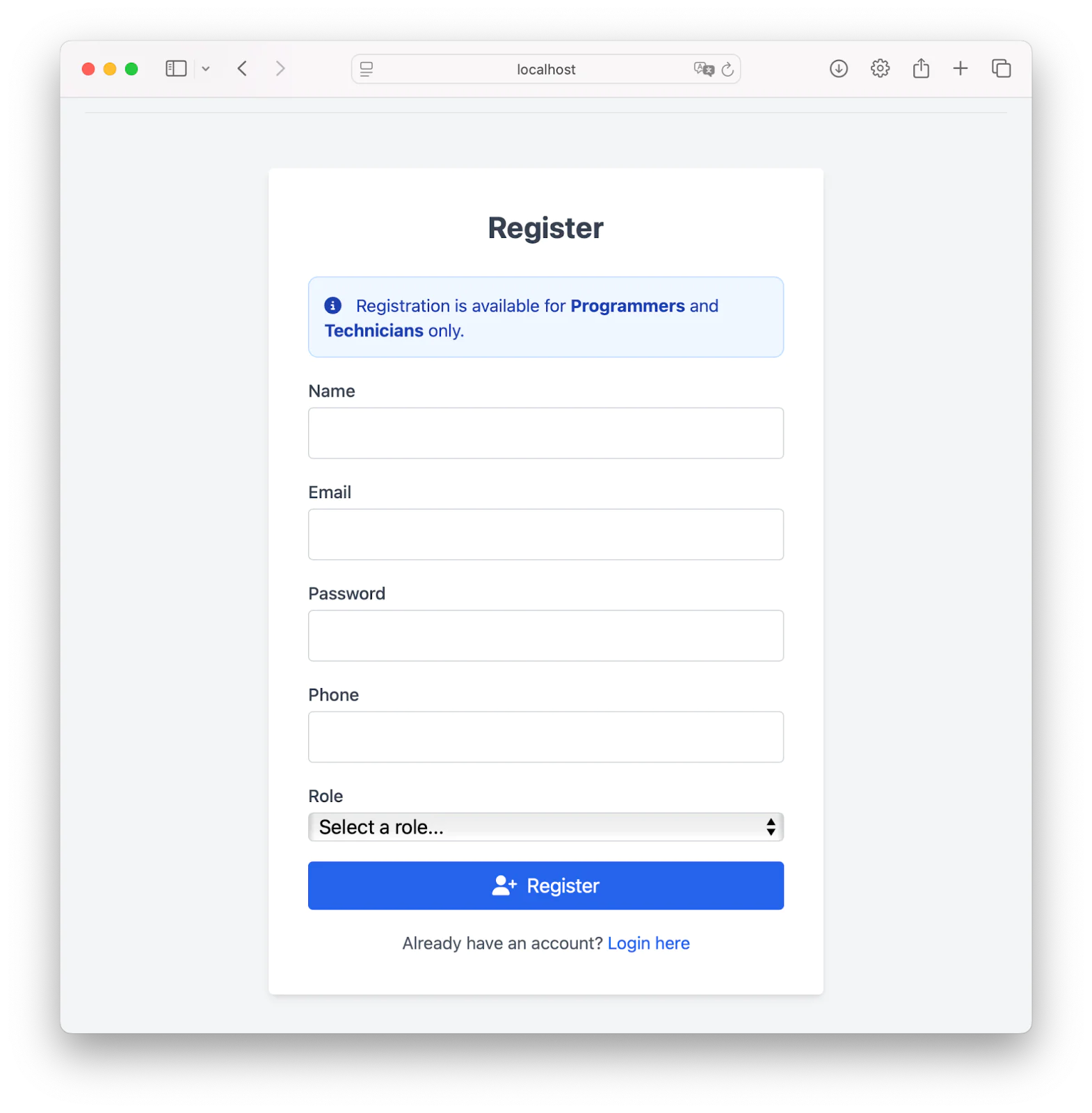
To register a programmer or technician, navigate to http://localhost:8080/register. This will take you to the register page, where you can register as a programmer or a technician. To register, please fill in your name, email, password, phone number, and then select a role(programmers or technicians).
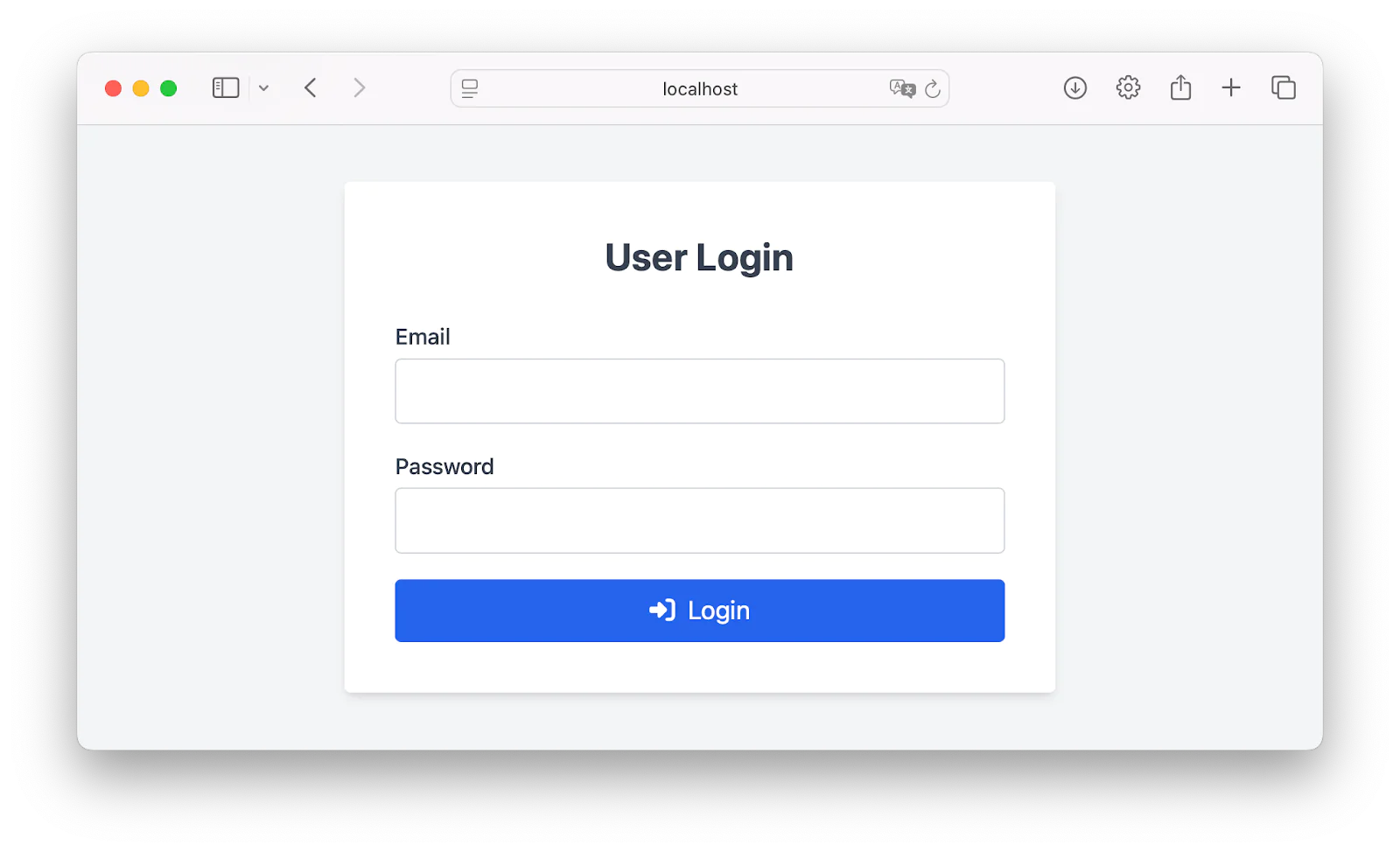
After successfully registering, you'll then be redirected to the login route. Fill in your credentials and click Login.
Once logged in, you’ll be directed to the dashboard:
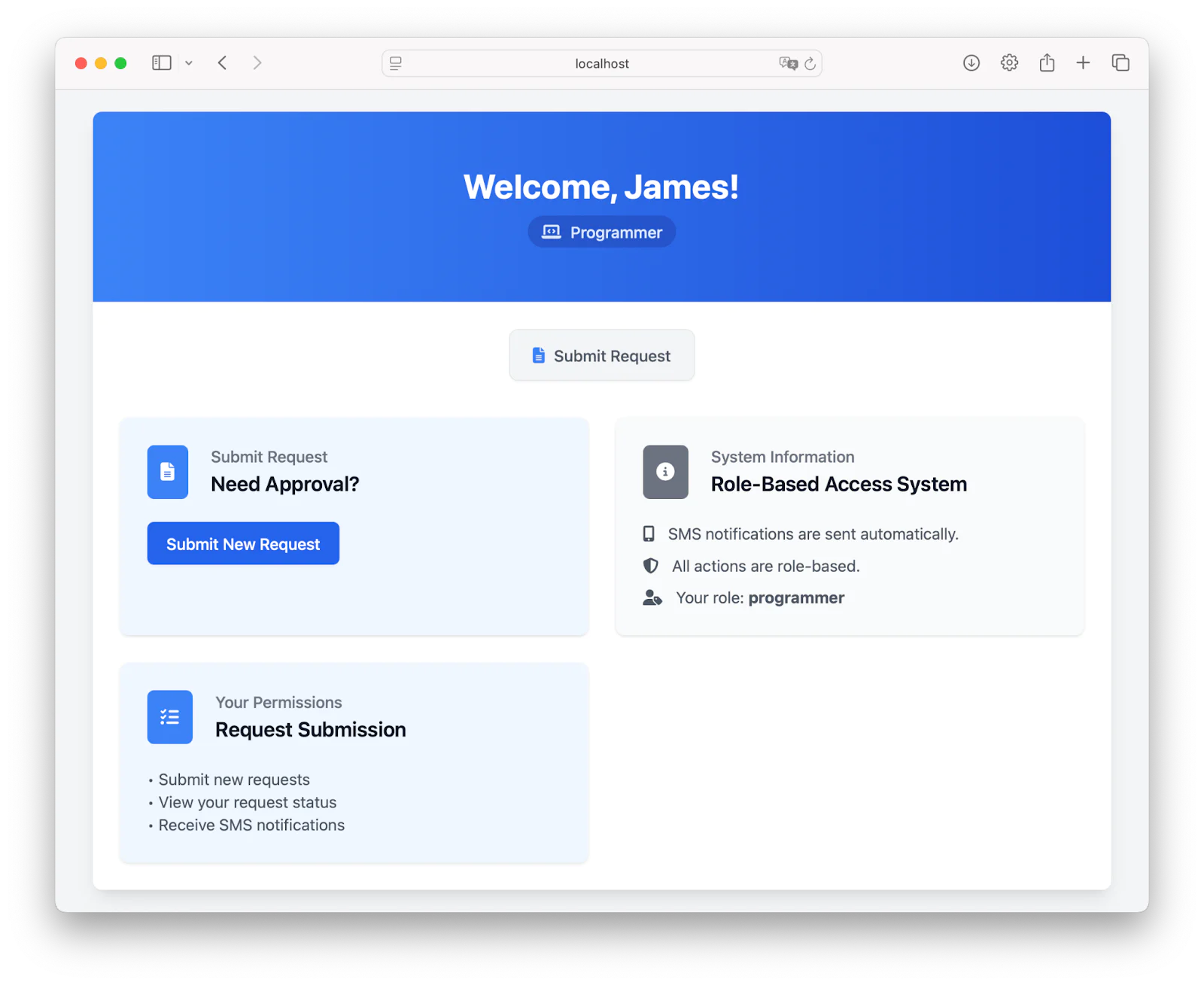
In the dashboard, click on Submit New Request to submit a new request:
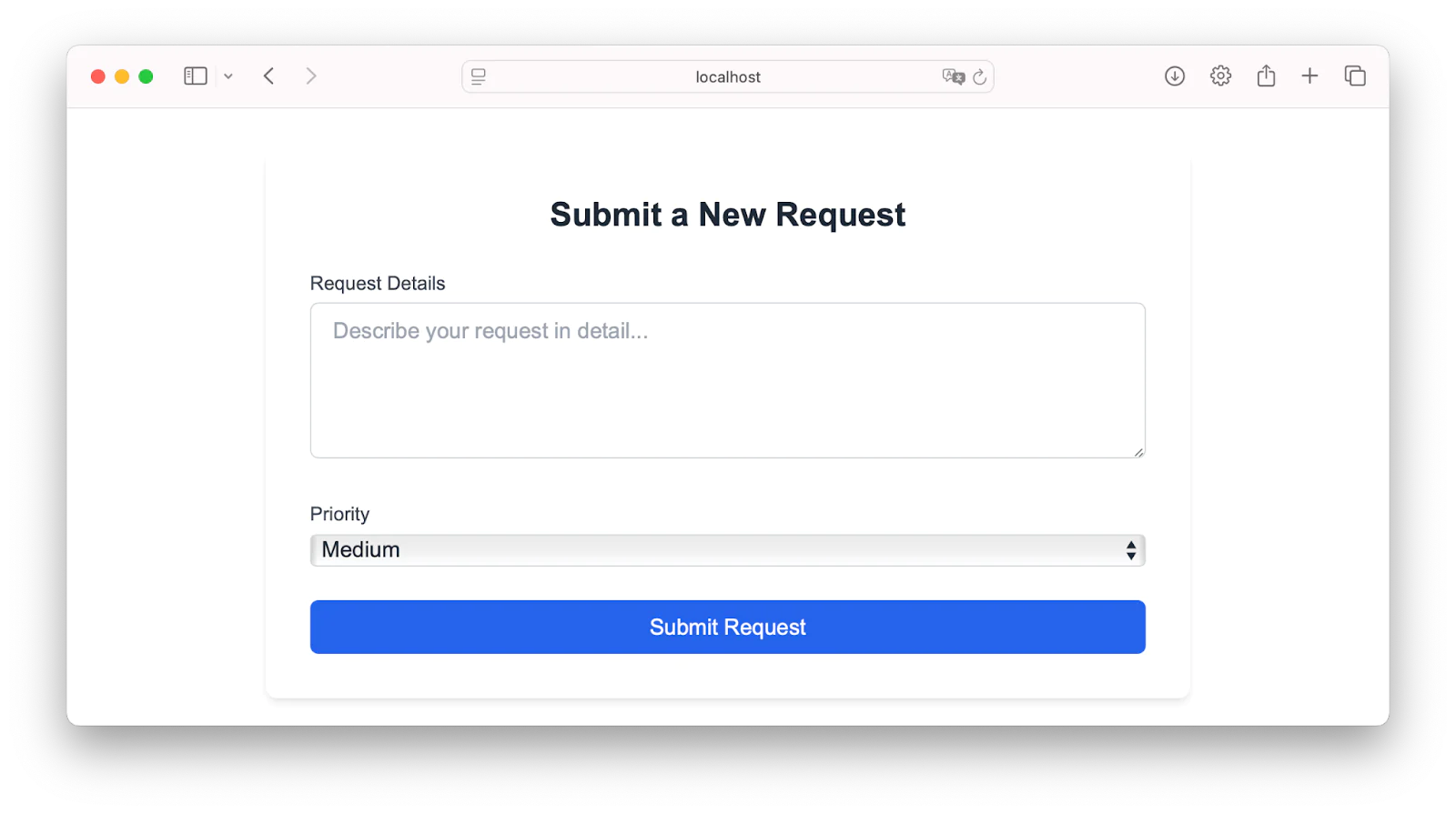
Fill in your request and click Submit Request.
Now let's move on to the admin part. Log out, then log as any of the super admins (which you can find in db/db.go). For this demo, let’s go with the chief_programmer. The dashboard will look like this:
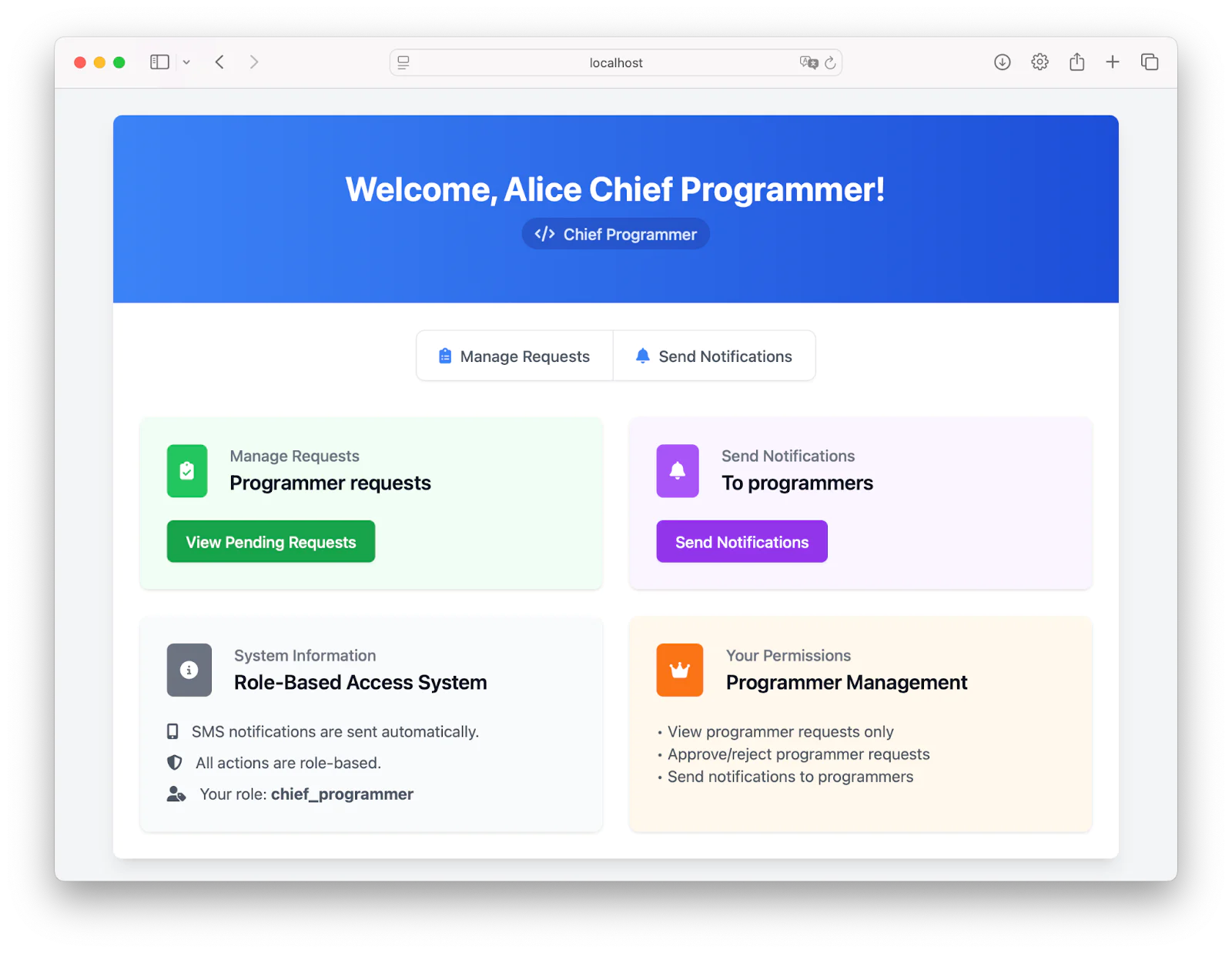
So, chief_programmer can view and approve requests of the programmer, by clicking View Pending Requests:
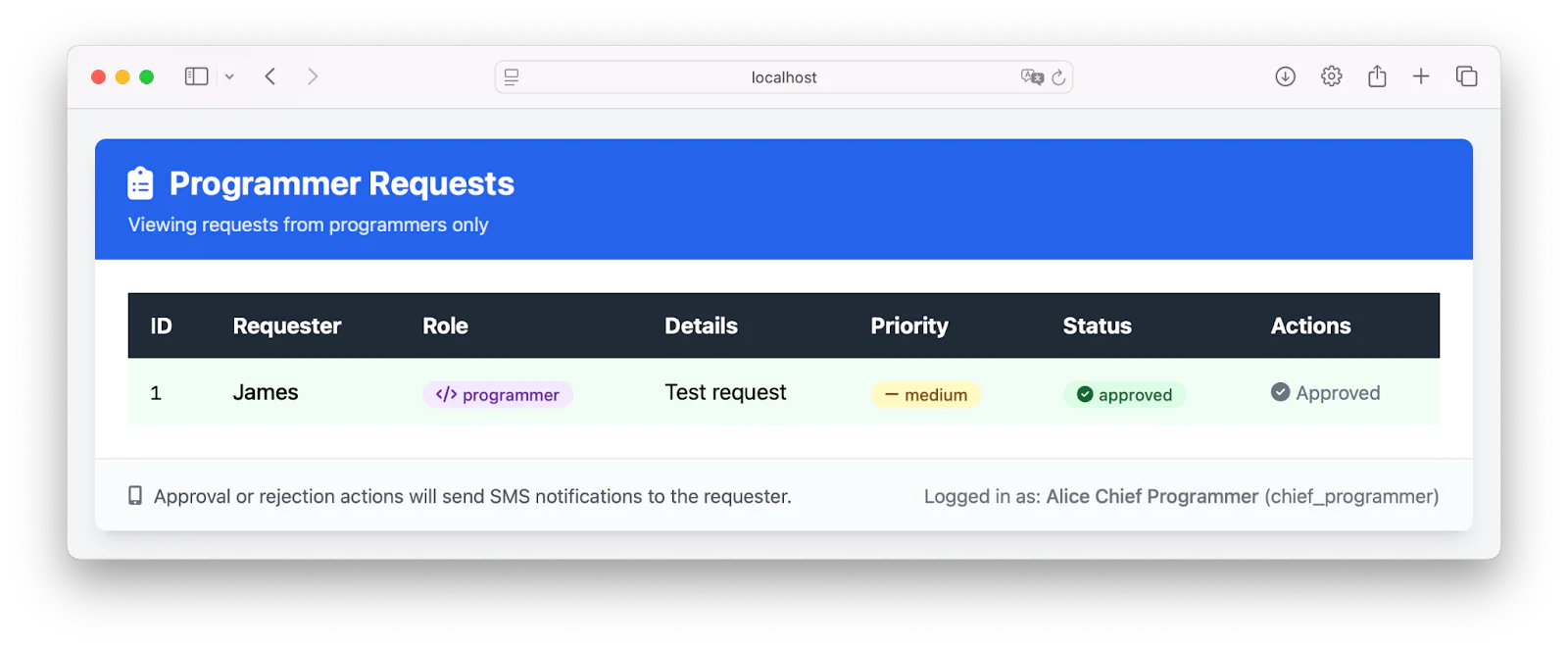
Click Approve next to the request that you created earlier. Once approved (or rejected), a notification is sent.
Now, here comes the fun part, which is to showcase the permission notification. The chief programmer can send notifications, and every worker with the title "programmer" gets them. To demonstrate it. Click Home to go back to the dashboard, then click Send Notifications.
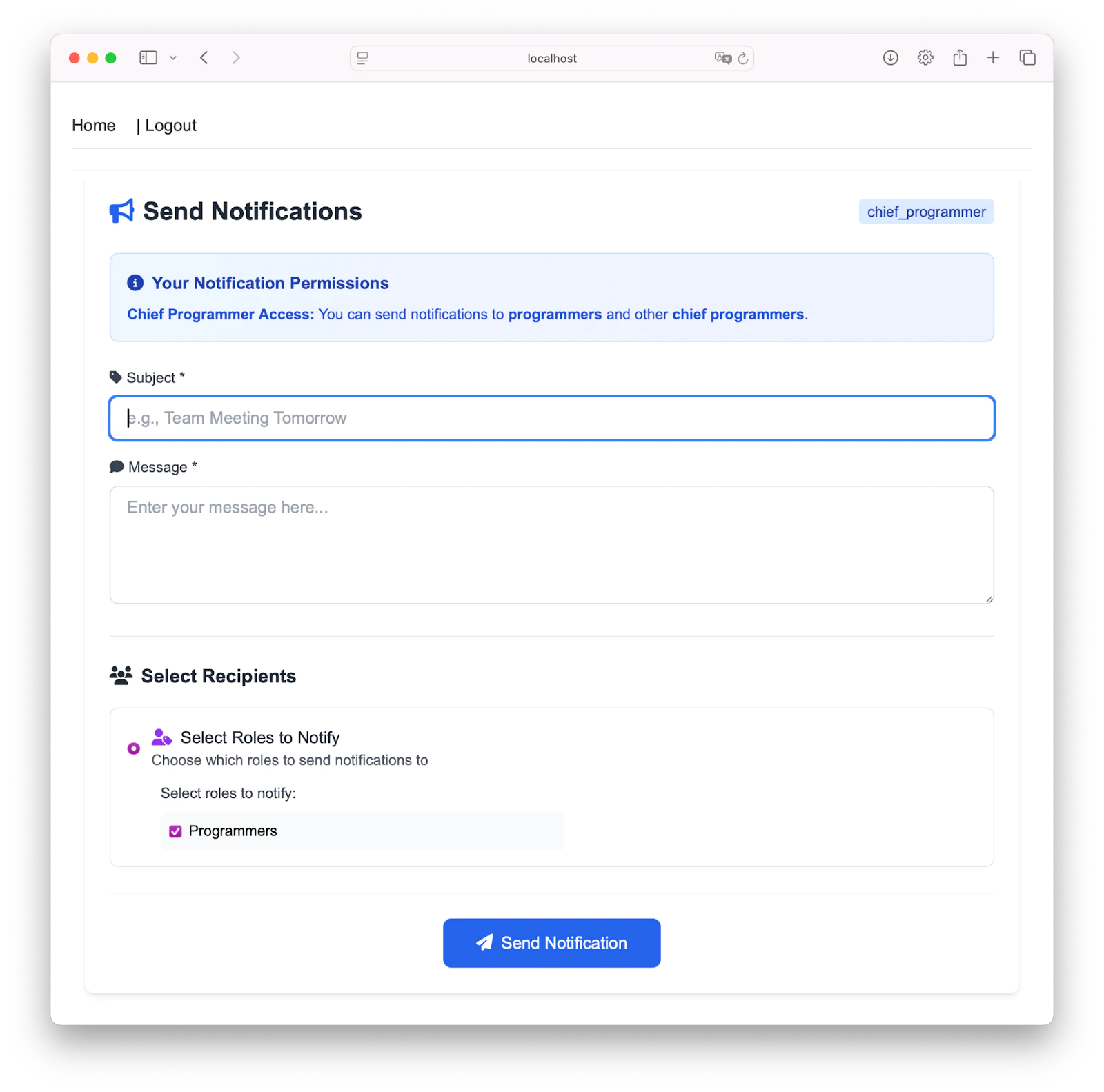
Then, fill in the message and click Send Notification. This will send a notification to everyone with the title "programmer".
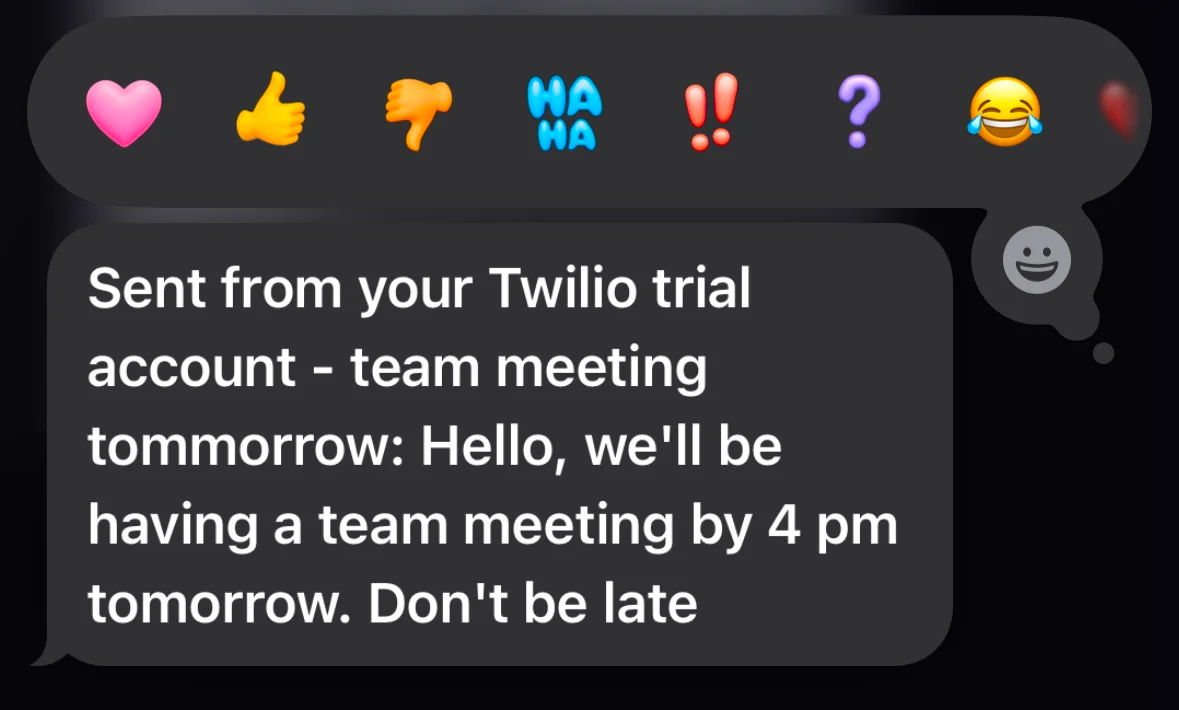
The same happens for the "technicians", too. The "manager" role is a bit different as it is granted permission to send to both, or any of the fields.
You can find the complete code for the application on GitHub.
That's how to send permission-aware SMS notifications with Go, Twilio, and Permit.io
In this tutorial, you learnt how to build a role-based SMS notification system in Go using Twilio and Permit.io. You handled user registration, request approval, and permissioned messaging, making sure only users with the correct roles can send notifications to the correct people. With this setup, you get a secure, structured way to manage internal communications without hardcoding access rules.
Ready to extend it? Try adding email or push notifications next, or hook it into a real-time dashboard. And if you haven’t already, explore more features on Permit.io and Twilio’s messaging APIs to see what else you can build.
Temitope Taiwo Oyedele is a software engineer and technical writer. He likes to write about things he’s learned and experienced.
Related Resources
Twilio Docs
From APIs to SDKs to sample apps
API reference documentation, SDKs, helper libraries, quickstarts, and tutorials for your language and platform.
Resource Center
The latest ebooks, industry reports, and webinars
Learn from customer engagement experts to improve your own communication.
Ahoy
Twilio's developer community hub
Best practices, code samples, and inspiration to build communications and digital engagement experiences.