LinkedIn Insight Tag Destination
When you enable the LinkedIn Insight Tag destination in the Segment web app, your changes appear in the Segment CDN in about 45 minutes, and then Analytics.js starts asynchronously loading LinkedIn Insight Tag's tracking snippet on your page.
(If you already had the LinkedIn Insight Tag's snippet installed on your page, you should remove it.)
- The LinkedIn Insight Tag automatically starts loading the pixel on sites which you load Analytics.js on.
The LinkedIn Insight Tag Destination doesn't use any Segment API calls (such as Identify or Track), so you'll use the site-wide Insight Tag.
If you don't have a LinkedIn business account, sign up for one now. Once that's complete, go to the LinkedIn Marketing Solutions page. From the Advertising dropdown menu, select Sign in to Campaign Manager.
Click the account name for which you'd like to set up website retargeting, conversion tracking, or website demographics.
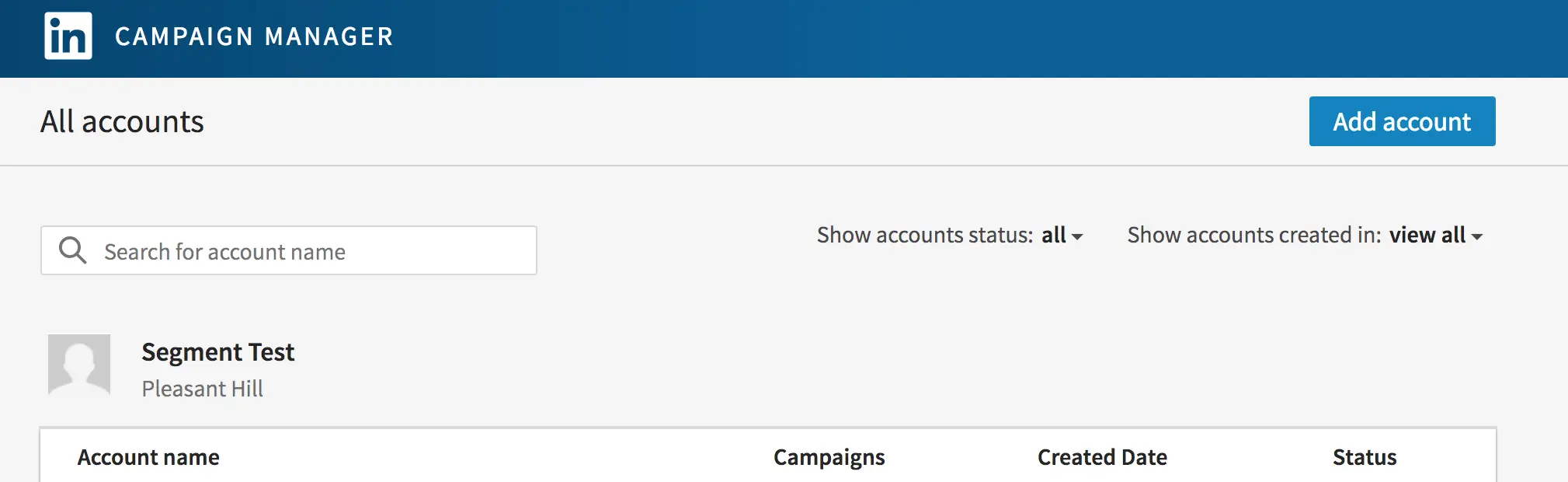
Next, create an Ad Account in order to access the LinkedIn Insight Tag. It asks for some currency information, but no payment is required to access the Insight Tag. Once the Ad Account is created, it's time to find the tag.
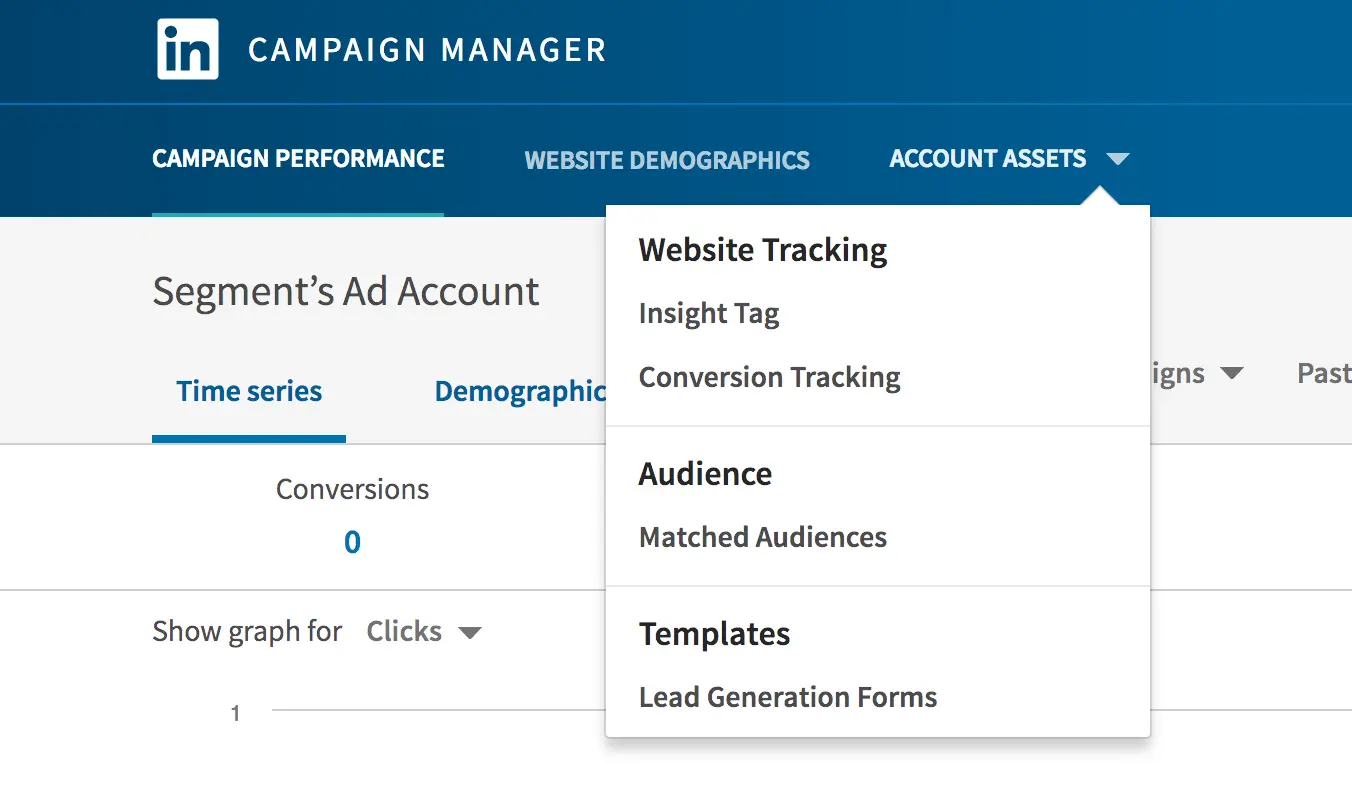
From the Campaign Manager for the account, open the Account Assets dropdown menu. From there, select Insight Tag and move on to the specific tag.
From the Manage Insight Tag dropdown, select See Tag.
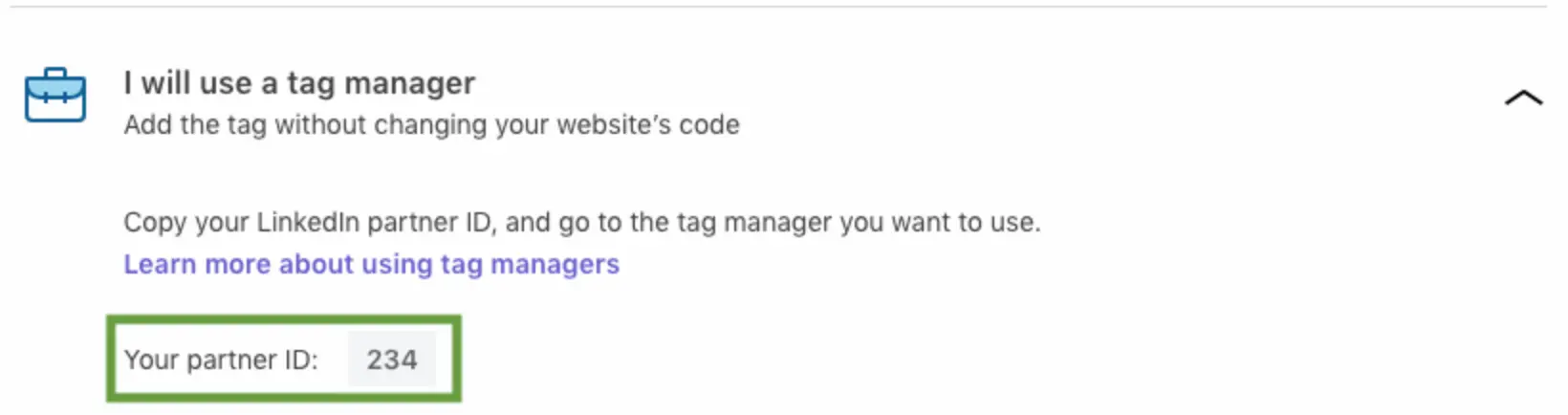
Click I will use a tag manager.
Your partner ID appears in a box below. Click the box to copy your partner ID to your clipboard.
Log into your Segment account, go to the Destinations Catalog in the desired workspace, and select the LinkedIn Insight Tag destination (located at https://segment.com/<Your Workspace>/destinations/catalog/linkedin-insight-tag).
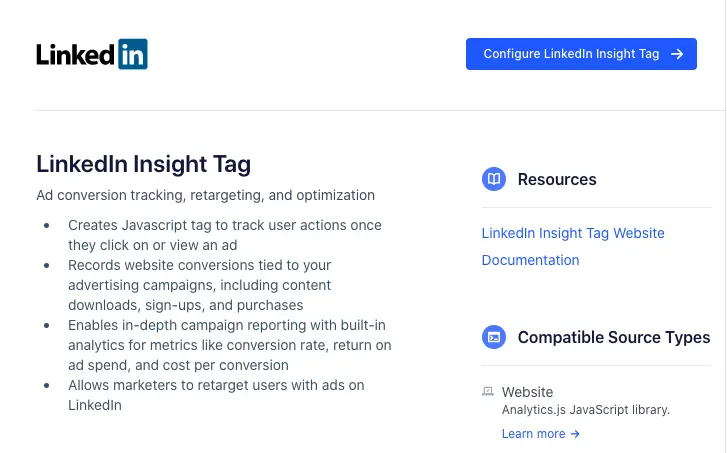
From there, click Configure LinkedIn Insight Tag and select the source for which you want to activate it. Click Confirm Source. The selected source loads, and a sidebar appears, asking for the LinkedIn Data Partner ID.
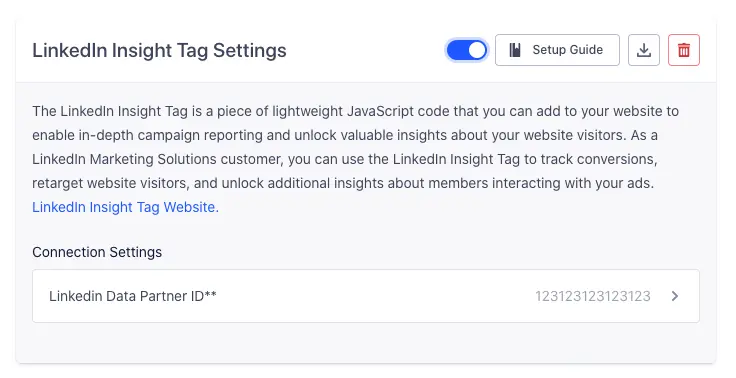
Select that option and paste in the LinkedIn Data Partner ID that you copied earlier. Click Save, then click Activate Destination. Our servers build the latest CDN for that source, and the LinkedIn Insight Tag loads on the sites that use that source's Segment snippet!
Segment's LinkedIn Insight Tag destination is fairly unique in that all Segment does is load the LinkedIn scripts onto your website for you so you can call methods directly without having to add the script tags yourself. Any special conversion tracking needs to be done within your LinkedIn workspace as you normally would if you were setting up LinkedIn without Segment.
Segment lets you change these destination settings from the Segment app without having to touch any code.
Enter your Linkedin Data Partner ID. It should be a series of numbers, like 12345.