SatisMeter Destination
The SatisMeter destination code is open source on GitHub.
See SatisMeter in action on their sample app.
After you enable SatisMeter in Segment, SatisMeter shows the Net Promoter Score (NPS) survey to your customers.
With SatisMeter you can:
- gather NPS and customer feedback straight from your web app,
- send gathered customer feedback back to Segment which distributes it to other customer analytics tools,
- get the feedback directly into your Slack channel,
- customize SatisMeter survey to comply with your design,
- send email surveys to users that don't answer the in-app survey,
- ask every user in their own language.
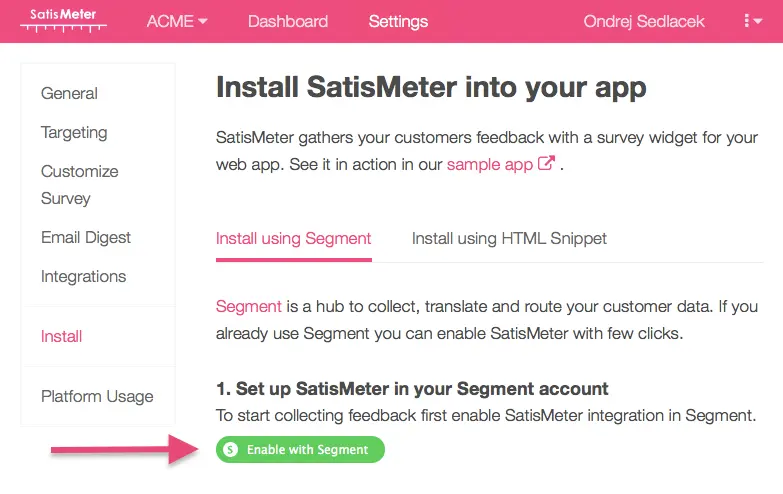
To get started you need to sign up to SatisMeter, and click the green button "Enable with Segment". This will link your SatisMeter project with your Segment project and enable the destination.
Users need to be identified in order to target surveys at the right time.
Identifying of users is done by calling an analytics.identify method using the analytics.js library. The recommended traits are name, email and createdAt, however SatisMeter will collect any other traits you'd like to see next to feedback from your customers.
Here's an example of the identify call:
1analytics.identify('007', {2name: 'James Bond',3email: '007@sis.gov.uk',4createdAt: '2015-06-16T09:19:47.155Z'5});
Send the createdAt trait, which tells SatisMeter how long the customer has used your service. This lets SatisMeter show the survey to people who already have some experience with your service.
You can also send additional traits you don't have available on client-side using one of the server libraries provided by Segment. These traits will be added to the collected responses from your users.
We can send completed survey responses to Segment which will distribute it to all your other Segment destinations.
You should copy the Segment write key (Project settings / API KEYS / WRITE KEY) and paste it into SatisMeter (Integrations / Segment).
The write key looks like this: 8lnHXS8z3lkCyNkFlggIvd59M2BXdSHn
When a user completes a survey the following traits are added to the user:
NPS_rating: NPS rating (0-10)NPS_comment: verbal feedback that user leftNPS_date: date when the NPS survey was filled out
We also record the following events
Viewed NPS Survey: The survey was shown to the userClosed NPS Survey: User closed the survey without filling itAnswered NPS Survey: User filled the rating of NPS SurveyCompleted NPS Survey: User completed the survey (including the follow-up question)
Make sure you are sending an analytics.identify() call when the page is loaded. If you are calling this method, make sure SatisMeter survey has a reason to be displayed. The widget will not display unless the customer fits your targeting settings.
Send the createdAt trait to the analytics.identify() method. Without it, the SatisMeter widget shows right after sign-up to every user that fits your other targeting settings.
You can change the targeting settings in Targeting section of SatisMeter settings.
You can send computed traits and audiences generated using Engage to this destination as a user property. To learn more about Engage, schedule a demo.
For user-property destinations, an identify call is sent to the destination for each user being added and removed. The property name is the snake_cased version of the audience name, with a true/false value to indicate membership. For example, when a user first completes an order in the last 30 days, Engage sends an Identify call with the property order_completed_last_30days: true. When the user no longer satisfies this condition (for example, it's been more than 30 days since their last order), Engage sets that value to false.
When you first create an audience, Engage sends an Identify call for every user in that audience. Later audience syncs only send updates for users whose membership has changed since the last sync.
Real-time to batch destination sync frequency
Real-time audience syncs to SatisMeter may take six or more hours for the initial sync to complete. Upon completion, a sync frequency of two to three hours is expected.
Segment lets you change these destination settings from the Segment app without having to touch any code.
Optional
To connect SatisMeter with Segment first create a project in your Satismeter dashboard and then navigate to Settings / Install and click the green button 'Enable with Segment'. You can also manually copy Settings / Integrations / API keys / Write key and use it as the api key. The api key should look like urC2RuBlt7utBCzu.
Optional
This is a legacy setting, and now known as the apiKey. To connect SatisMeter with Segment first create a project in your Satismeter dashboard and then navigate to Settings / Install and click the green button 'Enable with Segment'. You can also manually copy Settings / Integrations / API keys / Write key and use it as the token. The tokeny should look like urC2RuBlt7utBCzu.