Taboola (Actions) Destination
Destination Info
- Accepts Track calls.
- Refer to it as Taboola (actions), or Taboola (Actions) in the Integrations object
- This integration is partner owned. Please reach out to the partner's support for any issues.
- This destination is in Beta
Taboola integration allows you to connect and target your Segment audiences with Taboola.
This destination is maintained by Taboola. For any issues with the destination, contact their Support team or your account manager.
Before connecting the Taboola (Actions) destination you'll need the following:
- Your Taboola Client ID and Client Secret - provided by your Taboola account manager.
- Account ID: retrieve using one of these options:
- Taboola Ads - Use the account's alphanumeric name without spaces and in lowercase. For example, 'My Account - Name' would become 'myaccountname'
- API - Retrieve Account Details using the Get Account Details API.
- From your Segment workspace's Destination catalog page search for Taboola (Actions).
- Select Taboola (Actions) and click Add Destination.
- Next, connect the Engage Space to your Taboola (Actions) Destination. To do this, use the
Search for a sourcesearch field to find your Engage Space, then select it. Next, click the Confirm Source button. - On the Basic Settings screen input the Taboola Client ID and Client Secret values.
- Enable the Destination using the toggle, then click the Save Changes button.
The Taboola (Actions) Destination is now connected to your Engage Space. The next steps cover connecting an Audience to a Mapping on your Taboola (Actions) Destination.
-
Navigate to the Audience you'd like to sync to Taboola (Actions).
-
On the Audience Overview tab, click the Add Destination button, then select the Taboola (Actions) Destination.
-
Under the Destinations heading in the Audience Overview page you should now see your Taboola (Actions) listed. Click the Add Mapping button.

-
When the side panel on the right displays, navigate to the Settings tab.
-
On the Settings tab, ensure that Send Track is enabled, then populate the Taboola Account ID field.
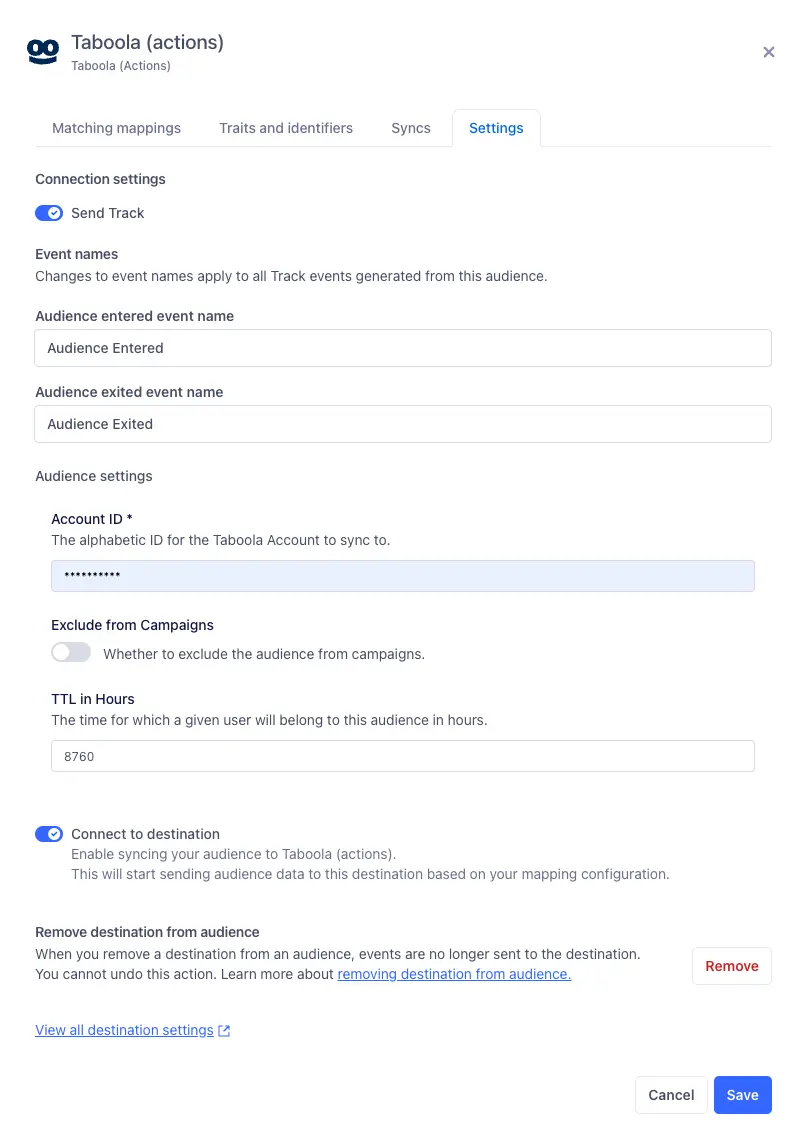
-
Click the Save button.
-
Remain in the side panel, and navigate to the Matching mappings tab. Click the Add mapping button, then select Sync Audience.
-
On the Sync Audience page, click the Save button. You'll be taken back to the Matching mappings tab. Enable the Mapping using the toggle.
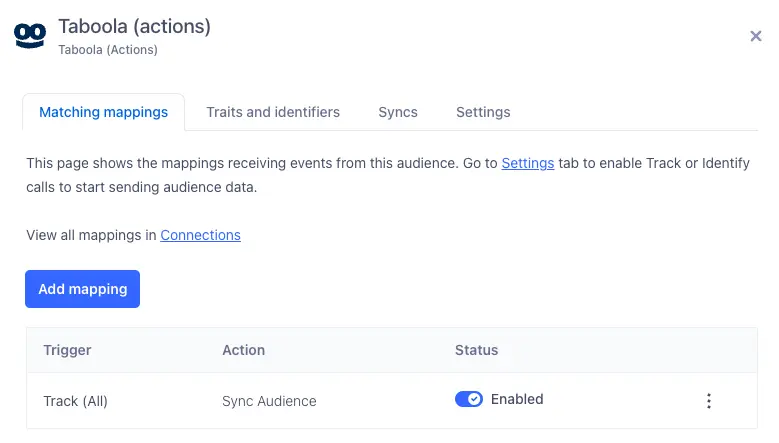
The Audience will start to sync to Taboola shortly. It takes another 2-5 days for the segment to scale up and become available for targeting/suppression in Taboola Ads.
Info
To view the audience on the Taboola platform, navigate to the Taboola Ads audience page, select "Custom Audience" and search for the audience you have just connected.
The Taboola (Actions) destination supports syncing Audiences to Taboola using either the email and/or the Mobile Device ID.
email will be automatically included if present. Additional configuration steps are required in order to sync Mobile Device ID values. To sync Mobile Device ID values ensure the following is configured:
-
Configure your Engage Space's identity resolution rules for
android.idandios.ididentifiers by navigating toUnify>>Unify Settings.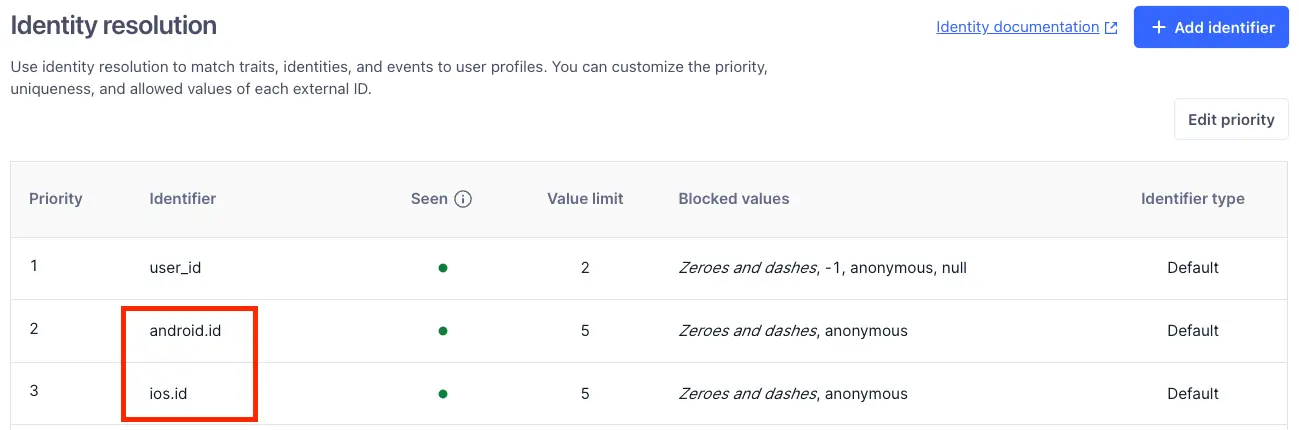
-
Ensure that both the
android.idandios.ididentifiers are configured exactly as per the image below. This configuration step takes place when the Destination is being connected to an Audience.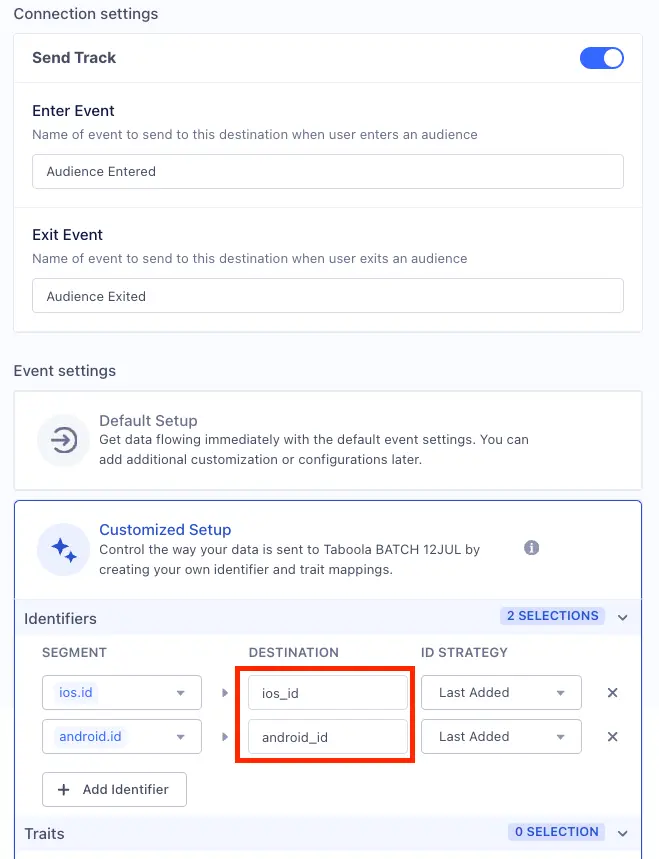
Optional
The audience identifier from your Taboola account.
The client ID from your Taboola account.
The client's secret from your Taboola account.
Build your own Mappings. Combine supported triggers with the following Taboola-supported actions:
Mapping limits per destination
Individual destination instances support a maximum of 5 mappings.
Sync users to Taboola.
Sync Audience is a Cloud action. The default Trigger is type = "track"
Optional
The user's email address
When enabled, events will be batched before being sent to Taboola. In most cases, batching should be enabled.
Optional
To send iOS and Android Device IDs include them as 'ios_id' and 'android_id' via the 'Customized Setup' option when connecting your Audience.
You can send computed traits and audiences generated using Engage to this destination as a user property. To learn more about Engage, schedule a demo.
For user-property destinations, an identify call is sent to the destination for each user being added and removed. The property name is the snake_cased version of the audience name, with a true/false value to indicate membership. For example, when a user first completes an order in the last 30 days, Engage sends an Identify call with the property order_completed_last_30days: true. When the user no longer satisfies this condition (for example, it's been more than 30 days since their last order), Engage sets that value to false.
When you first create an audience, Engage sends an Identify call for every user in that audience. Later audience syncs only send updates for users whose membership has changed since the last sync.
Real-time to batch destination sync frequency
Real-time audience syncs to Taboola (Actions) may take six or more hours for the initial sync to complete. Upon completion, a sync frequency of two to three hours is expected.
Segment lets you change these destination settings from the Segment app without having to touch any code.
Optional
The audience identifier from your Taboola account.
computation_keyThe client ID from your Taboola account.
The client's secret from your Taboola account.