Freshmarketer Destination
Destination Info
- Accepts Identify calls.
- Refer to it as Freshmarketer in the Integrations object
- This integration is partner owned. Please reach out to the partner's support for any issues.
Segment makes it easy to send your data to Freshmarketer (and lots of other destinations). Once you collect your data using Segment's open source libraries, Segment translates and routes your data to Freshmarketer in the format it can use.
This destination is maintained by Freshmarketer. For any issues with the destination, contact the Freshmarketer Support team.
- From your Segment UI's Destinations page click Add Destination.
- Search for "Freshmarketer" in the Destinations Catalog and confirm the Source you'd like to connect to.
- Go to your Freshmarketer dashboard (Admin Settings > API Settings) and copy your API Key.
- In the Freshmarketer settings in the Segment UI, paste your API Key.
If you're not familiar with the Segment Specs, take a look to understand what the Identify method does. An example call would look like:
1// On server-side2analytics.identify({3"userId": "123",4"anonymousId": "a80b66d5-b86d-41bd-866f-fe04ee7841af",5"traits": {6"email": "derek@example.org",7"name": "Derek Sivers",8"industry": "Music"9}10})
1// On client-side2analytics.identify({3"email": "derek@example.org",4"name": "Derek Sivers",5"industry": "Music"6})
You can use identify to create a contact when a website visitor fills a webform. When you identify a user, we'll pass that user's information to Freshmarketer.
By default, every new identify is created as a contact. If the userId is already present in the Freshmarketer contact list, it is treated as an update. To update existing user data, pass the corresponding userId with all the traits that have updated values. On updating, if any of the traits added during contact insertion is missed while updating, then that trait will be set as empty.
Note: A userId is required in order to send events to Freshmarketer. You must also send traits.email in your payload.
You can find default list of field names in Settings - > Custom fields for field mapping.
All attributes that are a part of traits should correspond to the field Label of those fields in Freshmarketer. Attributes that are not mapped with their corresponding fields are ignored.
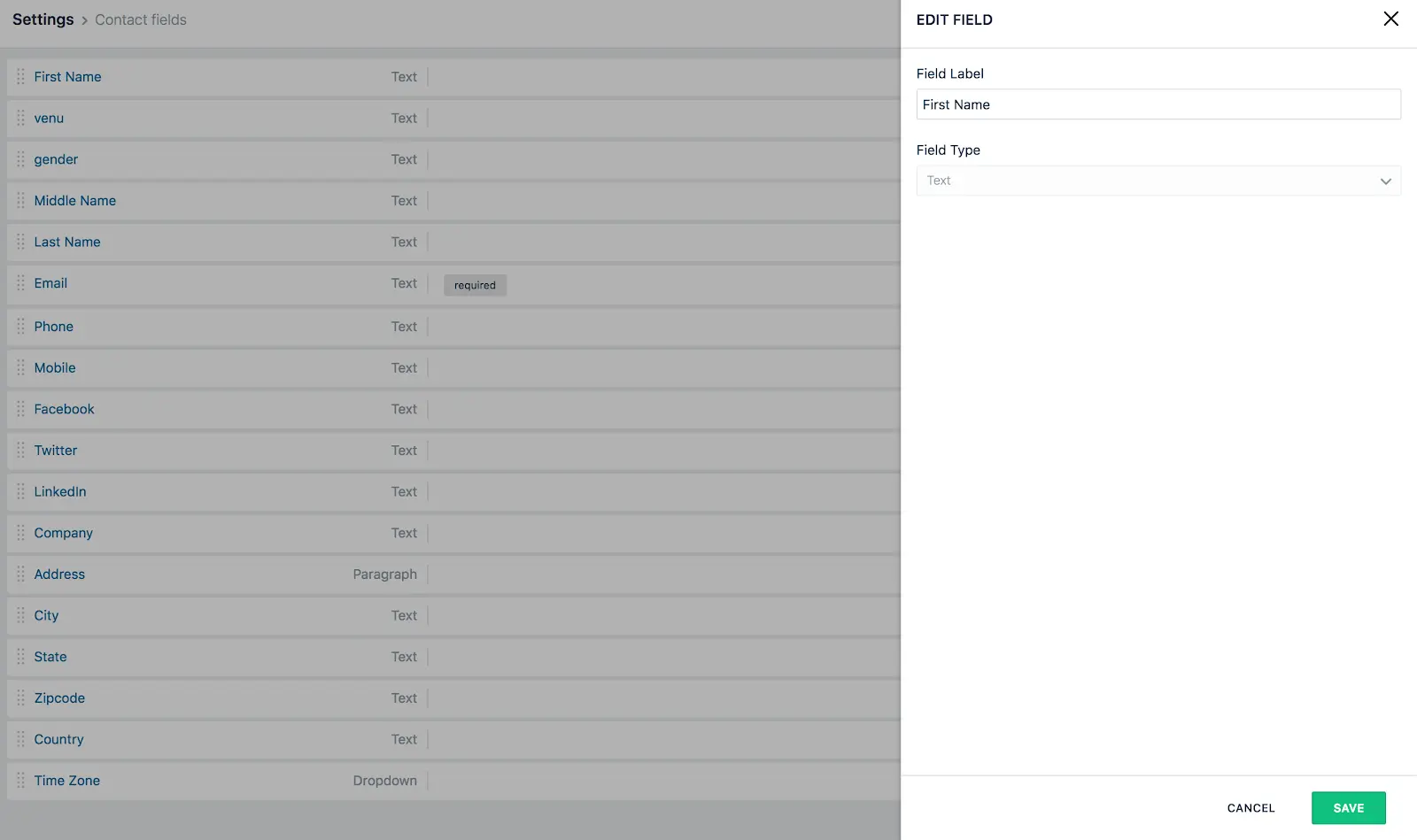
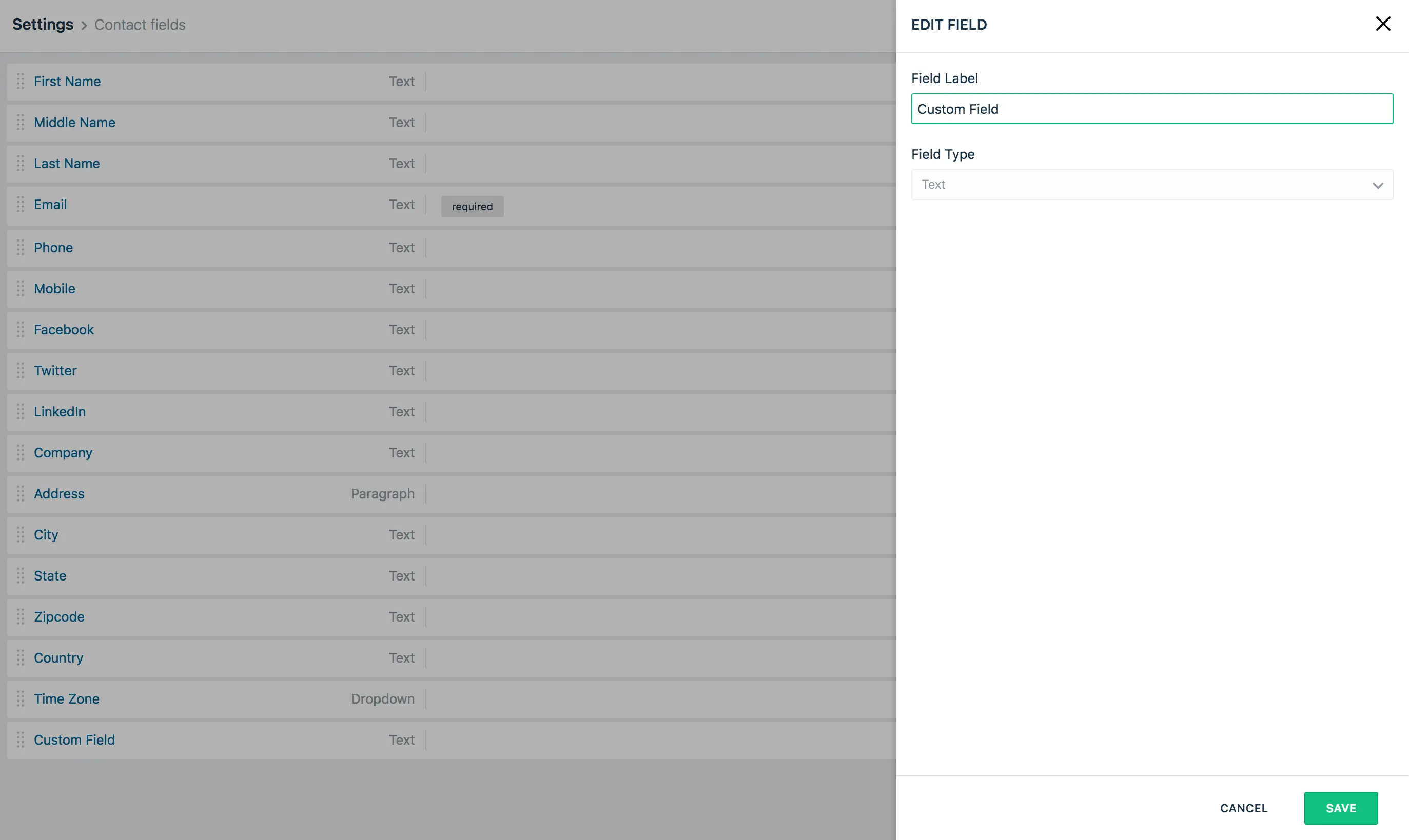
As part of traits, you can use a Field Label to send custom fields created in Freshmarketer. Custom fields are not created automatically. Create them with the exact name and type to map to your field in Freshmarketer before you send data from Segment.
Below is the Custom Field created in Freshmarketer product(Settings > Contact fields). You can drag and drop a field to create a new one.
You can send computed traits and audiences generated using Engage to this destination as a user property. To learn more about Engage, schedule a demo.
For user-property destinations, an identify call is sent to the destination for each user being added and removed. The property name is the snake_cased version of the audience name, with a true/false value to indicate membership. For example, when a user first completes an order in the last 30 days, Engage sends an Identify call with the property order_completed_last_30days: true. When the user no longer satisfies this condition (for example, it's been more than 30 days since their last order), Engage sets that value to false.
When you first create an audience, Engage sends an Identify call for every user in that audience. Later audience syncs only send updates for users whose membership has changed since the last sync.
Real-time to batch destination sync frequency
Real-time audience syncs to Freshmarketer may take six or more hours for the initial sync to complete. Upon completion, a sync frequency of two to three hours is expected.
Segment lets you change these destination settings from the Segment app without having to touch any code.
Settings > API Settings > Your API Key