Zendesk Chat (Zopim) Destination
Destination Info
- Accepts Identify and Track calls.
- Refer to it as Zopim in the Integrations object
Components
Zendesk Chat, (previously called Zopim) is a live chat solution that helps businesses increase sales conversion by engaging important leads on their websites. The analytics.js Zendesk Chat Destination is open-source. You can browse the code on GitHub.
NOTE: Zendesk Chat offers two types of widgets a standalone Chat Widget, which is mainly designed to provide chat related features, and a Web Widget, which incorporates both Zendesk Chat and Zendesk Support functionalities. Segment only supports the Chat Widget. For more details refer to the "Getting Started" section below.
- From the Segment web app, click Catalog.
- Search for "Zopim" in the Catalog, select it, and choose which of your sources to connect the destination to. (This is the old name.)
- Add your Zendesk Chat ID (Zopim ID) to your Destination Settings. If you are using the
Chat Widget, you can find your ID in the widget script itself. See example below:
1<!--Start of Zendesk Chat Script-->2<script type="text/javascript">3window.$zopim||(function(d,s){var z=$zopim=function(c){z._.push(c)},$=z.s=4d.createElement(s),e=d.getElementsByTagName(s)[0];z.set=function(o){z.set.5_.push(o)};z._=[];z.set._=[];$.async=!0;$.setAttribute("charset","utf-8");6$.src="https://v2.zopim.com/?[ZOPIM ID]";z.t=+new Date;$.7type="text/javascript";e.parentNode.insertBefore($,e)})(document,"script");8</script>9<!--End of Zendesk Chat Script-->
If you are using the Web Widget (see example below), you will need to contact Zendesk Support in order to get your Chat Account ID or you can follow the steps outlined in Zendesk's How do I find my Chat Account Key? docs:
1<!-- Start of Zendesk Widget script -->2<script>/*<![CDATA[*/window.zEmbed||function(e,t){var n,o,d,i,s,a=[],r=document.createElement("iframe");window.zEmbed=function(){a.push(arguments)},window.zE=window.zE||window.zEmbed,r.src="javascript:false",r.title="",r.role="presentation",(r.frameElement||r).style.cssText="display: none",d=document.getElementsByTagName("script"),d=d[d.length-1],d.parentNode.insertBefore(r,d),i=r.contentWindow,s=i.document;try{o=s}catch(e){n=document.domain,r.src='javascript:var d=document.open();d.domain="'+n+'";void(0);',o=s}o.open()._l=function(){var e=this.createElement("script");n&&(this.domain=n),e.id="js-iframe-async",e.src="https://assets.zendesk.com/embeddable_framework/main.js",this.t=+new Date,this.zendeskHost="SUBDOMAIN.zendesk.com",this.zEQueue=a,this.body.appendChild(e)},o.write('<body onload="document._l();">'),o.close()}();3/*]]>*/</script>4<!-- End of Zendesk Widget script -->
Your changes appear in the Segment CDN in about 45 minutes, and then Analytics.js starts asynchronously loading the Zendesk Chat snippet on your page and sending data.
If you're not familiar with the Segment Specs, take a look to understand what the Identify method does. An example call would look like:
1analytics.identify('ze8rt1u89', {2name: 'Zaphod Kim',3email: 'jane.kim@example.com',4phone: '1-401-826-4421',5});
When you call identify, the name, email, and phone traits included in the call will be set to the current user in Zendesk Chat.
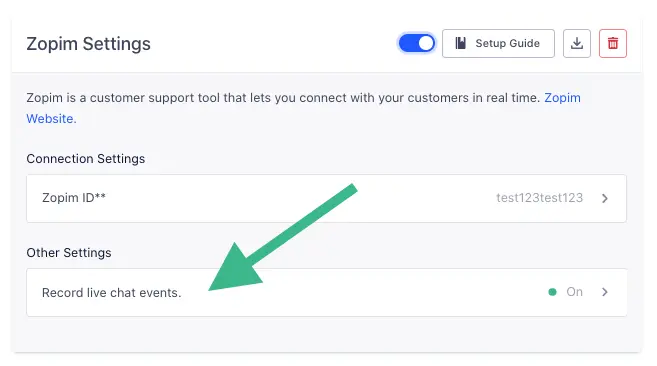
With this destination, you can automatically record track events for live chat conversations. If you select this option, we'll collect the following events:
- Live Chat Conversation Started
- Live Chat Conversation Ended
These events will then flow out to your other tools, so you can do things like analyze if users who chat spend more money over time.
To learn more about the live chat events you can capture with this destination, head on over to our Live Chat spec docs.
To ensure that the Zendesk Chat widget does not load on a page, fire a small JavaScript snippet as documented here on the legacy Zopim site. To ensure that the Zendesk Chat snippet fires after the library loads on the page, you can either wrap the snippet in an analytics.ready() method with any conditional logic you'd like, or place the script in the callback of any Analytics.js (Track, Identify, etc.) call so that it hides after that call is made.
Segment lets you change these destination settings from the Segment app without having to touch any code.
Optional
Record Live Chat Conversation events from Zopim.
falseTo get your Zopim ID, please contact Zopim support: https://www.zopim.com/contact