AdRoll Destination
Destination Info
- Accepts Page, Identify and Track calls.
- Refer to it as AdRoll in the Integrations object
Components
AdRoll is a retargeting network that allows you to show ads to visitors who've landed on your site while browsing the web. The AdRoll Destination is open-source. You can browse the code on GitHub.
-
From the Segment web app, click Catalog.
-
Search for "Adroll" in the Catalog, select it, and choose which of your sources to connect the destination to.
-
Locate both your AdRoll Advertiser ID and Pixel ID in AdRoll's "Audience" tab, "AdRoll Pixel" section. Click on "View Pixel". Your Advertiser ID will be listed beside
adroll_adv_idand your AdRoll Pixel will be listed besideadroll_pix_id.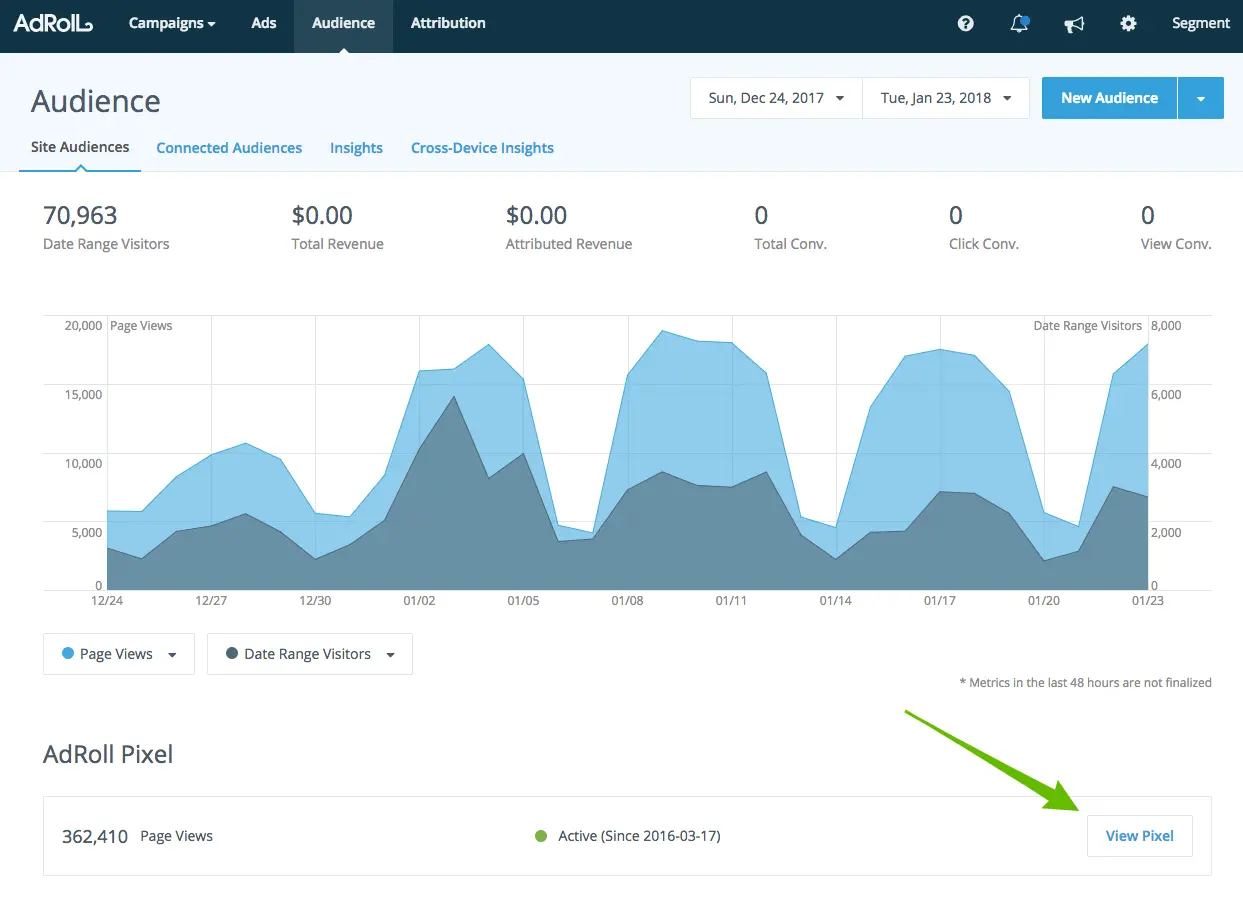
-
Add both your Advertiser ID and Pixel ID to your Segment Destination Settings.
If you're not familiar with the Segment Specs, take a look to understand what the Page method does. An example call would look like:
analytics.page()
NOTE: The page call must be made on a page for any identify or track events to be sent to AdRoll. Our Analytics.js snippet includes a page call by default so you should be fine, unless you've manually removed the page call from your Analytics.js snippet.
If you're not familiar with the Segment Specs, take a look to understand what the Identify method does. An example call would look like:
1analytics.identify('123', {2email: 'testing@segment.com'3});
Set a userId using the identify call which will then be passed it to AdRoll each time a track call is made. If you pass an email trait, we'll send that to AdRoll by setting window.adroll_email to that value.
If you're not familiar with the Segment Specs, take a look to understand what the Track method does. An example call would look like:
analytics.track('Sign-up Form Completed');
In order to send your track calls to AdRoll for segmenting your users, get started by creating a new "segment" in their interface, copying the "Segment ID", and pasting that following a + into the URL rule field.
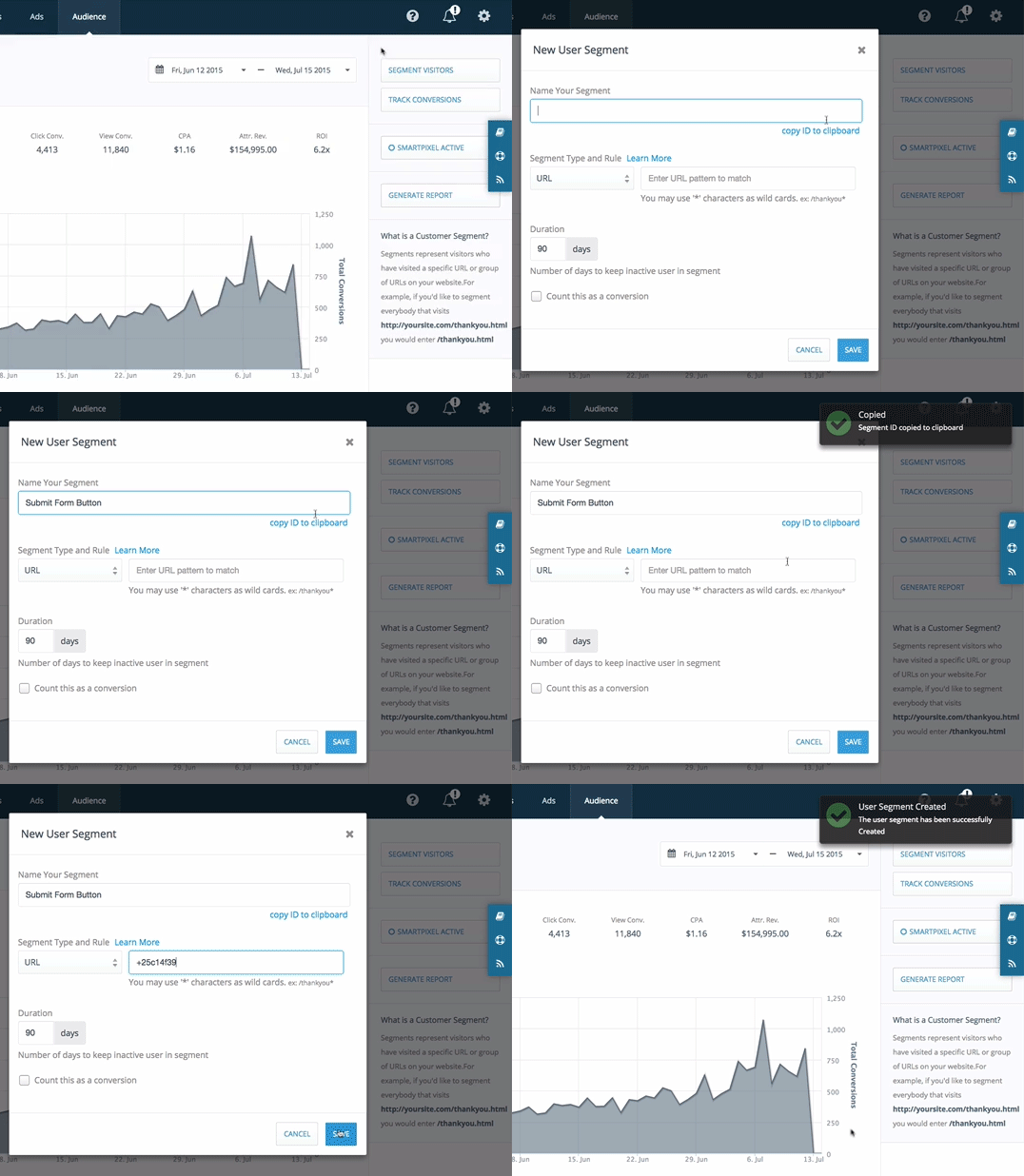
Map your client-side Analytics.js event names to the corresponding AdRoll "Segment ID" in the Segment Settings UI.
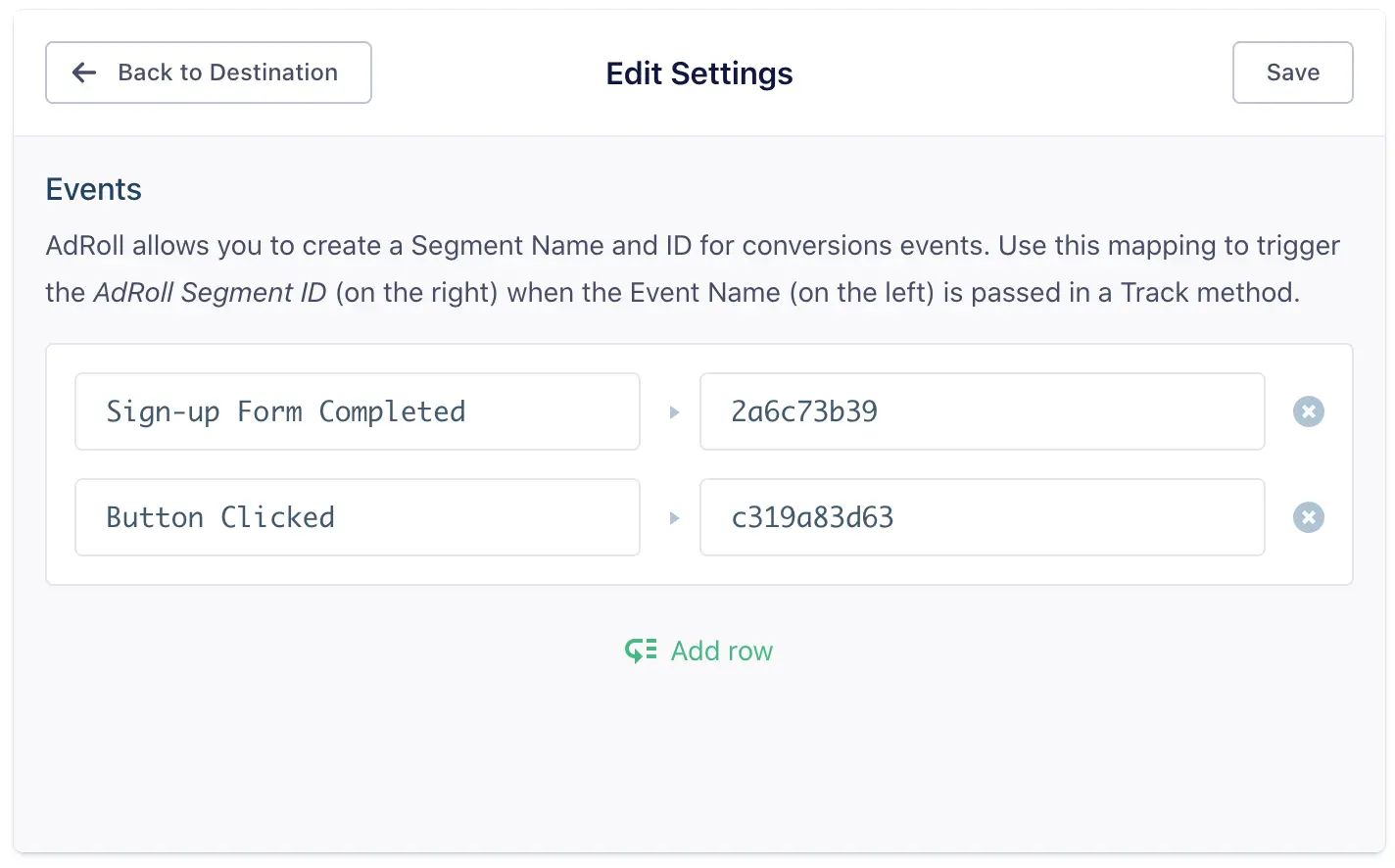
We'll fire the correct pixel accordingly to put the user into that "segment" whenever they trigger the event you've chosen. Note that you will still need to map semantic events like Viewed Product, Added Product, and Order Completed.
Then, inside AdRoll you can create a "segment" of all users doing any of those events by adding a + to the segment name and adding it in the URL field, like this:
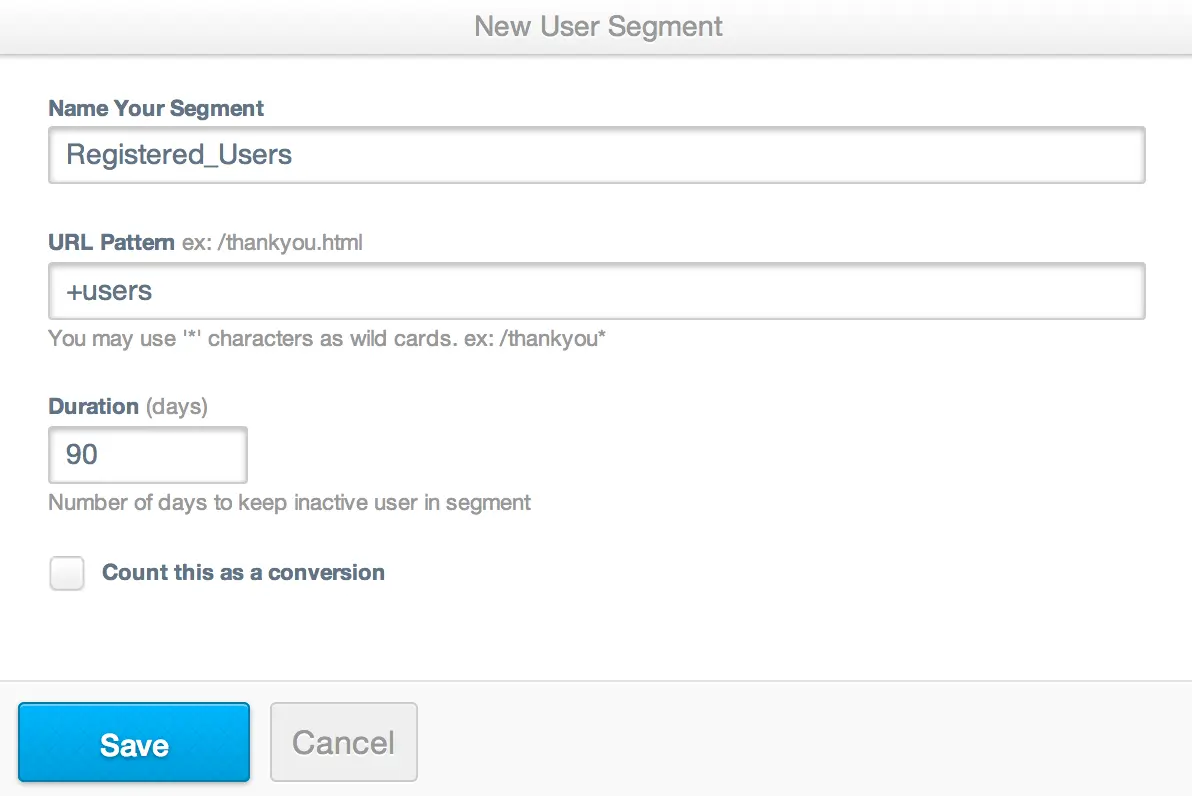
When you include an event property labeled price it will be tracked to AdRoll as adroll_conversion_value.
When you send Order Completed event with properties.currency, we will send that as adroll_currency. AdRoll supports these currency codes.
If you send an Order Completed event with properties.orderId, we will send that as order_id.
1analytics.track('Order Completed', {2revenue: 100,3currency: 'USD',4orderId: 'abc12345'5});
If you send a Viewed Product or Added Product with properties.id we will map it as product_id.
1analytics.track('Viewed Product', {2id: 'abc98765'3});
Prior to rolling out Segment ID's, AdRoll allowed "named segments". If your account was created prior to 2015, then the track events you send from the browser using our analytics.track method will be passed on to AdRoll as adroll_segments with the segment being the snake-cased event name.
Many times this is a limitation on the tool's detection process, where the detector is looking for a specific HTML element on your page. Our client side analytics.js library asynchronously loads the tool's library or pixel onto the page. As such, the detection fails.
In order to confirm that the tool's library or pixel is actually loaded onto the page, you can open up the JavaScript console and go to the network tab when the page is loading.
If the script isn't loading, check that any form of ad blocker is disabled.
Segment lets you change these destination settings from the Segment app without having to touch any code.
Optional
2You can find your Advertiser ID in your AdRoll dashboard by clicking the green or red dot in the lower-left corner. In the Javascript snippet, the Advertiser ID appears as adroll_avd_id = 'XXXXXXX' on line 2. It should be 22 characters long and look something like this: WYJD6WNIAJC2XG6PT7UK4B.
Optional
AdRoll allows you to create a Segment Name and ID for conversions events. Use this mapping to trigger the AdRoll Segment ID (on the right) when the Event Name (on the left) is passed in a Track method.
You can find your Pixel ID in your AdRoll dashboard by clicking the green or red dot in the lower-left corner. In the Javascript snippet, the Pixel ID appears as adroll_pix_id = 'XXXXXXX' on line 3. It should be 22 characters long, and look something like this: 6UUA5LKILFESVE44XH6SVX.