TrafficGuard Destination
TrafficGuard detects, mitigates, and reports on ad fraud before it hits digital advertising budgets. Three formidable layers of protection block both general invalid traffic (GIVT) and sophisticated invalid traffic (SIVT) to ensure that digital advertising results in legitimate advertising engagement.
This destination is maintained by TrafficGuard.
- From the Segment web app, click Catalog.
- Search for "TrafficGuard" in the Catalog, select it, and choose which of your sources to connect the destination to.
- Enter the "API Key" into your Segment Settings UI which you can find in the property in the TrafficGuard dashboard.
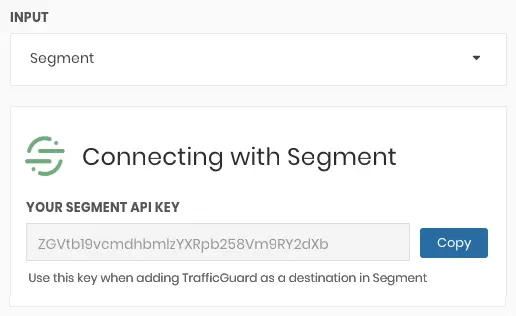
- Calls will now be visible in TrafficGuard dashboards in real-time.
NOTE: For TrafficGuard to successfully validate calls, context.ip and context.userAgent values as well as either context.campaign.source, context.app.name or properties.url will need to be sent. Calls without those values will return an error.
If you're not familiar with the Segment Specs, take a look to understand what the Page method does. An example call would look like:
analytics.page()
Page calls will be sent to TrafficGuard as a pageview event.
If you're not familiar with the Segment Specs, take a look to understand what the Screen method does. An example call would look like:
[[SEGAnalytics sharedAnalytics] screen:@"Home"];
Screen calls will be sent to TrafficGuard as a pageview event.
If you're not familiar with the Segment Specs, take a look to understand what the Track method does. An example call would look like:
analytics.track('Clicked Login Button')
The following track calls will be sent to TrafficGuard as events.
| Segment Call | TrafficGuard event |
|---|---|
| Application Installed | install |
| Application Opened, Email Opened | open |
| Products Searched | search |
| Product Viewed, Product Reviewed, Promotion Viewed | viewcontent |
| Product Added | Add |
| Checkout Started | checkout |
| Product Shared, Cart Shared | share |
All other calls will be recorded as pageview events until TrafficGuard supports ad hoc event types.
You can send computed traits and audiences generated using Engage to this destination as a user property. To learn more about Engage, schedule a demo.
For user-property destinations, an identify call is sent to the destination for each user being added and removed. The property name is the snake_cased version of the audience name, with a true/false value to indicate membership. For example, when a user first completes an order in the last 30 days, Engage sends an Identify call with the property order_completed_last_30days: true. When the user no longer satisfies this condition (for example, it's been more than 30 days since their last order), Engage sets that value to false.
When you first create an audience, Engage sends an Identify call for every user in that audience. Later audience syncs only send updates for users whose membership has changed since the last sync.
Real-time to batch destination sync frequency
Real-time audience syncs to TrafficGuard may take six or more hours for the initial sync to complete. Upon completion, a sync frequency of two to three hours is expected.
Segment lets you change these destination settings from the Segment app without having to touch any code.
Your API Key can be found in your TrafficGuard property when the INPUT value is set to 'Segment'