Mixpanel (Actions) Destination
Additional versions of this destination are available
This page is about the Mixpanel (Actions) Destination. See below for information about other versions of the Mixpanel destination:
Mixpanel lets you build better products through powerful, self-serve product analytics to help you convert, engage, and retain more users.
Mixpanel (Actions) provides the following benefits over the classic Mixpanel destination:
- Simpler setup - Mixpanel (Actions) has a streamlined default setup process making it easier to get started in a way that "just works".
- More control - Actions-based destinations enable you to define the mapping between the data Segment receives from your source, and the data Segment sends to the destination.
- Additional default property mappings - More default mappings from the Segment context like app name, app namespace, device type, and more.
- Improved Groups support - Implementation of Segment Groups with Mixpanel Group Analytics is easier. If you're already using Segment Groups, no code changes are required.
- E-commerce mappings - Mixpanel (Actions) accepts products nested within arrays in the
Order Completedevent as described in the Segment ecommerce spec. - Batching Requests - If you have a lot of events, Mixpanel (Actions) provides more efficient way to receive and process those large sets of data.
- Go to your Mixpanel project settings. Copy the Mixpanel API Key and API Secret for your project.
- In the your Segment workspace, click Catalog, then click Destinations.
- Navigate to Destinations Actions, select "Mixpanel", then click Add destination.
- Choose which of your sources to connect the destination to. (You can connect more sources to the destination later.)
The Mixpanel (Actions) destination does not offer a device-mode connection mode. If you're using one of Segment's libraries (Analytics.js 2.0, Swift or Kotlin) with the Actions-framework version of the destination, you do not need the device-mode connection.
Optional
Mixpanel project secret.
Mixpanel project token.
Optional
This value, if it's not blank, will be sent as segment_source_name to Mixpanel for every event/page/screen call.
Optional
This value, if it's 1 (recommended), Mixpanel will validate the events you are trying to send and return errors per event that failed. Learn more about the Mixpanel Import Events API
Mixpanel (Actions) has the following presets
| Preset Name | Trigger | Default Action |
|---|---|---|
| Order Completed Calls | Event type = "track" and event = "Order Completed" | Track Purchase |
| Group Calls | Event type = "group" | Group Identify User |
| Track Calls | Event type = "track" and event != "Order Completed" | Track Event |
| Identify Calls | Event type = "identify" | Identify User |
| Page Calls | Event type = "page" | Track Event |
| Screen Calls | Event type = "screen" | Track Event |
Build your own Mappings. Combine supported triggers with the following Mixpanel-supported actions:
Mapping limits per destination
Individual destination instances support a maximum of 5 mappings.
Create an alias to a distinct id. This action is primarily supported for the sake of customers using the legacy identity management in their Mixpanel project. For new customers or those who have migrated to the new identity management in Mixpanel should use identify.
Alias is a Cloud action.
Optional
A new distinct id to be merged with the original distinct id. Each alias can only map to one distinct id.
Optional
A distinct id to be merged with the alias.
Updates or adds properties to a group profile. The profile is created if it does not exist. Learn more about Group Analytics.
Group Identify User is a Cloud action. The default Trigger is type = "group"
Optional
The group key you specified in Mixpanel under Project settings. If this is not specified, it will be defaulted to "$group_id".
The unique identifier of the group. If there is a trait that matches the group key, it will override this value.
Optional
The properties to set on the group profile.
In the default configuration, Mixpanel (Actions) triggers this action when it receives a Group call.
Warning
Group Analytics is available as an add-on package to customers on Growth and Enterprise plans.
This action sets or updates the properties of specific groups. Use this when you want to update properties on a group profile.
The Groups model in Segment is slightly different than in Mixpanel. To explain the conceptual difference, it may help to think in terms of database tables. In Segment, there is a single "groups" table. You can have as many group rows as you want and each row has a unique identifier. When you want to set traits on that group, you only need to know the group ID.
However, in Segment you cannot distinguish between "types" of groups. For example, a user can belong to a "Company" as well as a "Team". There is no way to differentiate between those in Segment. In Mixpanel, you can have multiple group types which are defined by a group key. To update group traits in Mixpanel you need to specify the group key and group id.
By default, the Mixpanel (Actions) destination uses $group_id as the group key. Create a new group in Mixpanel with $group_id as the group key to complete the configuration.
- Go to your Mixpanel project settings.
- Scroll to the "Group Keys" section. If this section doesn't exist, you may not have the Group Analytics add-on.
- Create the new group key:
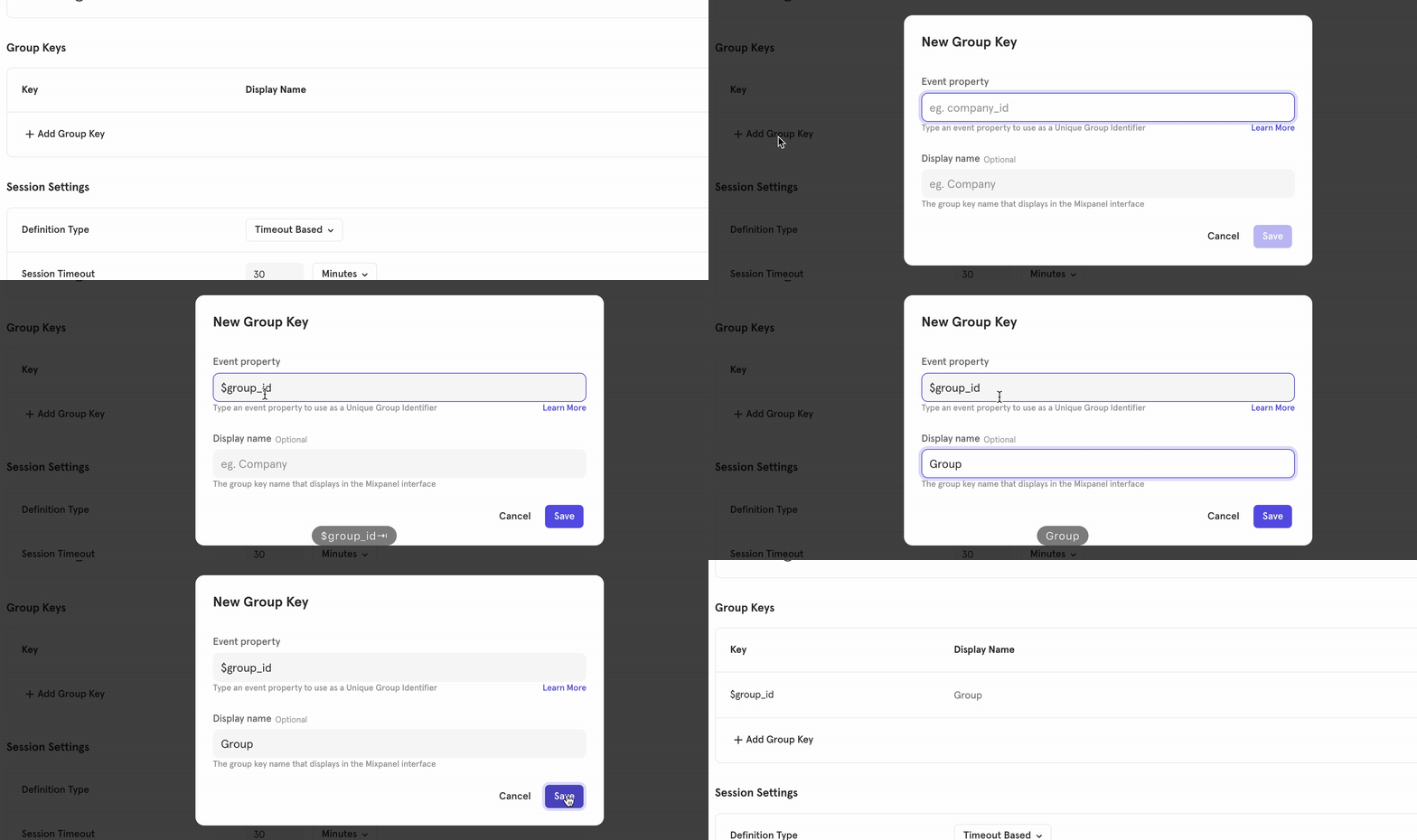
If you already have a group set up in Mixpanel with a different group key and wish to use that one, you can specify it in the Group Key field of the destination configuration.
In the classic destination, the "group ID" specified in the Segment SDK call was ignored and you were required to set a trait where the key of the trait is the group key and the value of that trait is the group ID. While that is no longer necessary, this behavior is supported in the Mixpanel (Actions) destination to ensure backwards-compatibility. If you specify a trait that matches specified group key, Mixpanel uses the value of that trait as the group ID.
1analytics.group("0e8c78ea9d97a7b8185e8632", {2name: "Initech",3industry: "Technology",4employees: 329,5plan: "enterprise",6"total billed": 8307});
The group ID that Mixpanel will use is 0e8c78ea9d97a7b8185e8632.
1analytics.group("0e8c78ea9d97a7b8185e8632", {2$group_id: "12345",3name: "Initech",4industry: "Technology",5employees: 329,6plan: "enterprise",7"total billed": 8308});
The group ID that Mixpanel will use is 12345.
Success!
The below special traits will be mapped to Mixpanel reserved properties automatically to fit Mixpanel's use cases. traits.name -> $name.
Send an event to Mixpanel. Learn more about Events in Mixpanel
Track Event is a Cloud action. The default Trigger is type = "track"
The name of the action being performed.
Optional
A distinct ID specified by you.
Optional
A distinct ID randomly generated prior to calling identify.
Optional
The distinct ID after calling identify.
Optional
The unique identifier of the group that performed this event.
Optional
A random id that is unique to an event. Mixpanel uses $insert_id to deduplicate events.
Optional
The timestamp of the event. Mixpanel expects epoch timestamp in millisecond or second. Please note, Mixpanel only accepts this field as the timestamp. If the field is empty, it will be set to the time Mixpanel servers receive it.
Optional
The name of your application.
Optional
The namespace of your application.
Optional
The current build of your application.
Optional
The current version of your application.
Optional
The name of the mobile operating system or browser that the user is using.
Optional
The version of the mobile operating system or browser the user is using.
Optional
A unique identifier for the device the user is using.
Optional
The type of the user's device.
Optional
The name of the user's device.
Optional
The device manufacturer that the user is using.
Optional
The device model that the user is using.
Optional
Whether bluetooth is enabled.
Optional
The carrier that the user is using.
Optional
Whether cellular is enabled.
Optional
Set to true if user’s device has an active, available Wifi connection, false if not.
Optional
The current country of the user.
Optional
The current region of the user.
Optional
The language set by the user.
Optional
The name of the SDK used to send events.
Optional
The version of the SDK used to send events.
Optional
The IP address of the user. This is only used for geolocation and won't be stored.
Optional
Identifier for Advertiser. (iOS)
Optional
The full URL of the webpage on which the event is triggered.
Optional
Width, in pixels, of the device screen.
Optional
Height, in pixels, of the device screen.
Optional
Pixel density of the device screen.
Optional
Referrer url
Optional
User agent
Optional
Advertising ID
Optional
Ad Tracking Enabled (true or false)
Optional
The event timezone
Optional
The App Platform, if applicable
Optional
The Event Original Name, if applicable
Optional
An object of key-value pairs that represent additional data to be sent along with the event.
Optional
UTM Tracking Properties
Optional
Set as true to ensure Segment sends data to Mixpanel in batches.
Optional
Maximum number of events to include in each batch. Actual batch sizes may be lower.
Optional
The user agent data of device sending the event
Set the user ID for a particular device ID or update user properties. Learn more about User Profiles and Identity Management.
Identify User is a Cloud action. The default Trigger is type = "identify"
Optional
The IP address of the user. This is only used for geolocation and won't be stored.
Optional
The unique user identifier set by you
Optional
The generated anonymous ID for the user
Optional
Properties to set on the user profile
Success!
Segment maps the userId set in the Identify event to the distinct ID in Mixpanel.
Segment also maps the following traits to Mixpanel reserved properties to fit Mixpanel's use cases: traits.created -> $created, traits.email -> $email, traits.firstName -> $first_name, traits.lastName -> $last_name, traits.name -> $name, traits.username -> $username and traits.phone -> $phone.
For more detail, see Mixpanel's documentation on Reserved Properties.
For example, if you map traits.email to Mixpanel, Segment automatically transforms this into Mixpanel's reserved property $email.
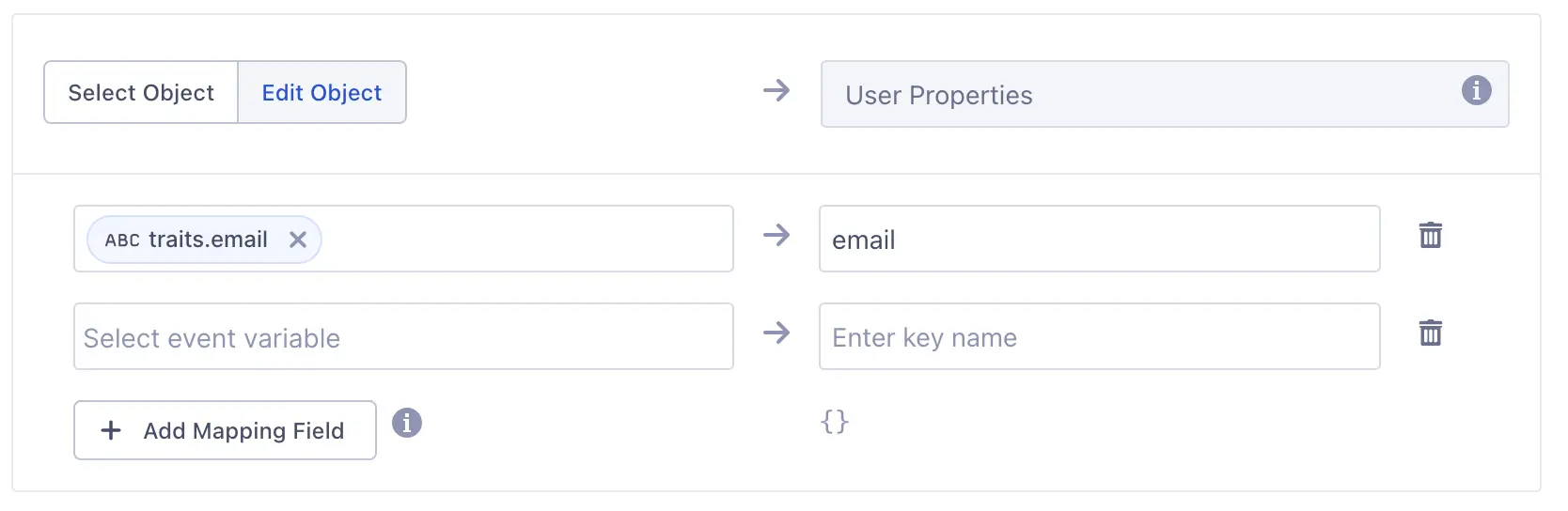
Send an 'Order Completed' Event to Mixpanel.
Track Purchase is a Cloud action. The default Trigger is type = "track"
Optional
When enabled, send "Product Purchased" with each product within the event.
Optional
A distinct ID specified by you.
Optional
A distinct ID randomly generated prior to calling identify.
Optional
The distinct ID after calling identify.
Optional
The unique identifier of the group that performed this event.
Optional
A random id that is unique to an event. Mixpanel uses $insert_id to deduplicate events.
Optional
The timestamp of the event. Mixpanel expects epoch timestamp in millisecond or second. Please note, Mixpanel only accepts this field as the timestamp. If the field is empty, it will be set to the time Mixpanel servers receive it.
Optional
The name of your application.
Optional
The namespace of your application.
Optional
The current build of your application.
Optional
The current version of your application.
Optional
The name of the mobile operating system or browser that the user is using.
Optional
The version of the mobile operating system or browser the user is using.
Optional
A unique identifier for the device the user is using.
Optional
The type of the user's device.
Optional
The name of the user's device.
Optional
The device manufacturer that the user is using.
Optional
The device model that the user is using.
Optional
Whether bluetooth is enabled.
Optional
The carrier that the user is using.
Optional
Whether cellular is enabled.
Optional
Set to true if user’s device has an active, available Wifi connection, false if not.
Optional
The current country of the user.
Optional
The current region of the user.
Optional
The language set by the user.
Optional
The name of the SDK used to send events.
Optional
The version of the SDK used to send events.
Optional
The IP address of the user. This is only used for geolocation and won't be stored.
Optional
Identifier for Advertiser. (iOS)
Optional
The full URL of the webpage on which the event is triggered.
Optional
Width, in pixels, of the device screen.
Optional
Height, in pixels, of the device screen.
Optional
Pixel density of the device screen.
Optional
Referrer url
Optional
User agent
Optional
Advertising ID
Optional
Ad Tracking Enabled (true or false)
Optional
The event timezone
Optional
The App Platform, if applicable
Optional
The Event Original Name, if applicable
Optional
An object of key-value pairs that represent additional data to be sent along with the event.
Optional
UTM Tracking Properties
Optional
Set as true to ensure Segment sends data to Mixpanel in batches.
Optional
Maximum number of events to include in each batch. Actual batch sizes may be lower.
Optional
The user agent data of device sending the event
Optional
Products in the order.
The name of the action being performed.
When Generate Purchase Event Per Product is set to true, this setting effectively "flattens" the array of objects in the Order Completed's products property by tracking a Product Purchased event for each item in the array. This enables a more sophisticated analysis on a per-product basis in Mixpanel. These Product Purchased events will contain all of the key-value pairs from their respective object in the products array as event properties, along with the order_id and checkout_id from the Order Completed event.
Increment the value of a user profile property. Learn More.
Increment Properties is a Cloud action. The default Trigger is type = "track"
Optional
The IP address of the user. This is only used for geolocation and won't be stored.
Optional
The unique user identifier set by you
Optional
The generated anonymous ID for the user
Object of properties and the values to increment or decrement. For example: `{"purchases": 1, "items": 6}}.
Anonymous ID format
Mixpanel requires that values it receives for the anonymous identifier (anonymousId in Segment) must be in the UUID v4 format. Analytics.js sends anonymousId in this format by default. If you manually send anonymous identifiers to Mixpanel, ensure they are in the correct format.
Assuming you're already using Segment Cloud-mode, the Mixpanel (Actions) destination is expected to have no breaking changes when upgrading. With the exception of a few new properties added to your events in the new Actions destination, there should be no difference in the data received in Mixpanel when using either of the Mixpanel destinations.
If you want to confirm, you can configure the new destination to point to a different Mixpanel project and connect it to the same source(s) as the Classic destination and manually verify before fully switching over.
Info
Contact Mixpanel support if you find features missing from the Mixpanel (Actions) destination that were available in the classic Mixpanel destination.
Mixpanel settings mapping
| Mixpanel Classic Destination Setting | How to enable in Mixpanel (Actions) |
|---|---|
| CONNECTION SETTINGS | |
API Secret clouddevice-webdevice-mobile | Global Settings The setting is called |
Token clouddevice-webdevice-mobile | Global Settings The setting is called |
| EVENT TRACKING | |
Track All Pages to Mixpanel with a Consolidated Event Name clouddevice-web | Subscription Page Calls When enabled, Mixpanel (Actions) tracks all Page calls as |
| TRAITS & PROPERTIES | |
Group Identifier Traits clouddevice-webdevice-mobile | Subscription Group Calls When enabled, you can set the group key as you specified in Mixpanel under Project settings to the |
Traits to set as People Properties clouddevice-webdevice-mobile | Subscription Identify Calls When enabled, Mixpanel (Actions) maps Traits as People Properties by default. You can change it by updating the |
| IDENTITY RESOLUTION | |
| OTHER SETTINGS | |
Enable European Union Endpoint clouddevice-webdevice-mobile | Global Settings The setting is called |
Source Name clouddevice-webdevice-mobile | Global Settings The setting is called |
If the Mixpanel (Actions) destination uses $group_id as the group key, ensure that the mappings handling your track events have the field for Group ID mapped to a valid value. By default, this field maps to the event variable context.groupId.
To send Track events with a custom Group key, include the key as a property of Track events. For example:
analytics.track('Example Event', { custom_group_key : 'group1' });
If your integration is correct and you are still seeing failed events, review and verify that you are sending all date properties as UTC time format, due to Mixpanel timestamp format requirements.
Segment maps the messageId of a Segment event to Mixpanel's insert_id value. If you are generating your own messageId, ensure the format complies with Mixpanel's insert_id requirements. For more information, see Mixpanel's Import Events documentation.
Failing to generate a messageId that complies with Mixpanel's insert_id standard might result in a 400 Bad Request error from Mixpanel.
If you are seeing traffic from Boardman or see Segment as the browser, you might be sending server side calls to your Mixpanel (Actions) destination. To correctly populate your users' profile location field, manually pass the IP information in the context object from the server.
Mixpanel captures the Operating System field from the "OS Name" field in Segment. For Analytics.js sources, ensure that context.userAgentData.platform is correctly mapped to the "OS Name" field in your destination mappings. If this mapping is missing or misconfigured, the Operating System field may appear empty in Mixpanel.