Acoustic (Actions) Destination
Acoustic Connect provides multichannel marketing without all the hassle. Automate campaigns and messages across SMS, mobile push, group messaging, email, and social media based on real-time customer signals and intent across the customer journey.
Trigger promotional and transactional messages based on customer preferences and behaviors to support onboarding, customer activation, cross-sell, and re-engagement strategies. Scale personalization and treat your customers as individuals with an automated view and understanding of the customer by pulling real-time behavior like intent so marketers don't have to manually segment users and audiences.
The Acoustic (Actions) Destination is maintained by Acoustic. For support, visit the Acoustic Help Center.
- From the Segment web app, click Catalog, then click Destinations.
- Find the Destinations Actions item "Acoustic (Actions)" in the left navigation, and click it.
- Click Configure Acoustic (Actions).
- Select an existing source to connect to Acoustic (Actions).
Use your Acoustic Org name but replace any spaces with an underscore, eg., AcmeCustomer_Prod
S3 Access Key for the S3 bucket.
The Alias of the Access Point created for your access to the S3 Bucket.
Should always be us-east-1 unless directed by Acoustic otherwise.
S3 Secret credential for the S3 bucket.
Optional
Last-Modified: 02.01.2024 10.30.43
Acoustic (Actions) has the following presets
| Preset Name | Trigger | Default Action |
|---|---|---|
| Identify Calls | Event type = "identify" | Send Events |
| Track Calls | Event type = "track" | Send Events |
Build your own Mappings. Combine supported triggers with the following Acoustic-supported actions:
Mapping limits per destination
Individual destination instances support a maximum of 5 mappings.
Send Segment identify() and track() events to Acoustic Connect. At least one of the following optional fields should be populated: Key-Value pairs, Arrays, Context, Properties, Traits.
Send Events is a Cloud action.
Optional
Map simple Key-Value pairs (optional)
Optional
If the data needed is in an array, use this section to Map Array data into useable attributes (optional)
Optional
If the data is present in a Context section, use this to map the attributes of a Context Section (optional)
Optional
If the data is present in a Properties section, use this to map the attributes of a Properties Section (optional)
Optional
If the data is present in a Traits section, use this to map the attributes of a Traits Section (optional)
The field to be used to uniquely identify the Recipient in Acoustic. This field is required with Email preferred but not required.
Do Not Modify - The type of event. e.g. track or identify, this field is required
Do Not Modify - The timestamp for when the event took place. This field is required
For some configuration options, you will need information from your Connect Org. Others will need the help of your Customer Success and/or Services resources. If you do not recognize the options here or need help, reach out to your Acoustic Customer Success or Services resource for help.
- Name: Enter a name to help you identify this destination definition in Segment.
- Customer Prefix: Important - Segment recommends that you use your Acoustic Connect Org name and a dataflow tag, like CustomerAcme_Prod_ or CustomerAcme_test1_ or CustomerAcme_MktData3_. Be sure to replace any spaces with an underscore and be sure to end the string with an underscore '_'.
Info
Work with your Acoustic Customer Success or Services resource to align this string with the Acoustic definition that defines your unique table for this data set.
- S3 Bucket Access Point Alias: The Alias of the Access Point created for your access to the S3 Bucket. Available from your Acoustic Customer Success or Services resource.
- S3 Access Key: S3 Access Key for the S3 bucket. Available from your Acoustic Customer Success or Services resource.
- S3 Secret S3 Secret credential for the S3 bucket. Available from your Acoustic Customer Success or Services resource.
- S3 Region: Should always be
us-east-1unless directed by Acoustic otherwise. - Version: No Need to Edit - Provides a metatag to confirm the version currently in effect. The current version is shown as: "Last-Modified: 02.01.2024 10.30.43", "Version 1.7"
When all config options are defined and confirmed, as well as all Filter and Mapping configurations completed (see below), be sure to "Enable" and "Save Changes" for the Destination.
When enabled, Segment will send data to Acoustic (Actions) based on configuration in the Mappings tab.
Info
You can define multiple destinations to send unique data to different Connect Tables, simply create the definition with a unique name and Customer Prefix to align the mapped data to the respective Connect table.
The Destination dialog includes a Filter tab. If you have a significant volume of Events and data attributes from the source you wish to use, a good first step would be to define Filter(s) to limit the data being sent to the connection from the defined source(s). Mapping is then used to define the specific set of attribute data and columns to be written to Acoustic.
For example, for a Connection definition of an audience source, a traits.email or similar attribute filter would be necessary to assure only Identify Events with a valid value in the traits section (to be mapped to UniqueRecipientId) will be sent to the Acoustic Destination.
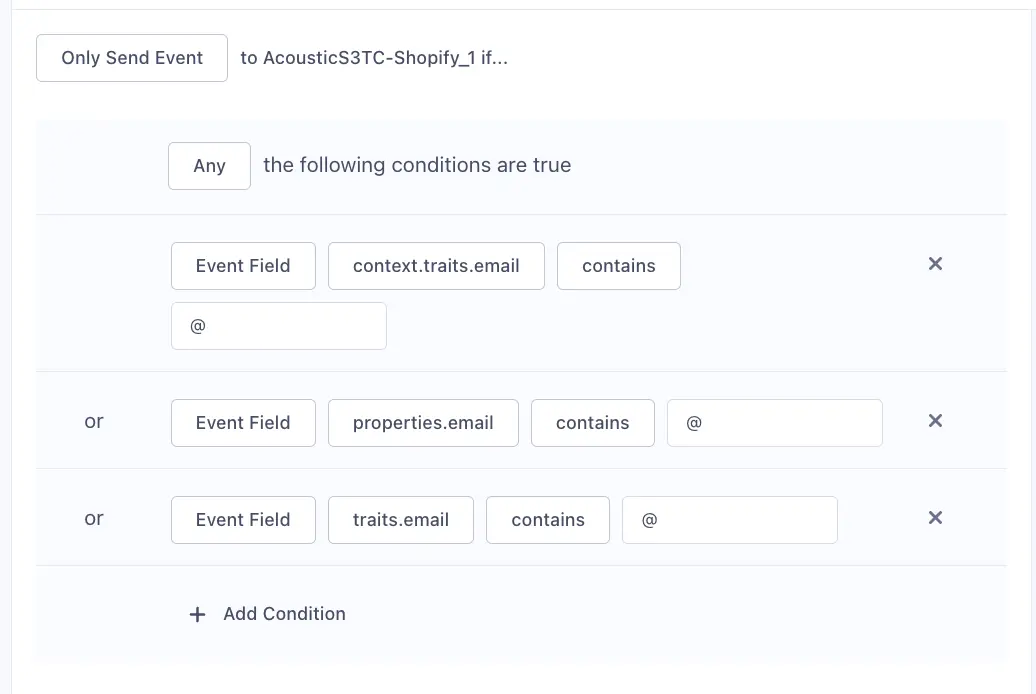
Keep in mind that the Acoustic (Actions) Destination ignores events without a valid UniqueRecipientId attribute, therefore a common filter would be to avoid sending any events to the connection that don't have a valid attribute to be mapped to UniqueRecipientId. In many cases, this will be a valid email address but other Unique Id attribute, such as CustID, can be used.
The Destination dialog also contains a Mapping tab. The Acoustic (Action) Destination supports Segment Track and Identify Events along with all attributes of those events. In the Mapping dialog, initial Mapping templates are included as an aid. All of the provided mapping fields are optional, but you'll need to use at least one, in addition to the required attributes, to map the data you want to write to Acoustic Connect.
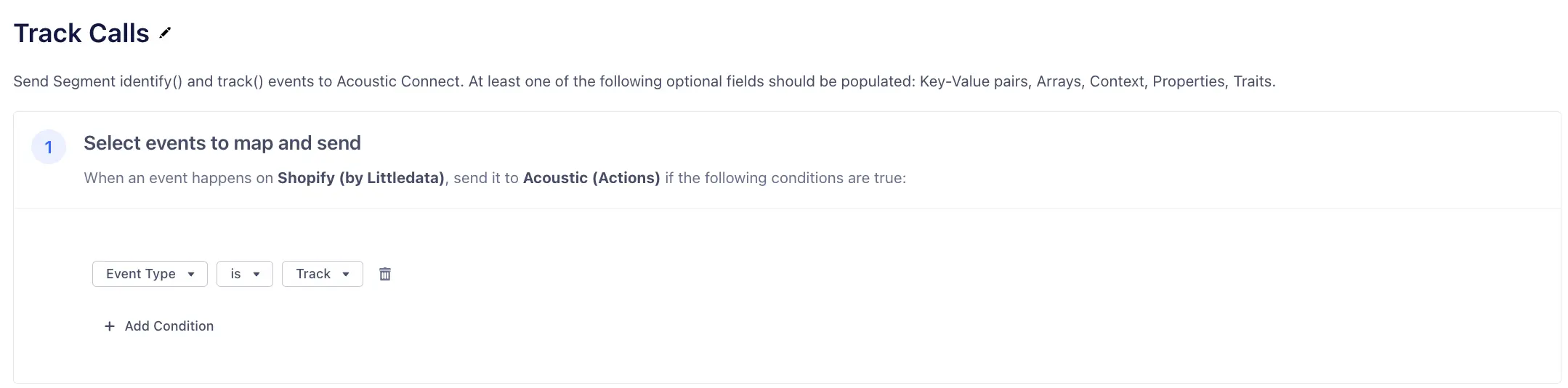
Mapping provides the means to map Segment event data to Connect Columns. The value you map to a key is the value of the column with the same name as the key in Connect. That is, if you map the value of trait.firstName to the Key "firstname", the value mapped will show up in Connect in the column "firstname".
You'll want to work with the Acoustic Services team to define a Connect Table that will have all of the columns you intend to map. The details of this table are also needed in the Destination's Settings dialog.
Here we can see the mapping for UniqueRecipientID. UniqueRecipientId is required. The Acoustic (Actions) Destination will not accept any event that does not contain a UniqueRecipientId attribute.
Avoid editing 'type' or 'timestamp' mappings. These are required and pre-mapped. As noted above, even these values will show up in the respective columns as the Key names, that is, there will be a column in your table in Connect of 'type' and 'timestamp', and each will hold the respective mapped values of the event data.
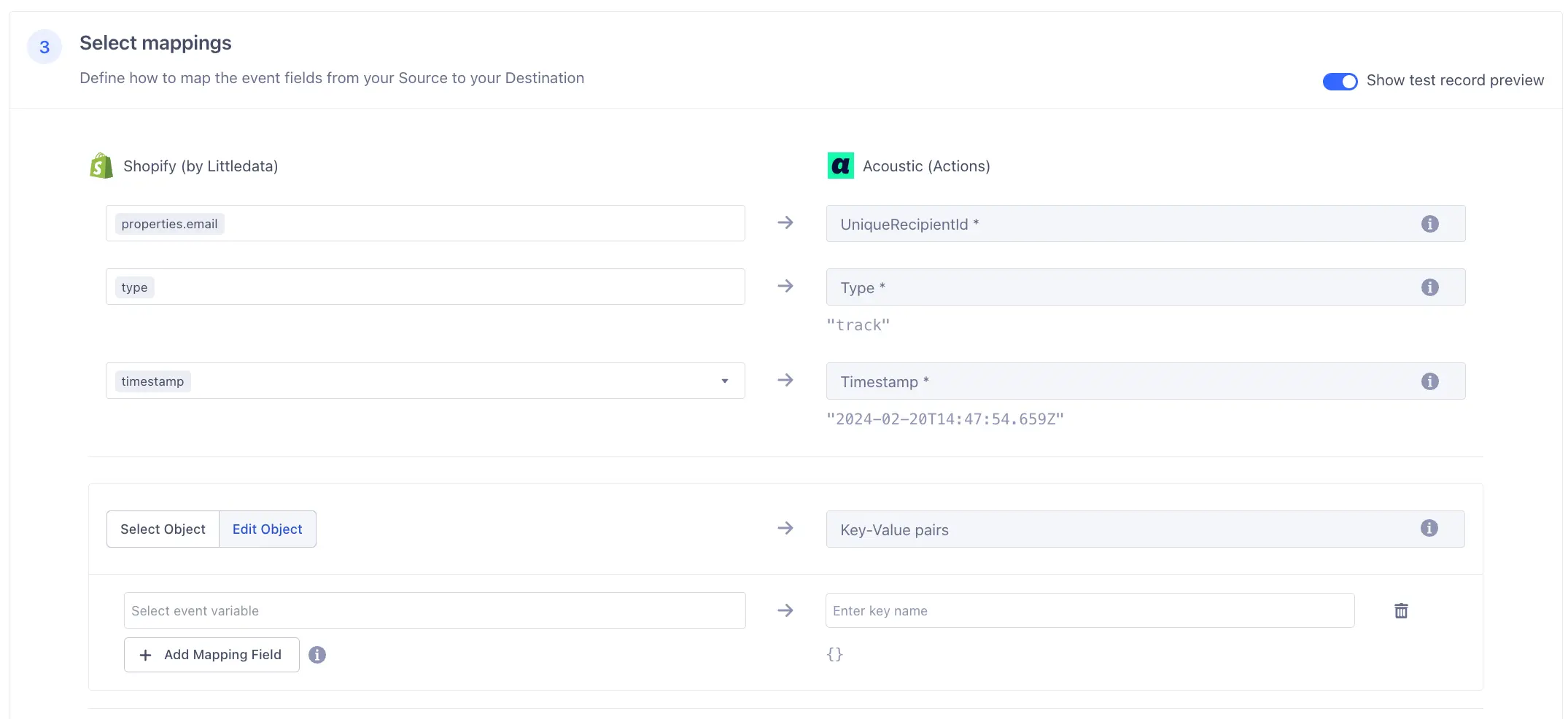
Following the required attributes are a series of helpful predefined mapping structures. Each of these are optional, but at least one must be used to provide data beyond the required attributes previously noted.
The first is a standard Key and Value mapping dialog. You can use this dialog to map each attribute provided by the Track or Identify event data one by one. That is, you can map traits.firstname to "firstname", then another Key/Value of traits.lastname to "lastname", and so on, until you have mapped all that you want to store in Connect.
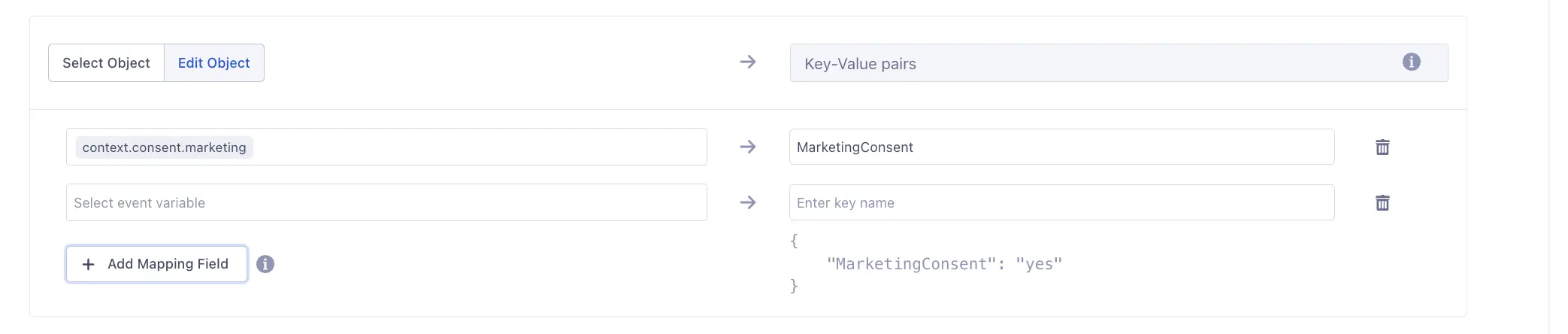
The mapping sections that follow allow you to map whole sections or even the special use-case of an array of data that needs to be flattened in order to be useful, as in this example of flattening the properties.products array to individual attributes.
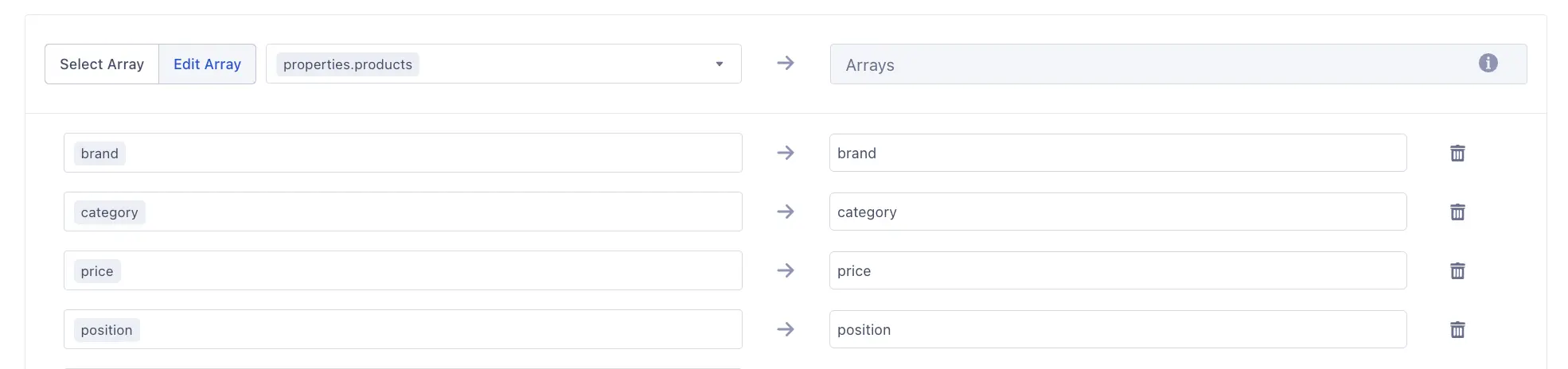
You can also map whole sections, which will provide all of the attributes of the section mapped through to Connect.
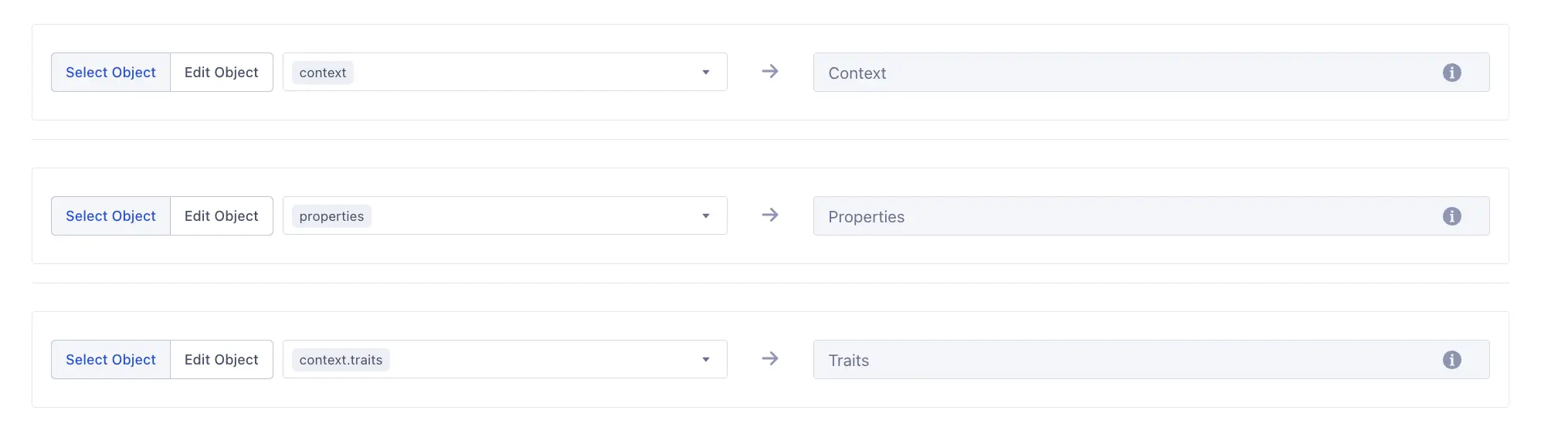
With the Mapping completed, click Save.
With all configuration completed, you'll want to confirm data being written to the defined Table in Connect.
Additionally, if you see Nesting Depth Exceeded in your Delivery report, this indicates that an array of data is being sent through that is too deep. In other words, the array has too many levels and cannot be flattened. In this case, you'll need to revisit mapping that data to a flatter structure, that is, the attribute has a simple value versus the complex value structure that is coming through. Complex values, many layered values, are not useable and will not be accepted.

You can send computed traits and audiences generated using Engage to this destination as a user property. To learn more about Engage, schedule a demo.
For user-property destinations, an identify call is sent to the destination for each user being added and removed. The property name is the snake_cased version of the audience name, with a true/false value to indicate membership. For example, when a user first completes an order in the last 30 days, Engage sends an Identify call with the property order_completed_last_30days: true. When the user no longer satisfies this condition (for example, it's been more than 30 days since their last order), Engage sets that value to false.
When you first create an audience, Engage sends an Identify call for every user in that audience. Later audience syncs only send updates for users whose membership has changed since the last sync.
Real-time to batch destination sync frequency
Real-time audience syncs to Acoustic (Actions) may take six or more hours for the initial sync to complete. Upon completion, a sync frequency of two to three hours is expected.
Segment lets you change these destination settings from the Segment app without having to touch any code.
Use your Acoustic Org name but replace any spaces with an underscore, eg., AcmeCustomer_Prod
customer_org_S3 Access Key for the S3 bucket.
The Alias of the Access Point created for your access to the S3 Bucket.
Should always be us-east-1 unless directed by Acoustic otherwise.
us-east-1S3 Secret credential for the S3 bucket.
Optional
Last-Modified: 02.01.2024 10.30.43
Version 2.3