StackAdapt Audiences Destination
Beta
This feature is in active development and may change before general availability.
StackAdapt is a leading programmatic advertising platform designed to maximize audience engagement. It enables marketers to run high-performing, cross-channel campaigns through real-time bidding, advanced audience targeting, and powerful data-driven insights.
With the Engage integration, you can seamlessly sync your Engage Audiences and user data with StackAdapt to refine targeting precision and drive stronger campaign performance.
This destination is maintained by StackAdapt. For any issues with the destination, submit a ticket to StackAdapt's support team.
Getting your StackAdapt GraphQL token
If you do not have an existing StackAdapt read and write API key, contact the StackAdapt team.
- In your Segment workspace, navigate to Connections > Catalog > Destinations.
- Search for and select "StackAdapt Audiences".
- Click Add Destination.
- Select an existing Engage space source to connect to the StackAdapt Audience destination.
- On the Settings screen, enter a name for your destination.
- Provide your StackAdapt GraphQL API token.
- Input the ID of the advertiser you want to sync the audience with. You can find the advertiser ID in StackAdapt.
- Toggle the destination on using Enable Destination.
- Click Save Changes.
In StackAdapt, go to Execute (or Overview) and click Advertiser.
From the Filter section, select the advertiser. The advertiser ID appears in the URL after advertiser=.
To sync an Engage audience with StackAdapt:
Each Engage audience should only contain profiles that have a valid email address. Profiles missing an email address are not valid on StackAdapt's platform.
- Go to Engage > Audiences and select the audience you would like to sync.
- Scroll to the destinations section and add the StackAdapt Audience destination.
- Under the Connection settings section, enable Send Identify.
- Under Event settings, select Customized Setup to choose the list of profile traits you want to sync.
- Add email as an identifier.
- Add traits as needed. Note that you should set up corresponding mappings for the fields in step 9 for the traits selected here if you want them to be imported.
- Click Save.
- Click on the StackAdapt Audience destination under the Destinations section.
- Under the Matching Mappings tab, click Add mapping and then select Sync Audience.
- Note: You don't have to set up both mappings. The mappings will be shared across all audiences that have sync enabled to this destination. You should create a new destination if you wish to use different mappings for different audiences.
- Define the event trigger: Ensure the Event Type is
TrackorIdentify. - Map fields:
- (Required:) Select a default value for
Marketing Status. - (Required:) Confirm that you have a valid source field for
Email. - Select the source field for
Standard User Properties. Ensure the source field matches the profile traits selected in step 4. You can learn more about the field format by hovering over the info icon of the field. - Follow the Destinations Actions documentation to customize mappings.
- (Required:) Select a default value for
Trait synchronization
Both Custom, Computed, and Consent Traits are mapped and included in the initial data synchronization. However, for ongoing updates, please be aware that only Computed Traits will be updated within StackAdapt's Data Hub.
To verify that your audience syncs with StackAdapt, open StackAdapt and navigate to Audience & Attribution > Customer Data > Profiles. On the Profiles tab, you should be able to see a list of profiles being synced to the StackAdapt platform.
Syncs can take up to 4 hours
It can take up to 4 hours from the time you initiate a sync for profiles to show up in StackAdapt.
To create a StackAdapt audience from your Engage audience:
- Open StackAdapt and navigate to Audience & Attribution > Customer Data > Segments, then click Create Segment.
- Select the advertiser you have synced your audience to.
- Choose Profile Properties > Segment and select External Audience Name as the rule.
- Select a condition and enter the audience name as the filter.
- Click Submit to create the segment.
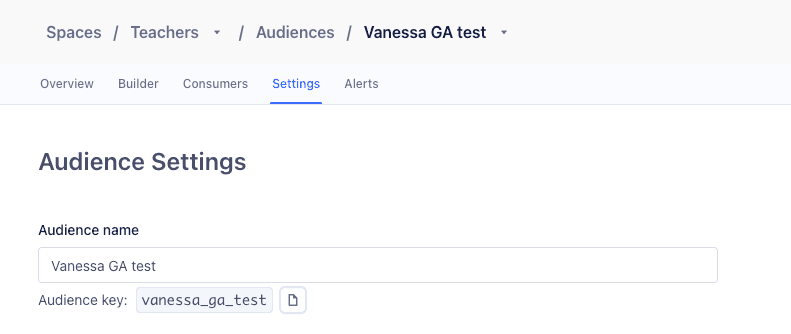
Audience name format
Use the snake_case name of the Segment Engage audience which can be found in Settings, shown in the following screenshot.
Review StackAdapt's Data Processing Agreement to learn more about StackAdapt's privacy and data terms.