Snap Audiences (Actions) Destination
Beta
This feature is in active development and may change before general availability.
Destination Info
- Accepts Track calls.
- Refer to it as Snap Audiences (Actions) in the Integrations object
- This integration is partner owned. Please reach out to the partner's support for any issues.
- This destination is in Beta
Snap Ads provides a way to target advertisements to a global audience and drive meaningful results.
This destination is maintained by Segment. For any issues with the destination, contact the Segment support team.
Warning
This page is about the Actions-framework Snap Ads Segment destination. See the Snapchat Audience destination documentation for the non-Actions Snap Ads destination.
Both destinations receive data from Segment.
Snap Audiences (Actions) provides the following benefits over the classic Snapchat Audience destination:
- Multiple concurrent identifiers. Email, phone number and Mobile Advertising IDs are supported concurrently. There's no need to select only one type of user identifier to sync with.
- Improved match rates. Improved match-rate when multiple identifiers per profile are synced.
- In Segment, go to Engage, and select your workspace.
- Navigate to Engage Settings and select the Destinations tab.
- Click Add destination.
- Search for "Snap Audiences (Actions)" and configure the destination.
- On the Snapchat Audiences configuration screen, click Connect to Snap Audiences (Actions). Log in to Snapchat with an account that has access to Ads Manager. Once authenticated, confirm the connection to Segment.
- Select the Snap Ads account to receive audience data. This account represents an advertising entity or business, and not your personal Snapchat user account. You might belong to several Ad Accounts; make sure to select the correct account. After the Ad Account is specified, the destination is active.
- In Segment, go to Connections > Destinations and find the Snap Audiences (Actions) Destinations you just created.
- Click on the Mappings tab, then New Mapping, then the Sync Audience Action. There should be no need to edit any of the Mapping fields, so click the Next button.
- Give the action a name, then click Save and Enable.
Next, add the Snapchat Audiences Destination to an existing Engage Audience.
-
Navigate to Engage > Audiences. Find and click on the Audience you'd like to sync.
-
Click Add destination.
-
The configured Snap Audiences (Actions) destination should appear in the Send as User List category of available destinations.
-
Provide values in the Audience Name and Audience Description fields.
-
Ensure that track is selected under Connection Settings. You can ignore the Send Mobile IDs as you can configure Mobile Advertising IDs in the next step.
-
Click on Customized Setup and add the identifiers you'd like to sync with. These should include one or more of:
email,phone,android.idfa,ios.idfa. If you choose to syncandroid.idfaand/orios.idfa, you must update the destination mappings to use underscores:android_idfaandios_idfa.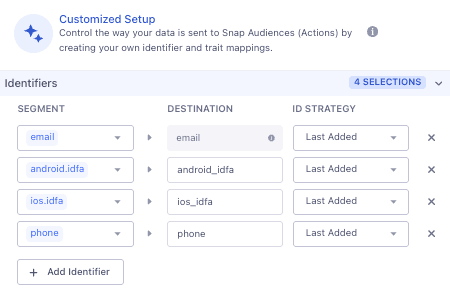
-
Click Save then Add 1 Destination.
Your audience should now be configured to sync to Snap Ads. The initial synchronization of audience data may take several hours, depending on the size of the audience. Once the initial sync occurs, you'll notice a new audience in the Snap Ads dashboard.
The ID of the Snap Ad Account
Snap Audiences (Actions) has the following presets
| Preset Name | Trigger | Default Action |
|---|---|---|
| Sync Engage Audience | Event type = "track", Event type = "identify" | Sync Audience |
Build your own Mappings. Combine supported triggers with the following Snap Audiences-supported actions:
Mapping limits per destination
Individual destination instances have support a maximum of 50 mappings.
Sync Engage Audiences to Snap
Sync Audience is a Cloud action. The default Trigger is type = "track"
Optional
If using phone as the identifier an additional setup step is required when connecting the Destination to the Audience. Please ensure that 'phone' is configured as an additional identifier in the Audience settings tab.
Optional
The user's email address.
Optional
If using Mobile Ad ID as the identifier an additional setup step is required when connecting the Destination to the Audience. Please ensure that 'ios.idfa' is configured to 'ios_idfa' and 'android.idfa' is configured to 'android_idfa' in the Audience settings tab.
The Snap Audience (Actions) destination supports syncing using email, phone number and Mobile Advertising IDs. email is the default identifier; other identifiers should be configured using ID Sync.
Mobile Advertising IDs need to be correctly configured using ID Sync. Note the underscores for android_idfa and ios_idfa.
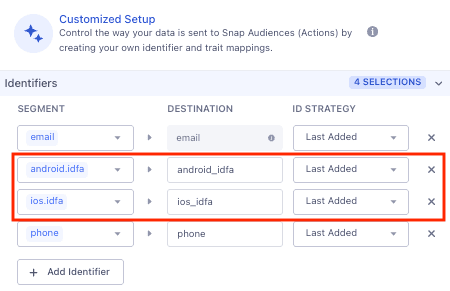
The field mapping for the Mobile Advertising ID field must also be correct. By default, it'll be configured as follows when the Mapping is created.
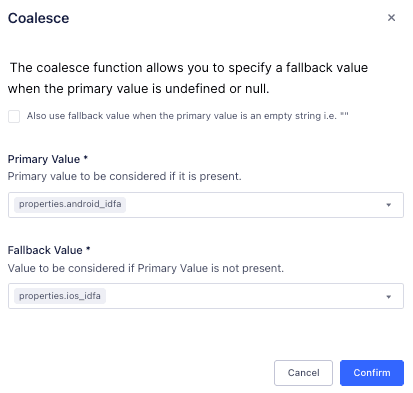
. Again, note the underscores for android_idfa and ios_idfa.
Ensure the following criteria are met:
- Your personal Snapchat login has appropriate permissions within your business. Snapchat Account Admin or Data Manager permissions are required to configure and add audiences.
- Your Snap Ads account is in
Activestatus.
The status is shown in the Event Delivery tool. When you view the audience, open the side bar which directs you to Event Delivery.
You can send computed traits and audiences generated using Engage to this destination as a user property. To learn more about Engage, schedule a demo.
For user-property destinations, an identify call is sent to the destination for each user being added and removed. The property name is the snake_cased version of the audience name, with a true/false value to indicate membership. For example, when a user first completes an order in the last 30 days, Engage sends an Identify call with the property order_completed_last_30days: true. When the user no longer satisfies this condition (for example, it's been more than 30 days since their last order), Engage sets that value to false.
When you first create an audience, Engage sends an Identify call for every user in that audience. Later audience syncs only send updates for users whose membership has changed since the last sync.
Real-time to batch destination sync frequency
Real-time audience syncs to Snap Audiences (Actions) may take six or more hours for the initial sync to complete. Upon completion, a sync frequency of two to three hours is expected.
Segment lets you change these destination settings from the Segment app without having to touch any code.
The ID of the Snap Ad Account